Skip to contentInstallation Tutorial
Welcome to the StarCast Platform! Please visit our official website https://www.xbhy.top/, click the "Download Product" button on the page to install the latest version of the platform client and start your excellent live streaming experience.
Open the link in your browser
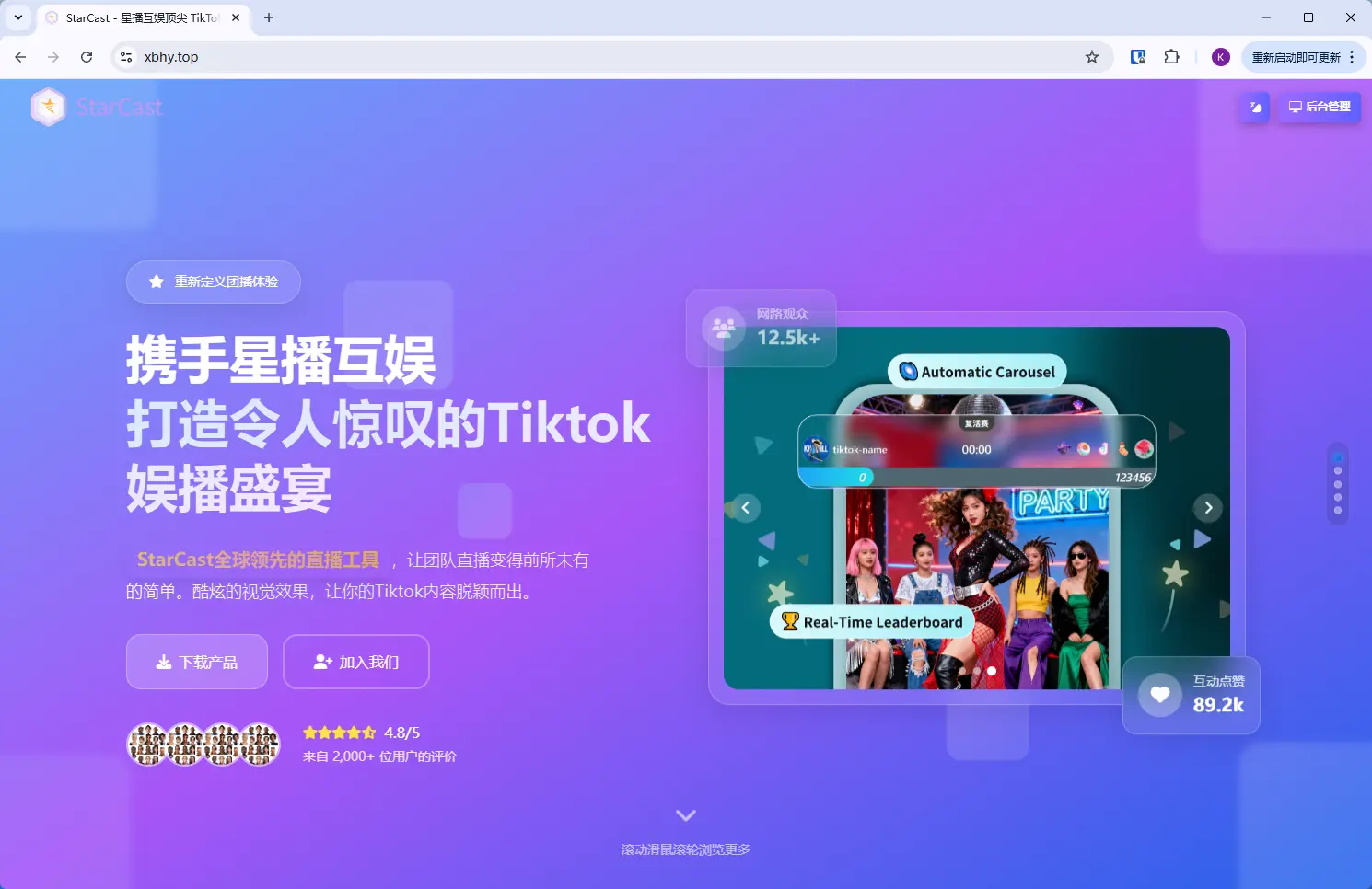
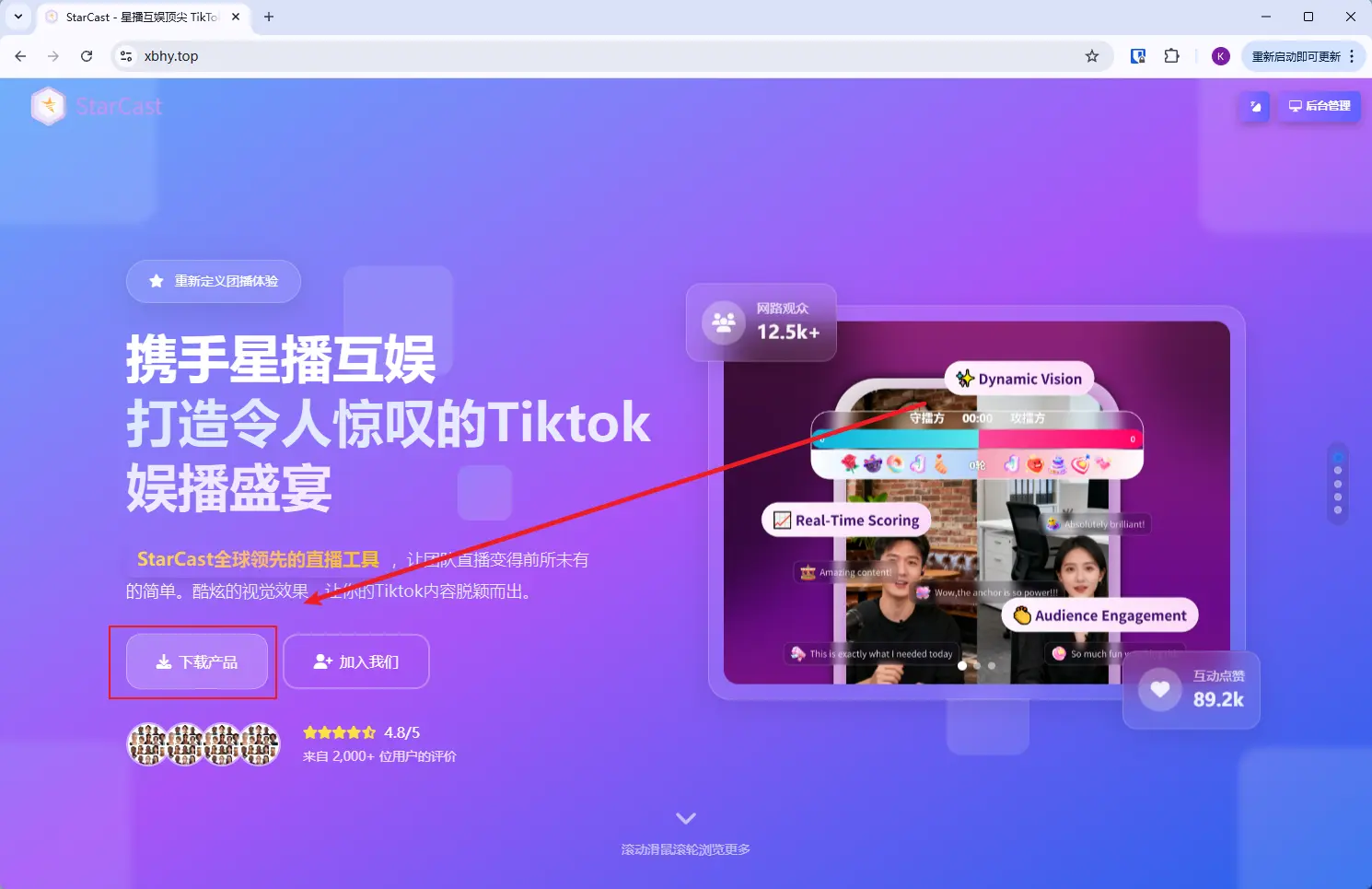
After opening, click "Download Product"
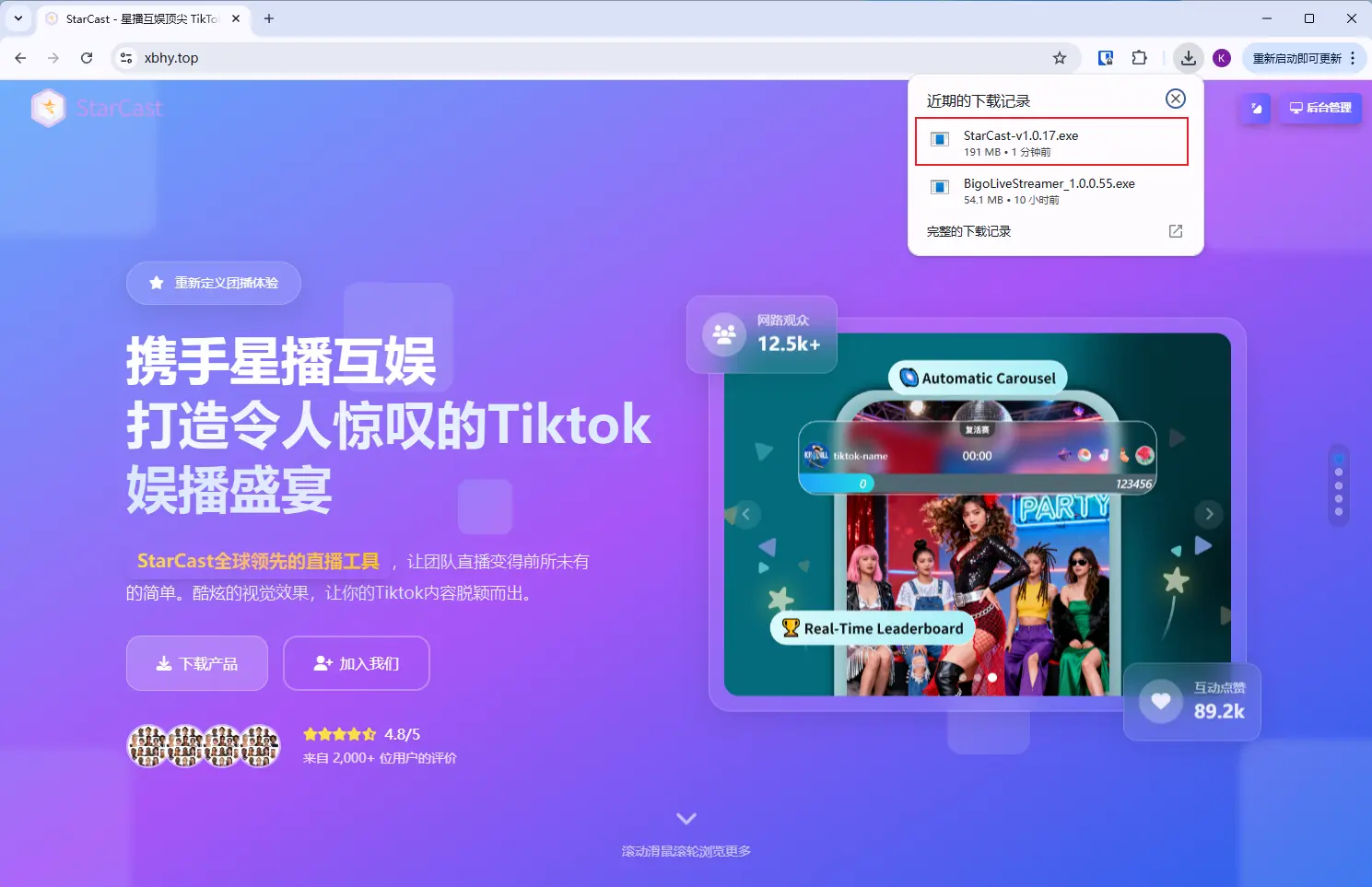
After downloading, double-click the installation package
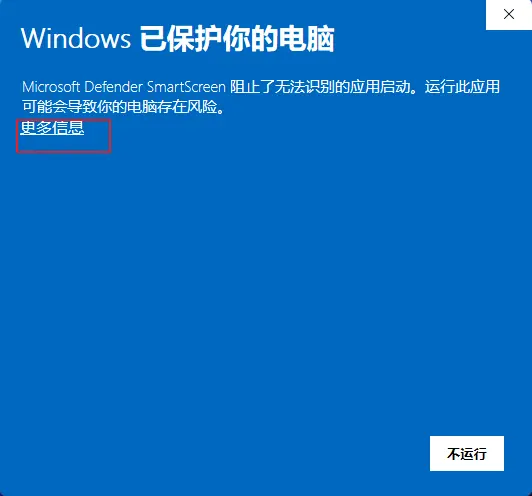
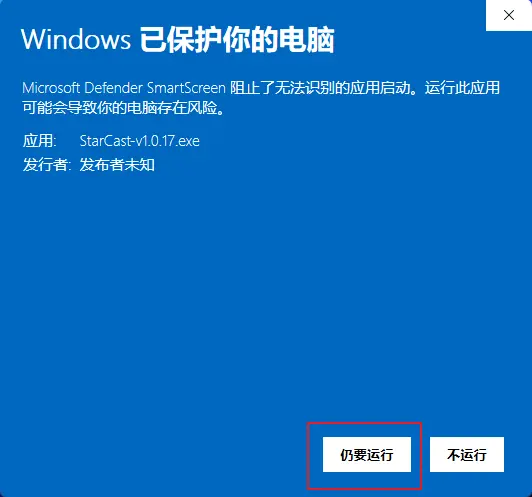
Click "More Info", then click "Run Anyway" (Skip if this page does not pop up)
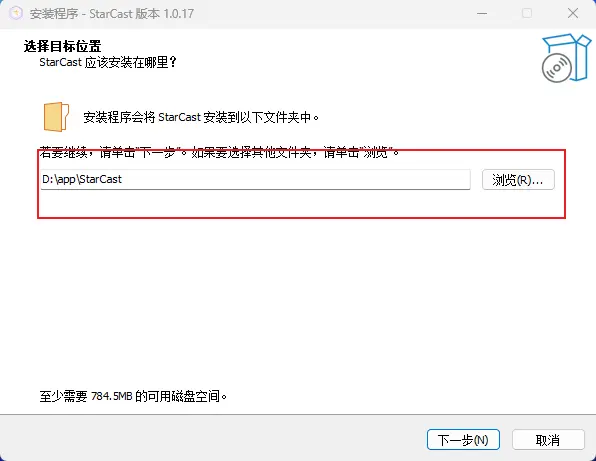
Select installation path (Recommended to install to D drive)
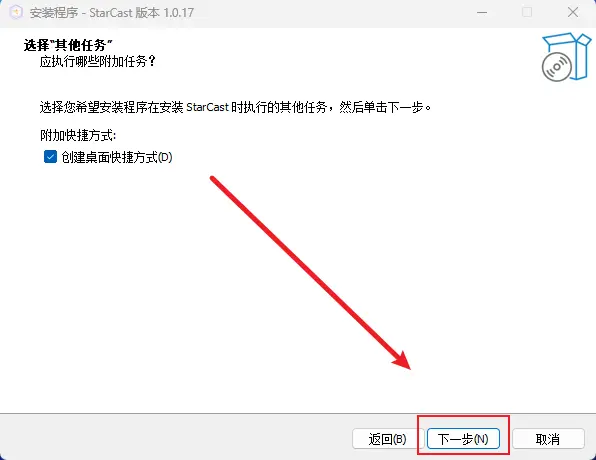
Click "Next"
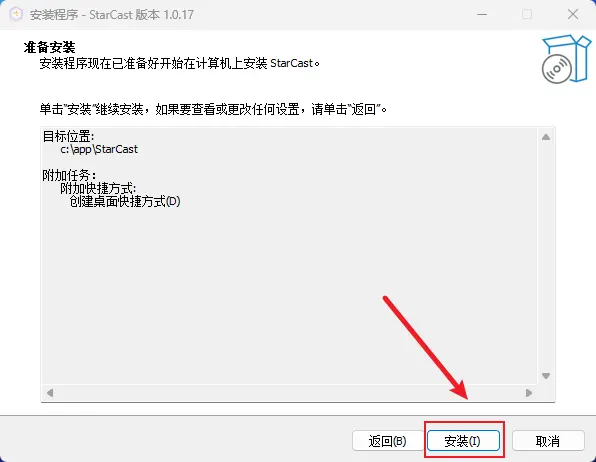
Click "Install"
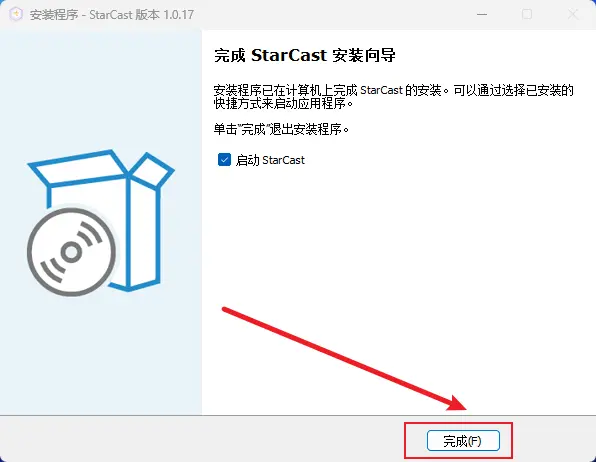
Click "Finish"
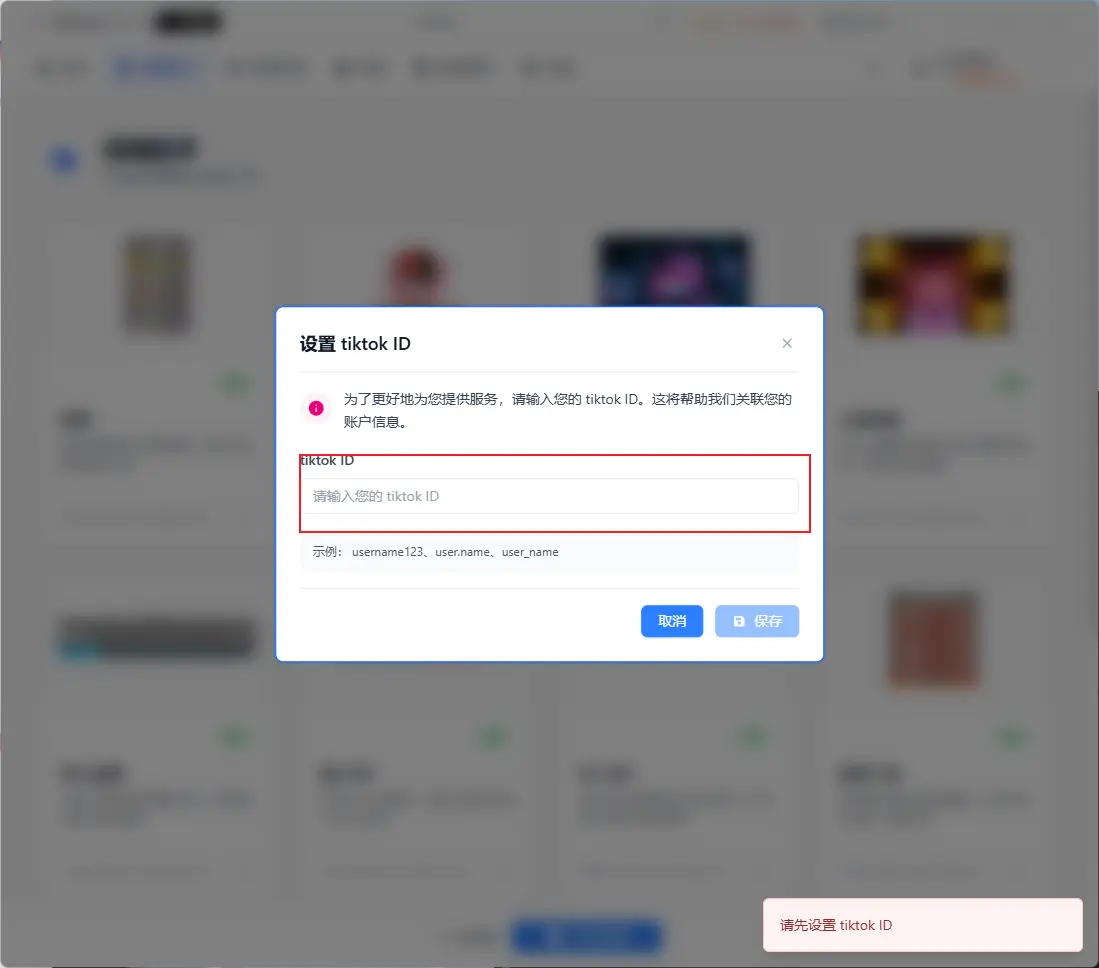
Bind the TikTok ID for broadcasting
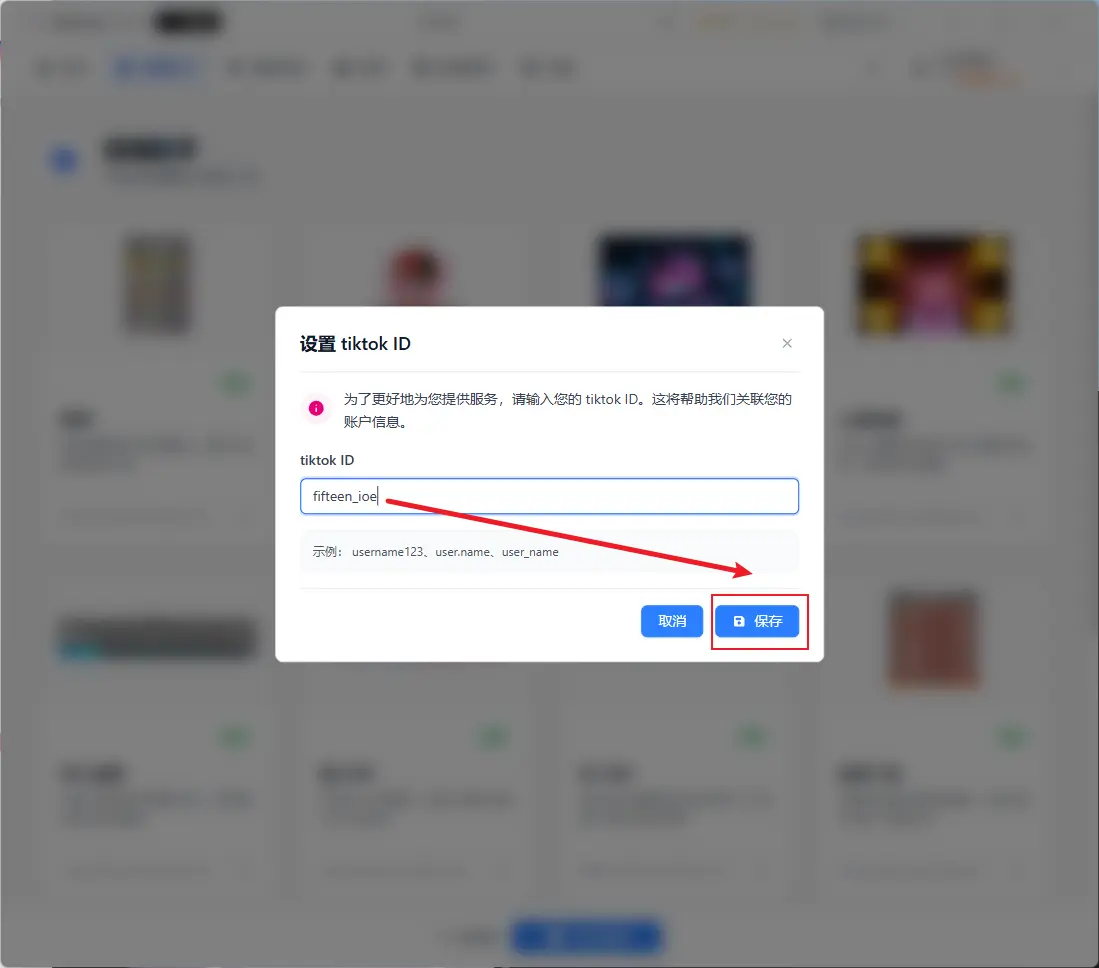
StarCast Assistant - TikTok
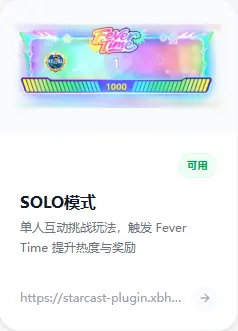
Solo Mode
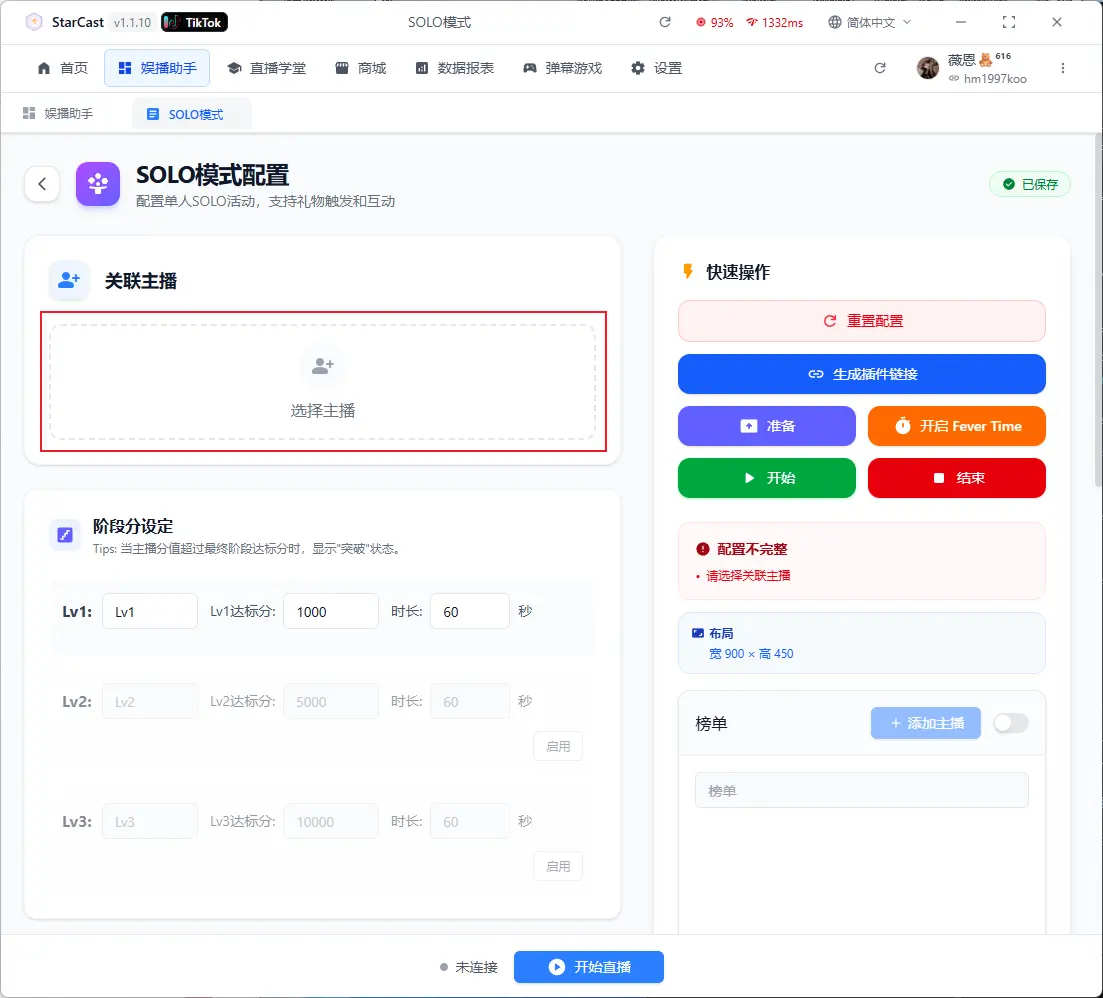
Add Streamer
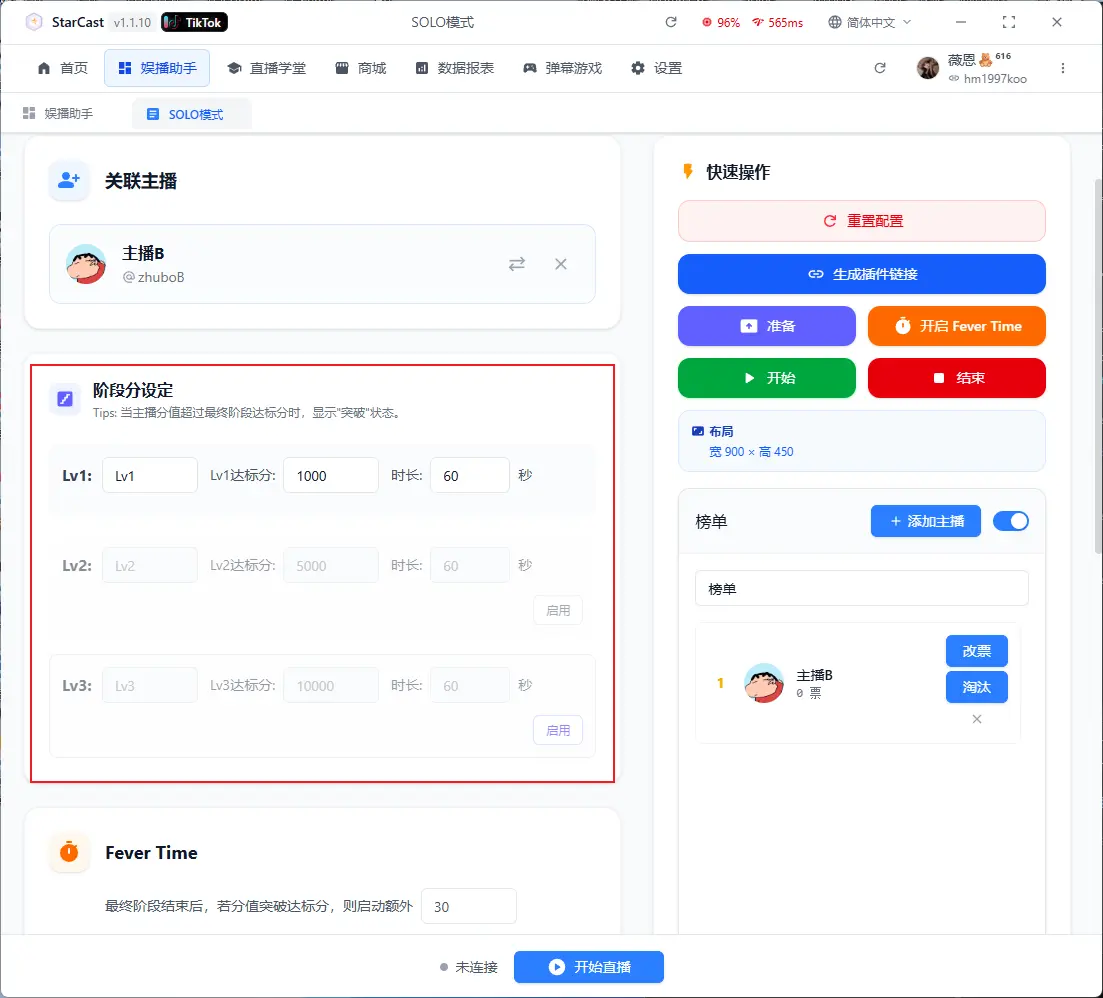
Set scores and time for each stage
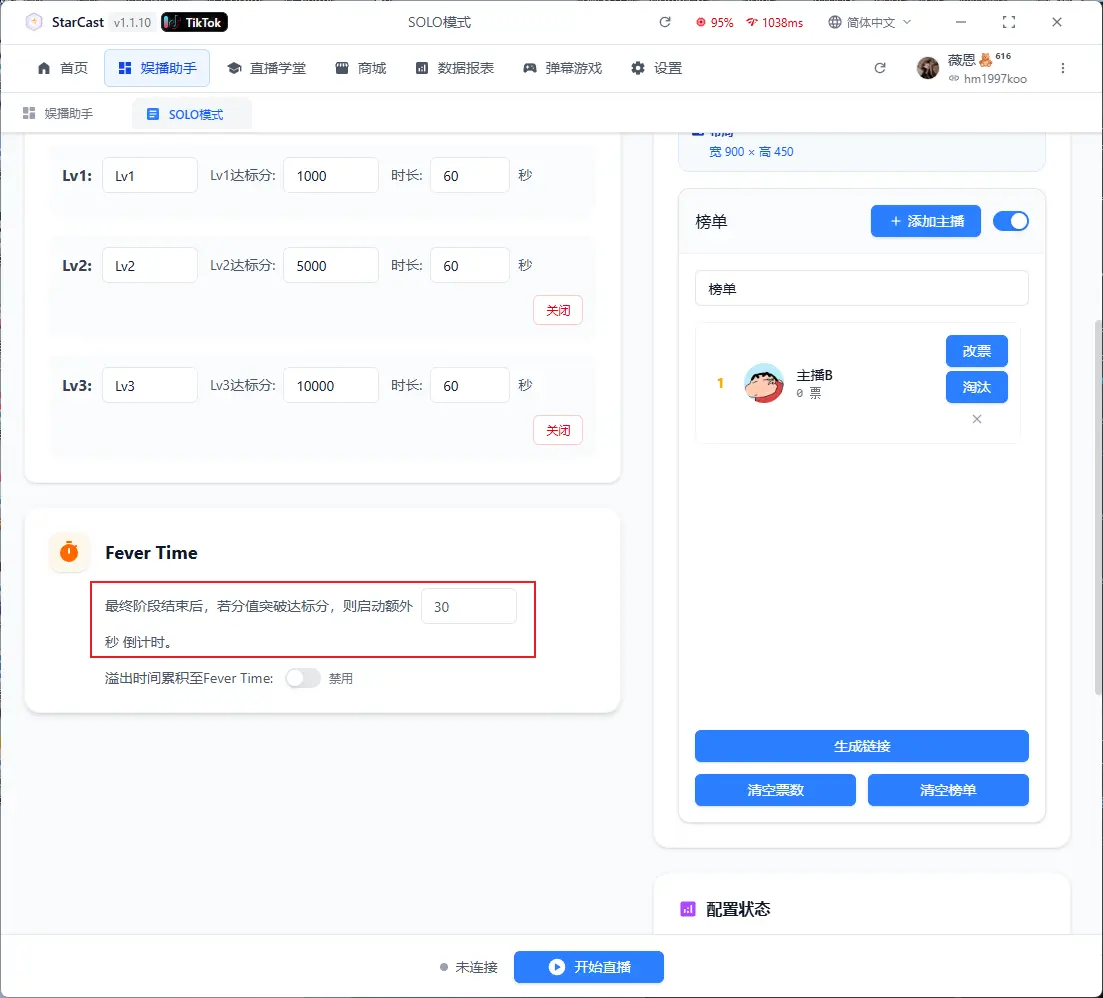
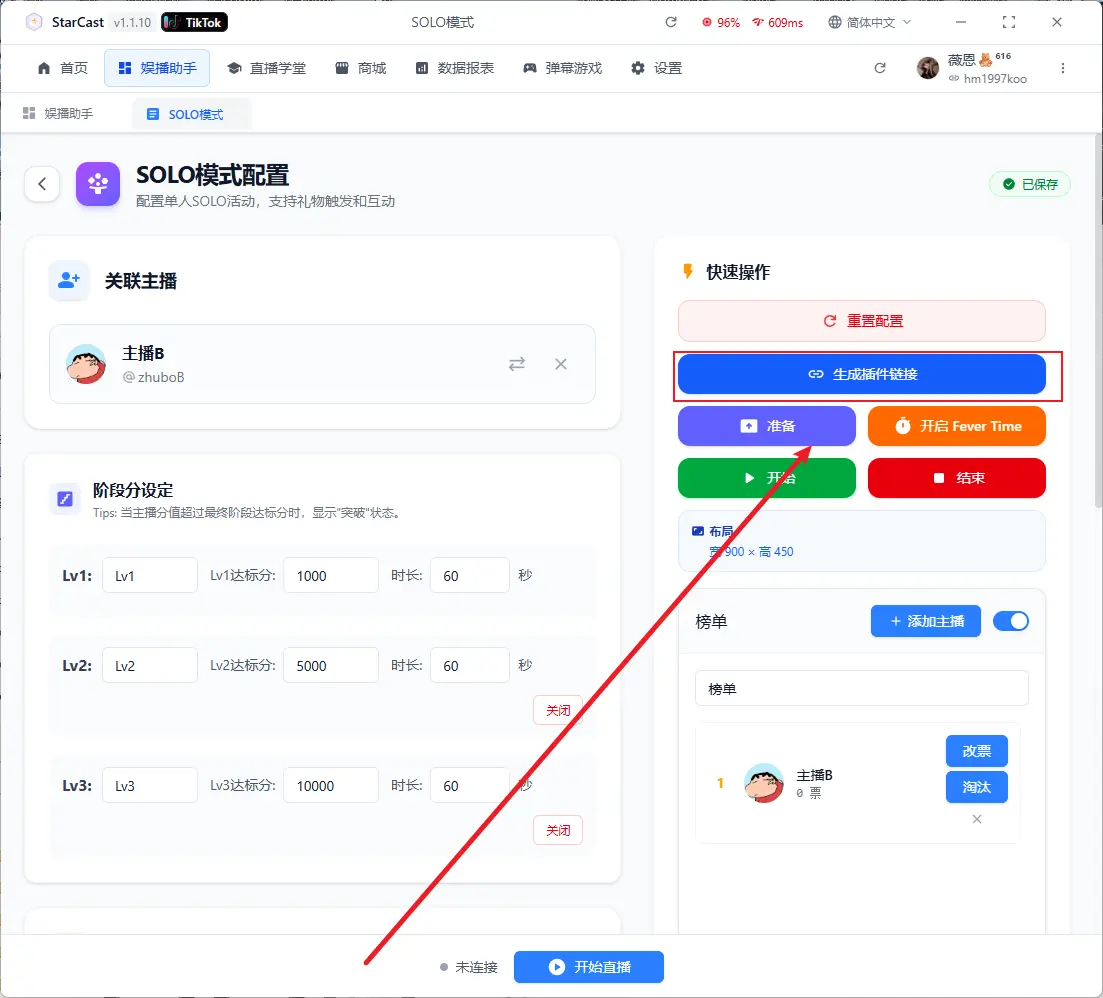
After configuration, click "Generate Link"
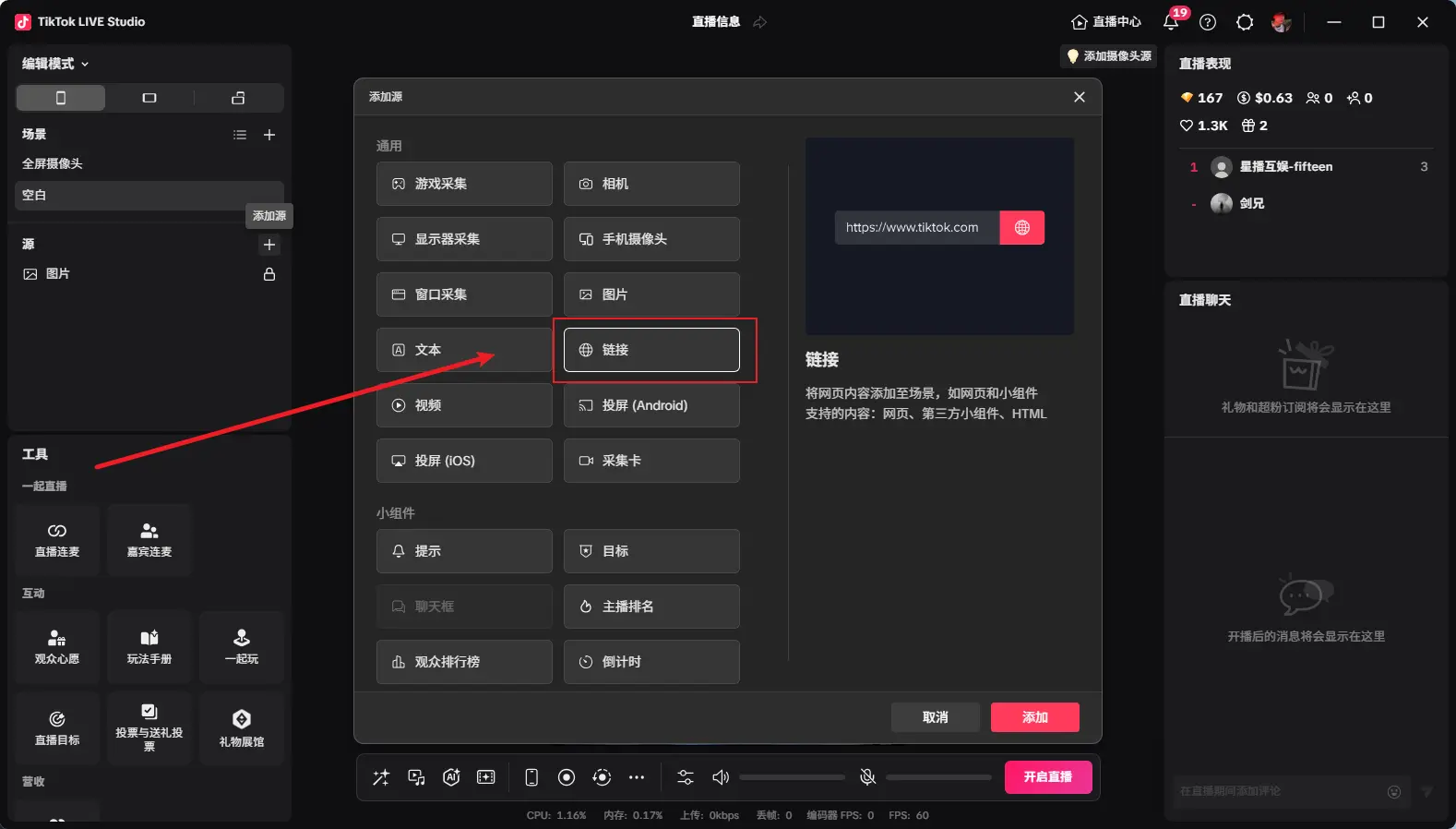
Open TikTok LIVE Studio, add source, and select Link
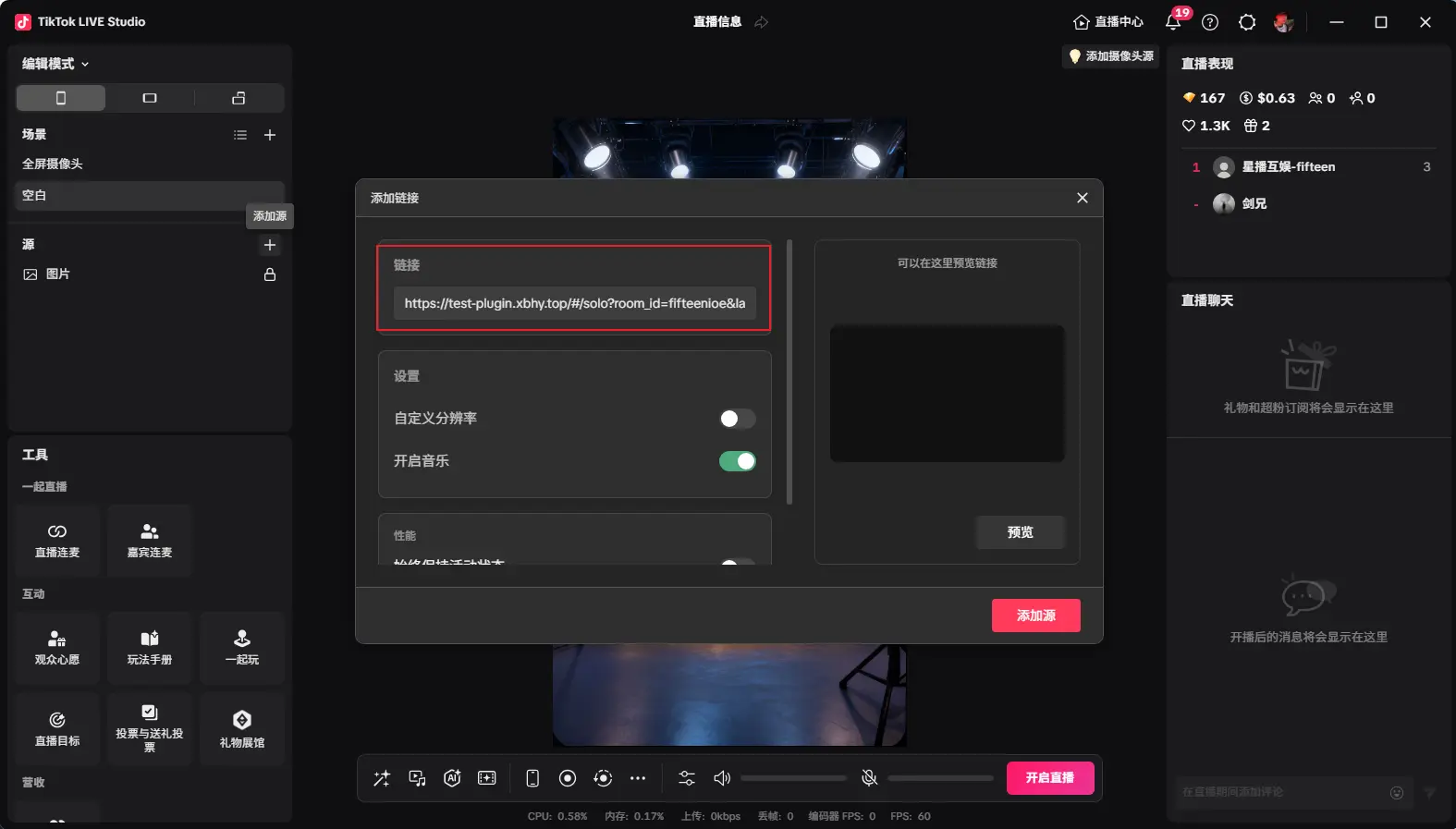
Paste the generated link and change the custom resolution to 900x450
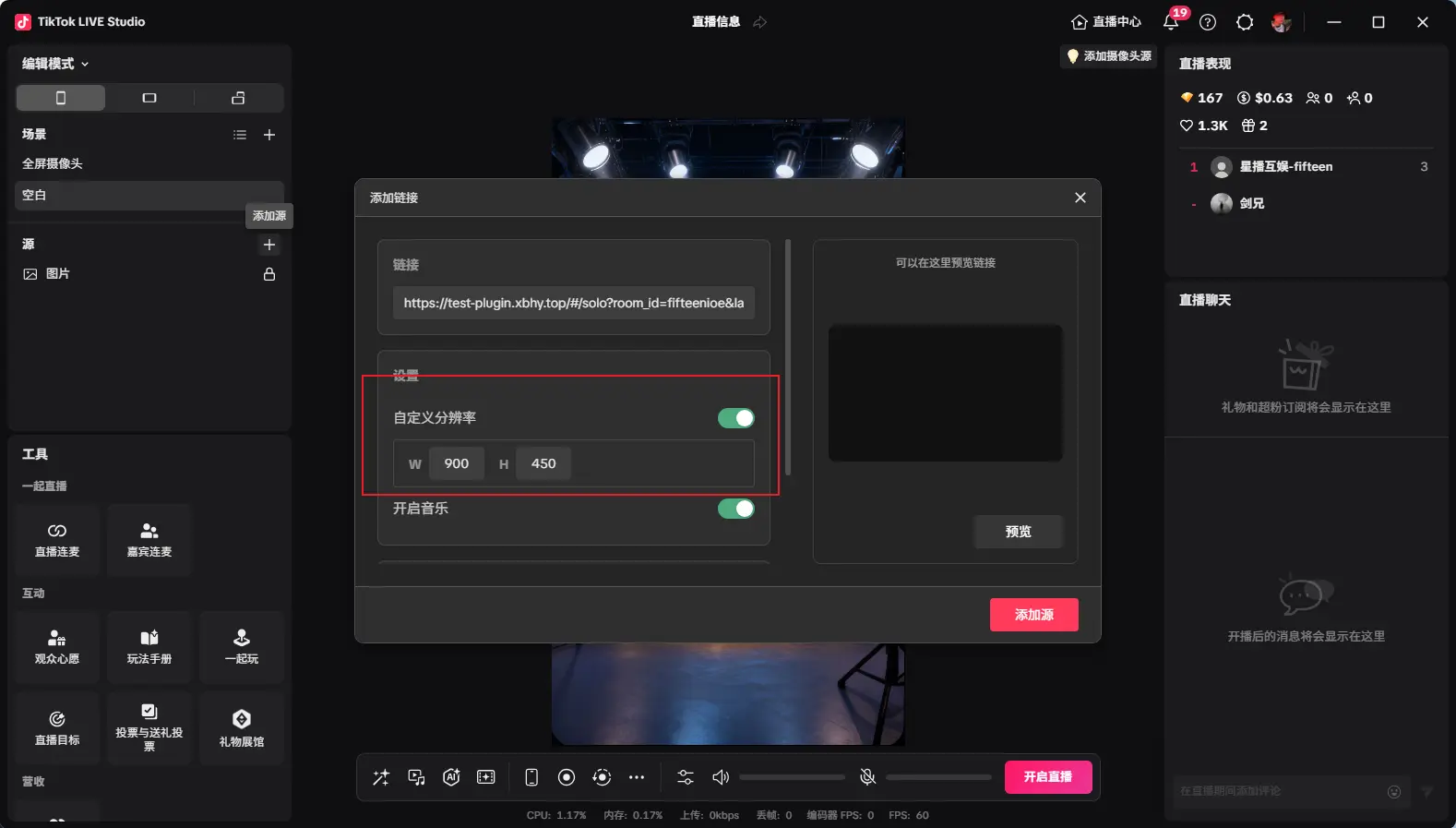
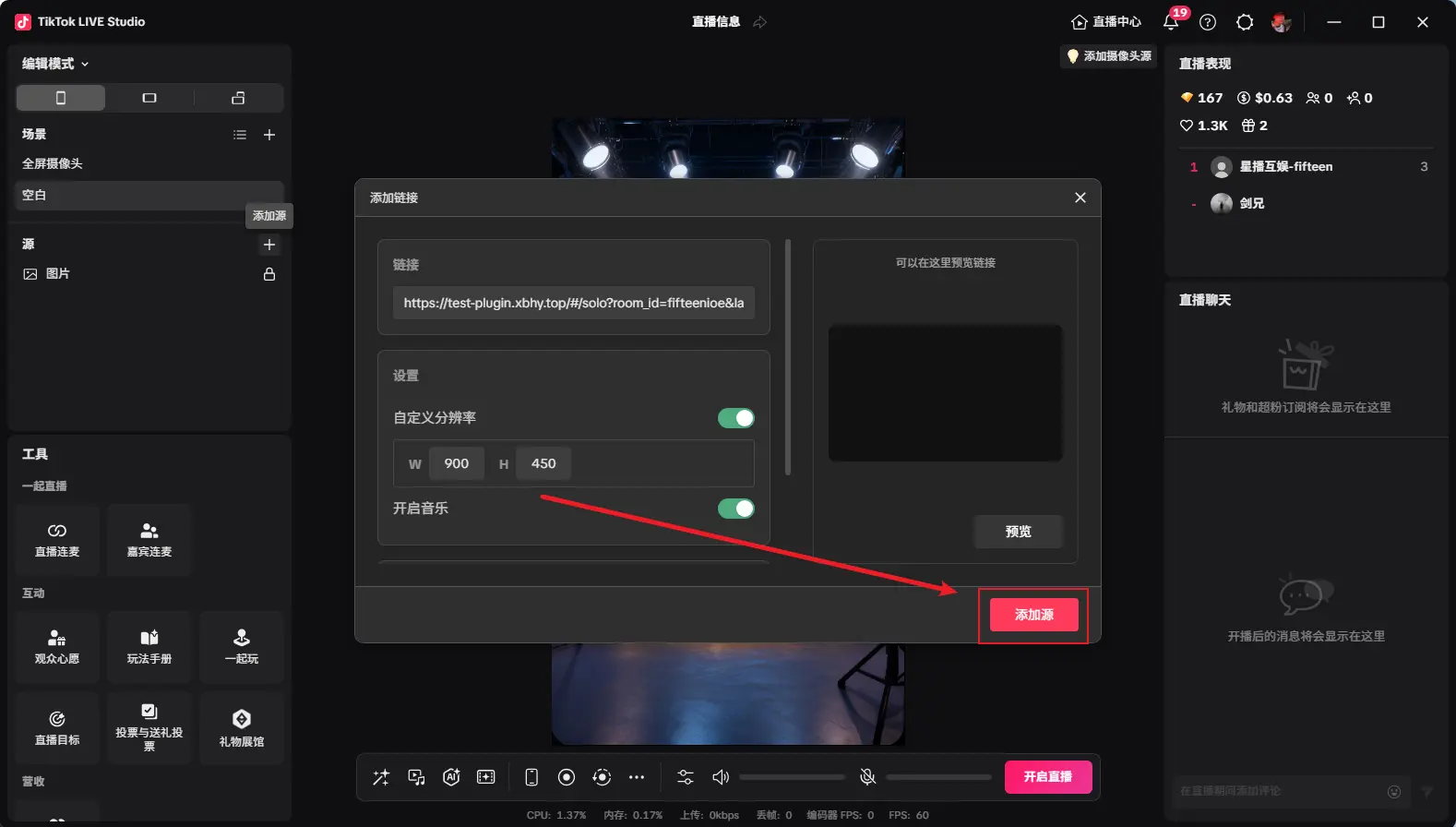
After adding as shown, adjust to desired size, then click "Prepare"
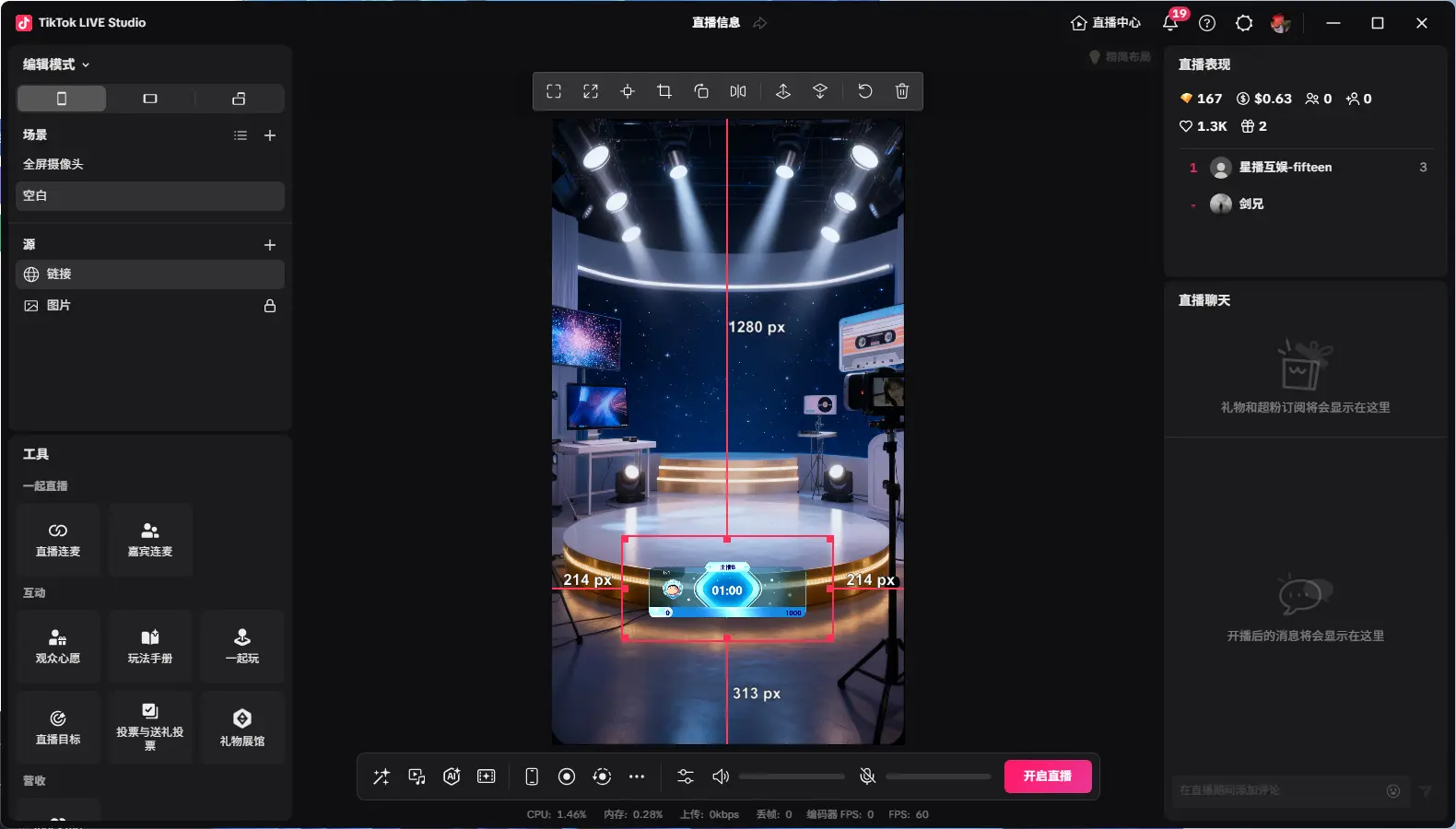
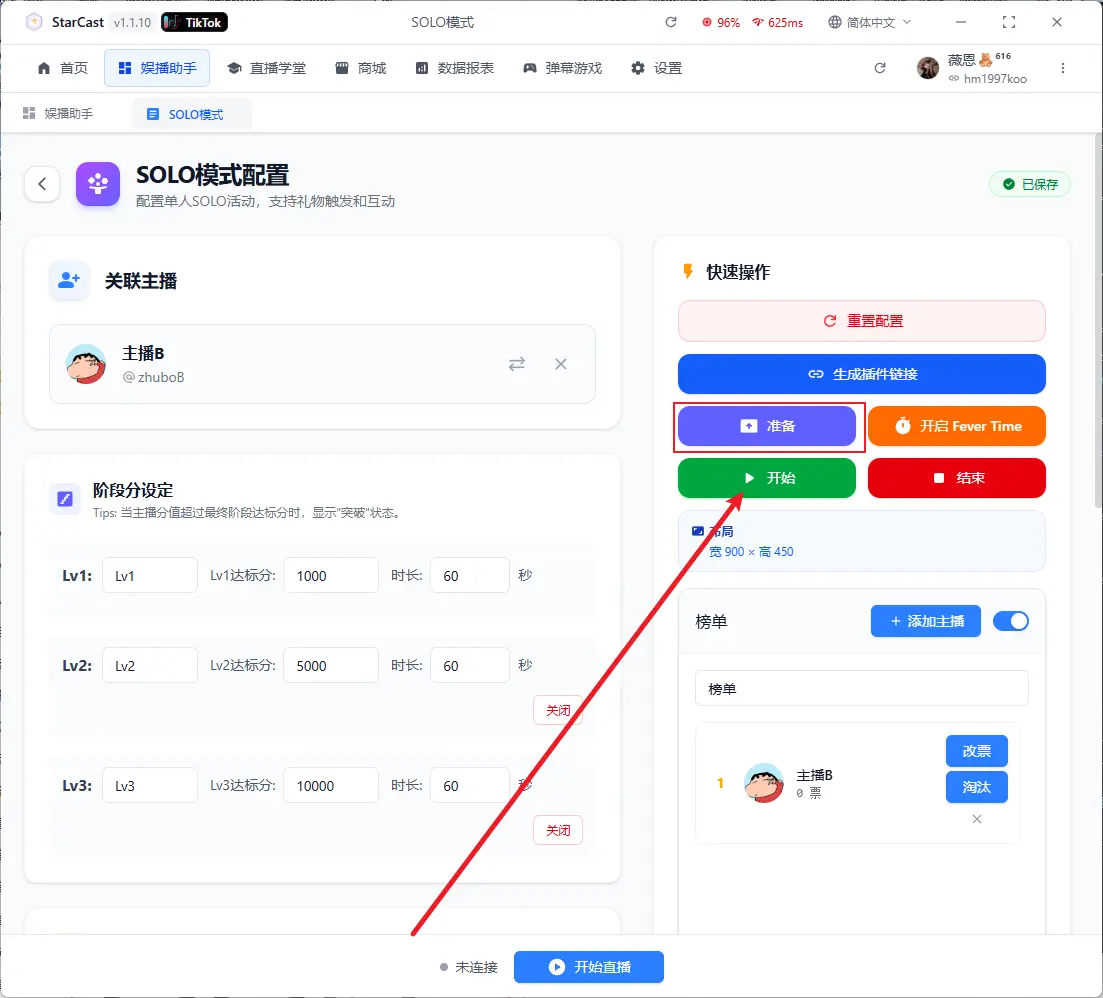
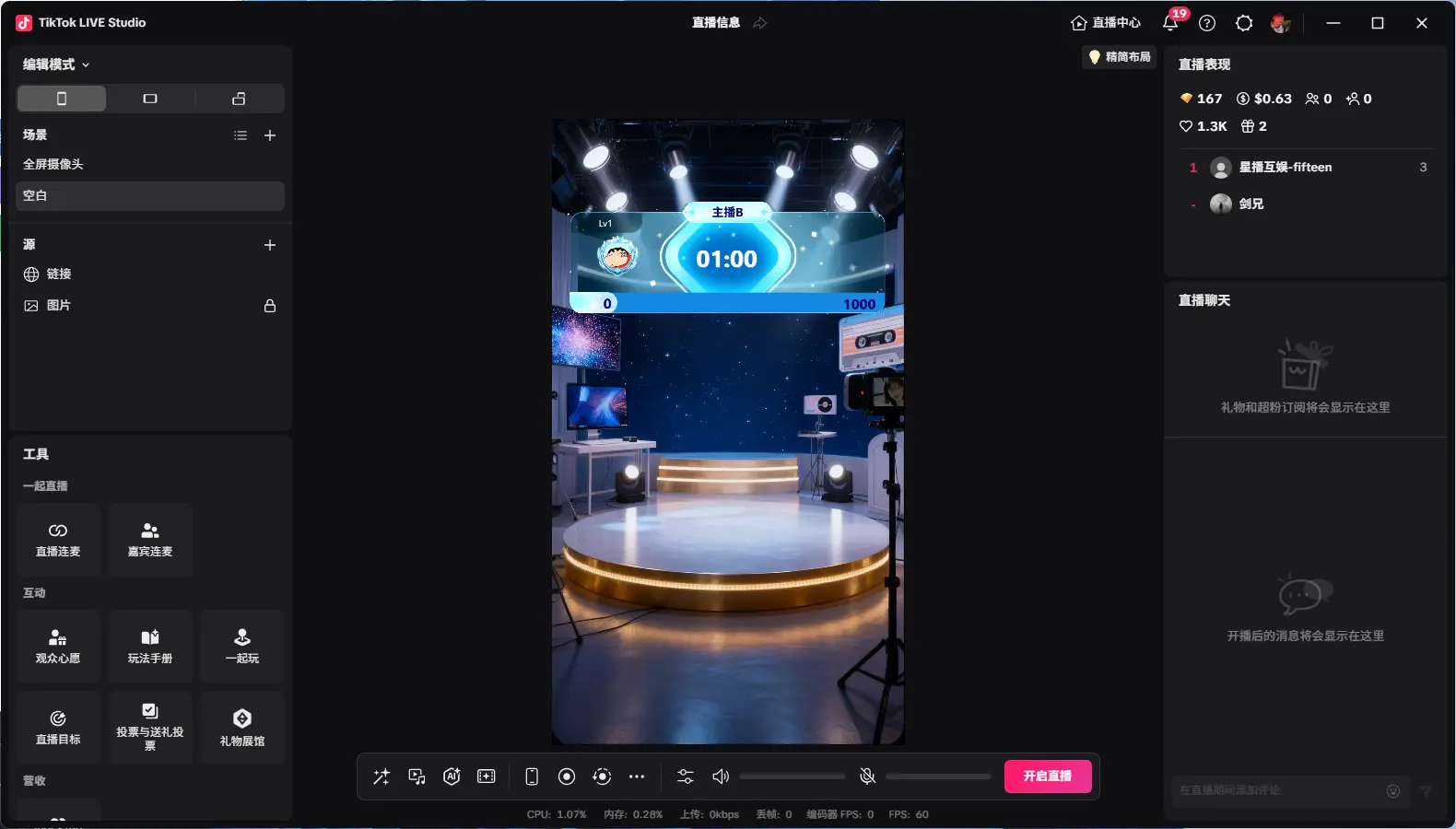
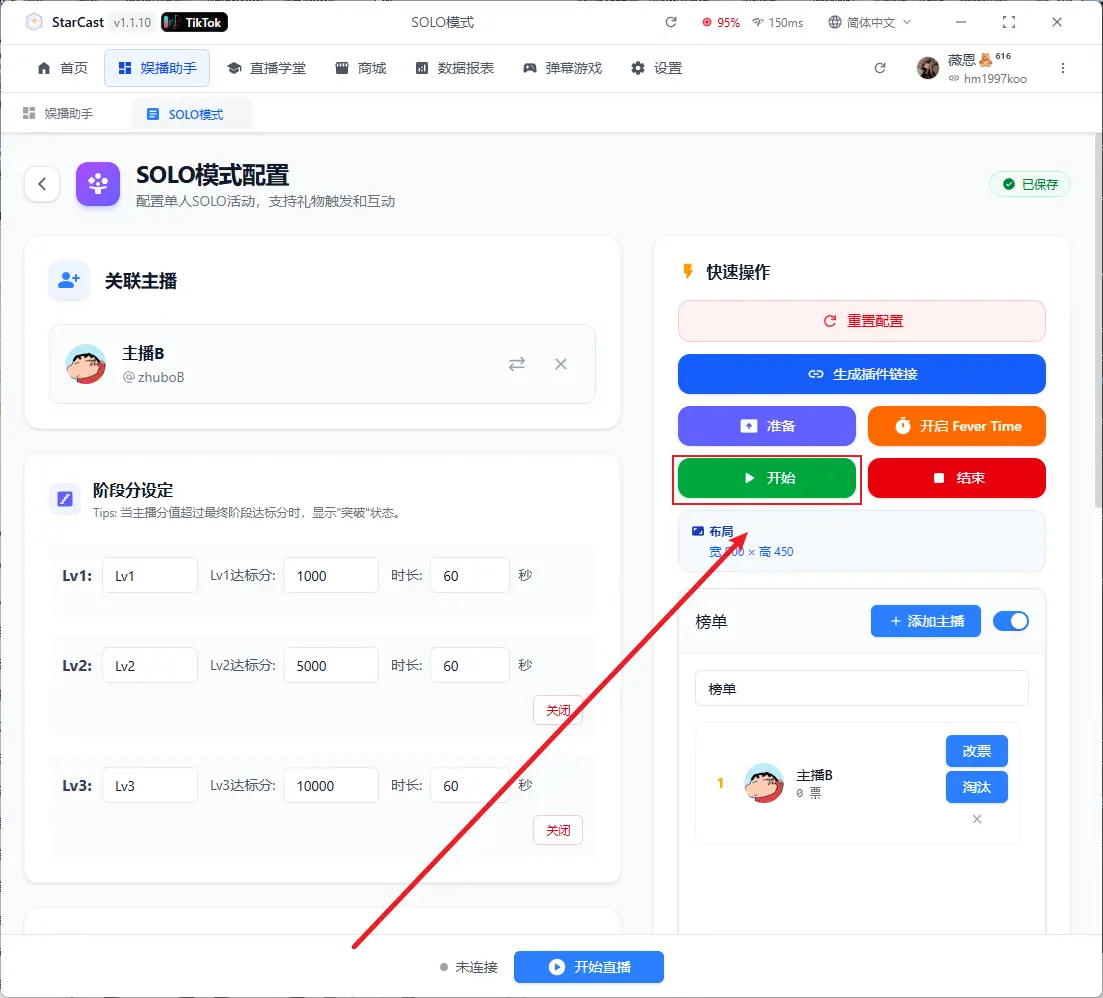
Click "Start" to begin countdown
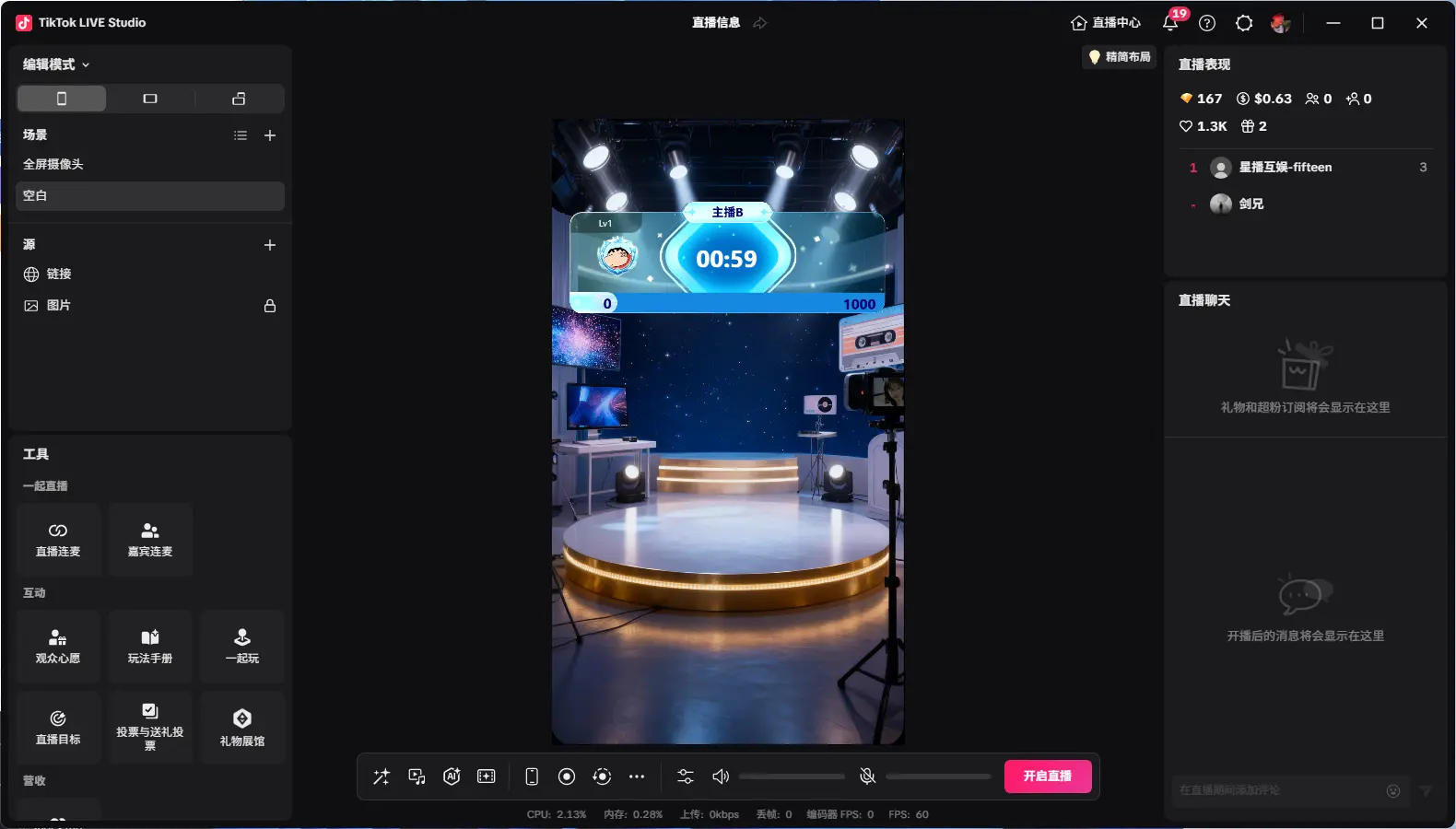
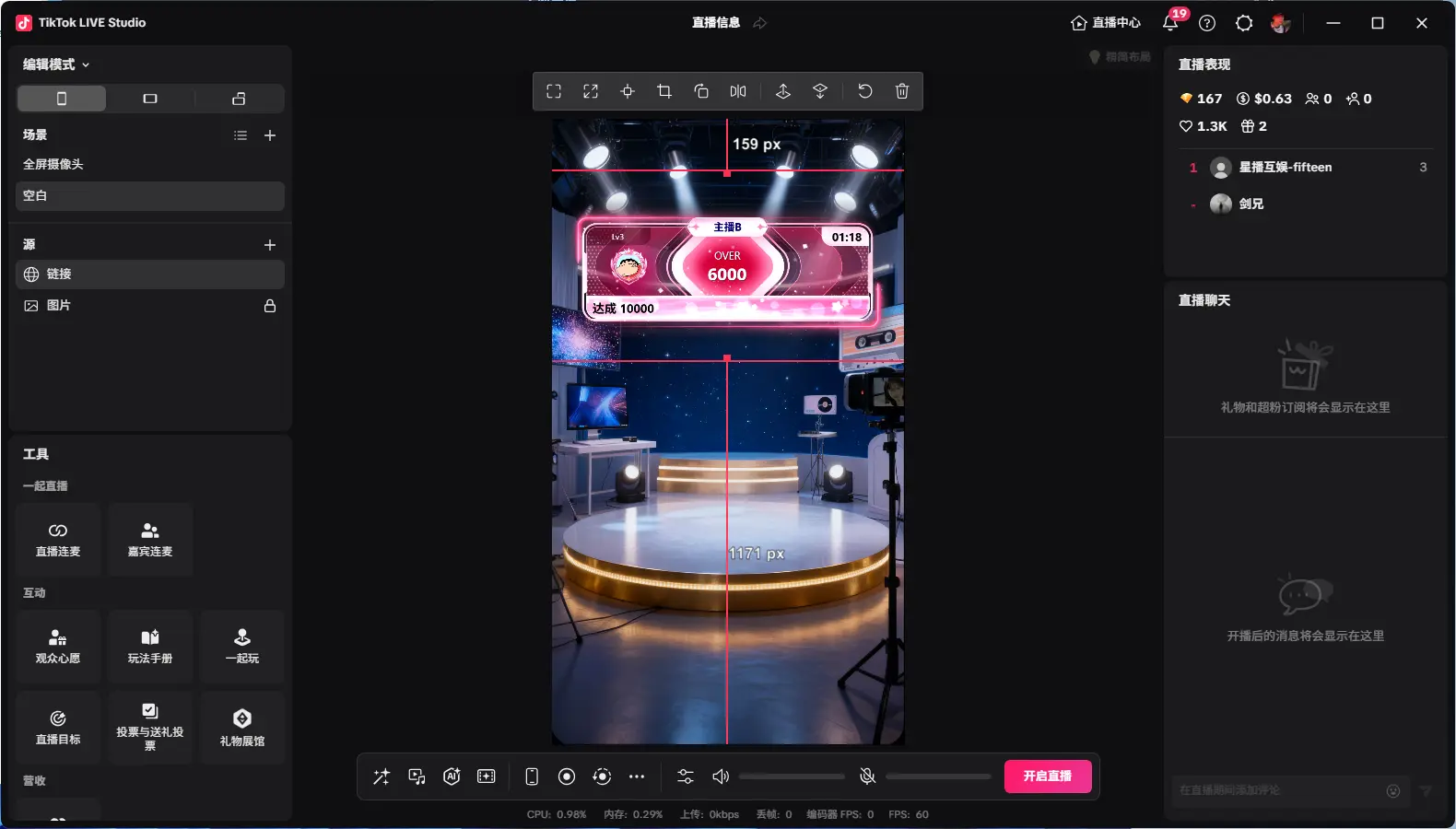
After the final stage ends, you can click to start Fever Time
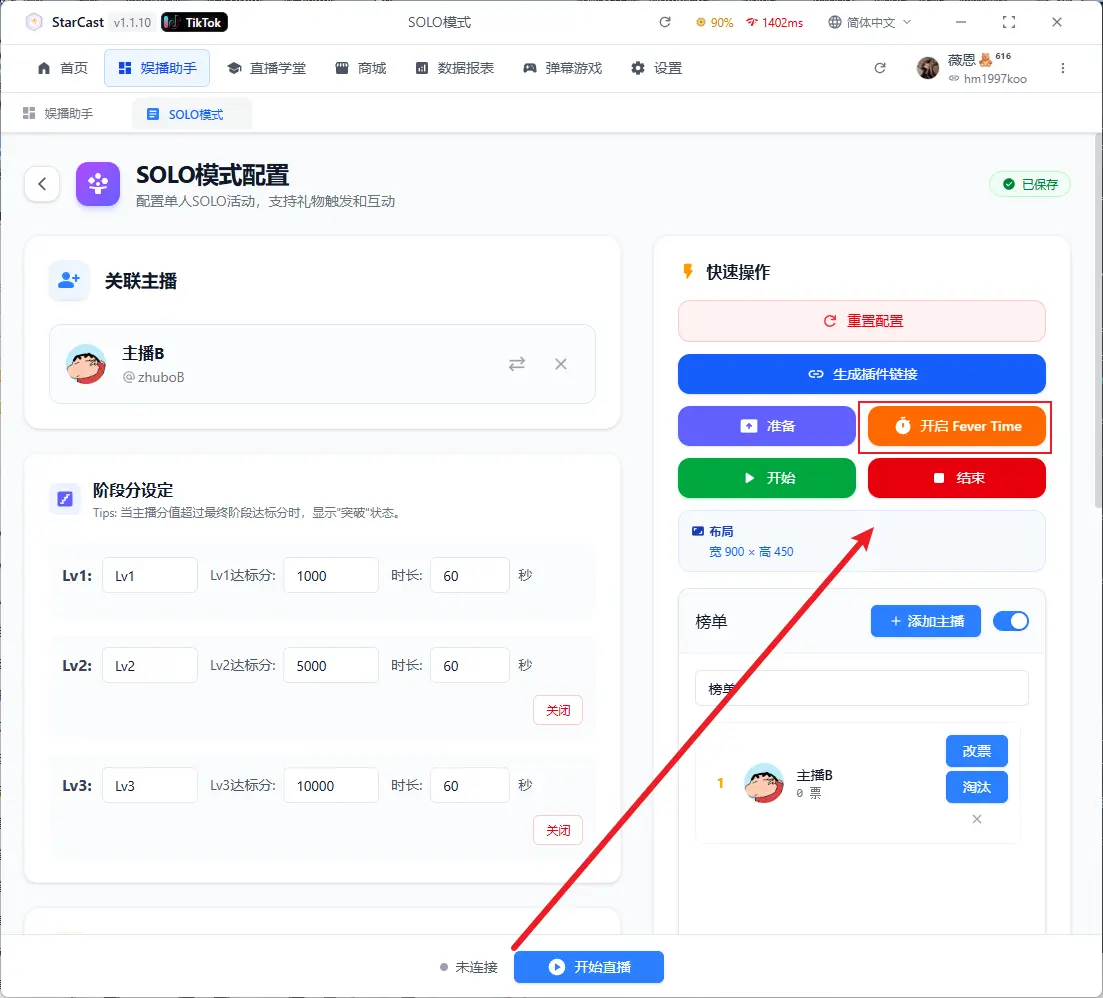
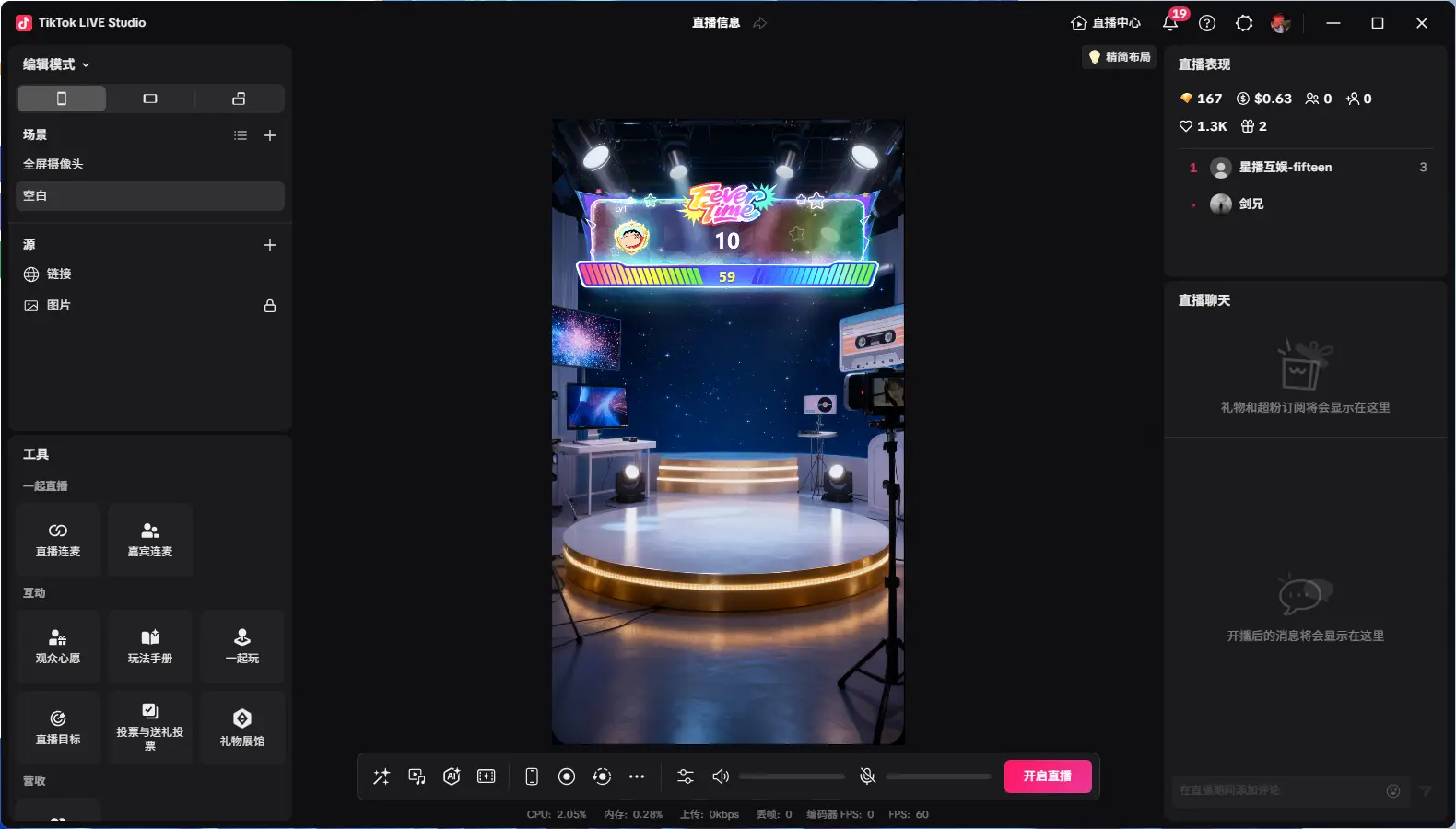
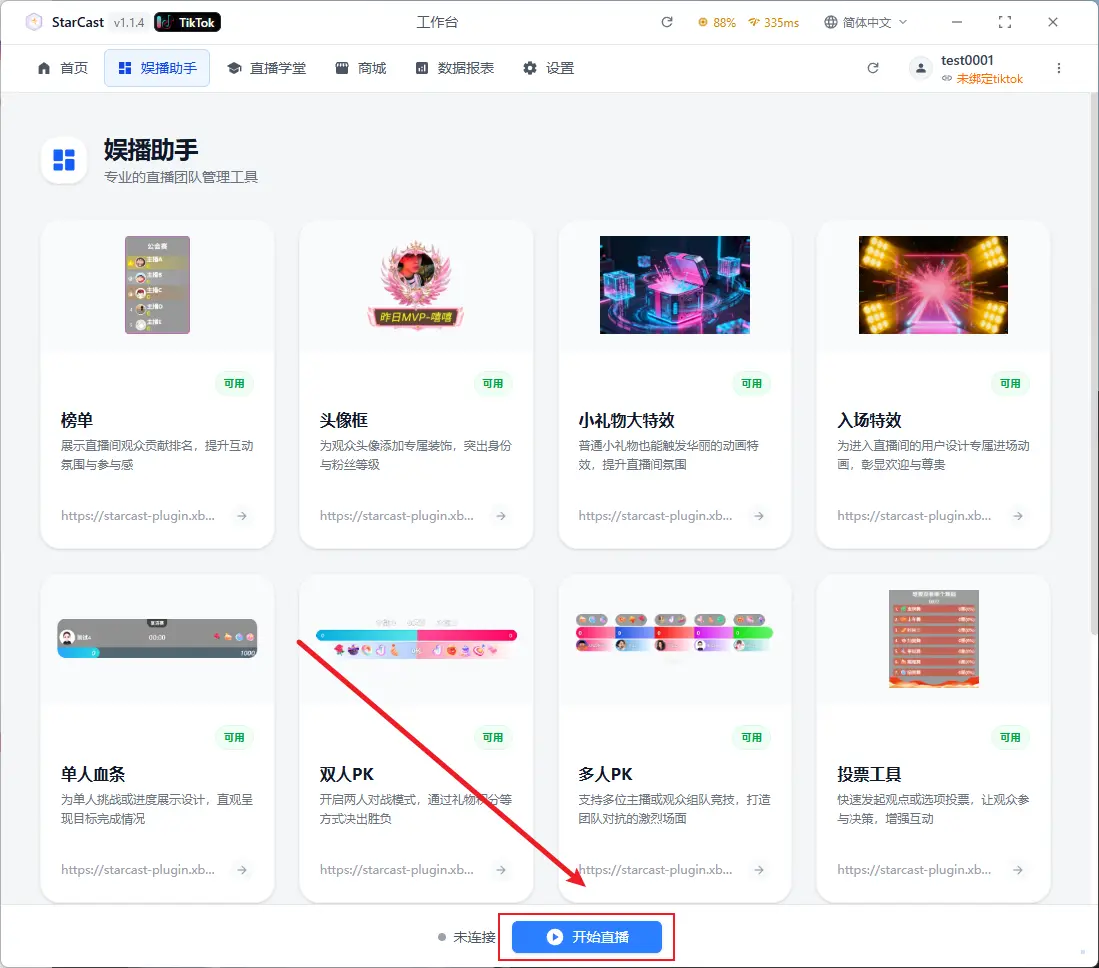
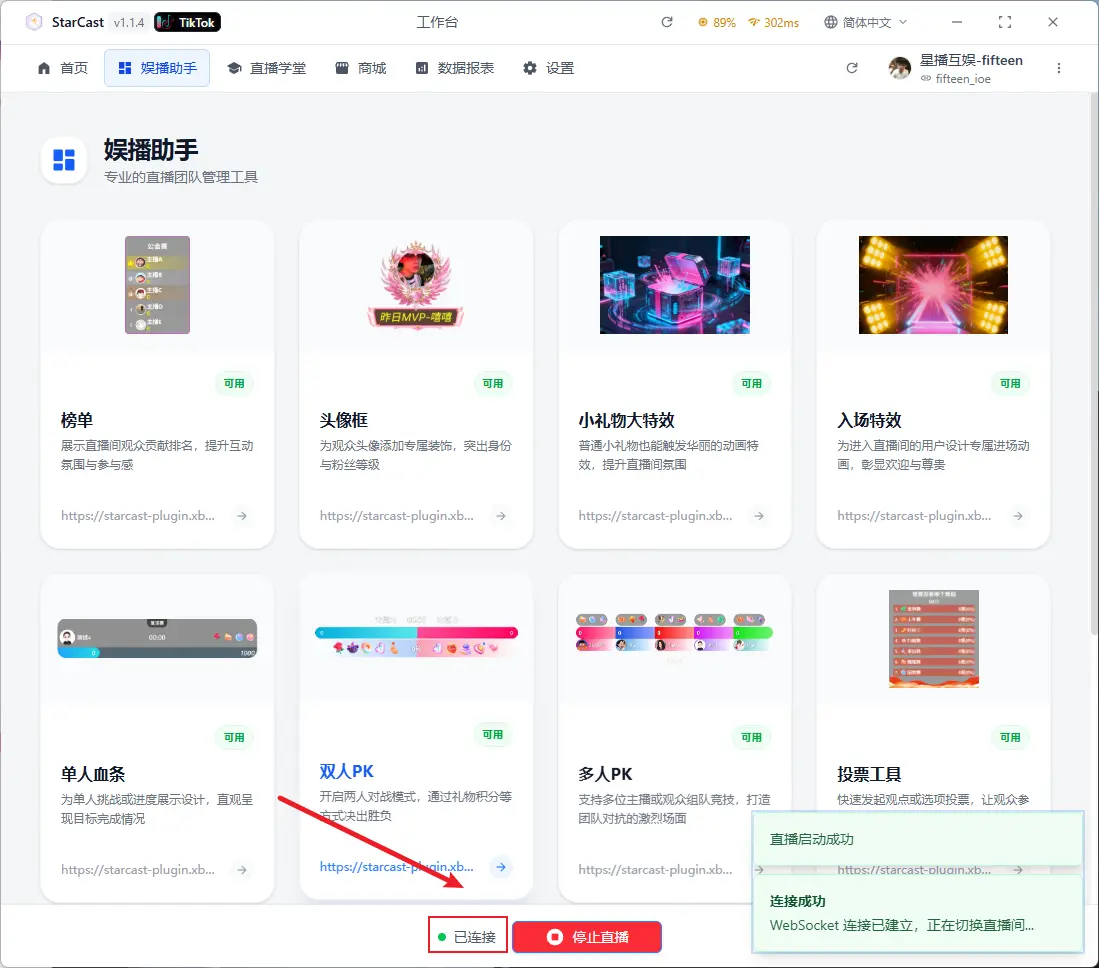
Displaying "Connected" means successfully connected to the live room
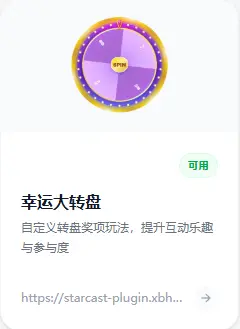
Lucky Wheel
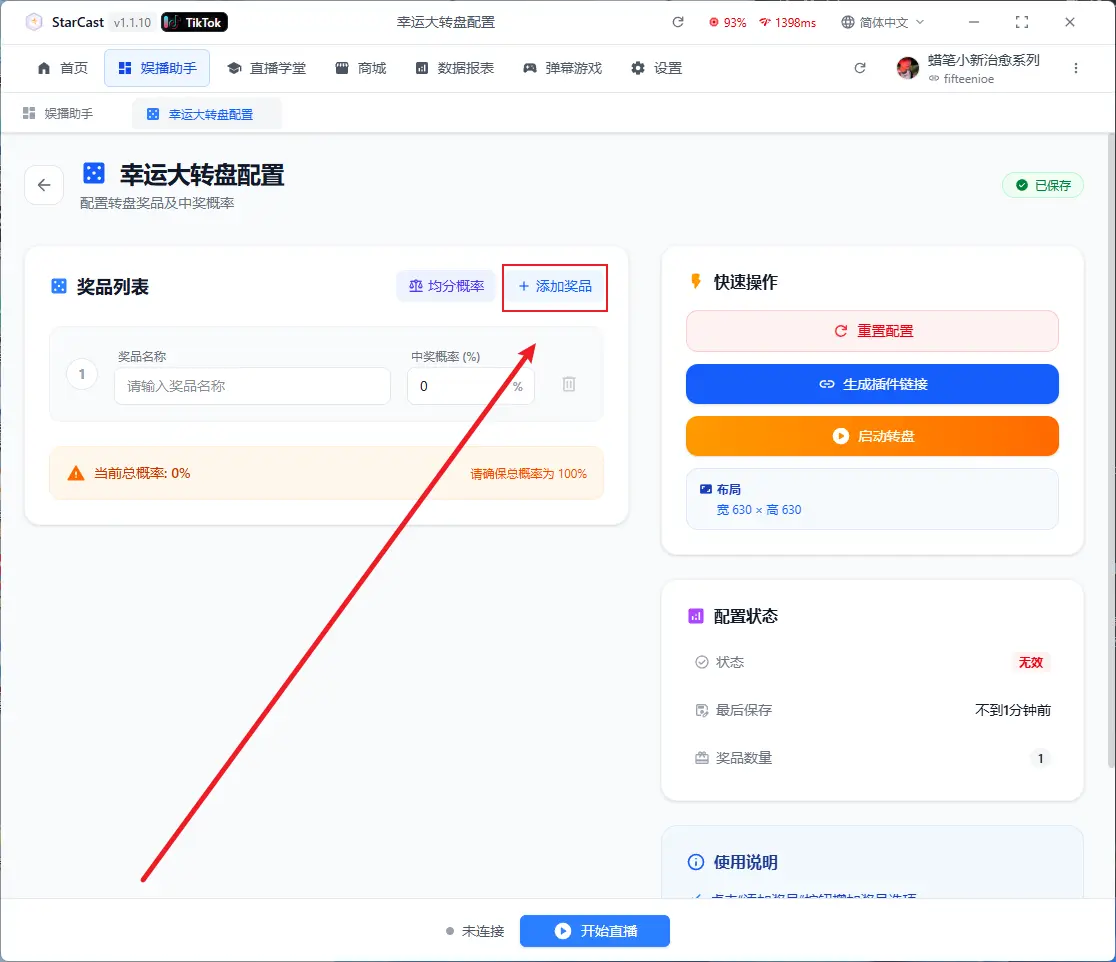
Click "Add Prize" to have multiple options
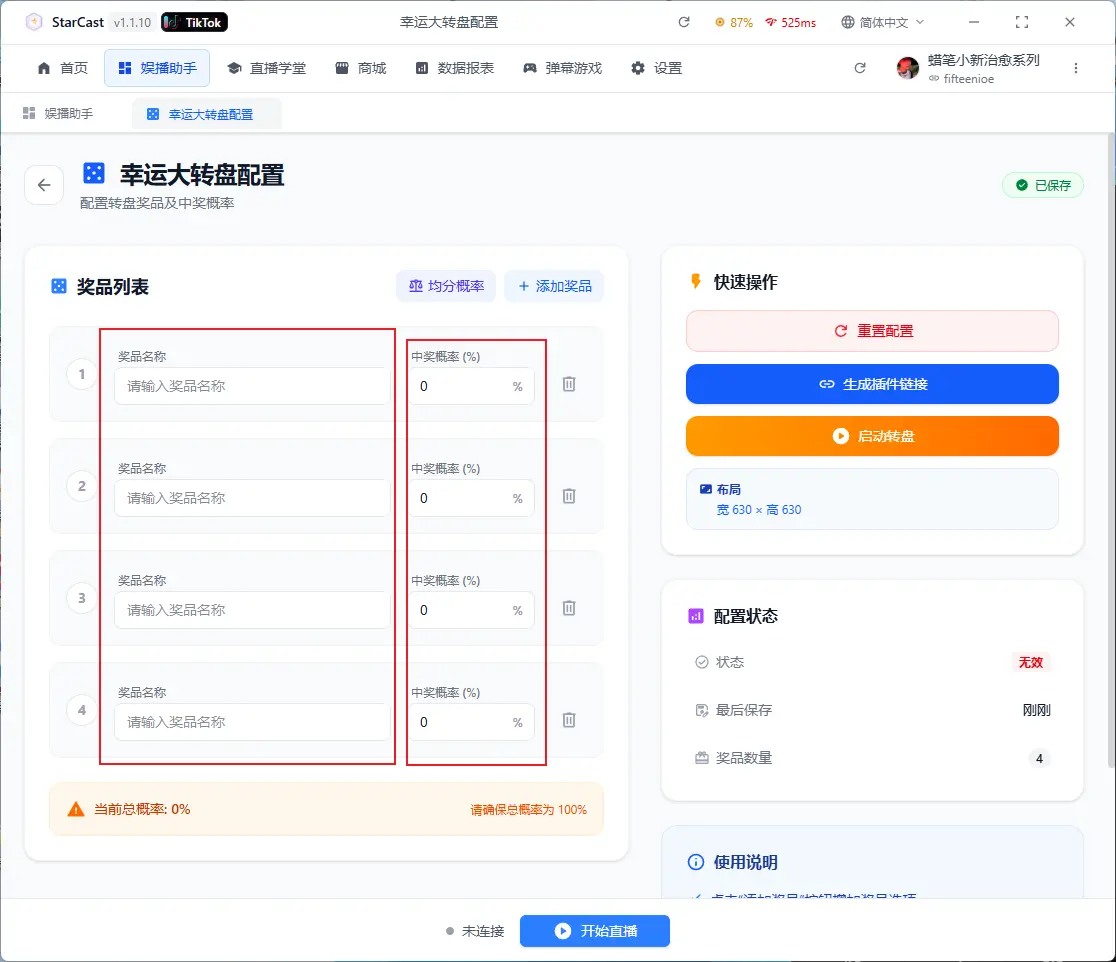
Enter prize name and winning probability
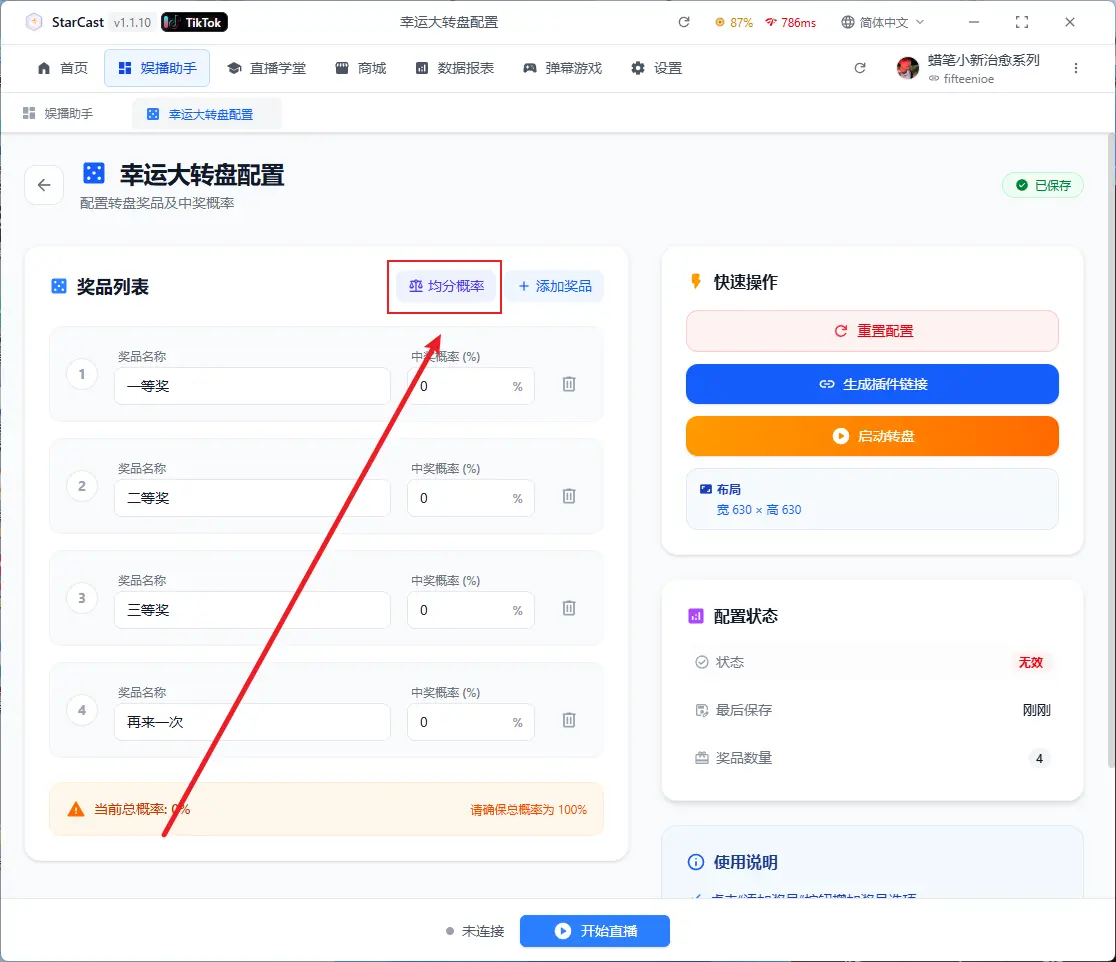
Click "Equal Probability" to automatically split evenly
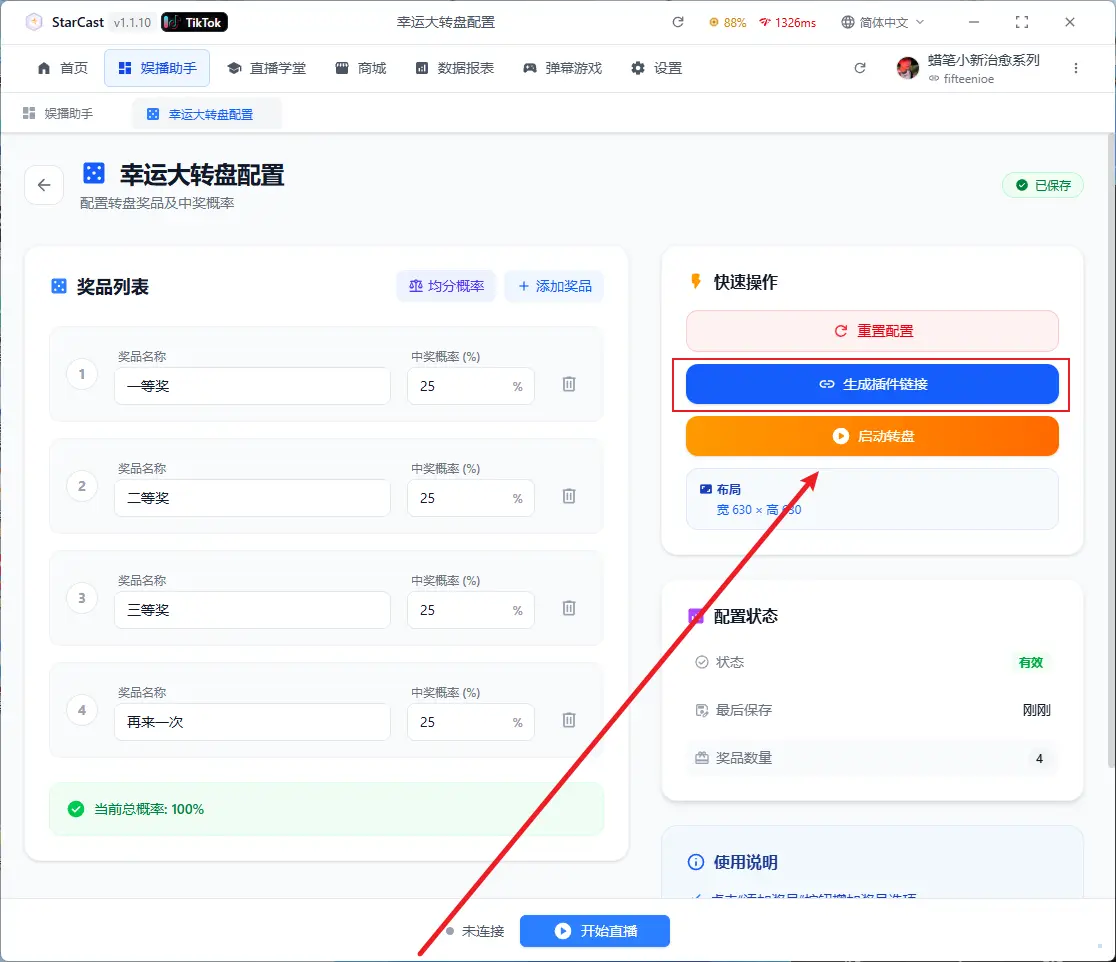
After configuration, click "Generate Link"
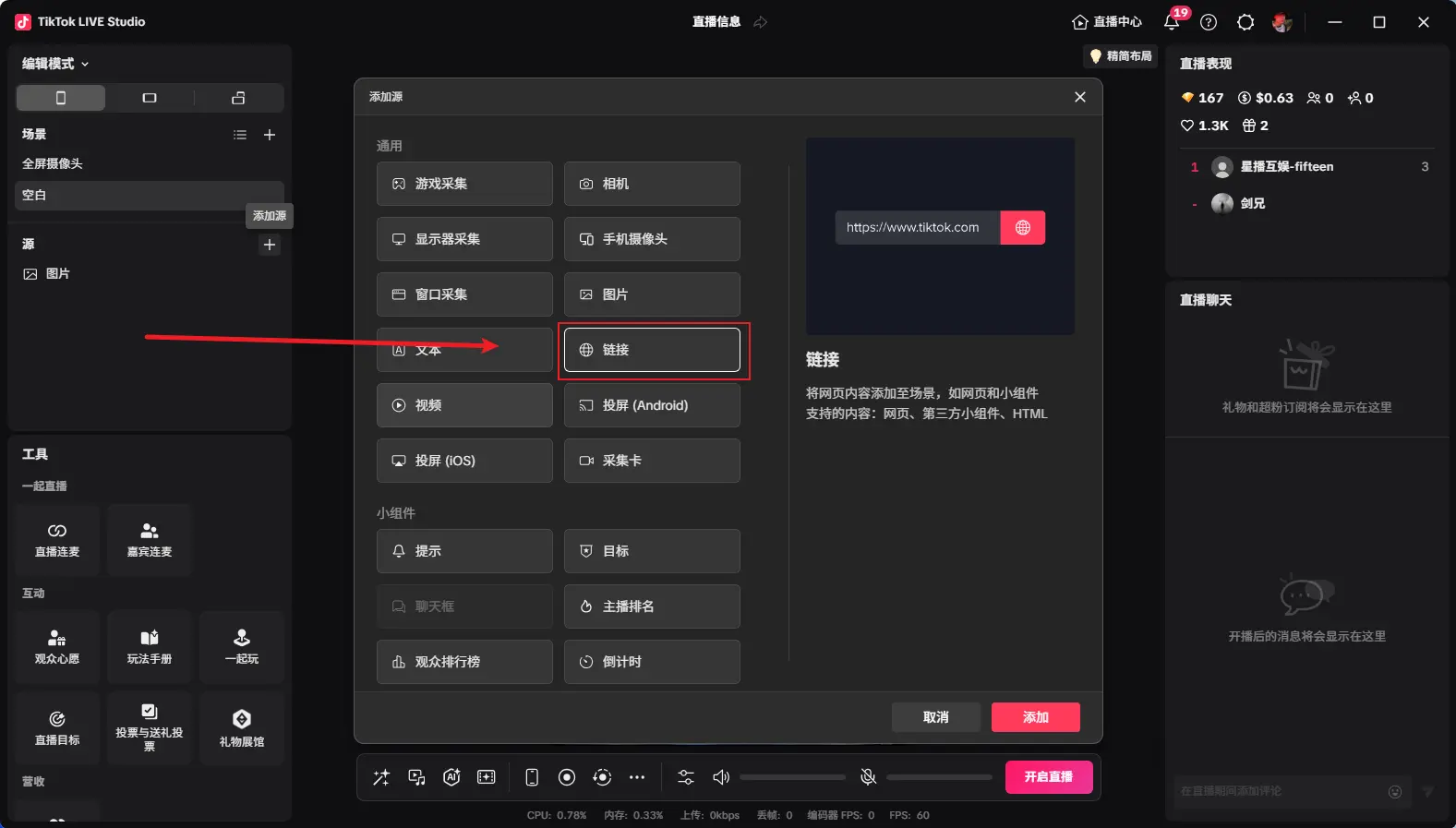
Open TikTok LIVE Studio, add source, and select Link
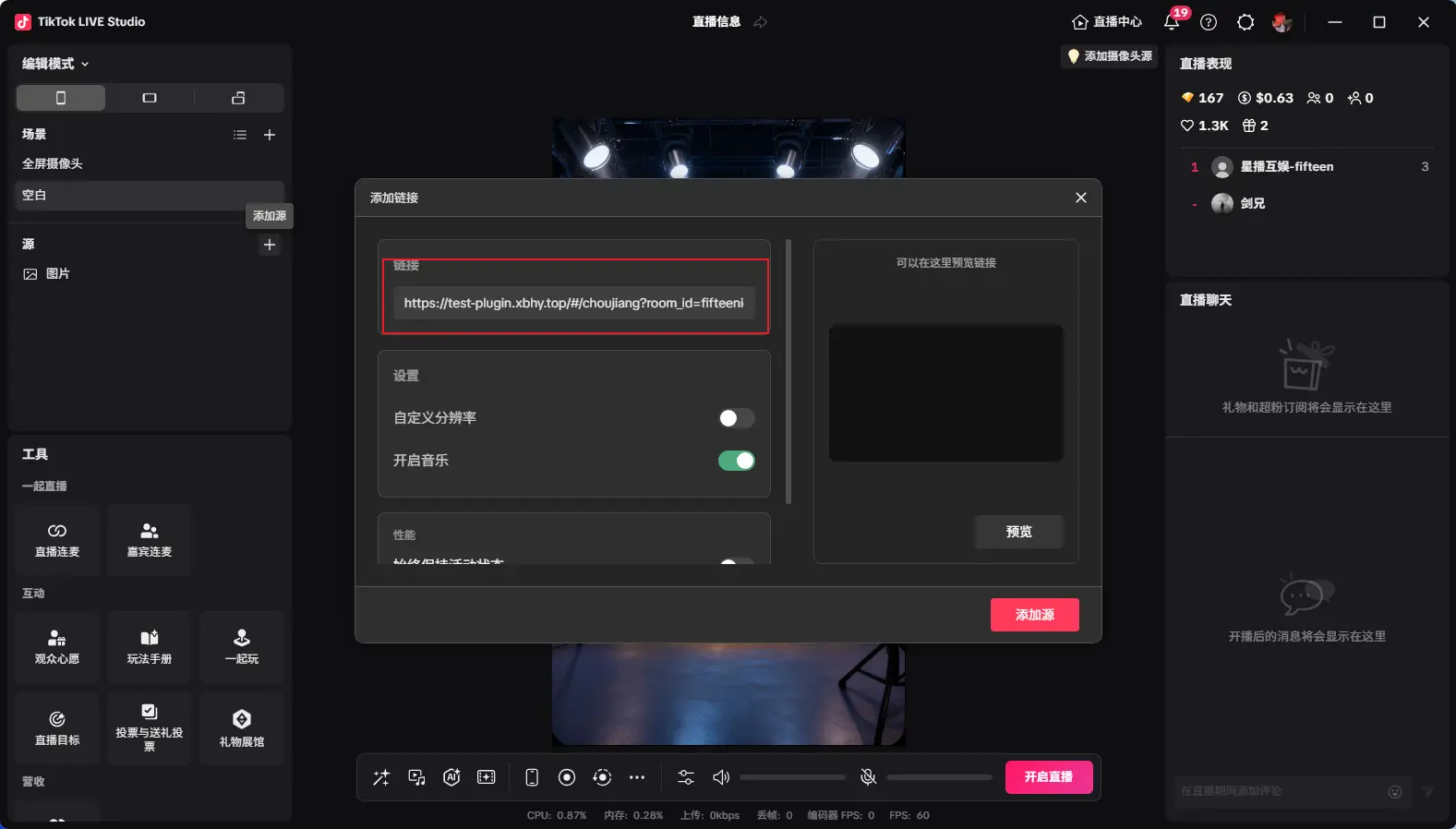
Paste the generated link and change the custom resolution to 630x630
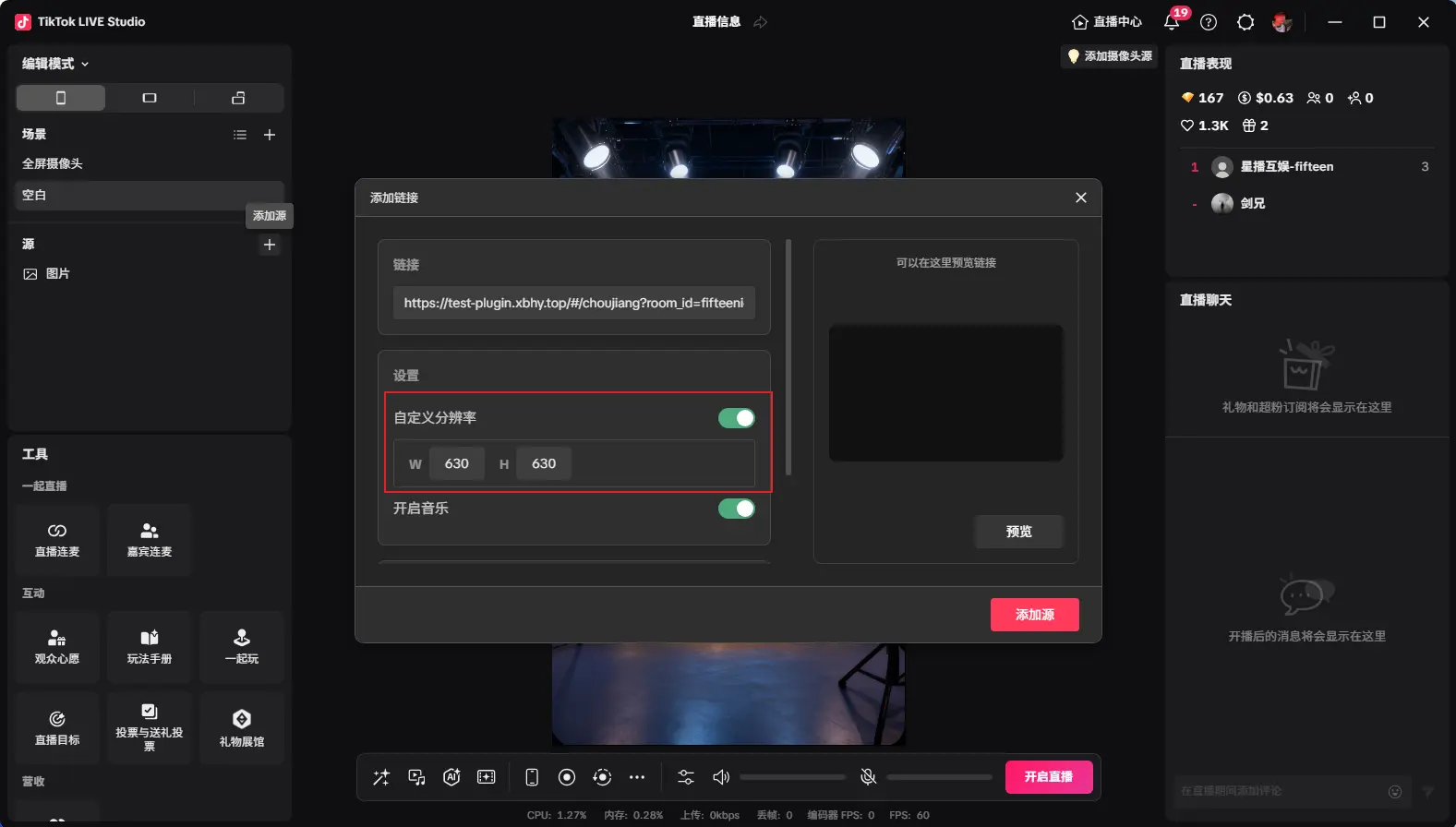
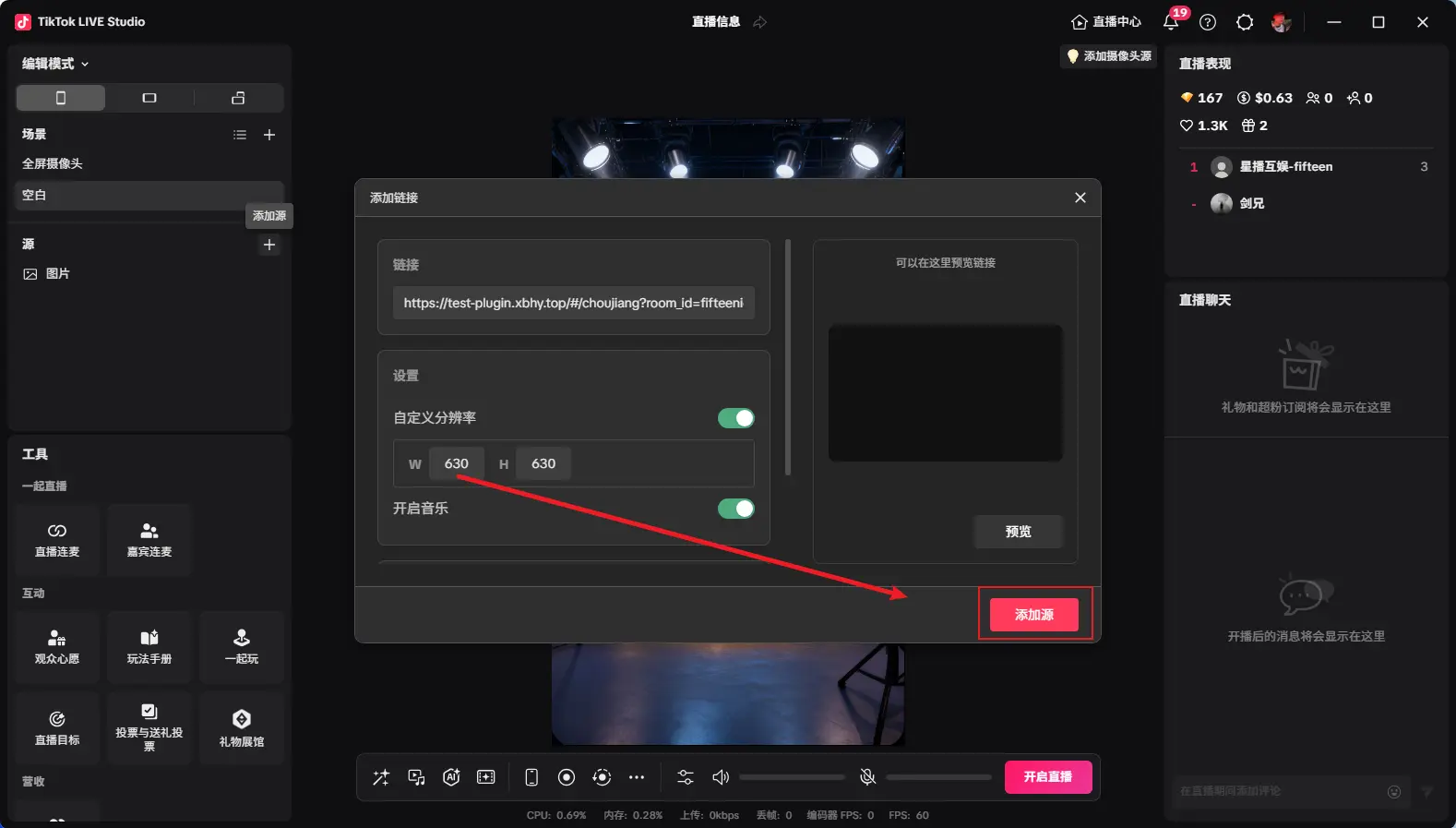
After adding as shown, adjust to desired size, then click "Start Wheel" to begin spinning
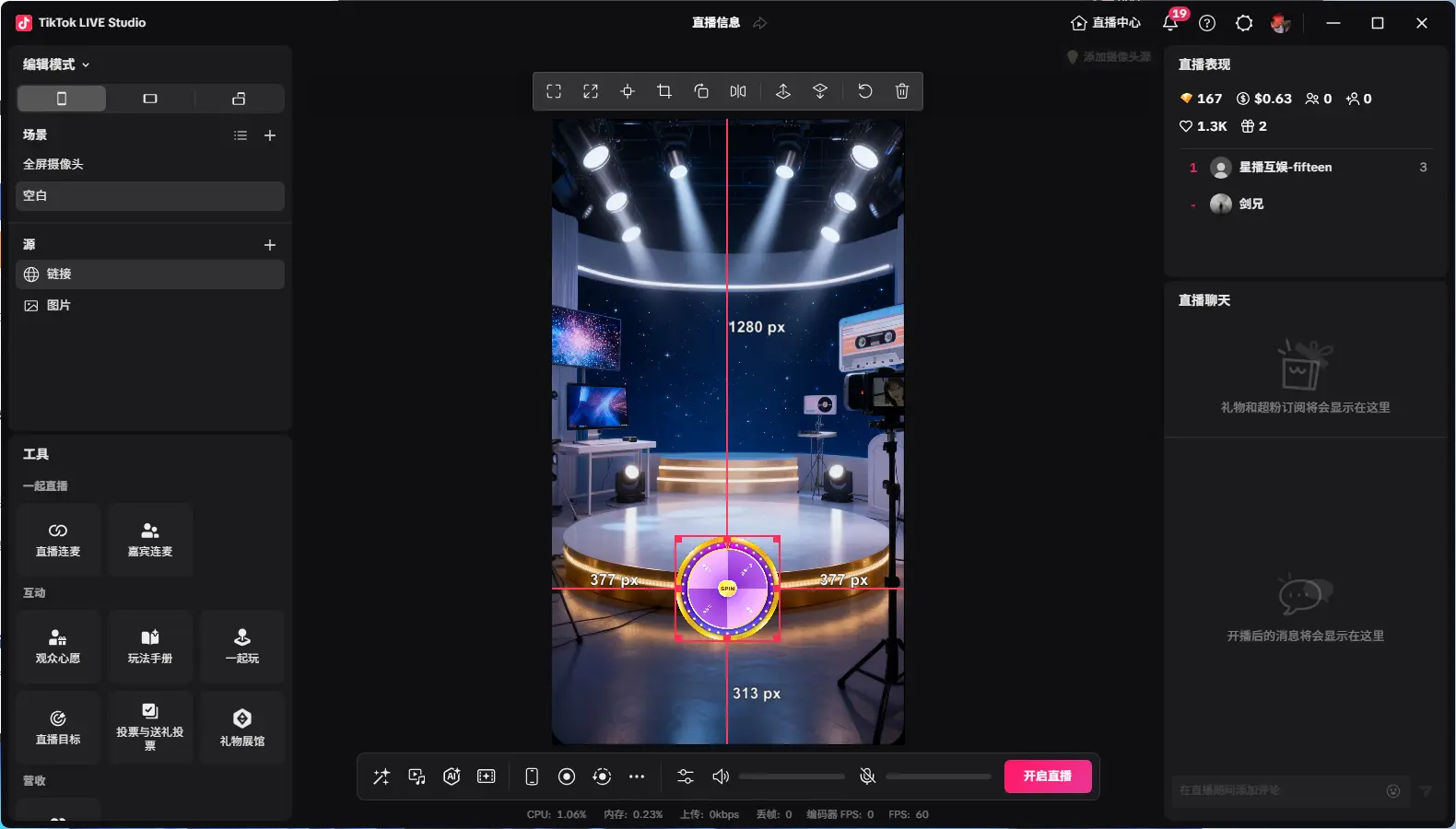
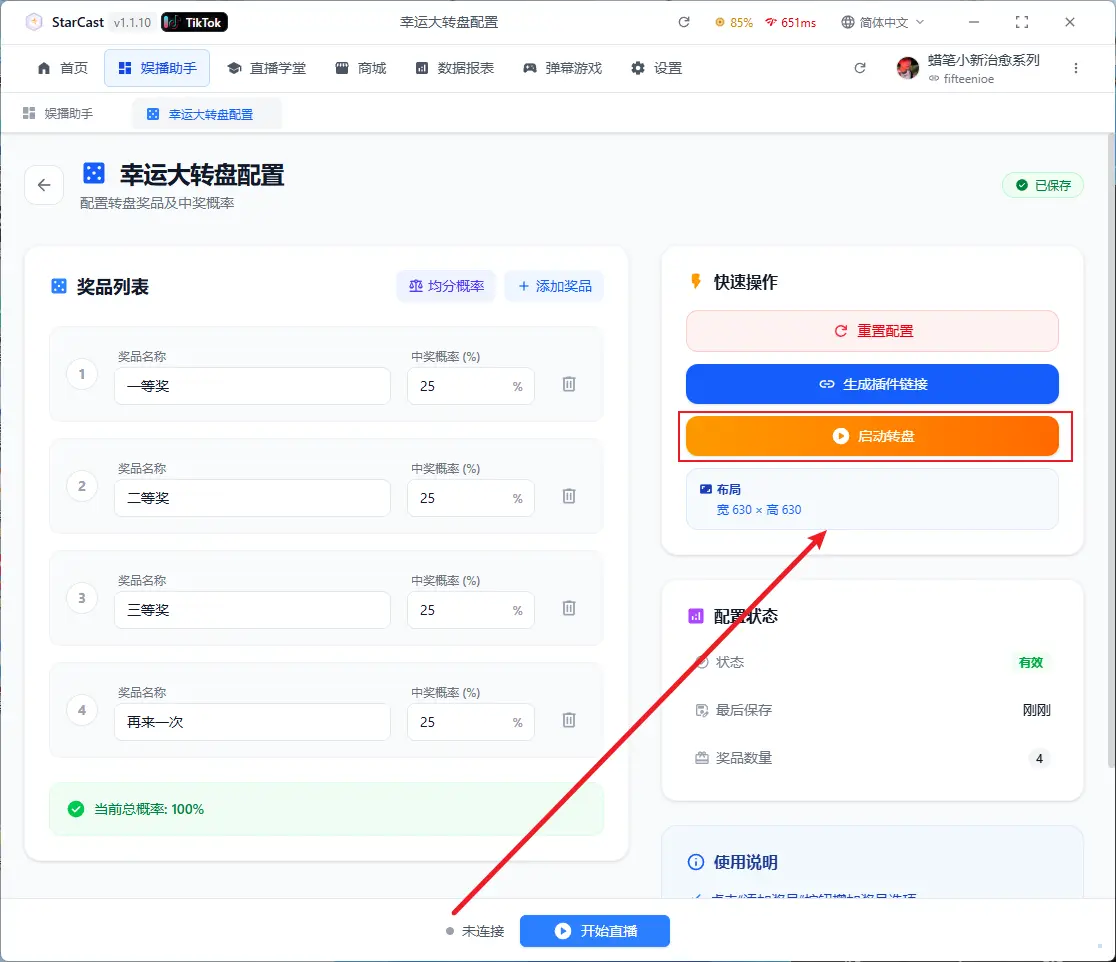
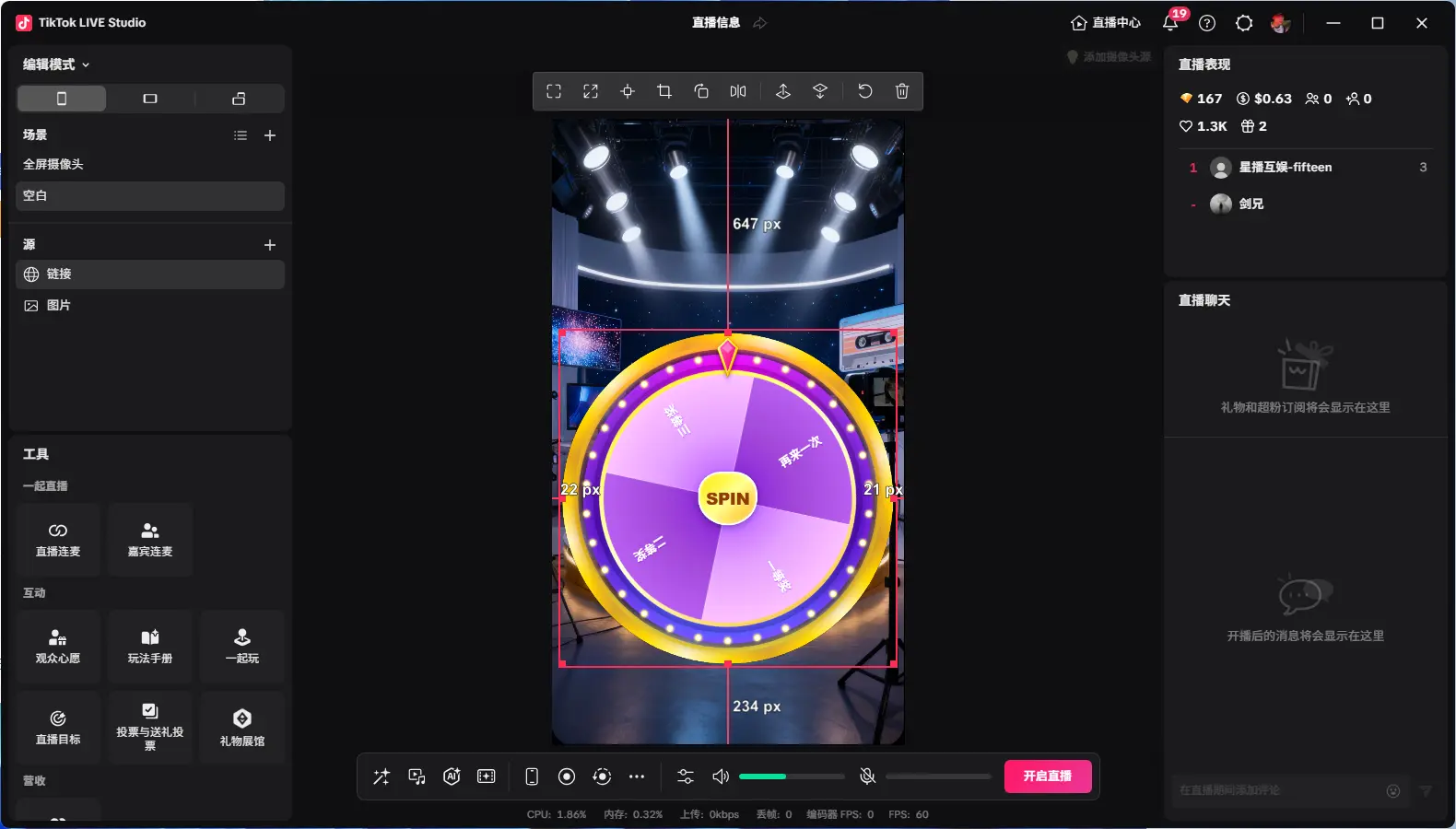
Displaying "Connected" means successfully connected to the live room
Leaderboard
Select the plugin associated with the leaderboard
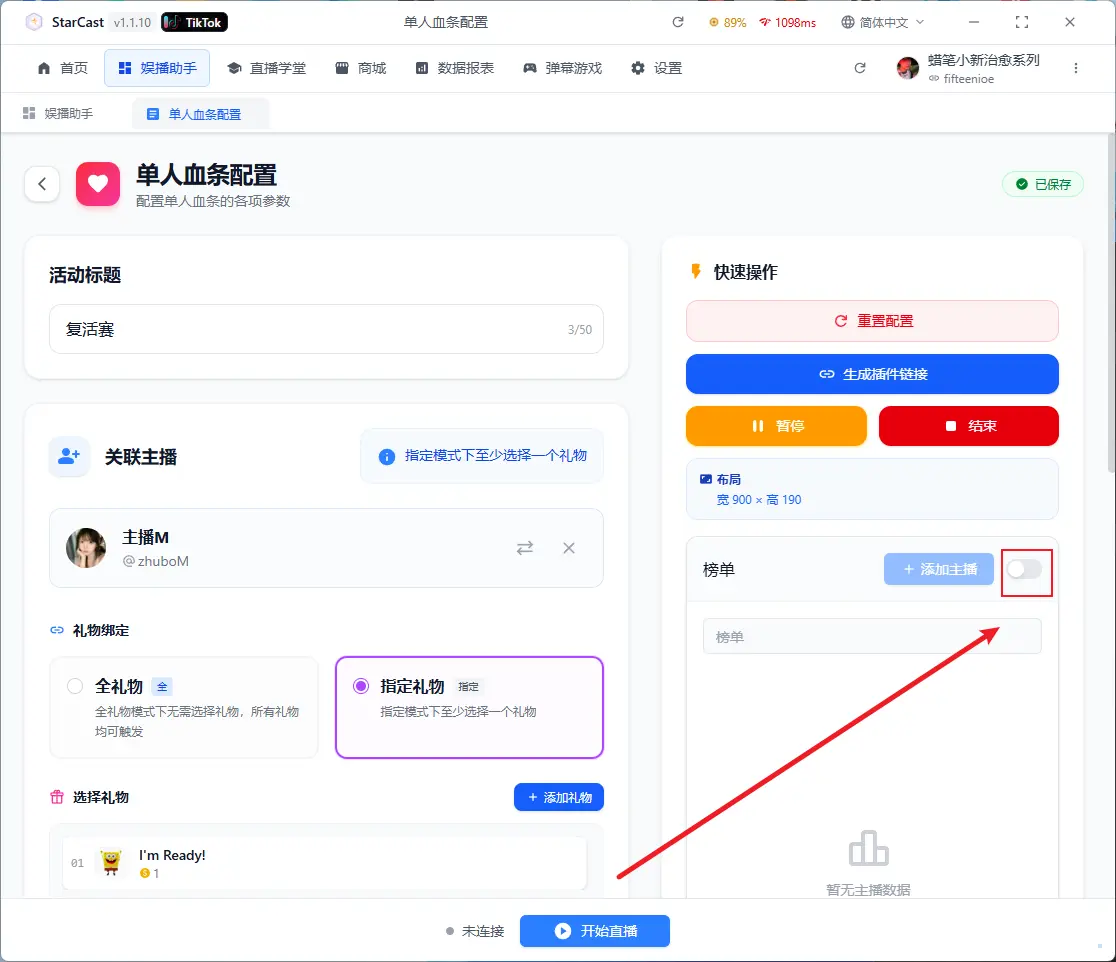
Enable Leaderboard
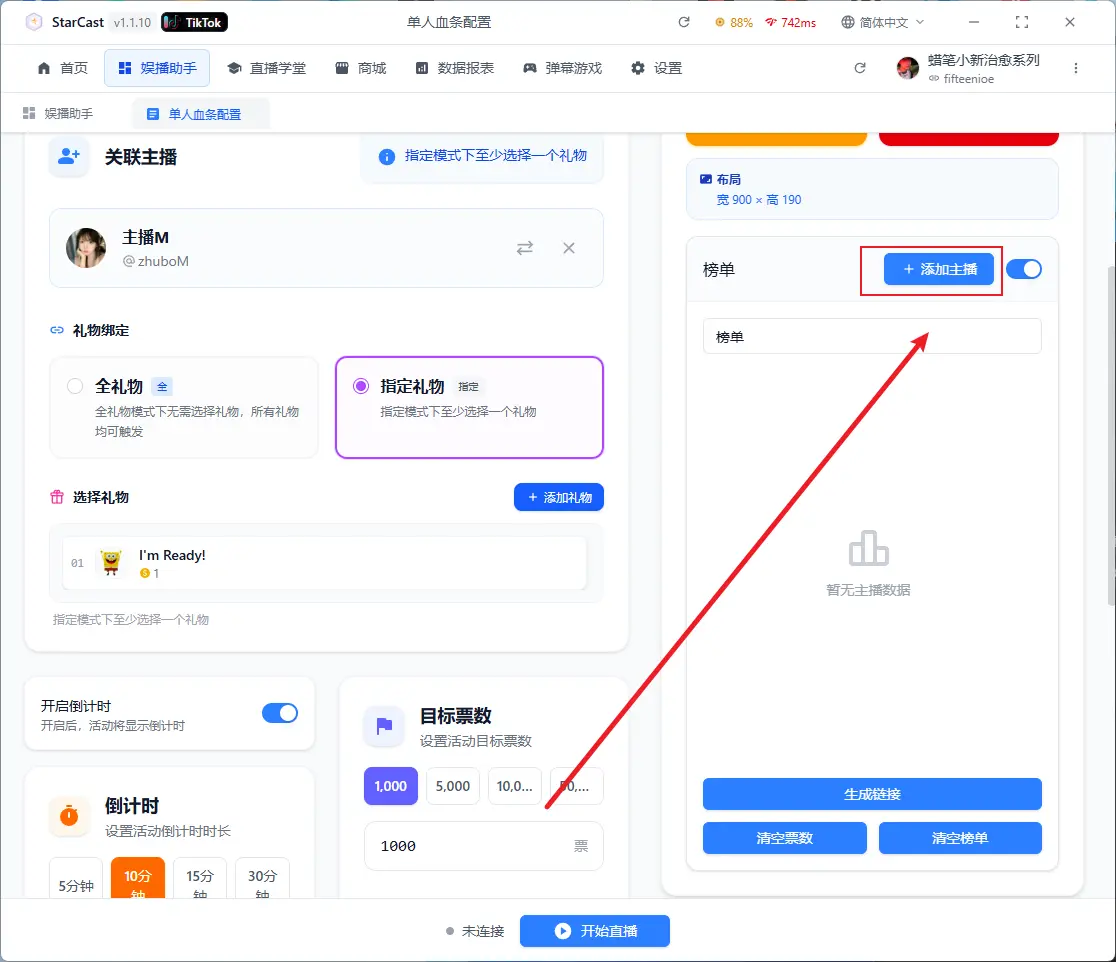
Add streamers to the leaderboard
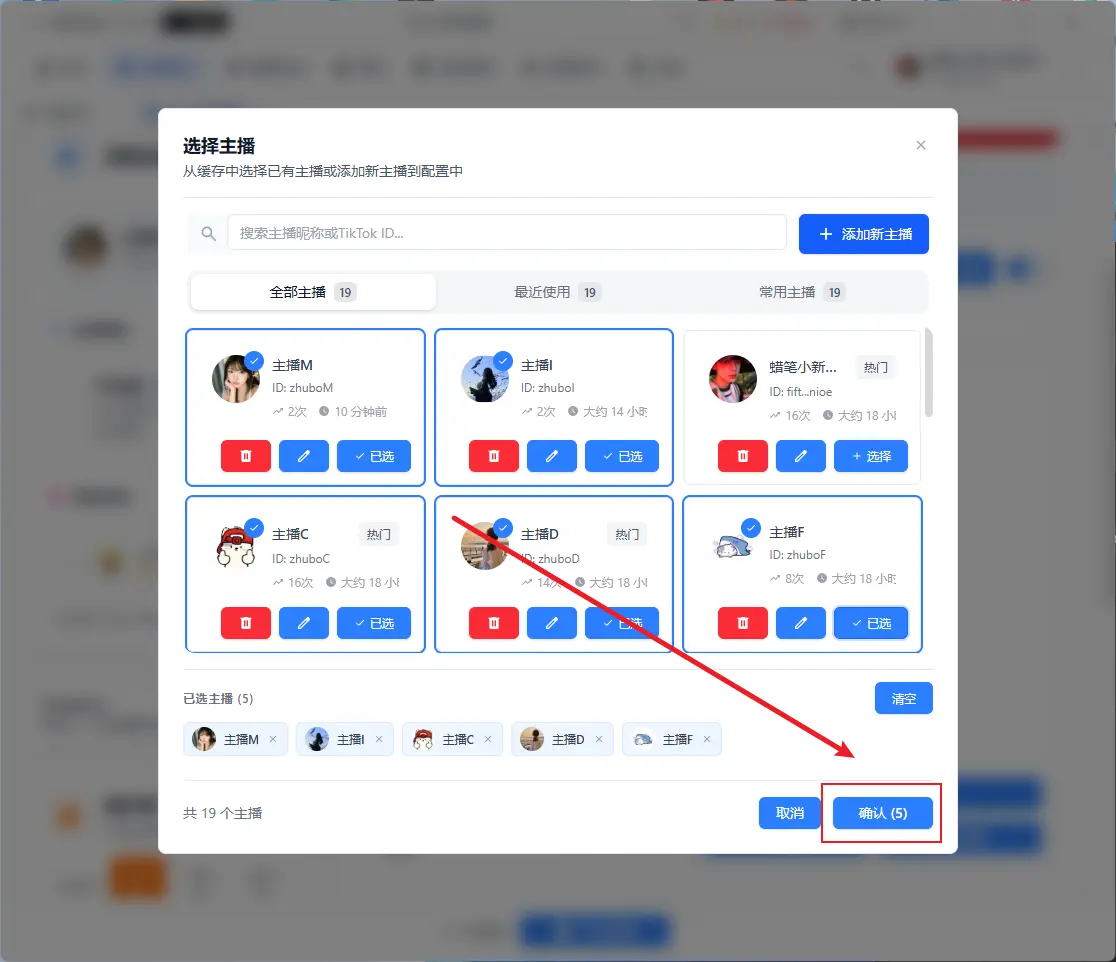
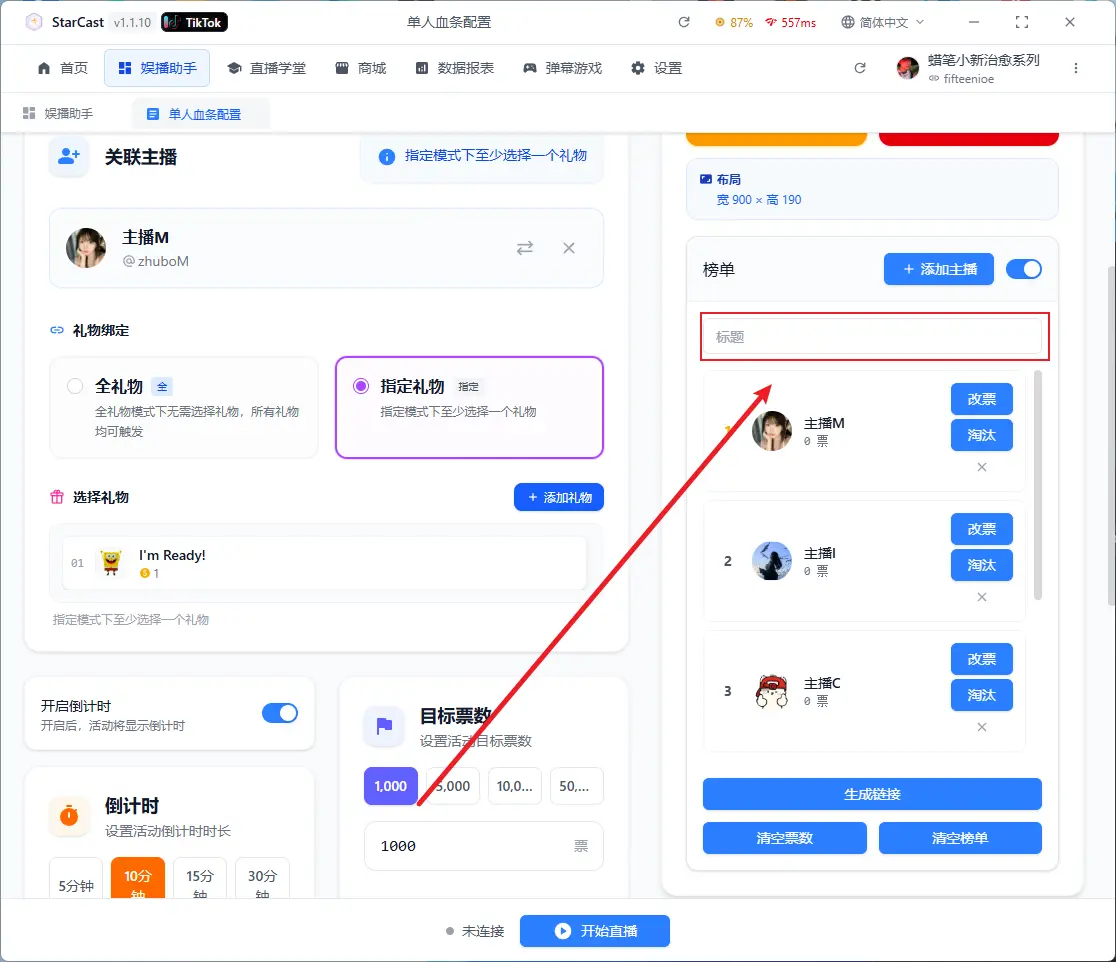
Enter title, after configuration click "Generate Link"
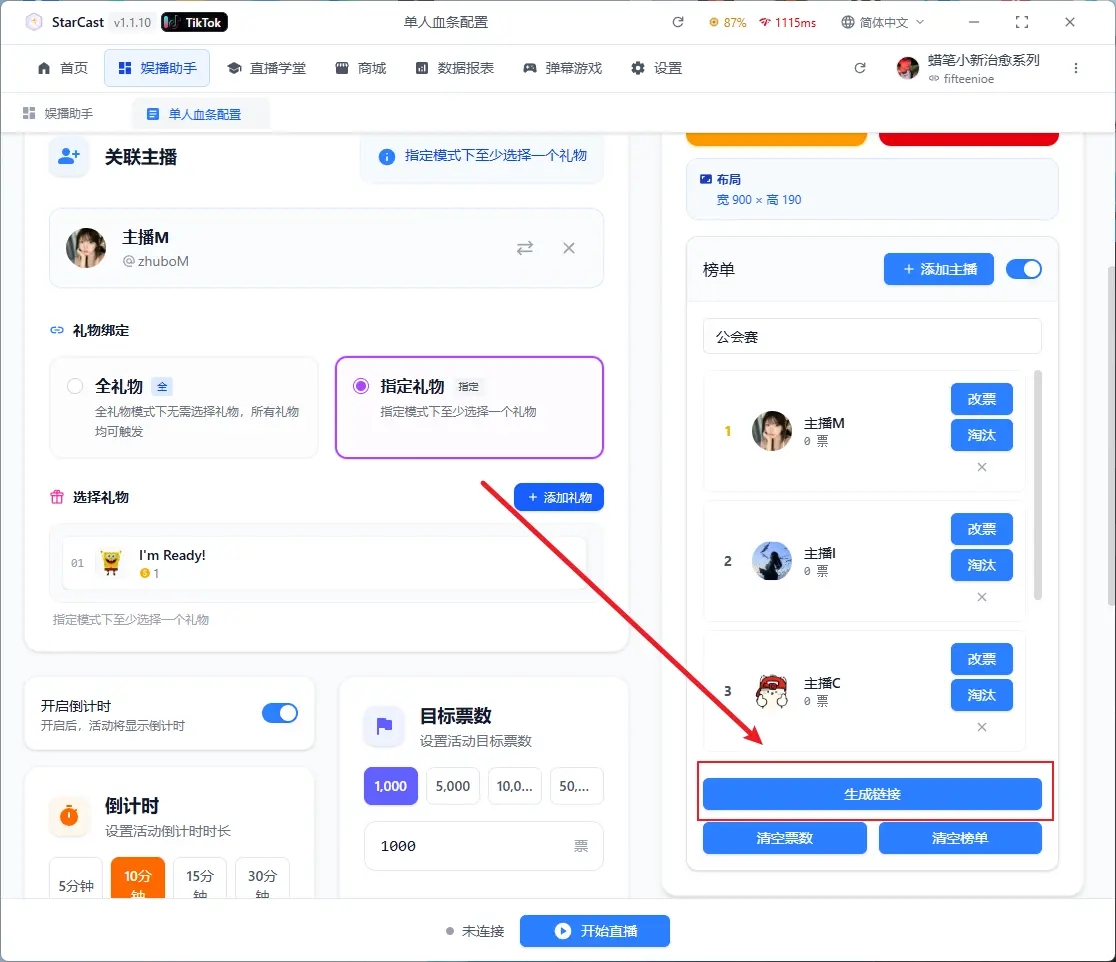
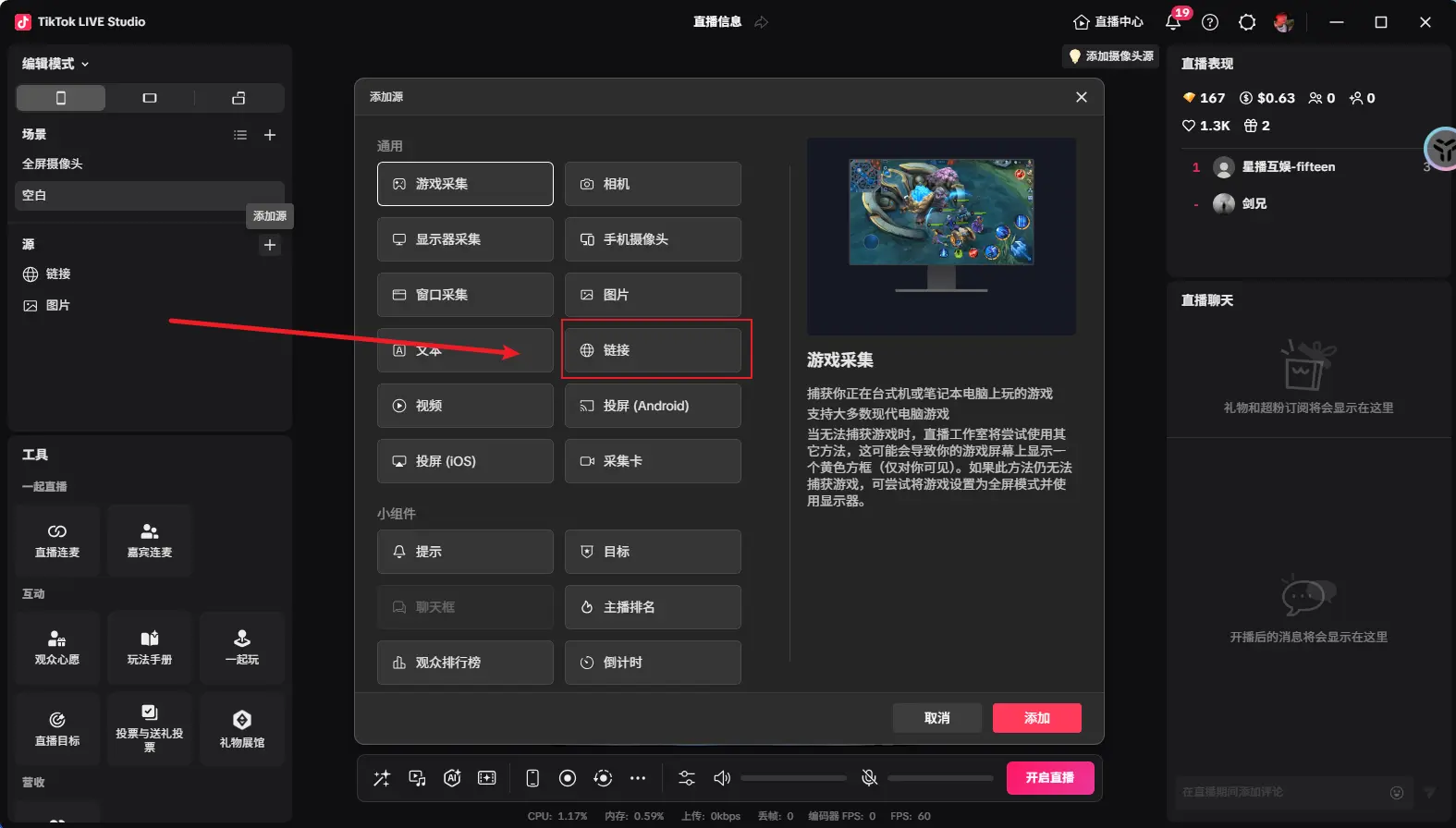
Open TikTok LIVE Studio, add source, and select Link
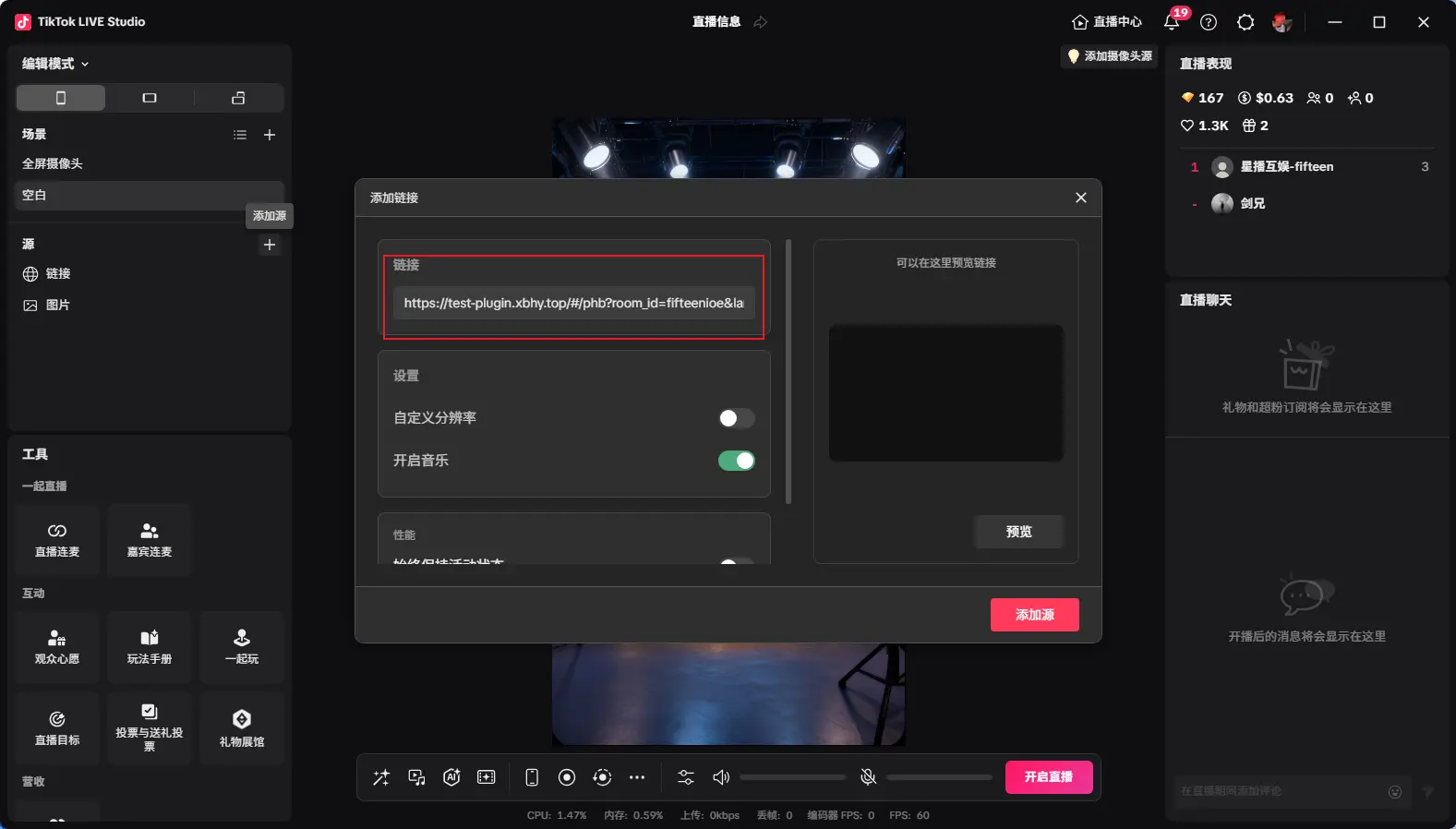
Paste the generated link and change the custom resolution to 360x1300
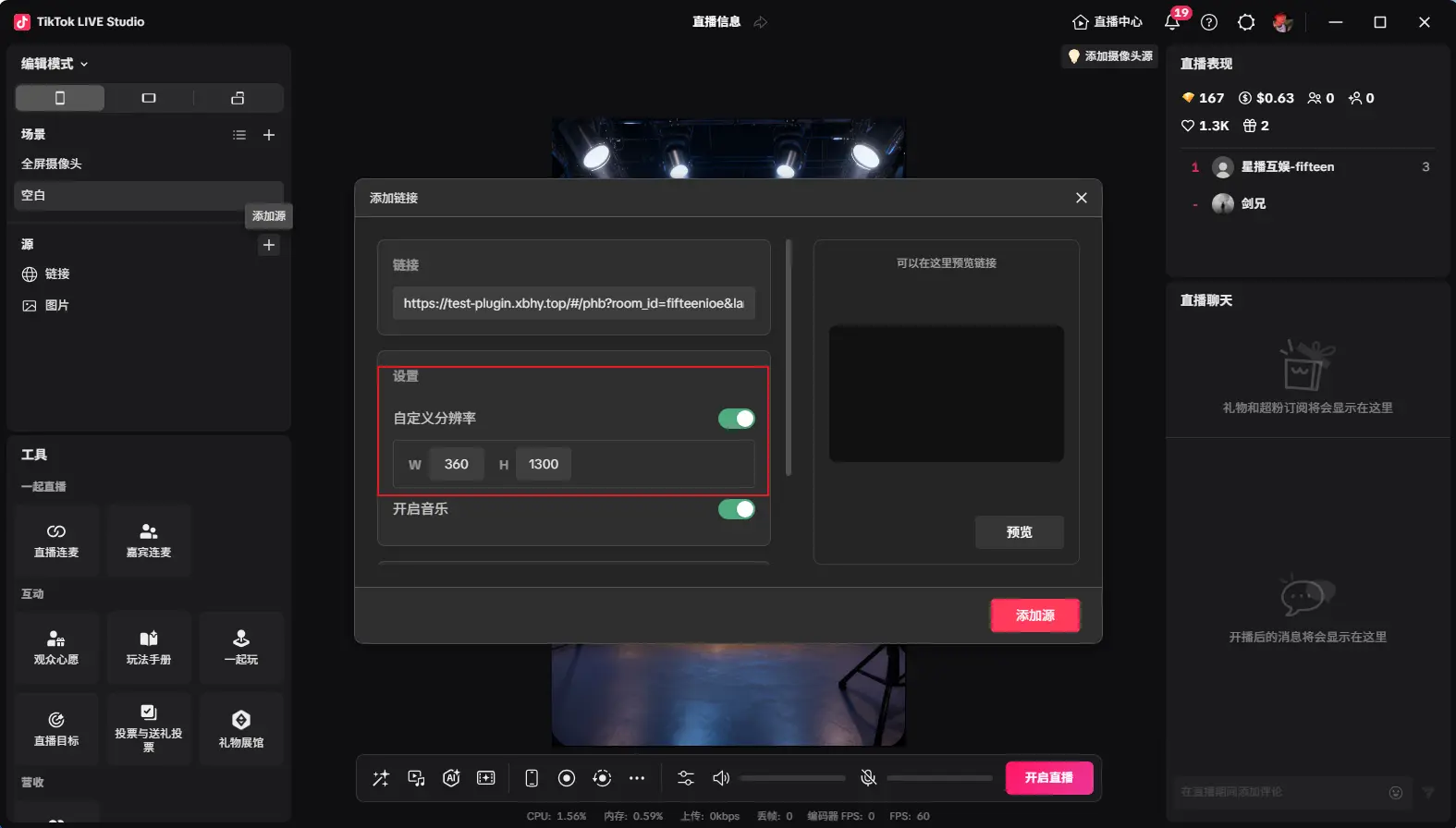
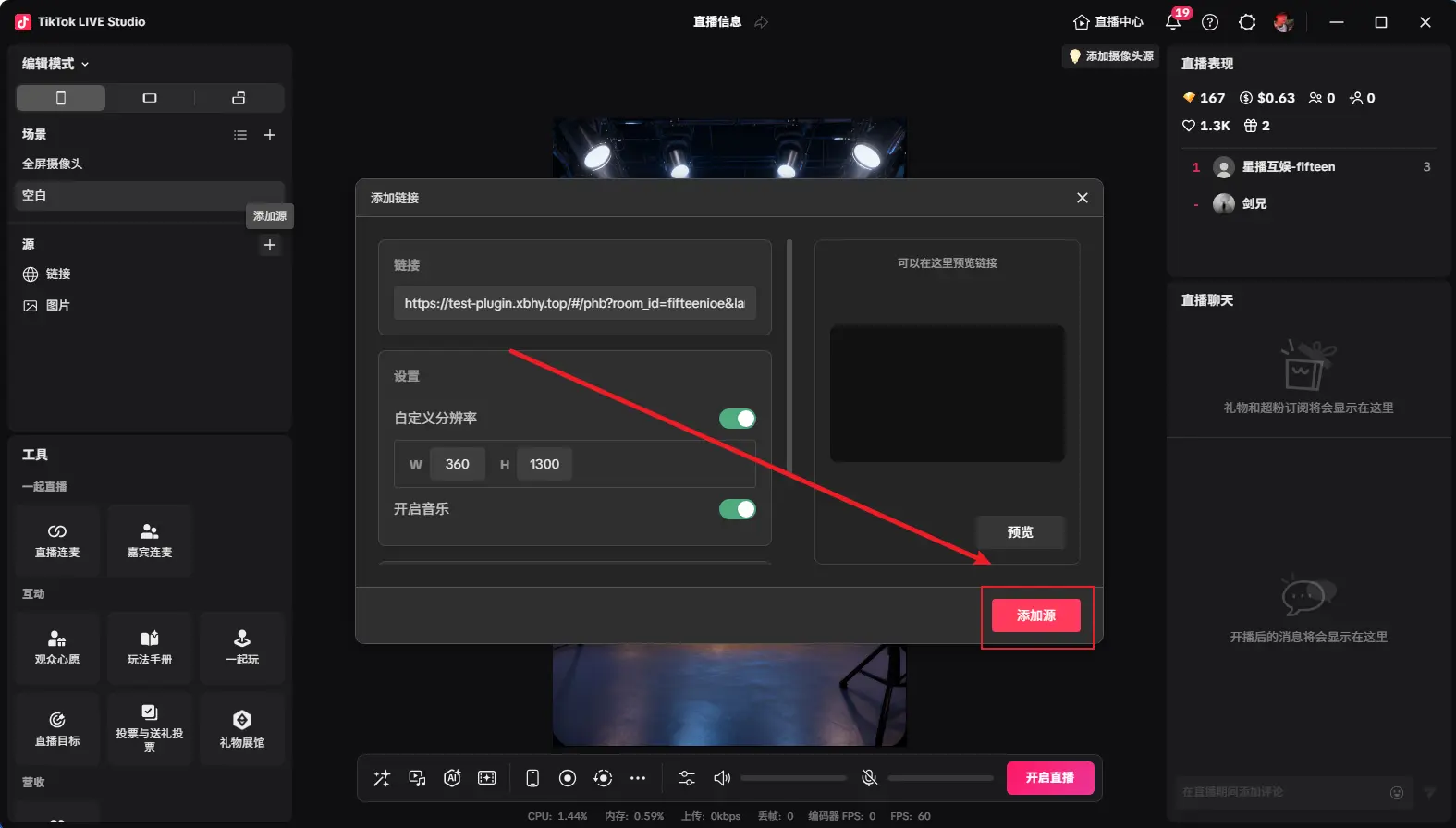
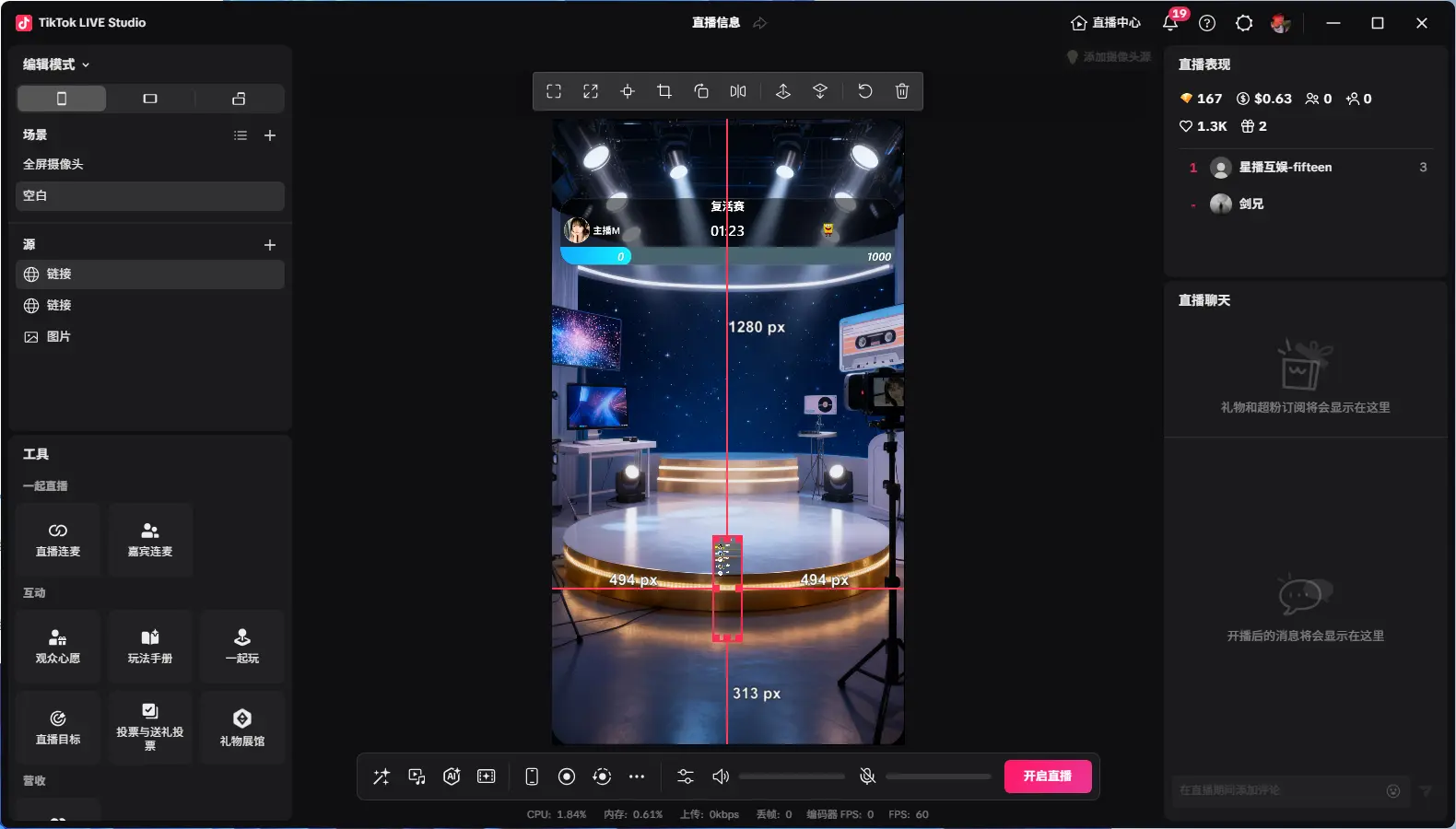
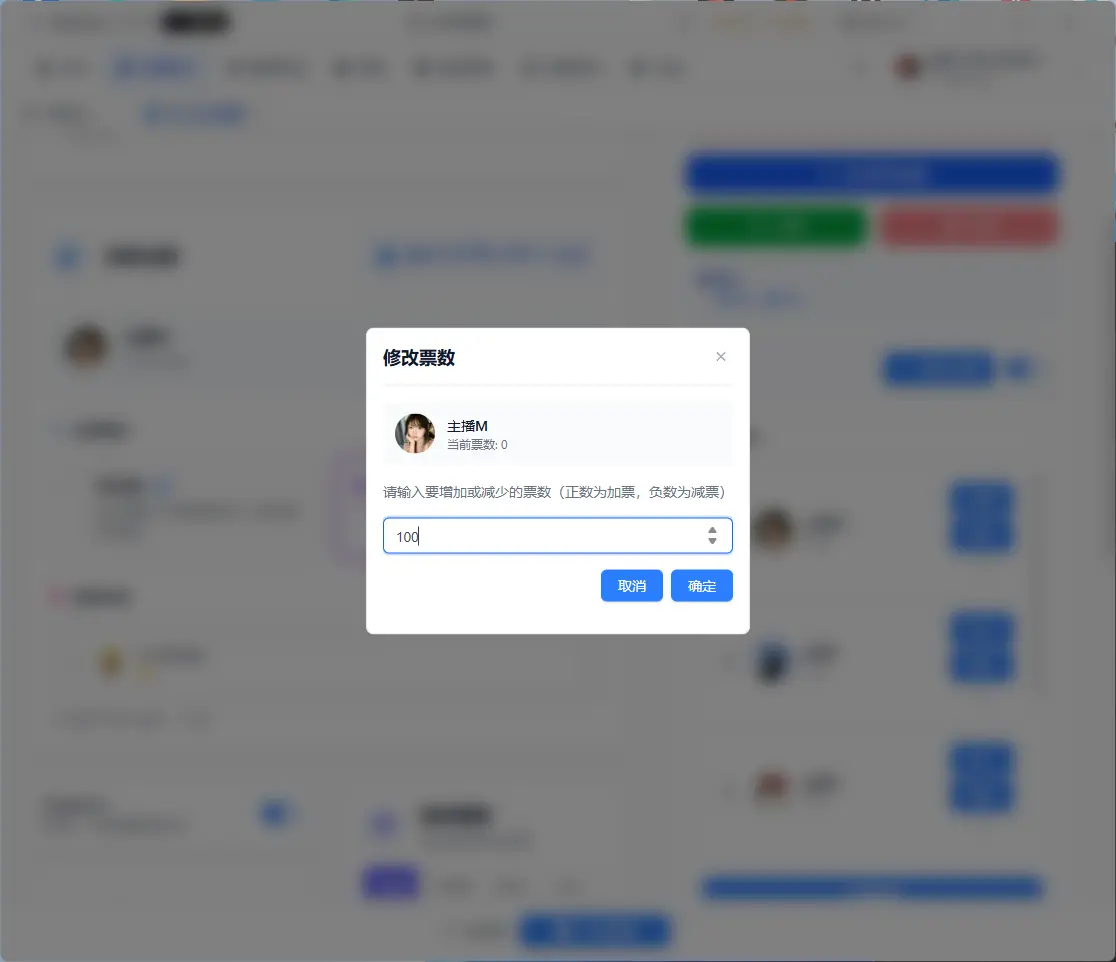
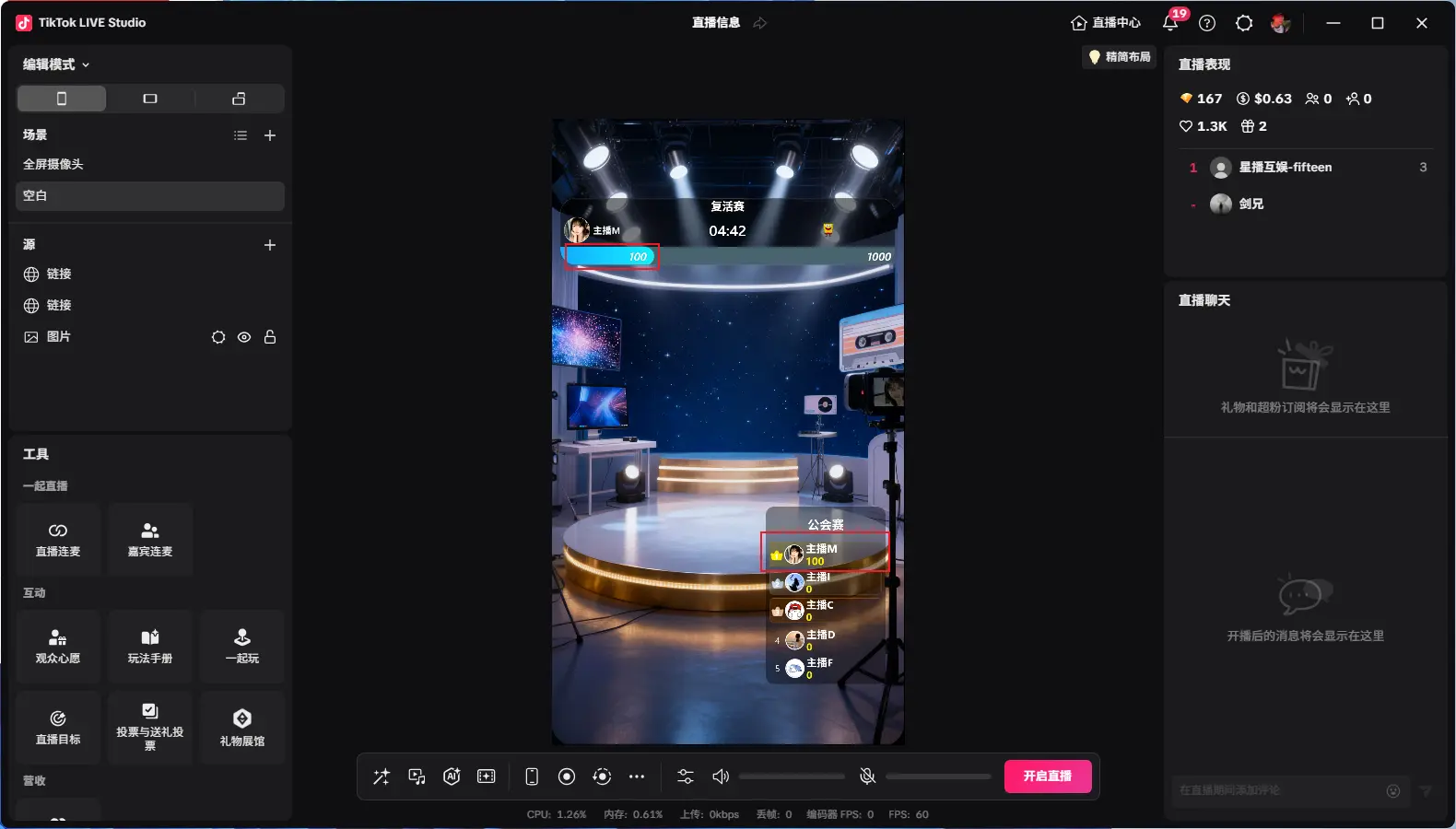
After adding as shown, click "Modify Votes", enter votes to modify streamer's votes
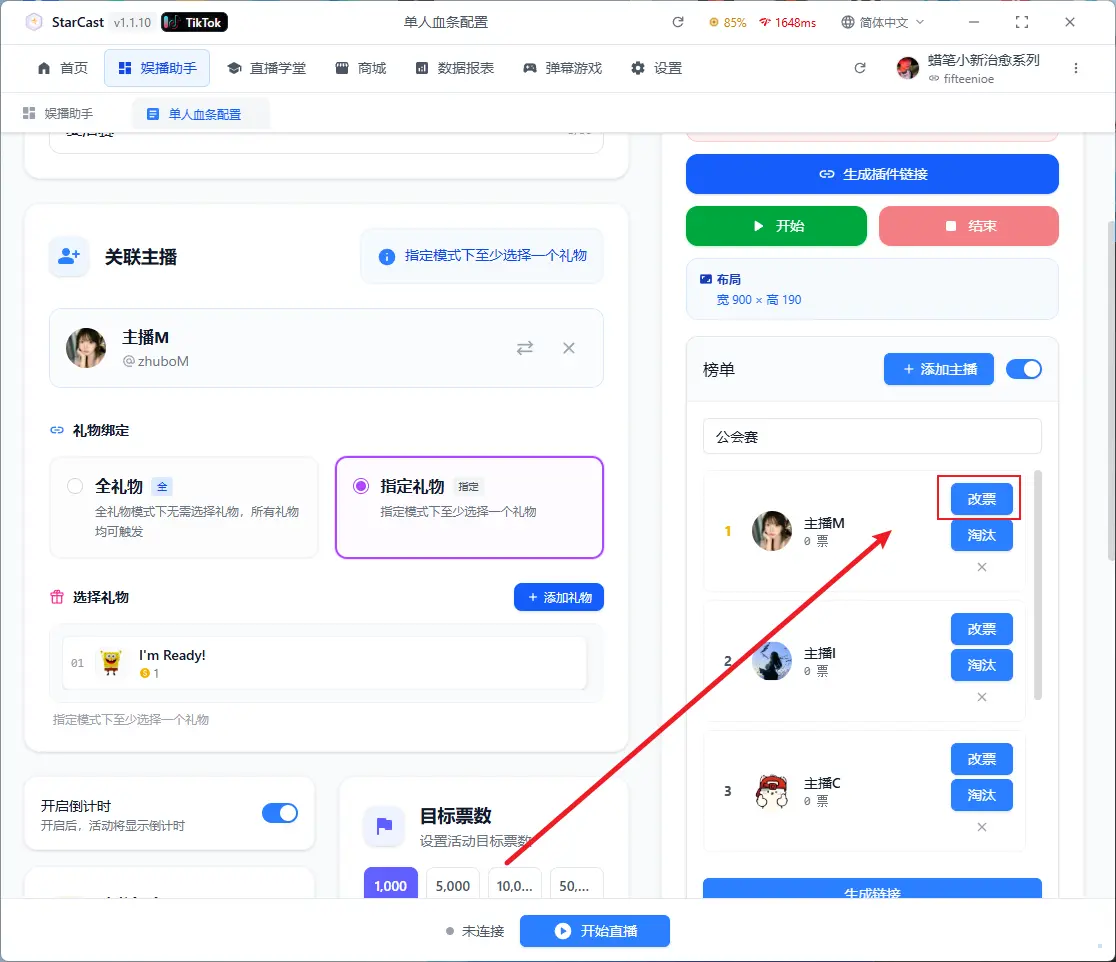
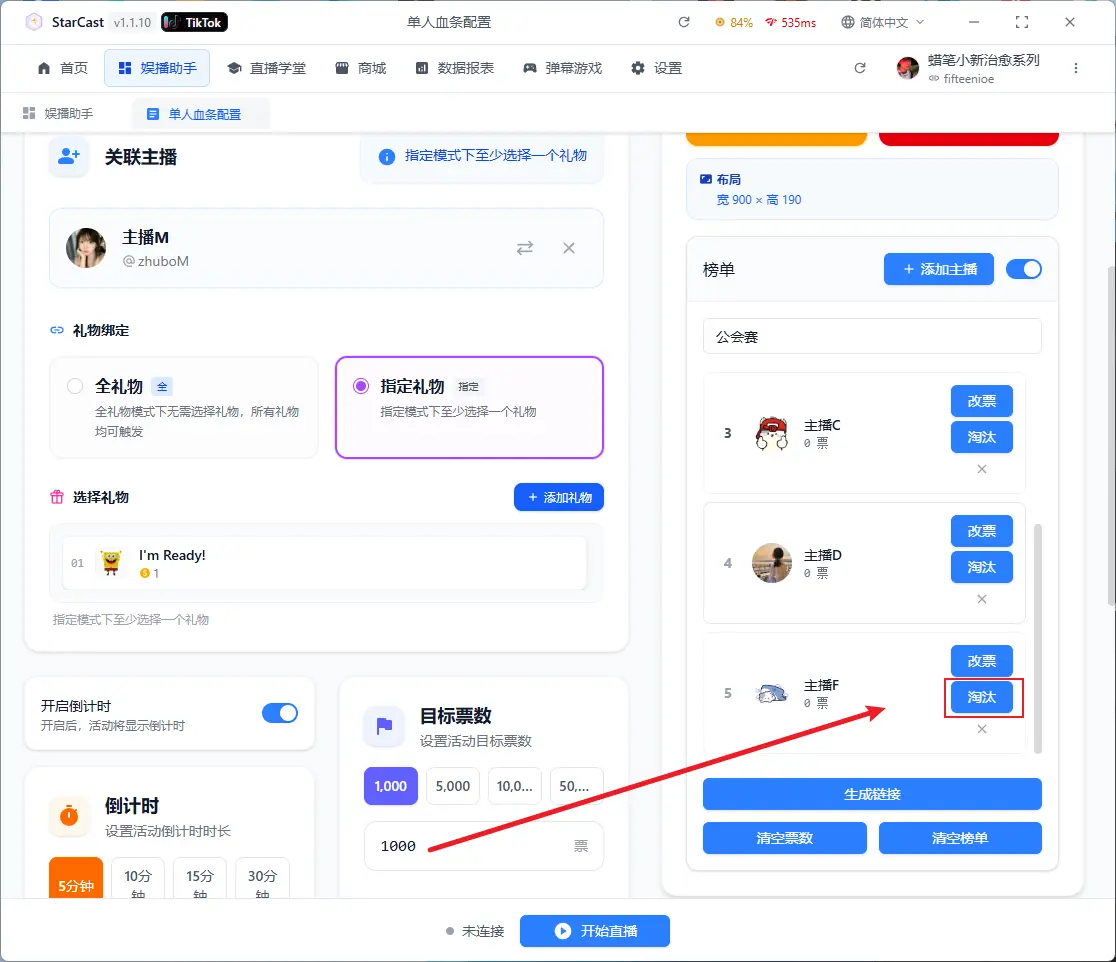
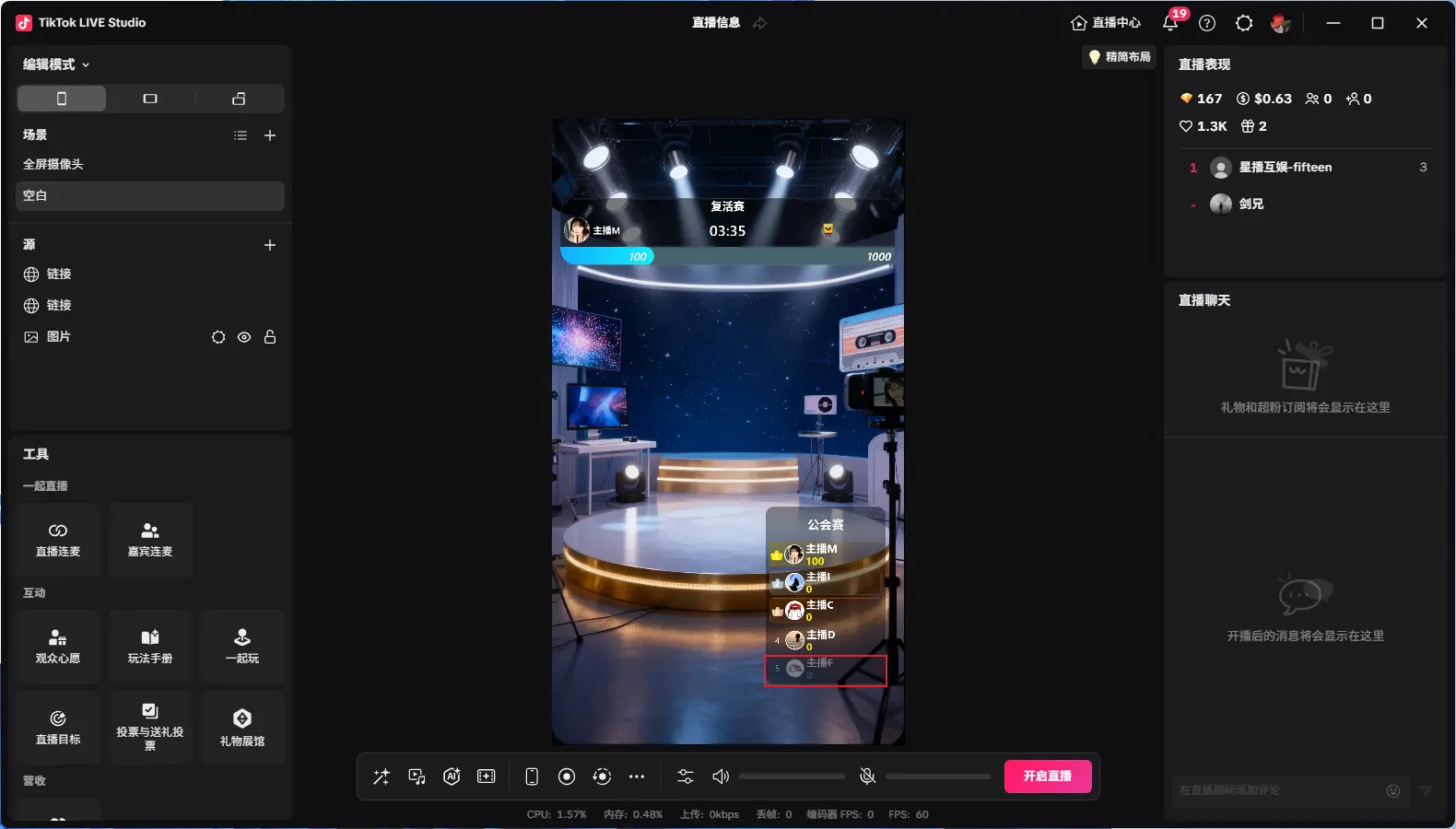
Click "Eliminate" to eliminate a streamer
Click "Revive" to revive a streamer
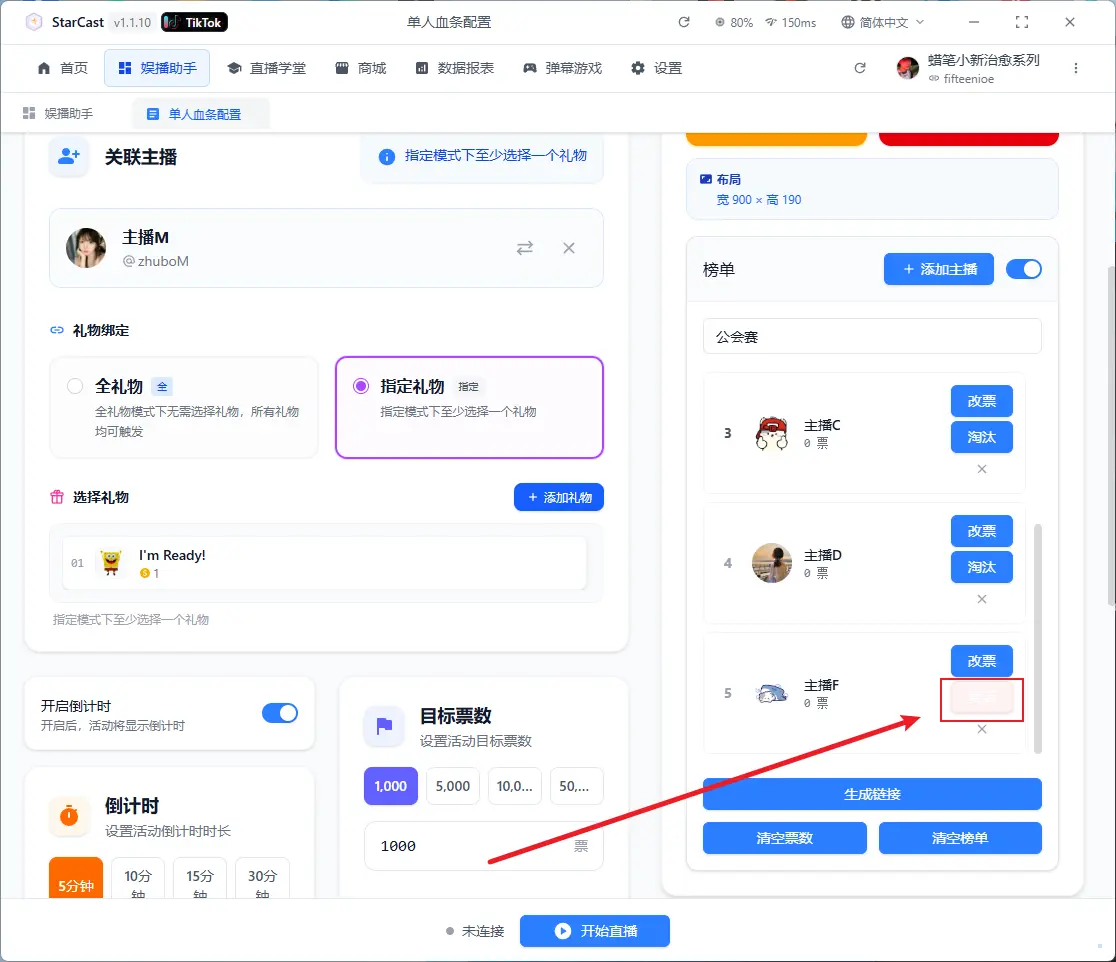
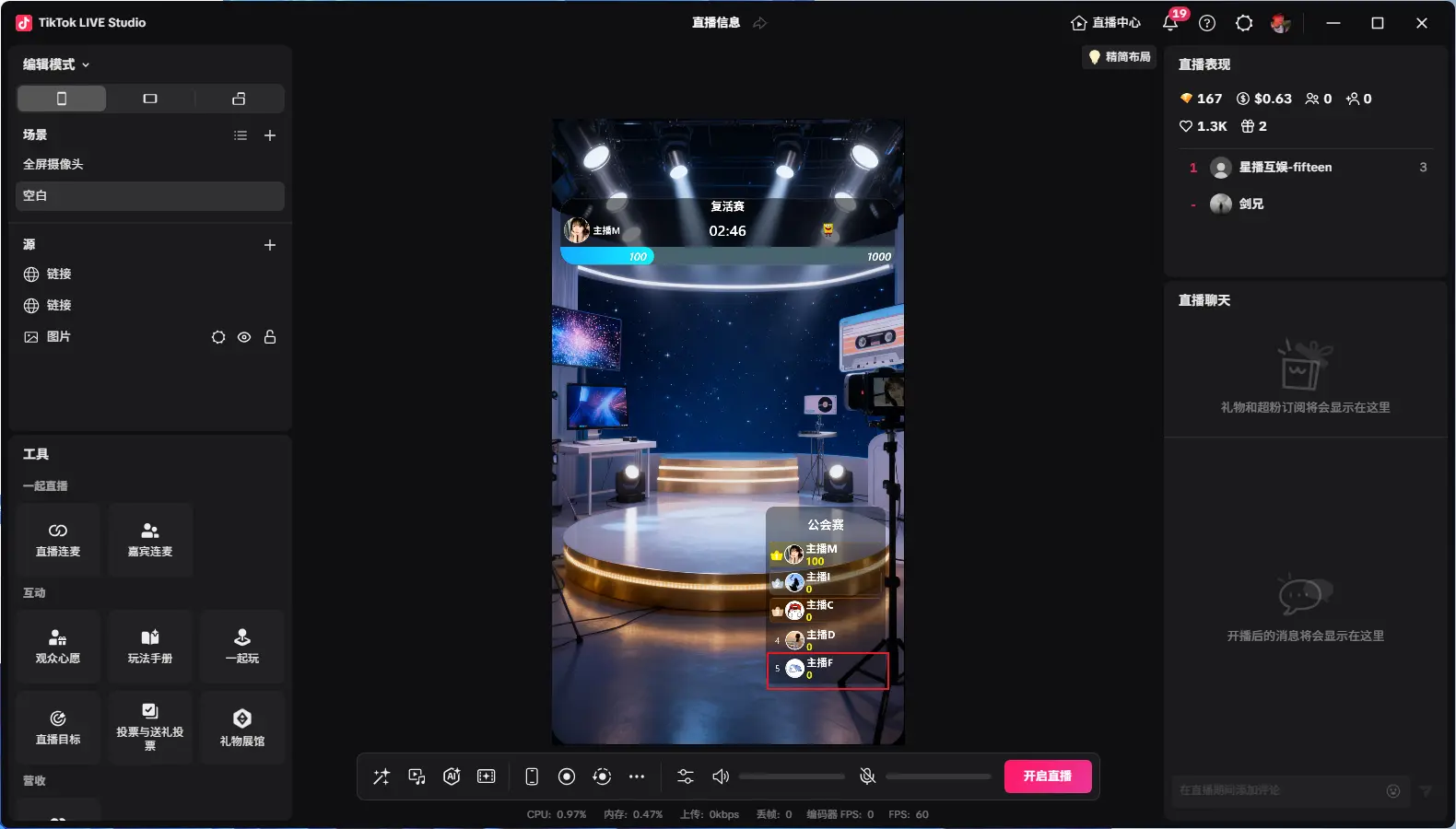
Displaying "Connected" means successfully connected to the live room
Avatar Frame
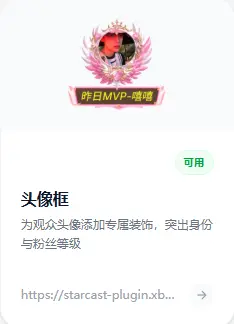
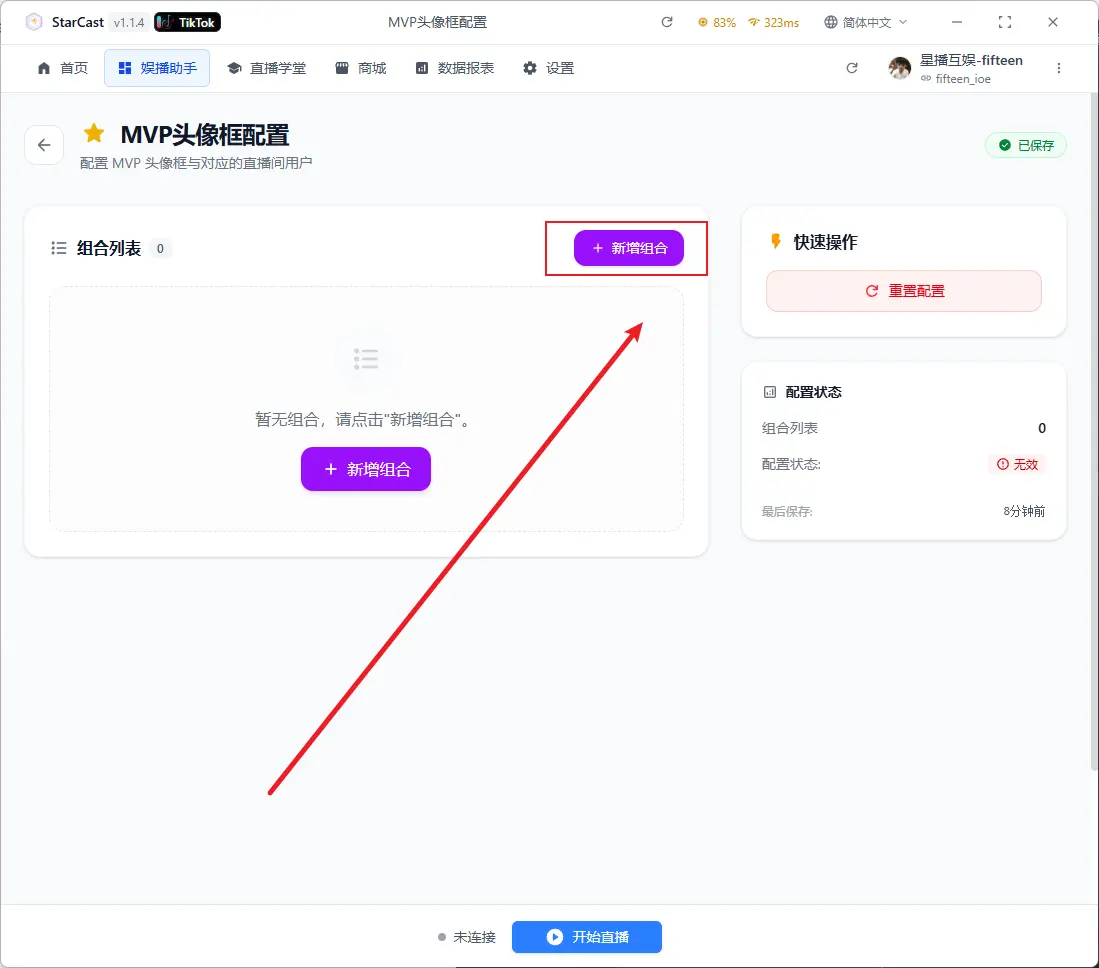
Click "Add Combo"
Select avatar frame and enter custom text
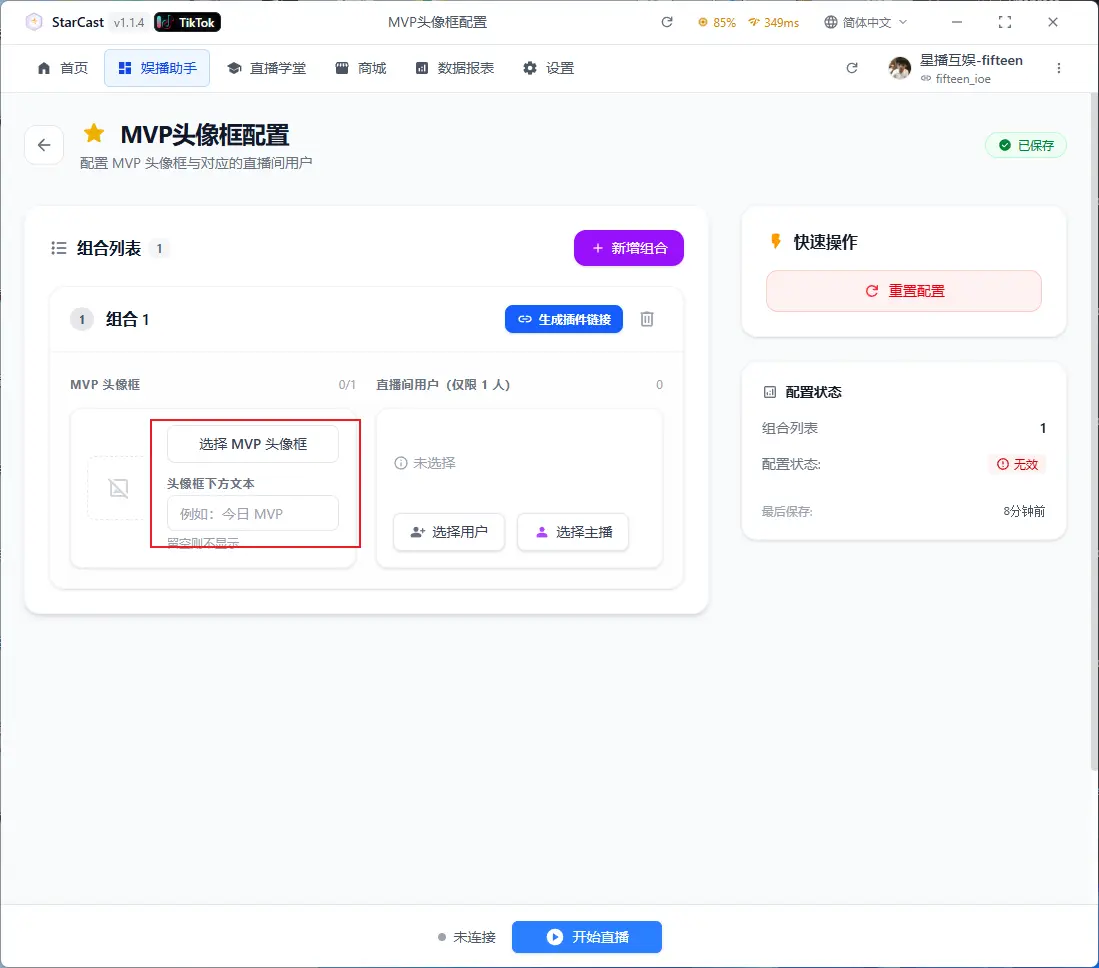
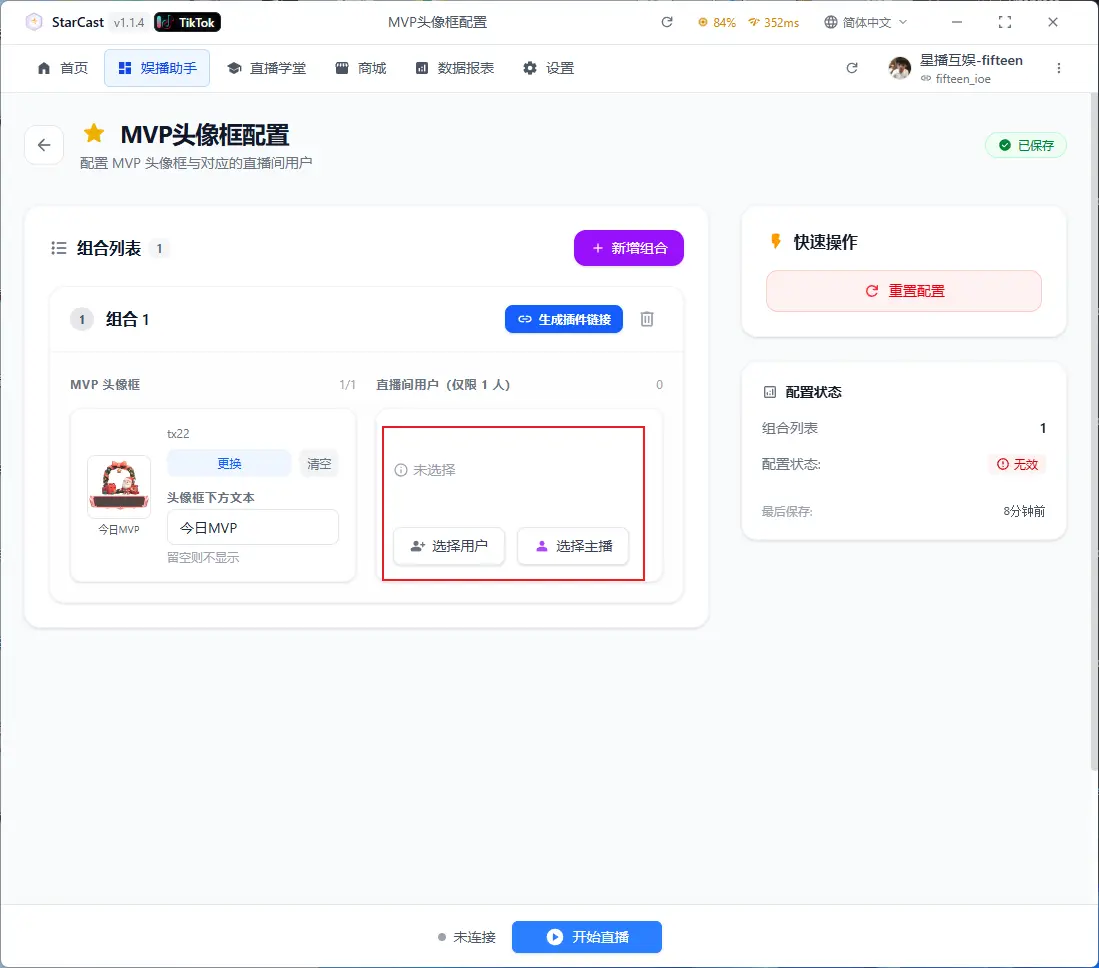
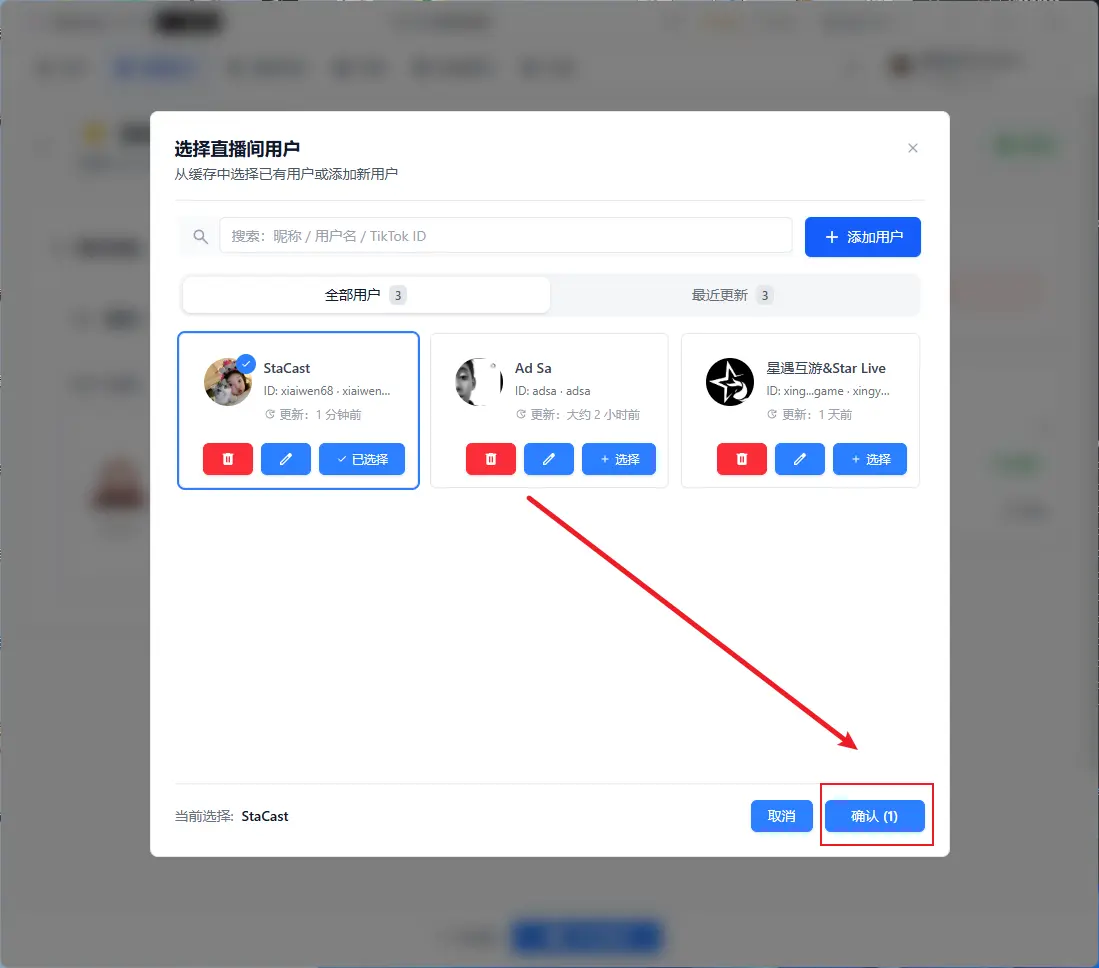
Select live room user or streamer
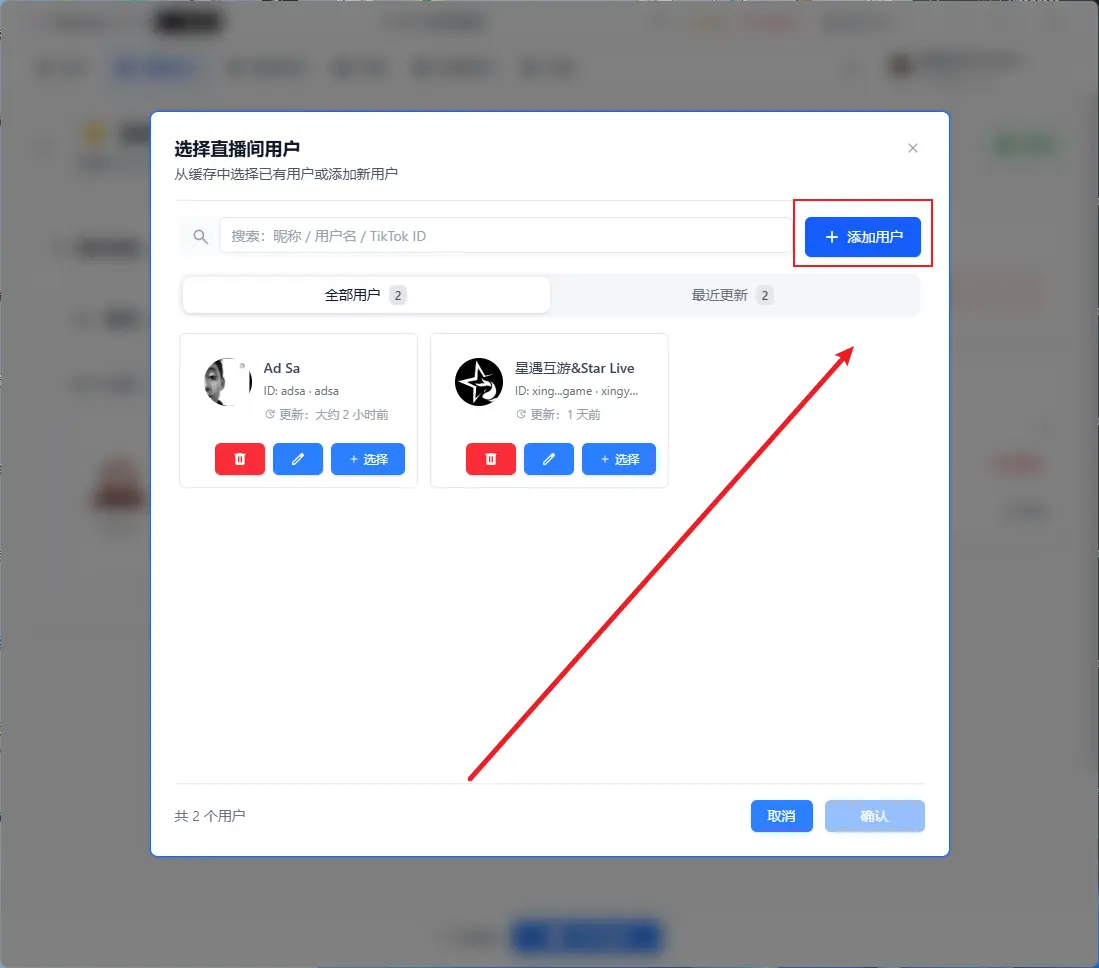
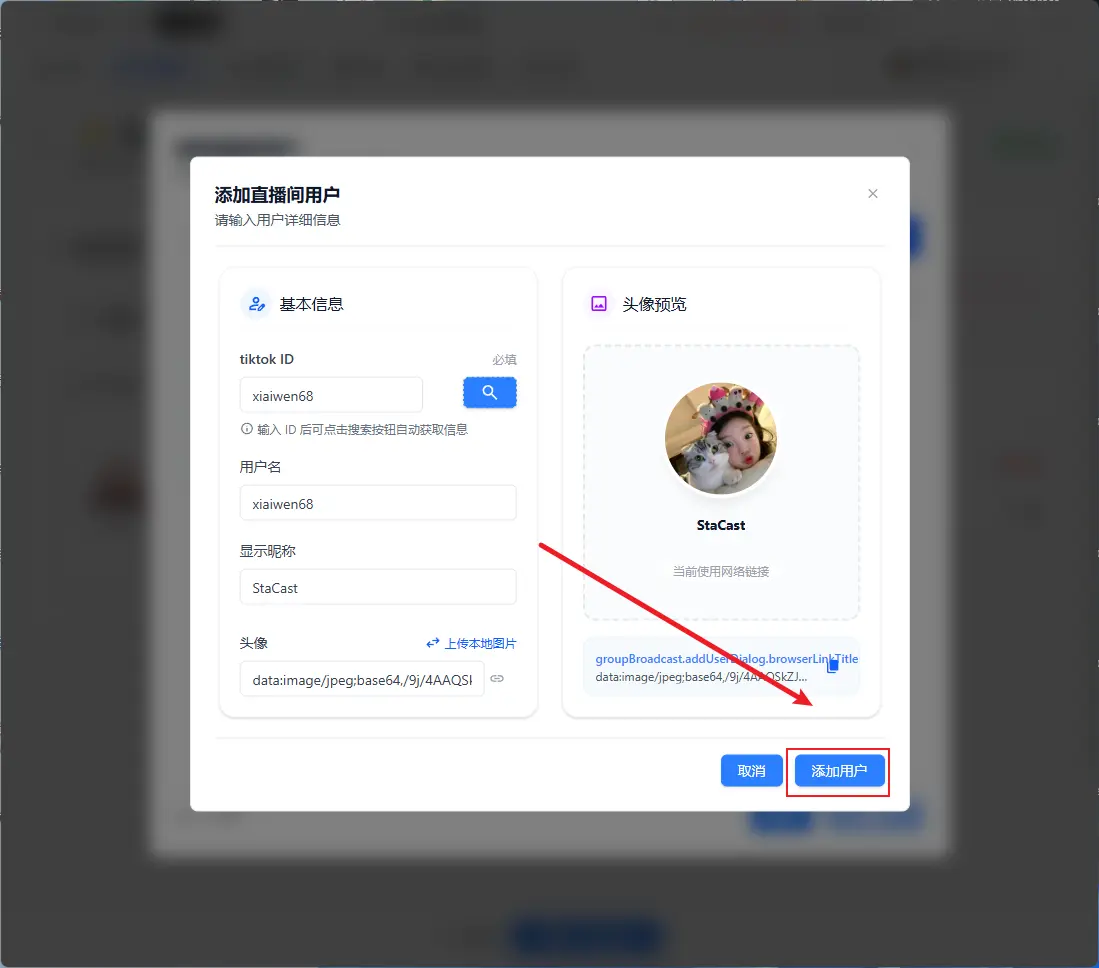
Add User
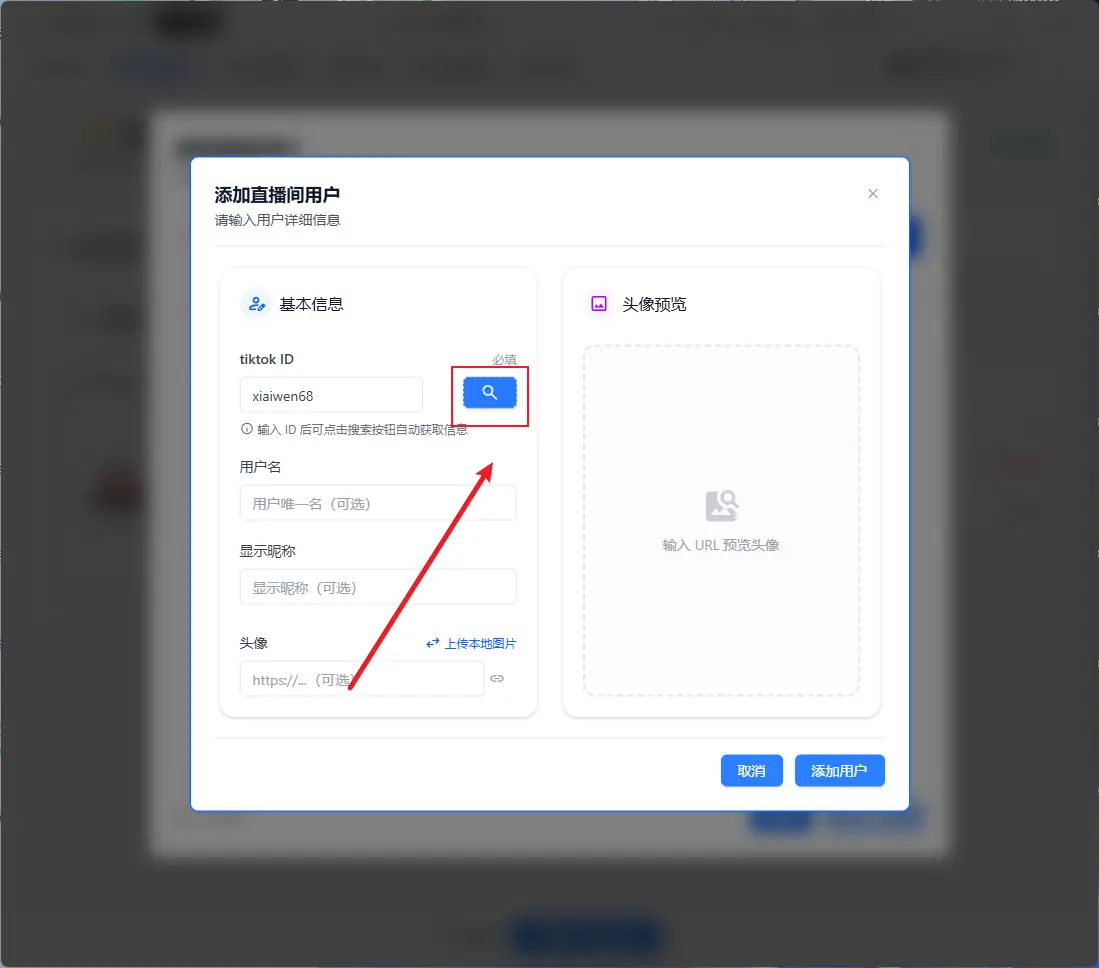
Enter TikTok ID, click search and add
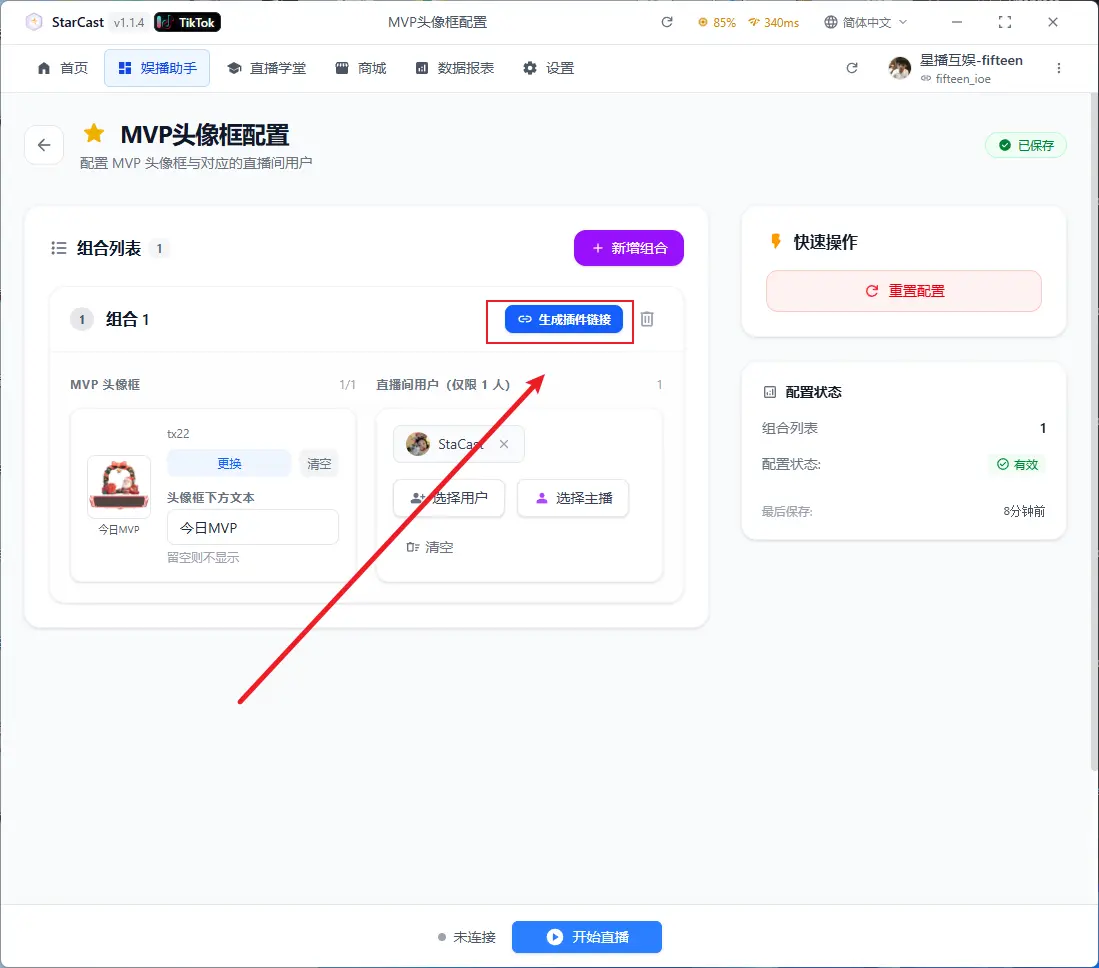
After configuration, click "Generate Link"
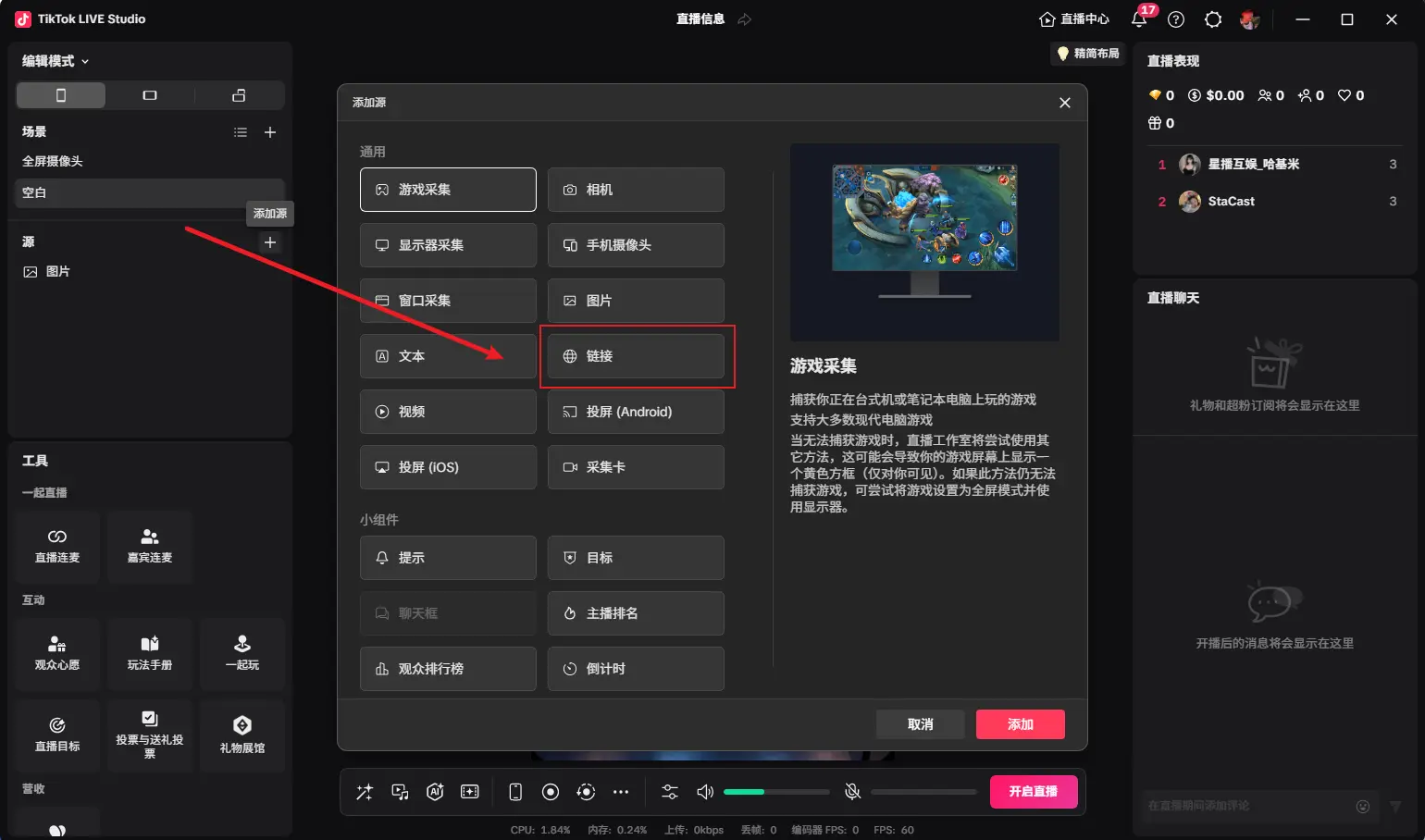
Open TikTok LIVE Studio, add source, and select Link
Paste the generated link and change the custom resolution to 230x190
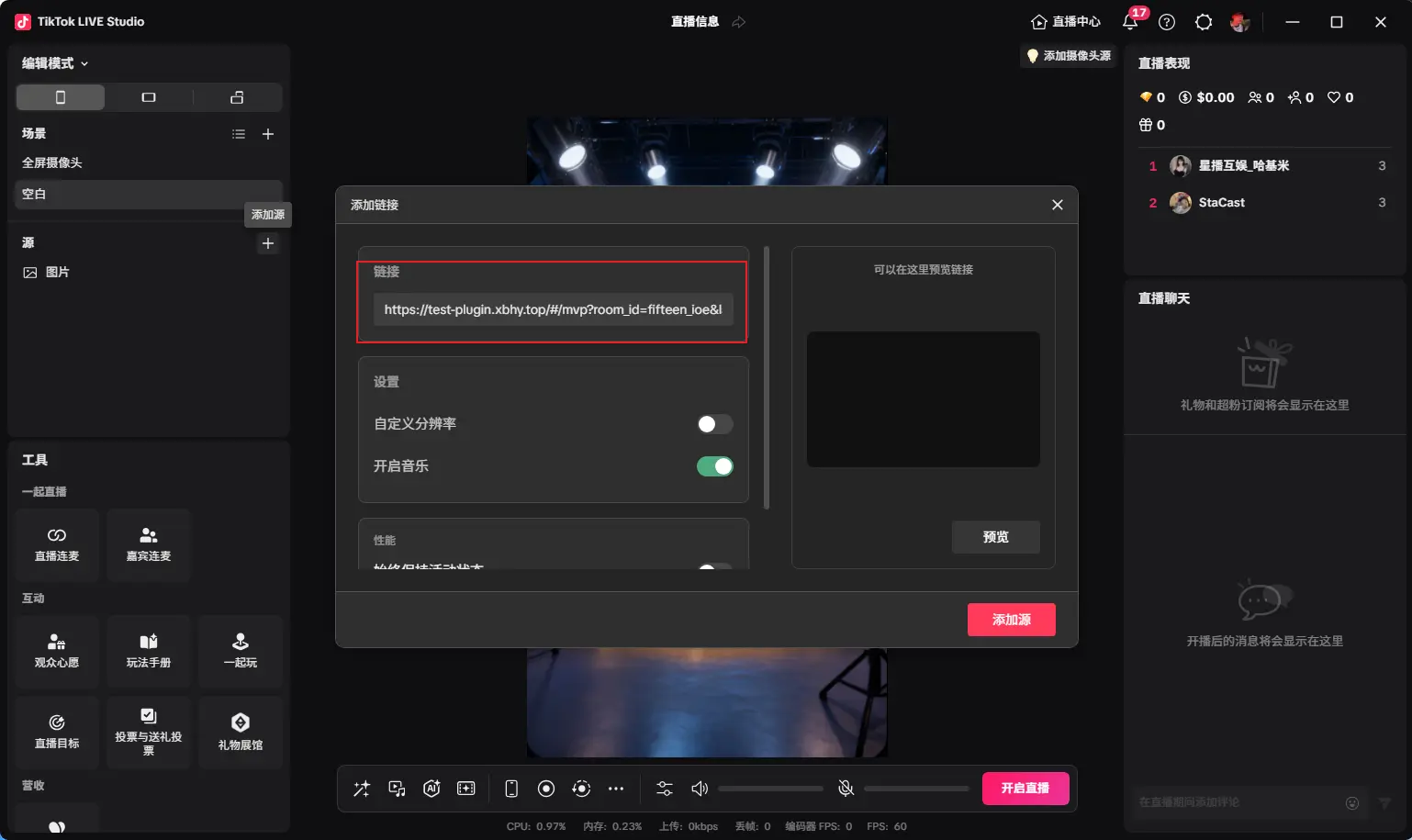
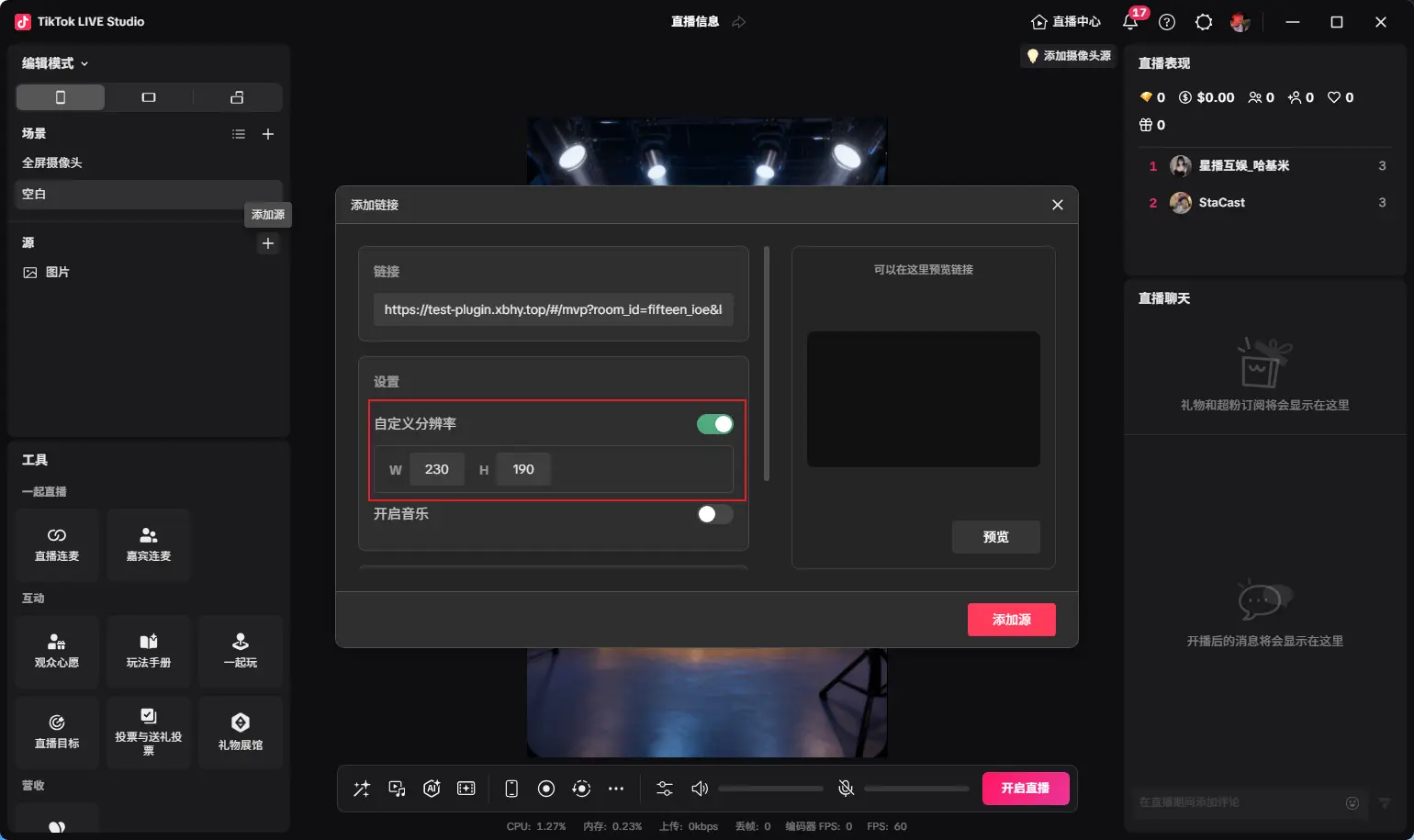
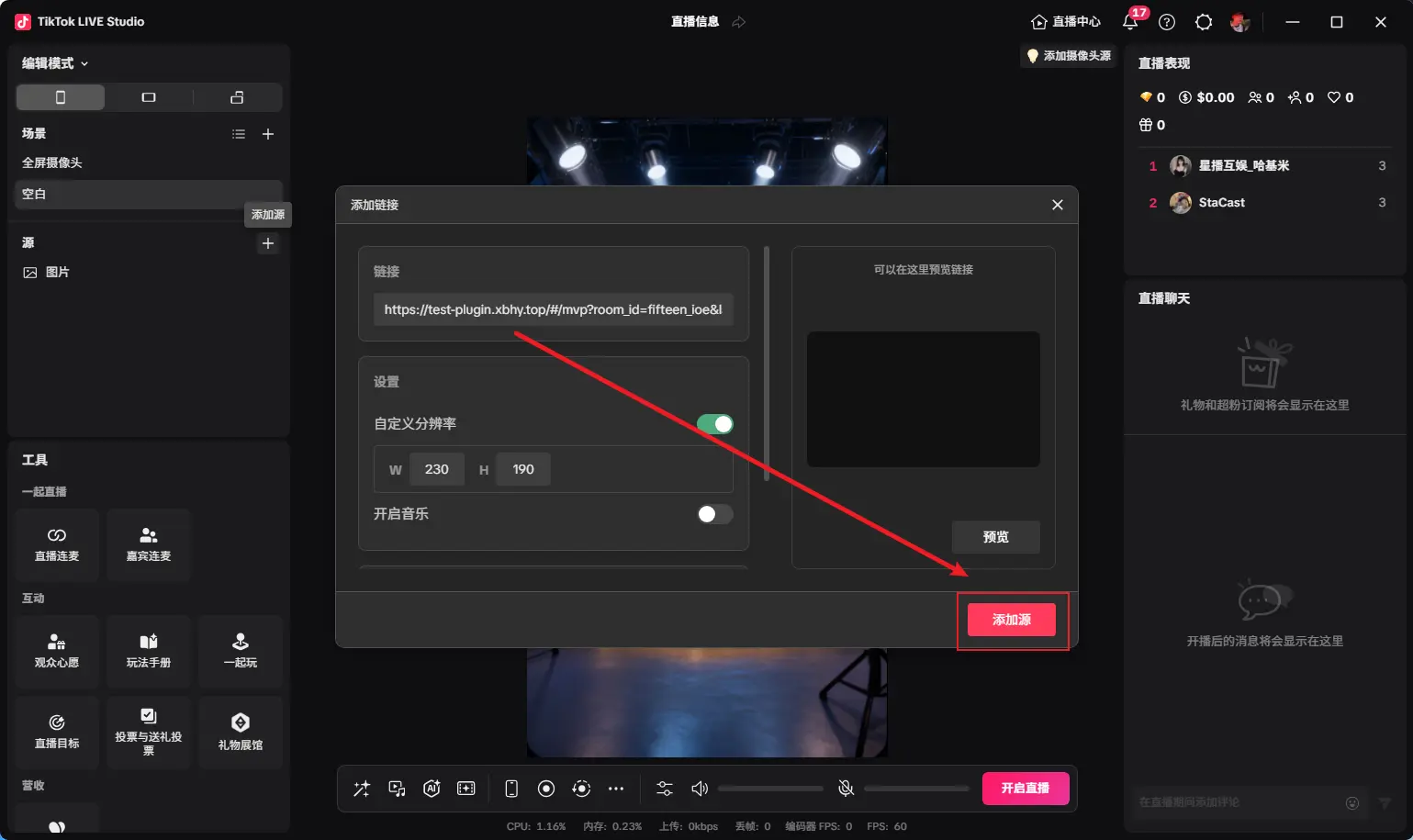
After adding as shown, adjust to desired size, then click "Generate Link" again to update status
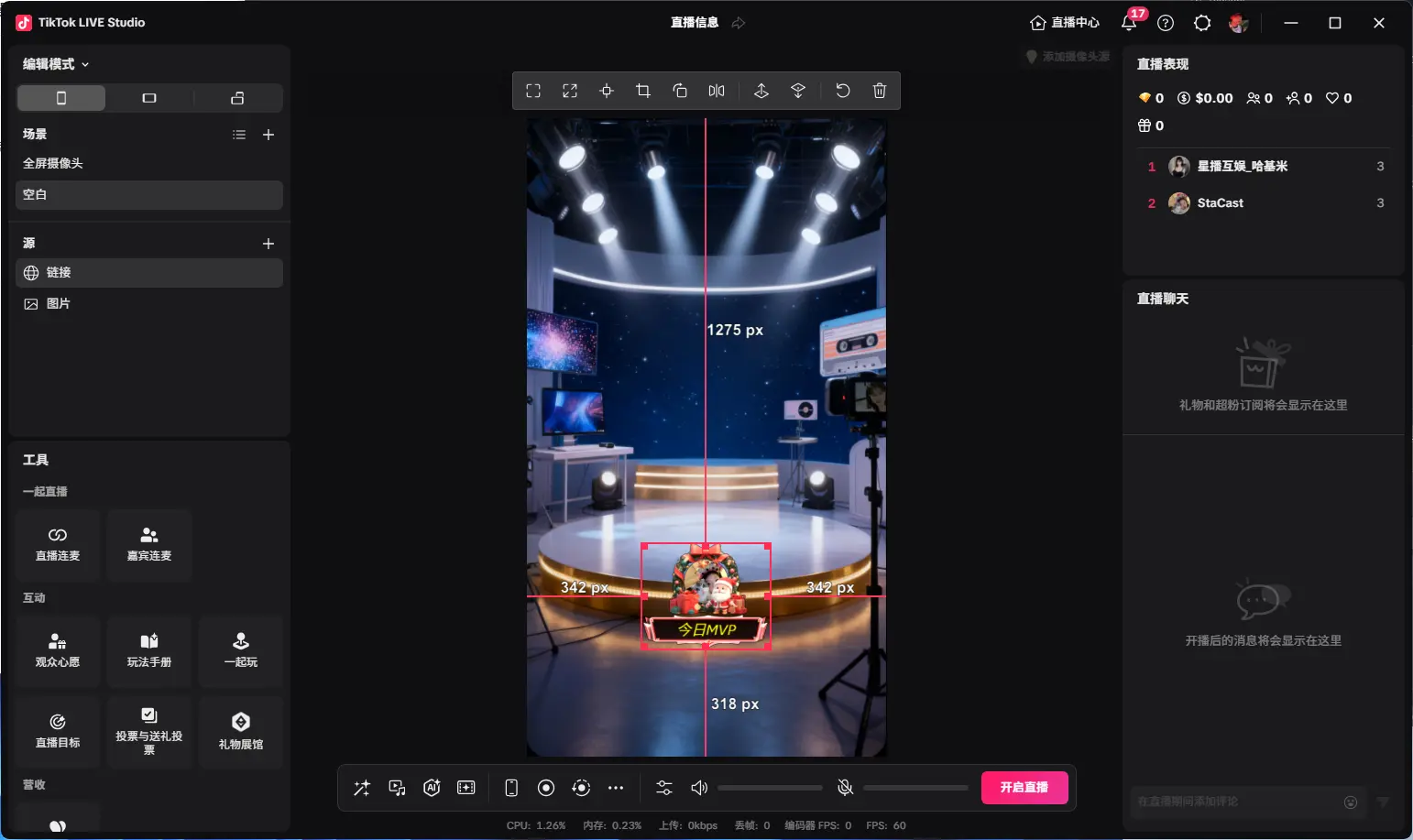
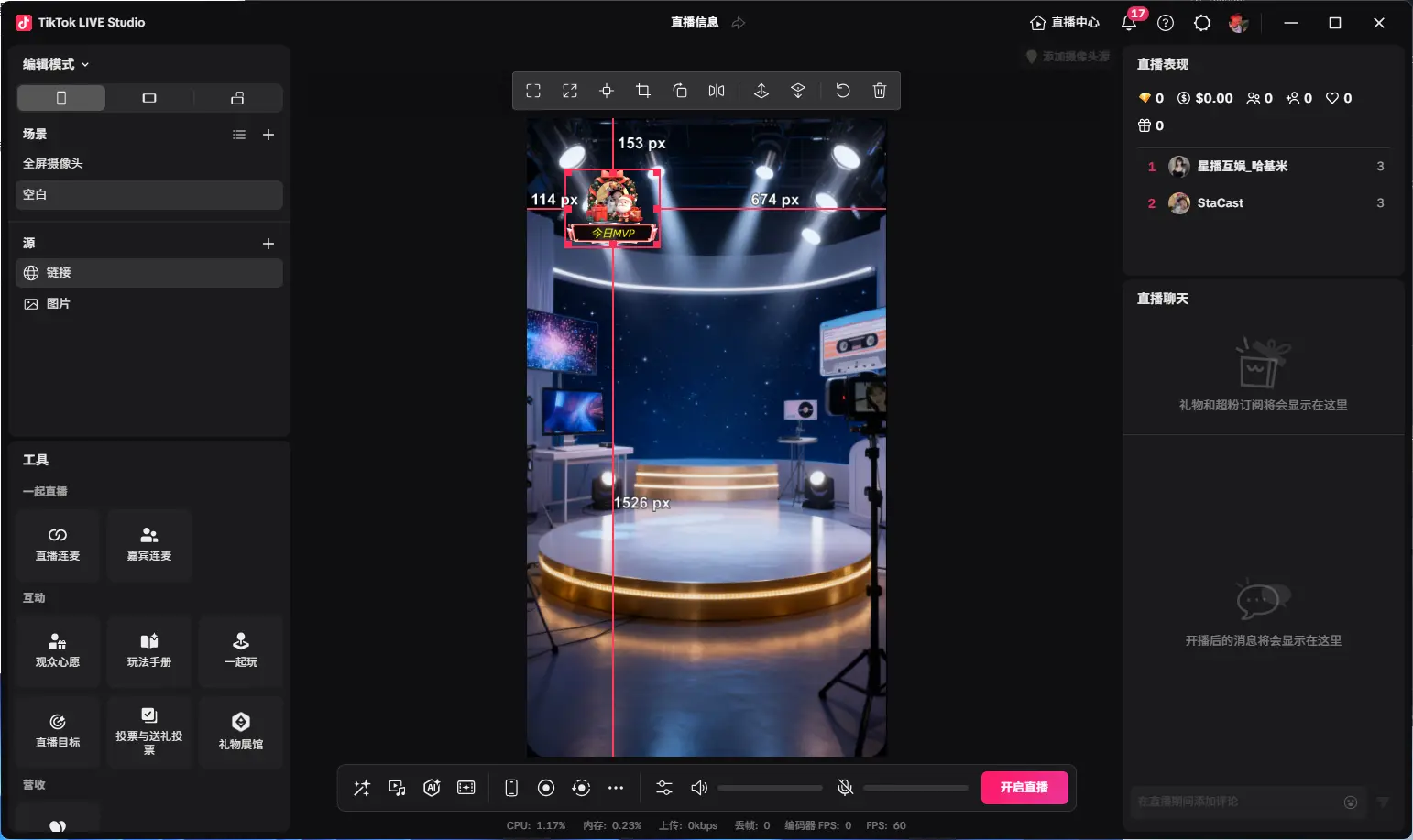
Displaying "Connected" means successfully connected to the live room
Single HP Bar
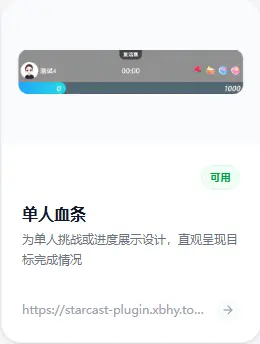
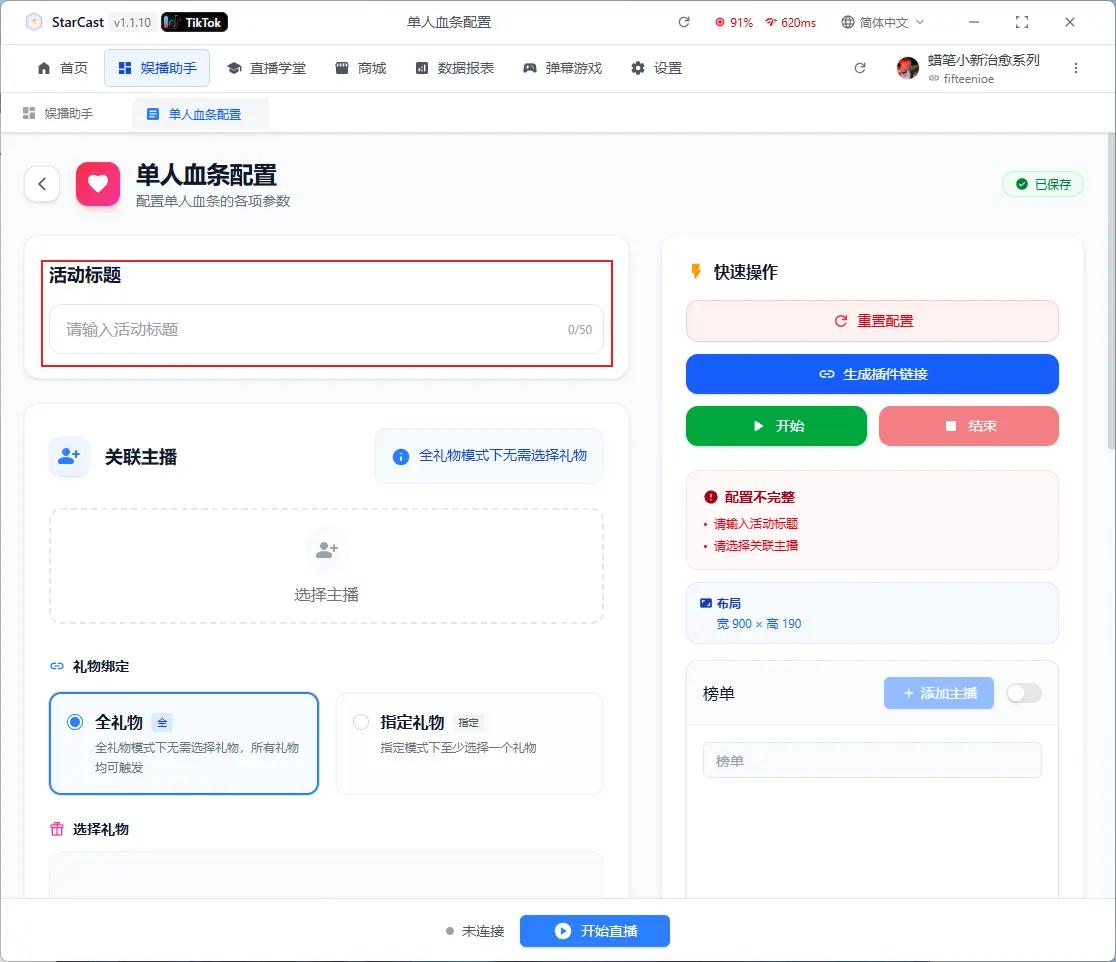
Add Title
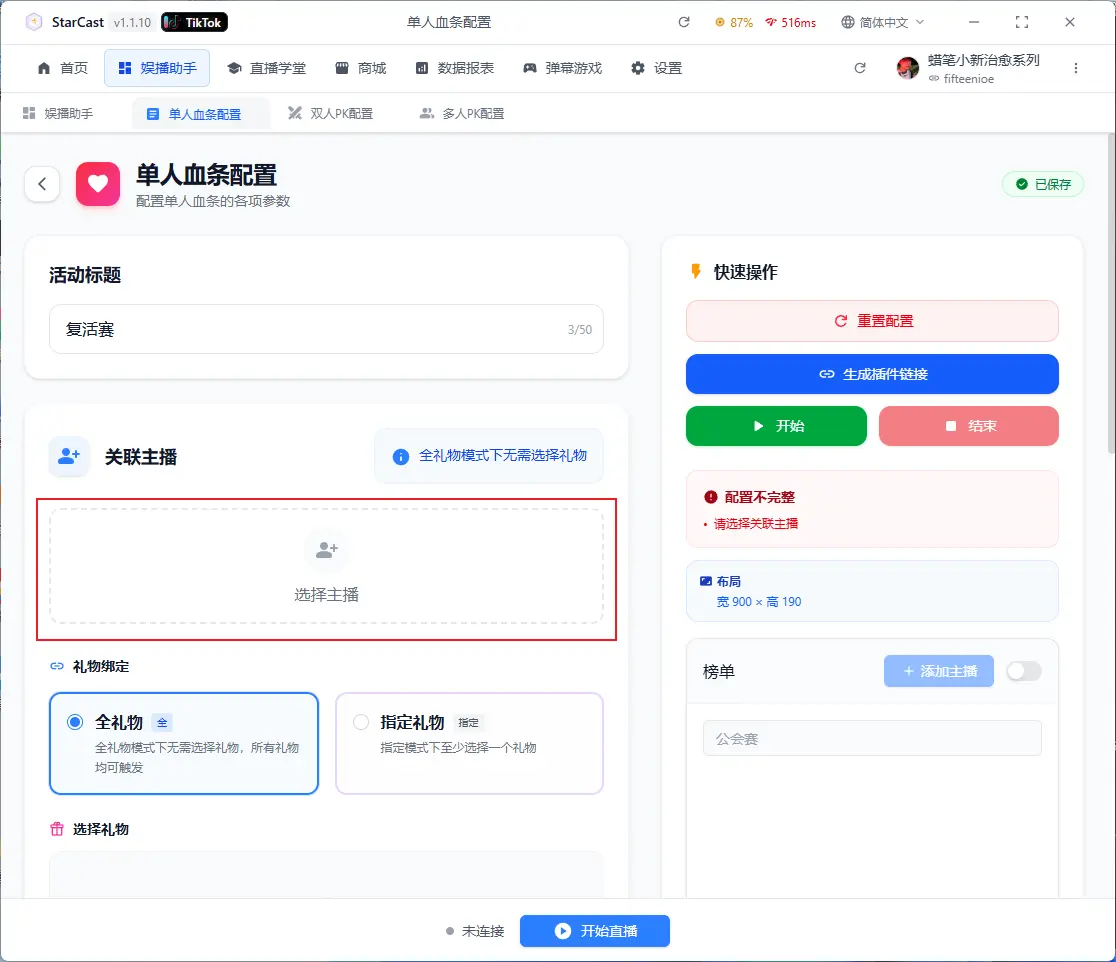
Select Streamer
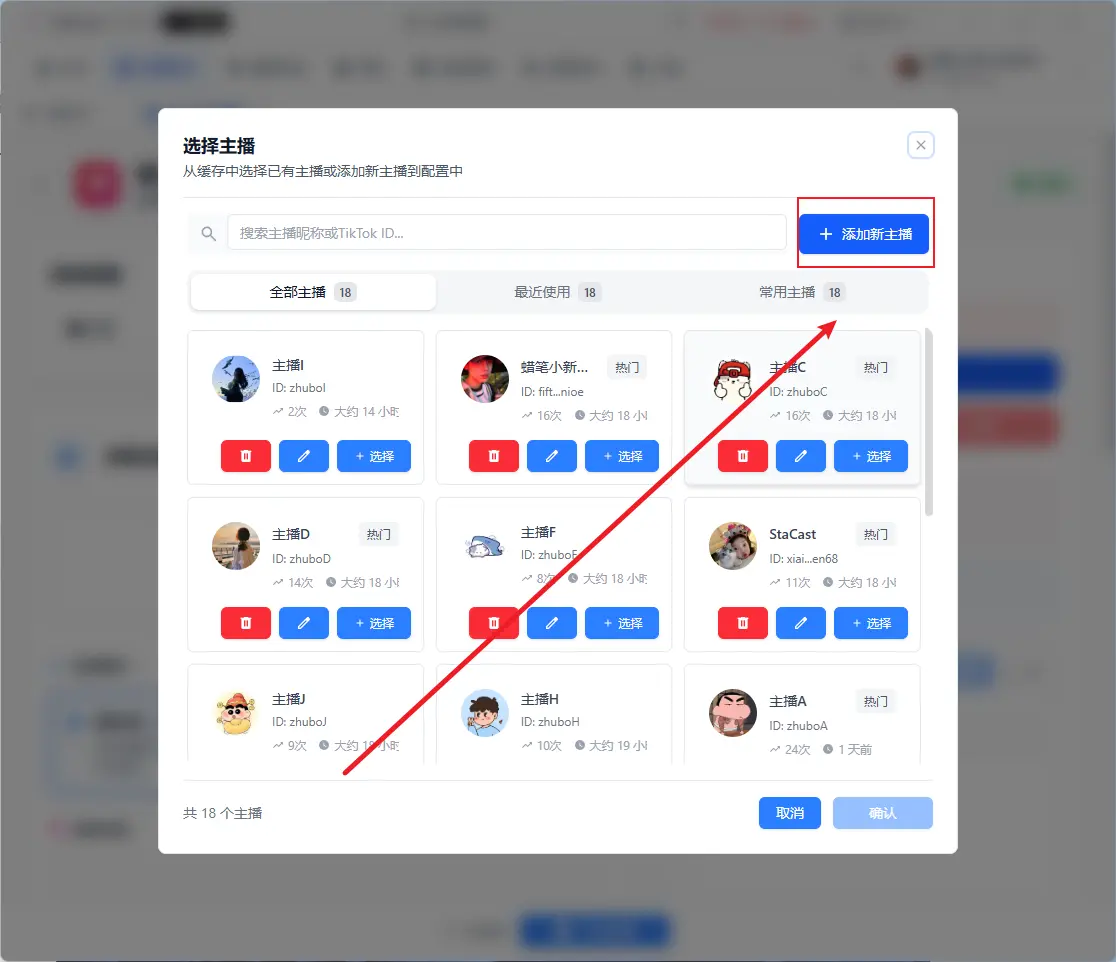
Add New Streamer
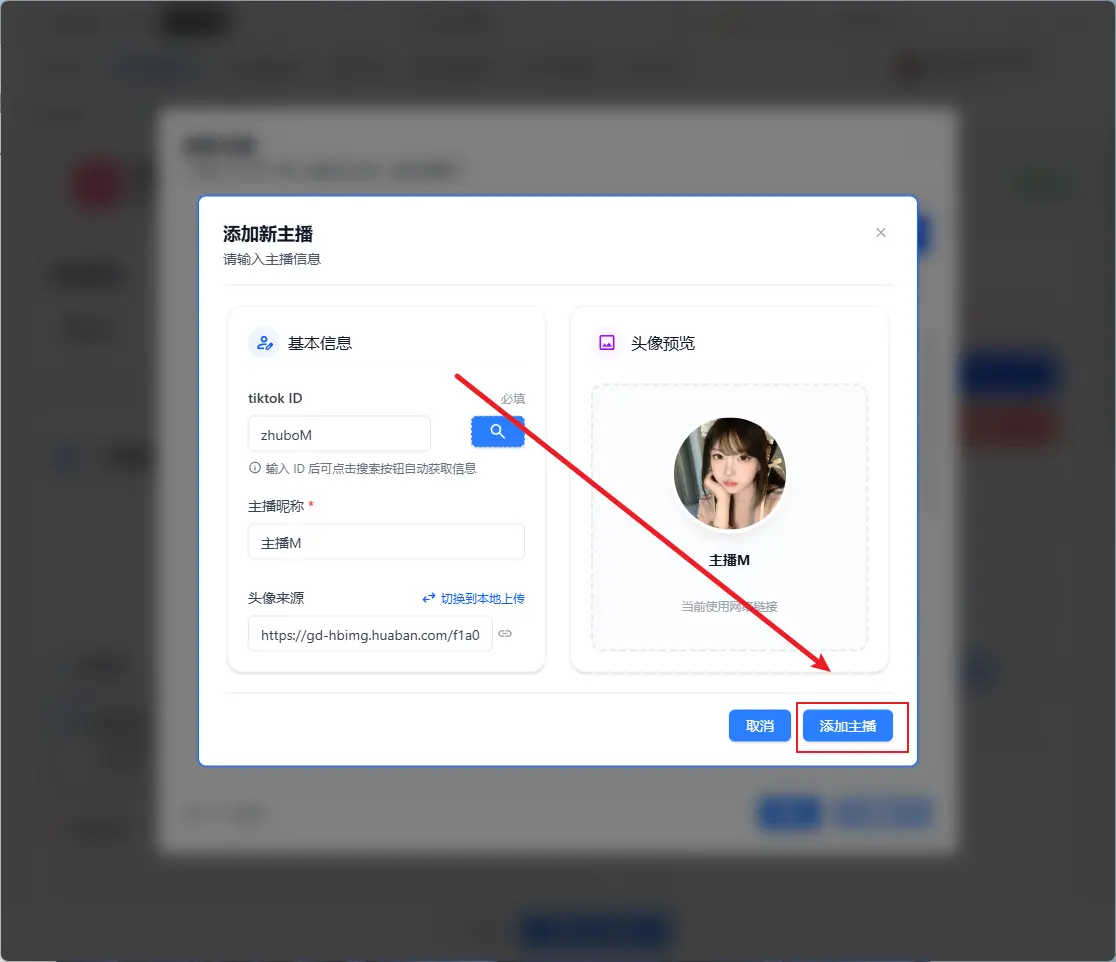
Enter relevant info and click "Add"
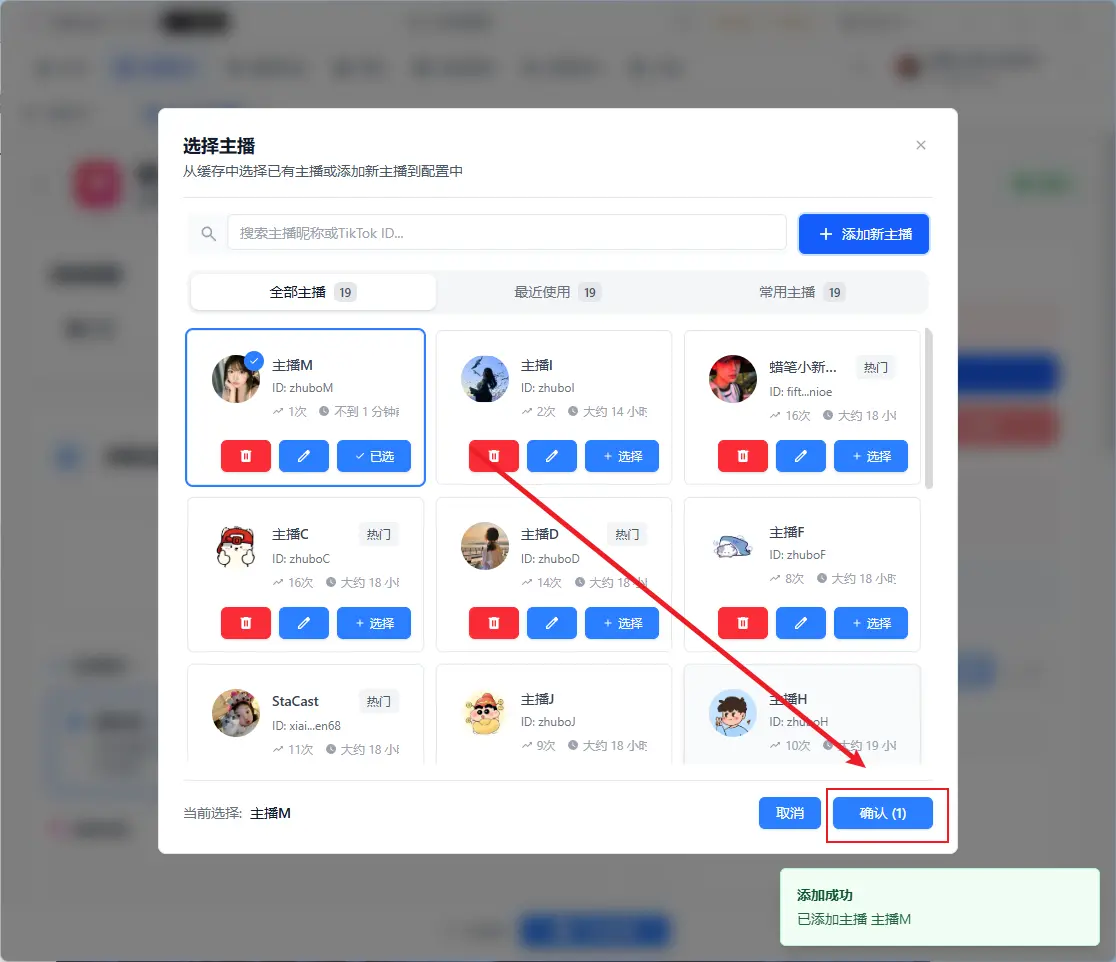
Select Current Streamer
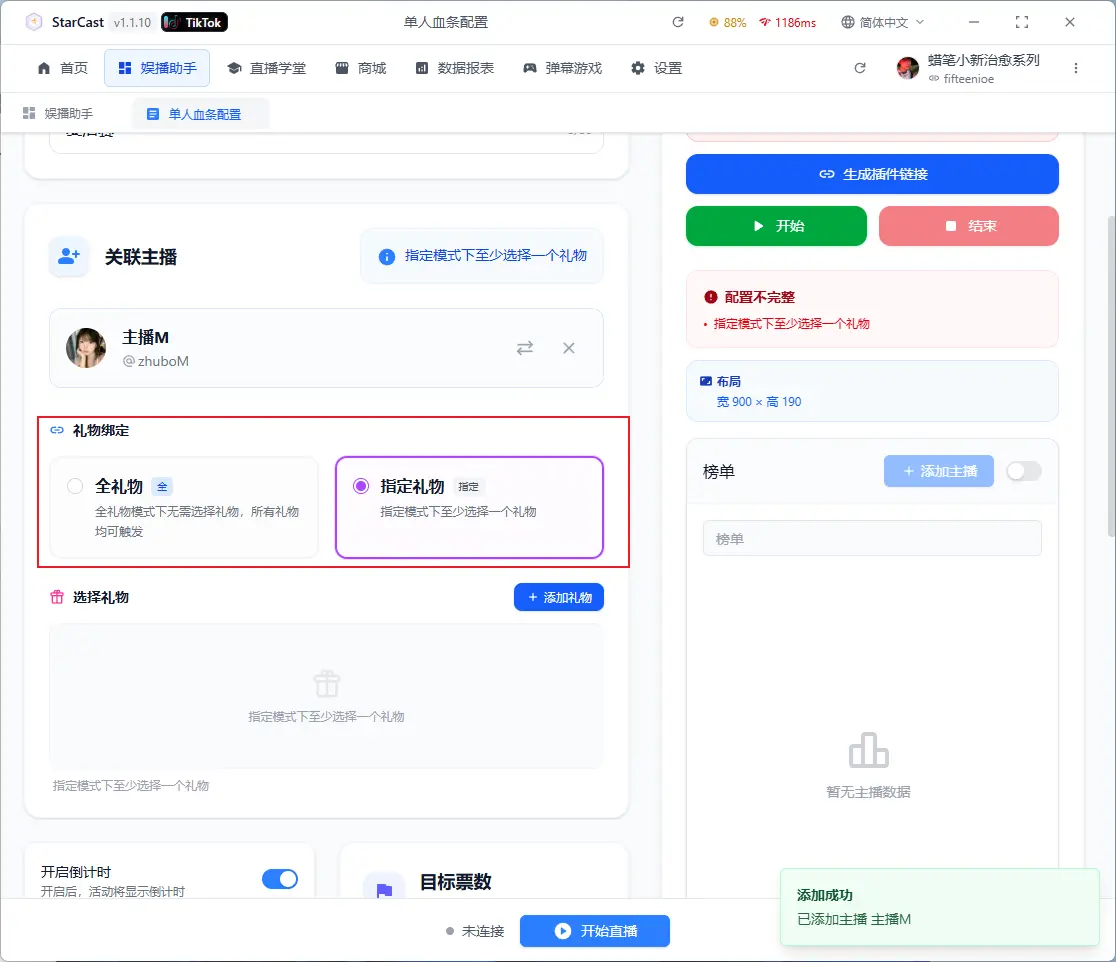
Select broadcast type and add gifts
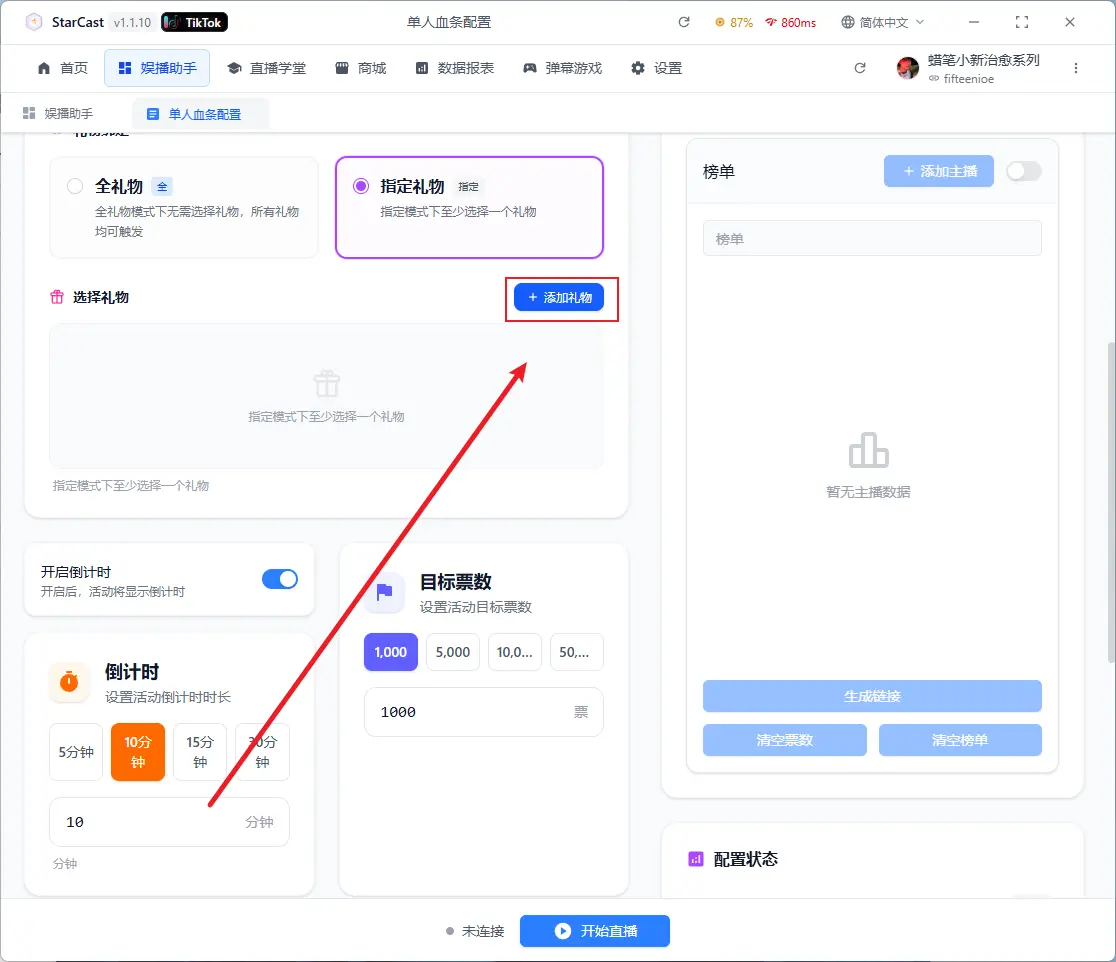
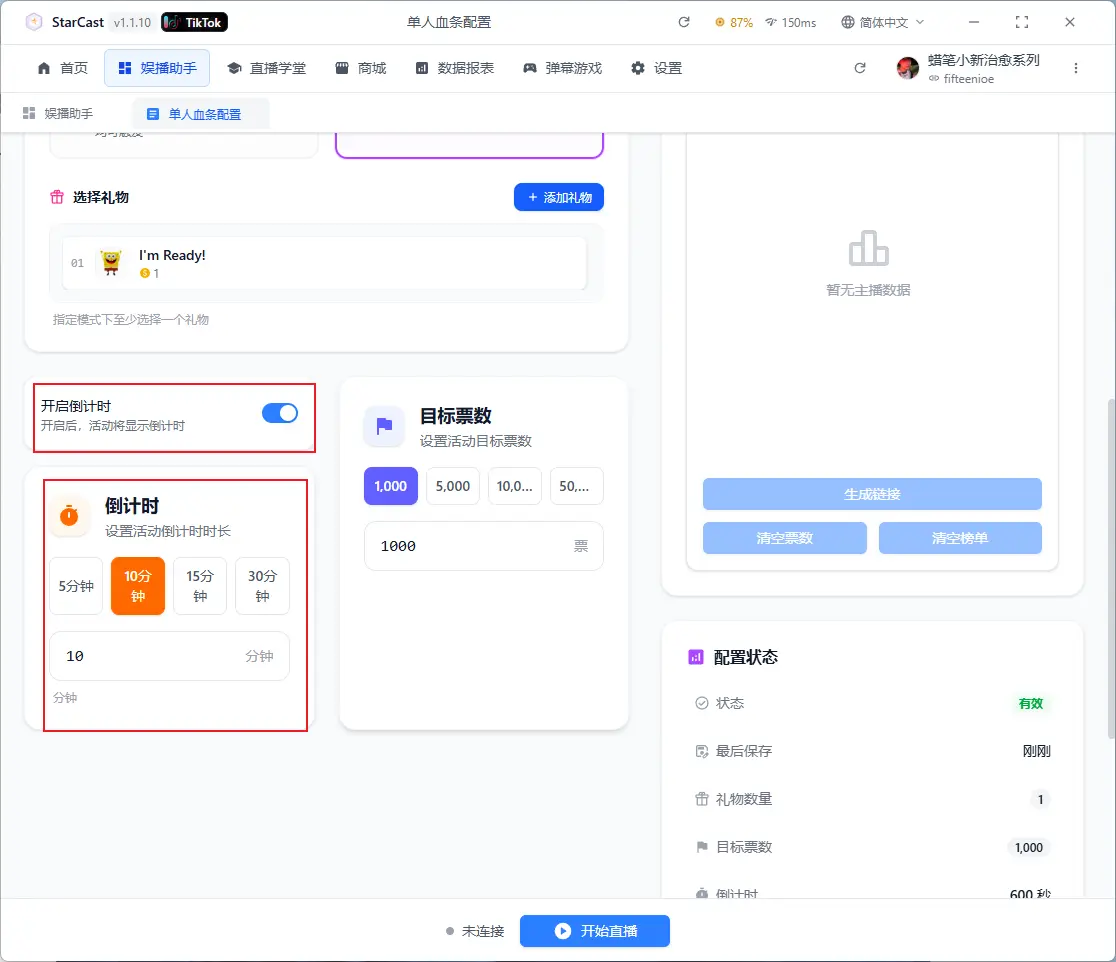
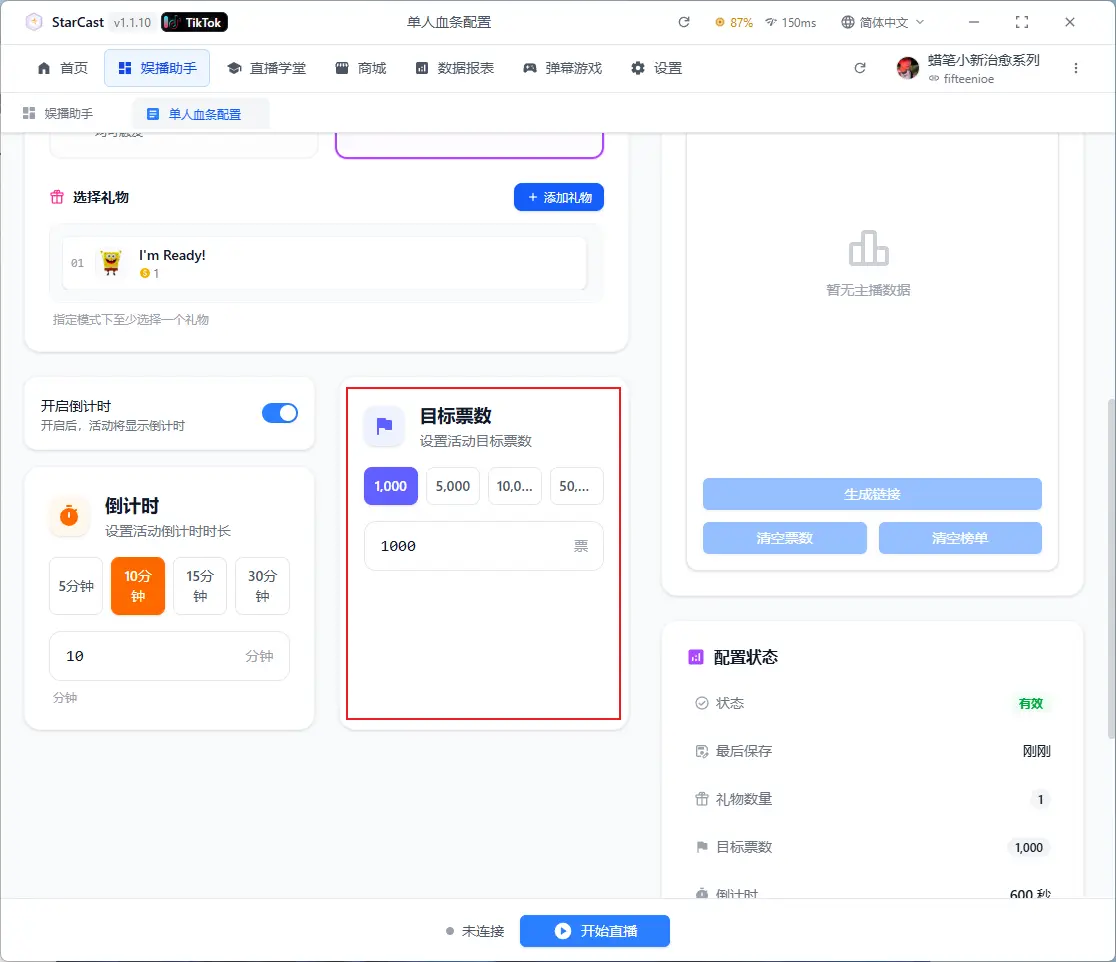
Set countdown and target votes
After configuration, click "Generate"
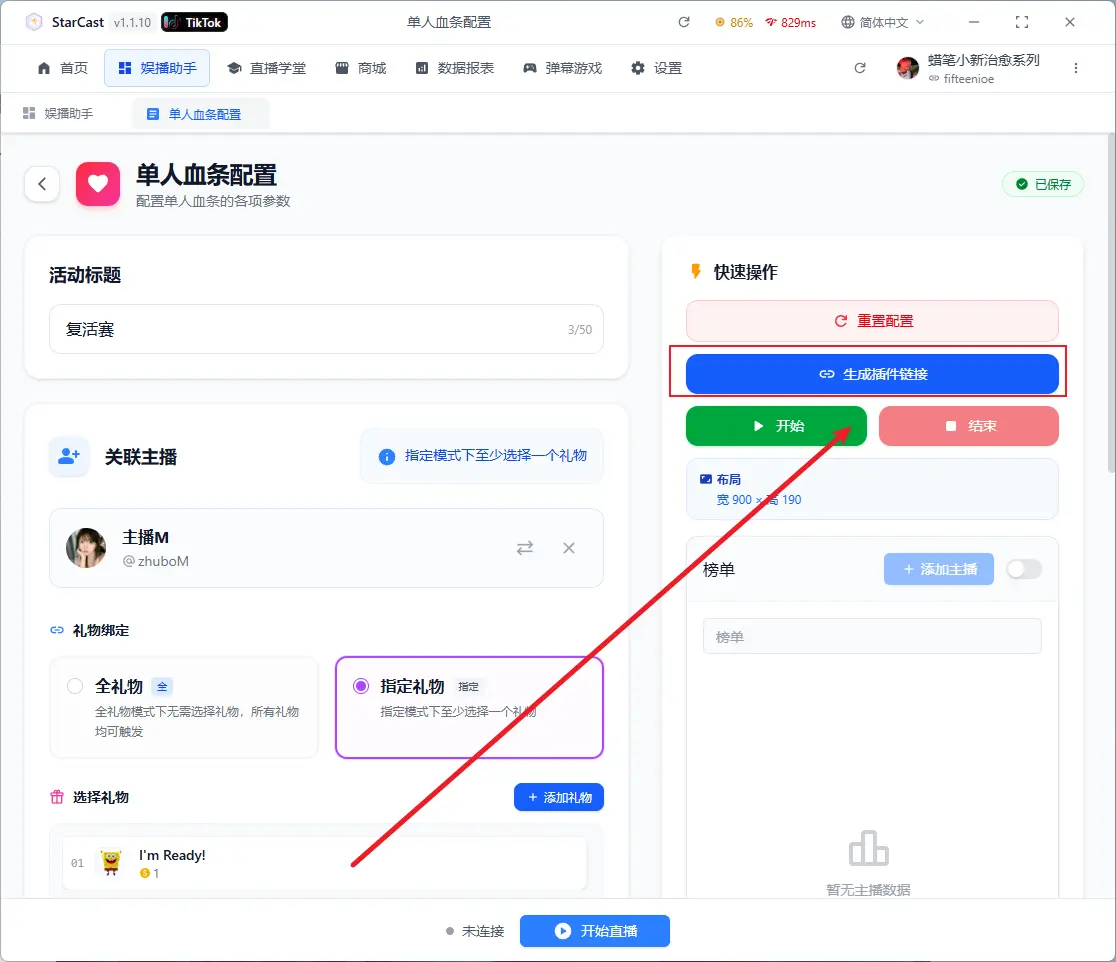
Open TikTok LIVE Studio, add source, and select Link
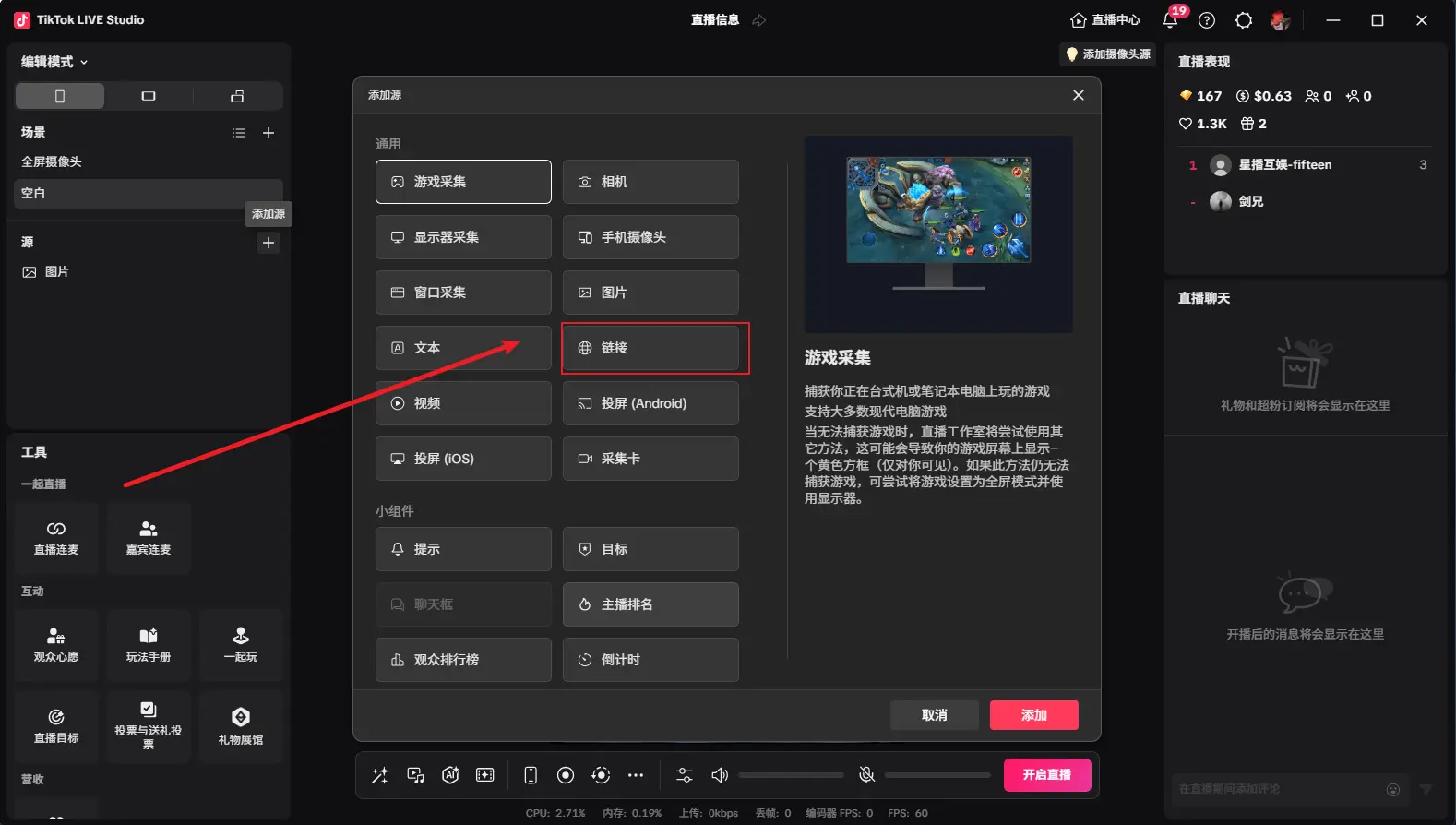
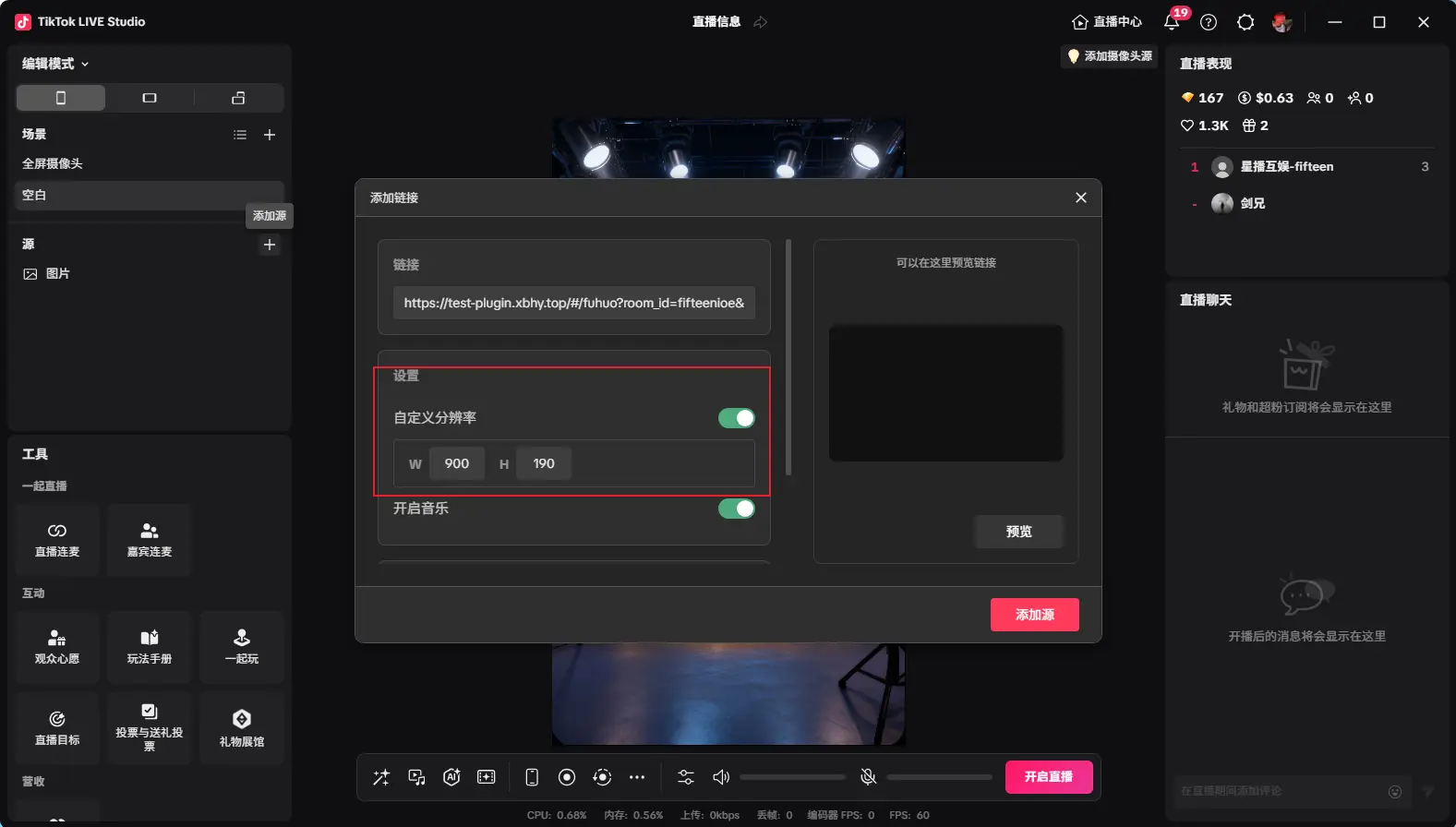
Paste the generated link and change the custom resolution to 900x190
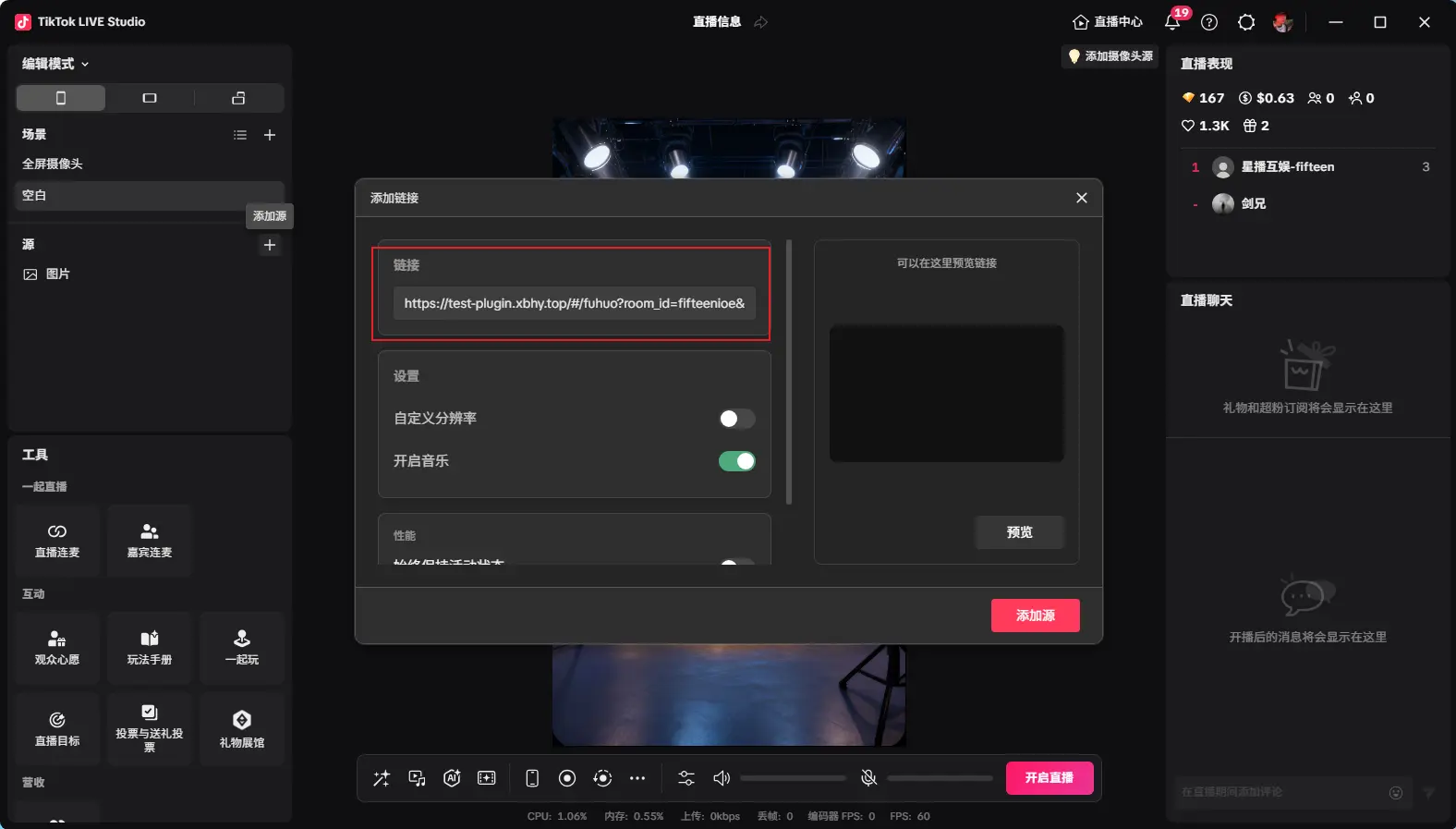
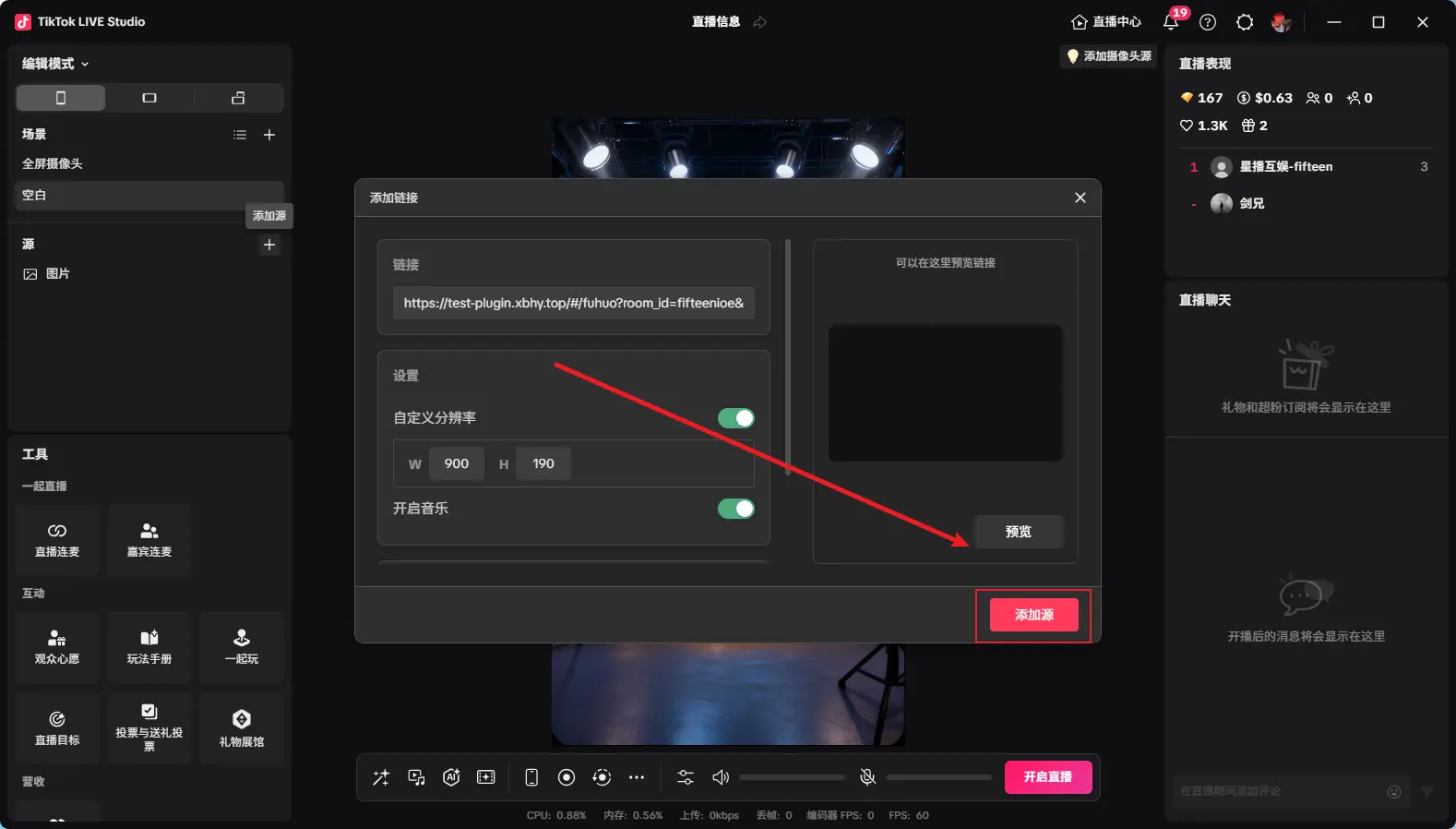
After adding as shown, adjust to desired size, then click "Start" to begin countdown
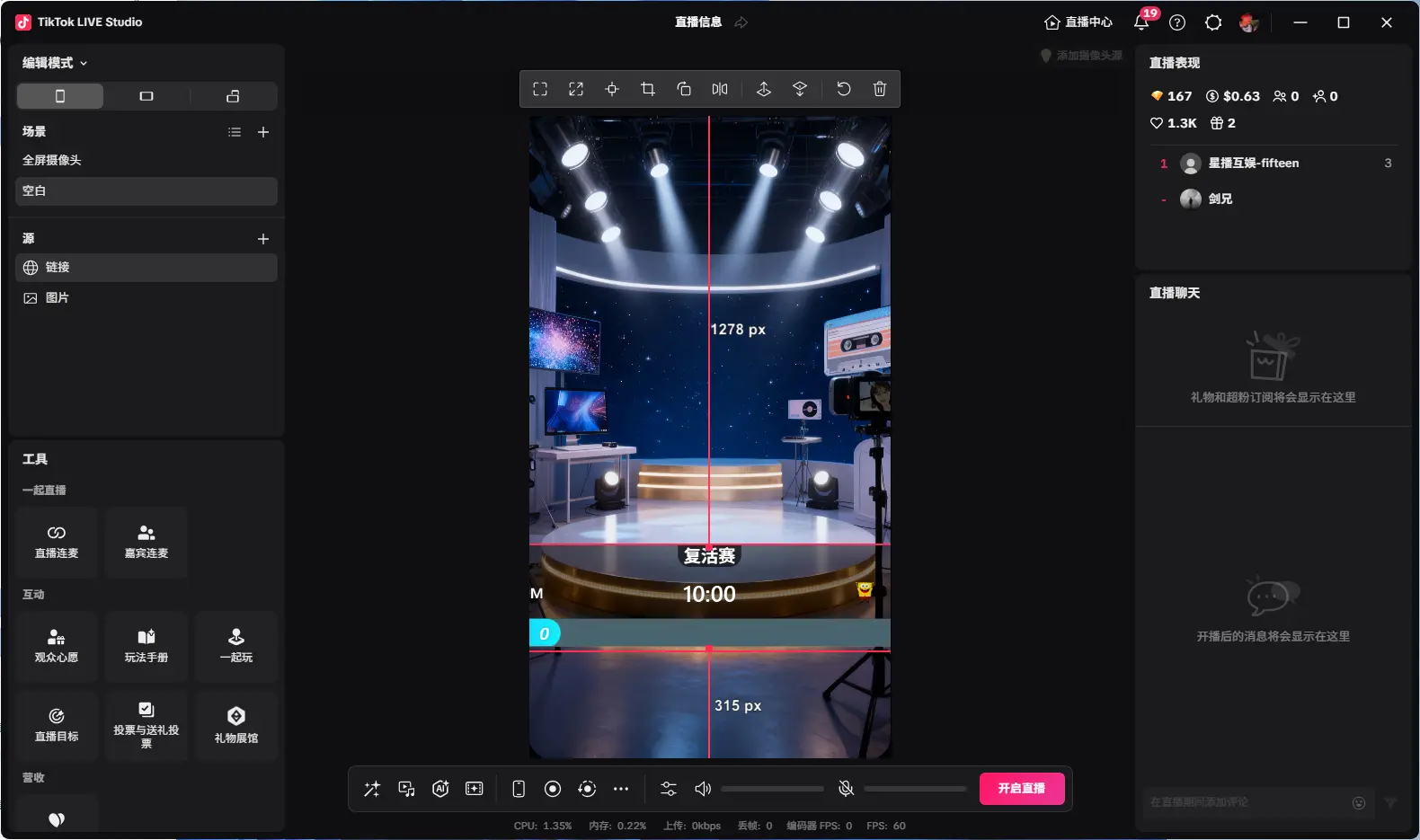
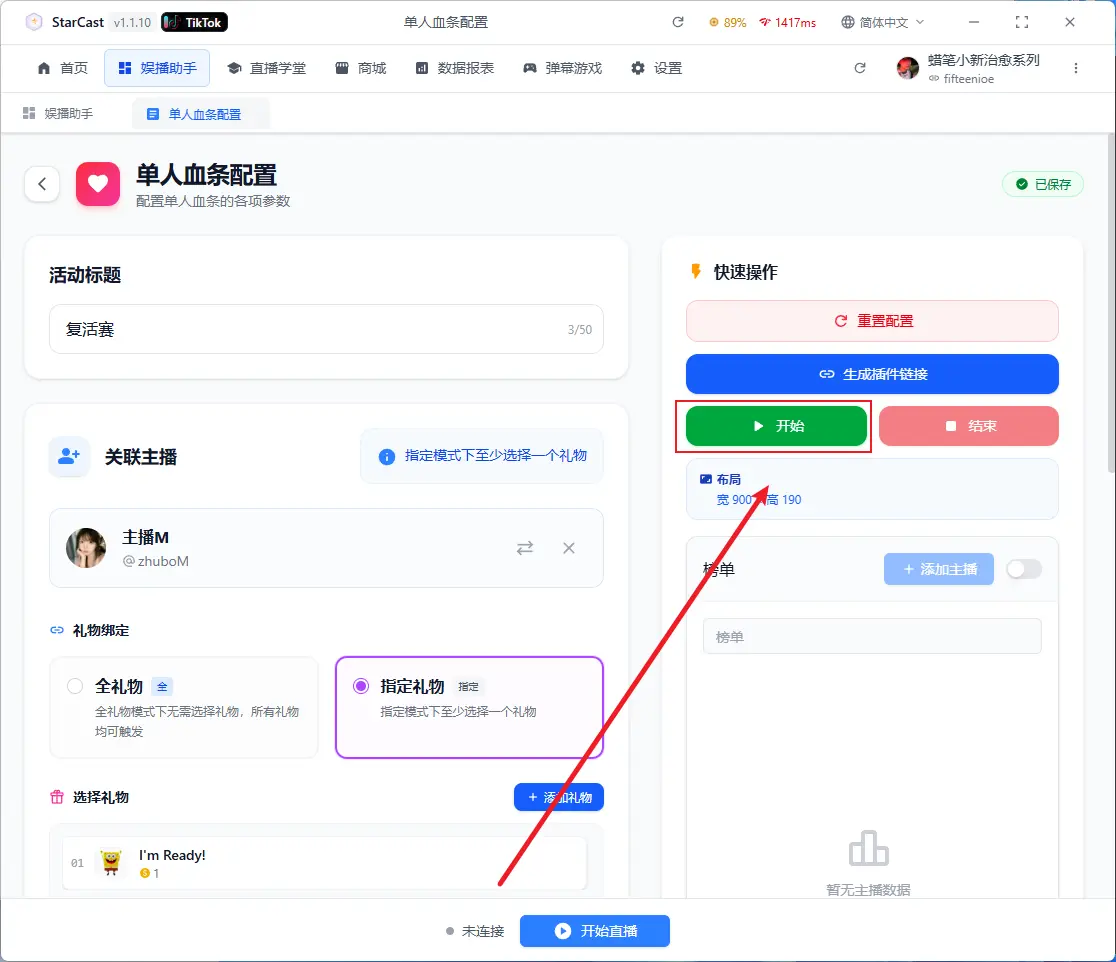
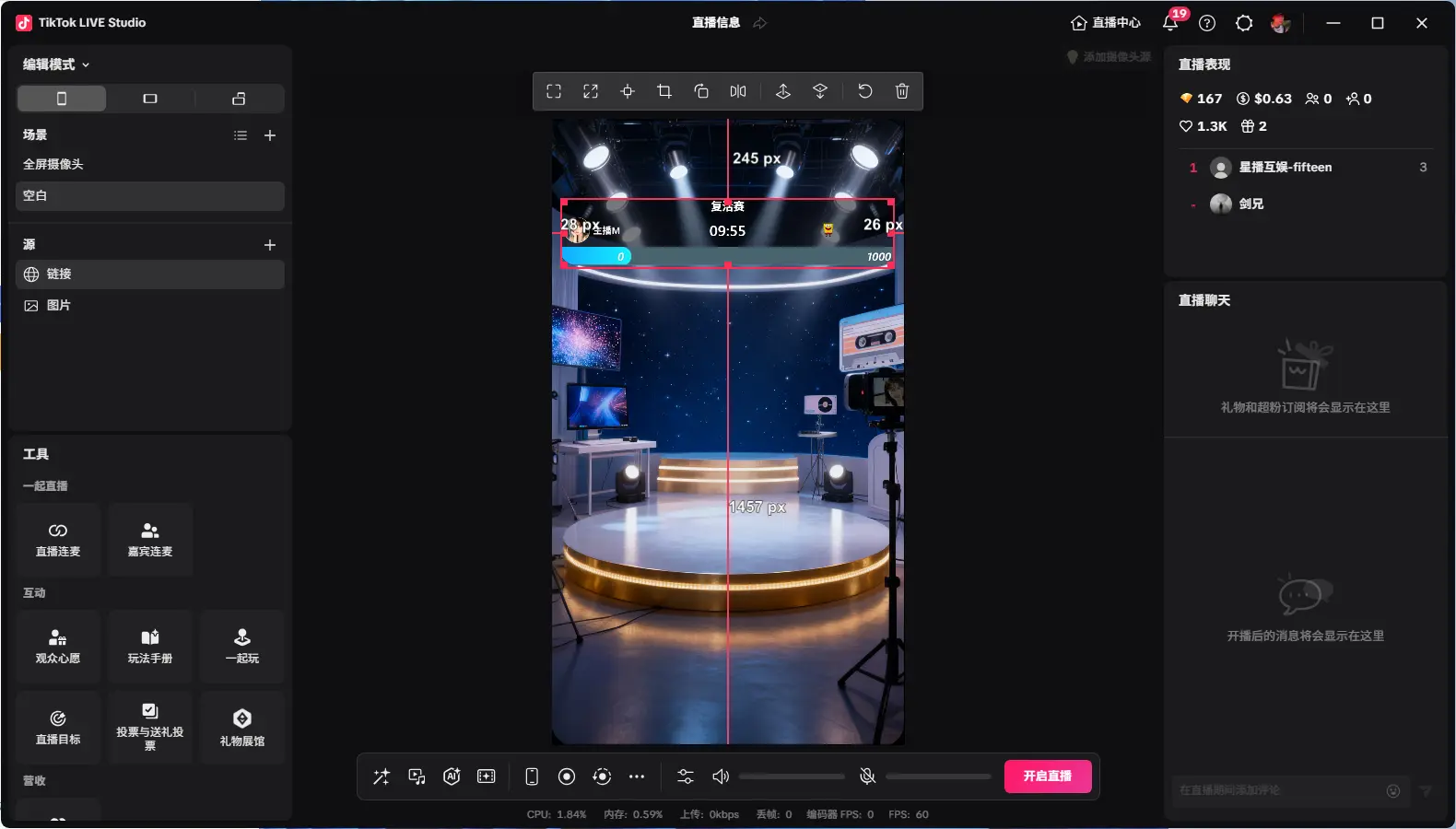
Displaying "Connected" means successfully connected to the live room
1v1 PK
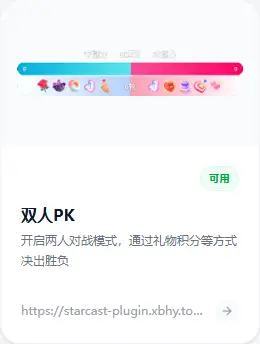
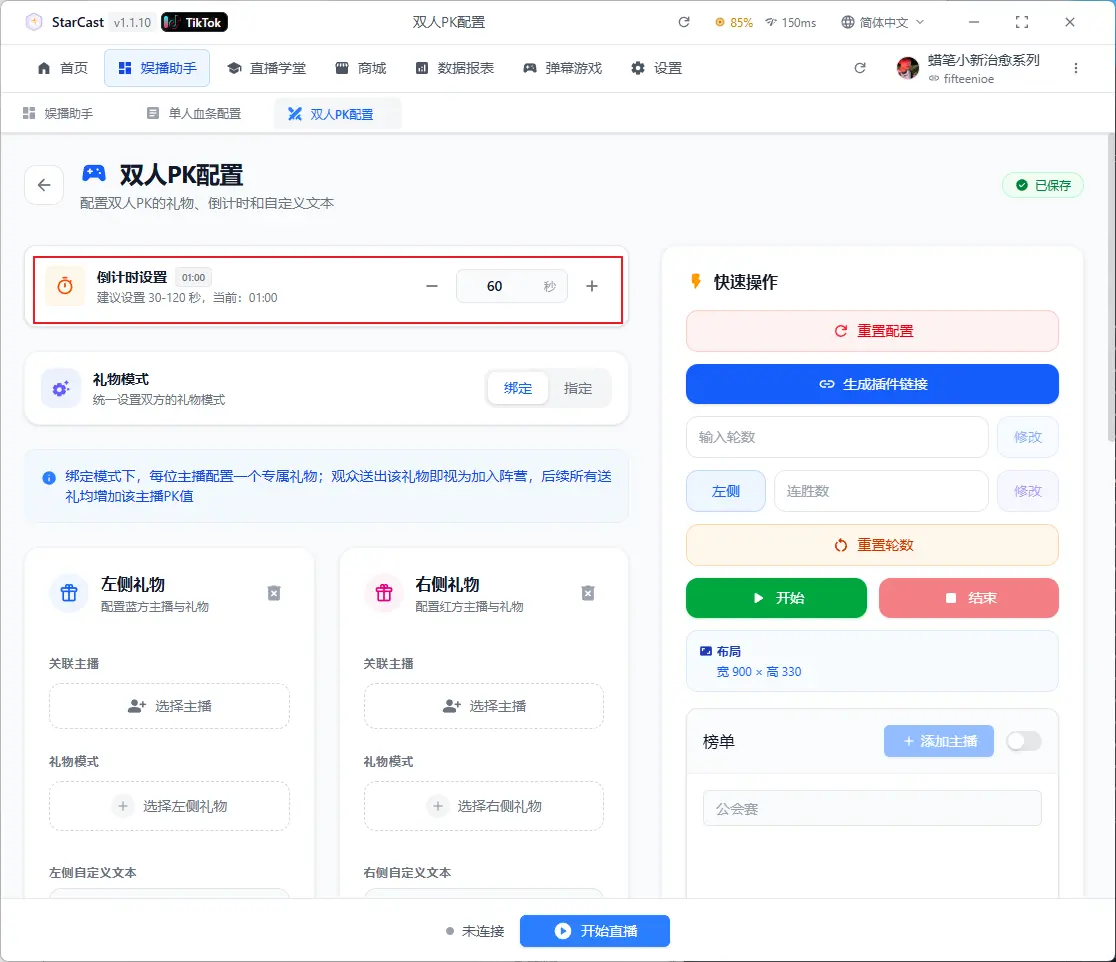
Set Countdown Here
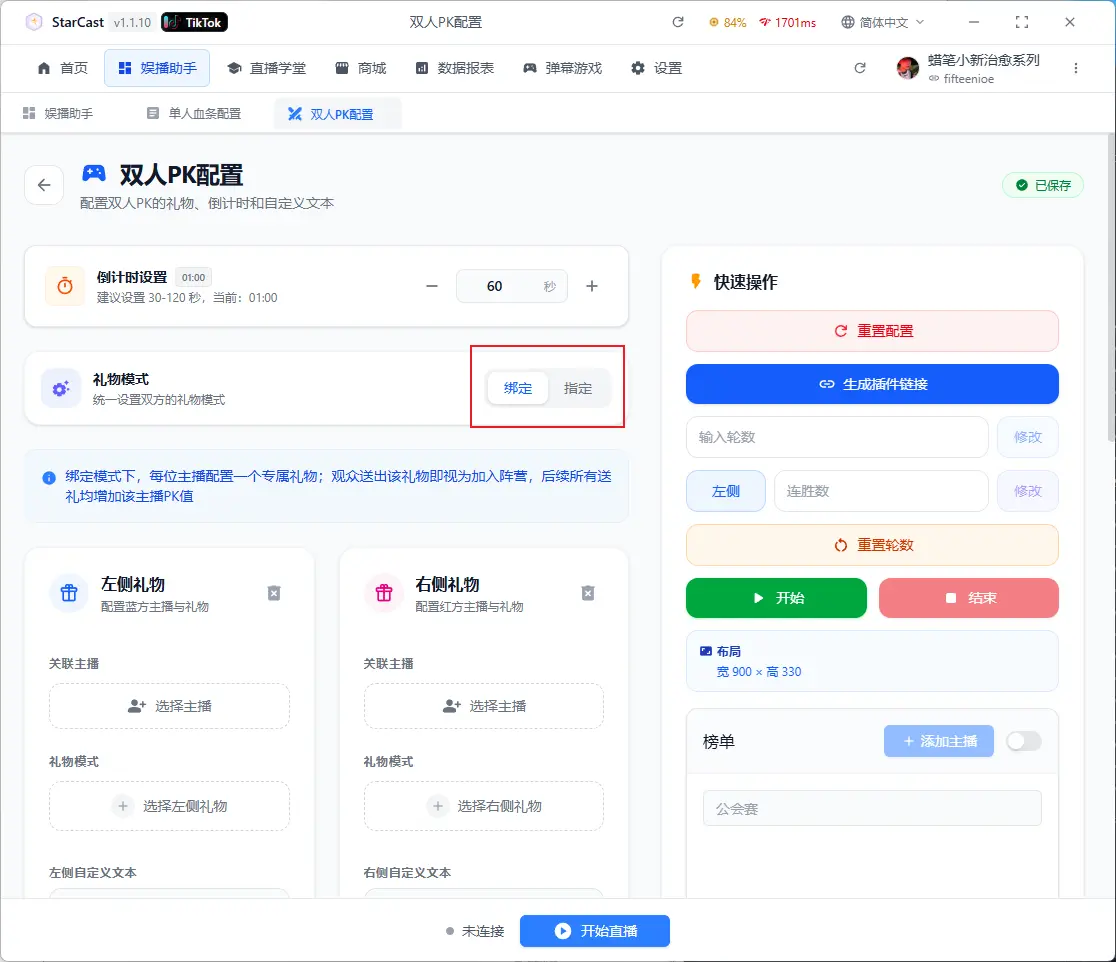
Select Gift Mode
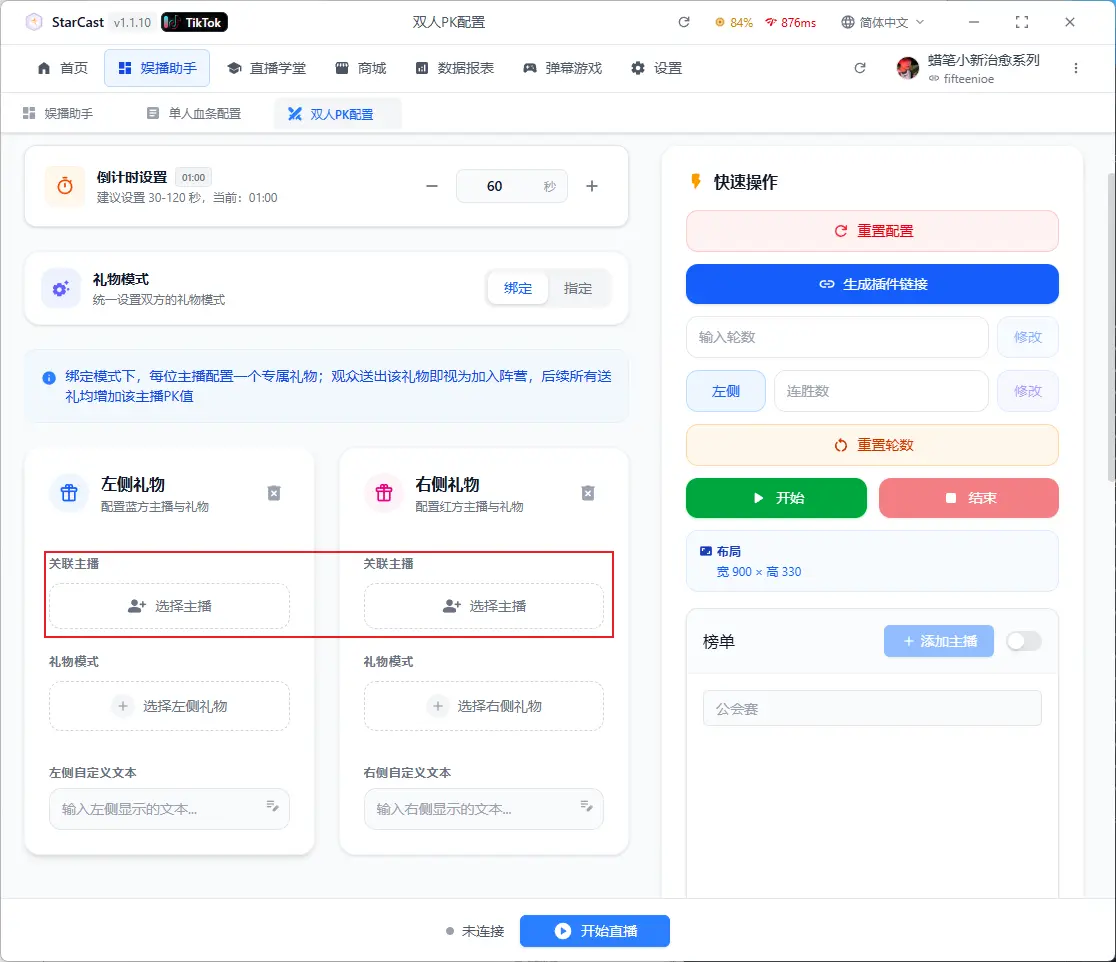
Click here to add streamers for both sides
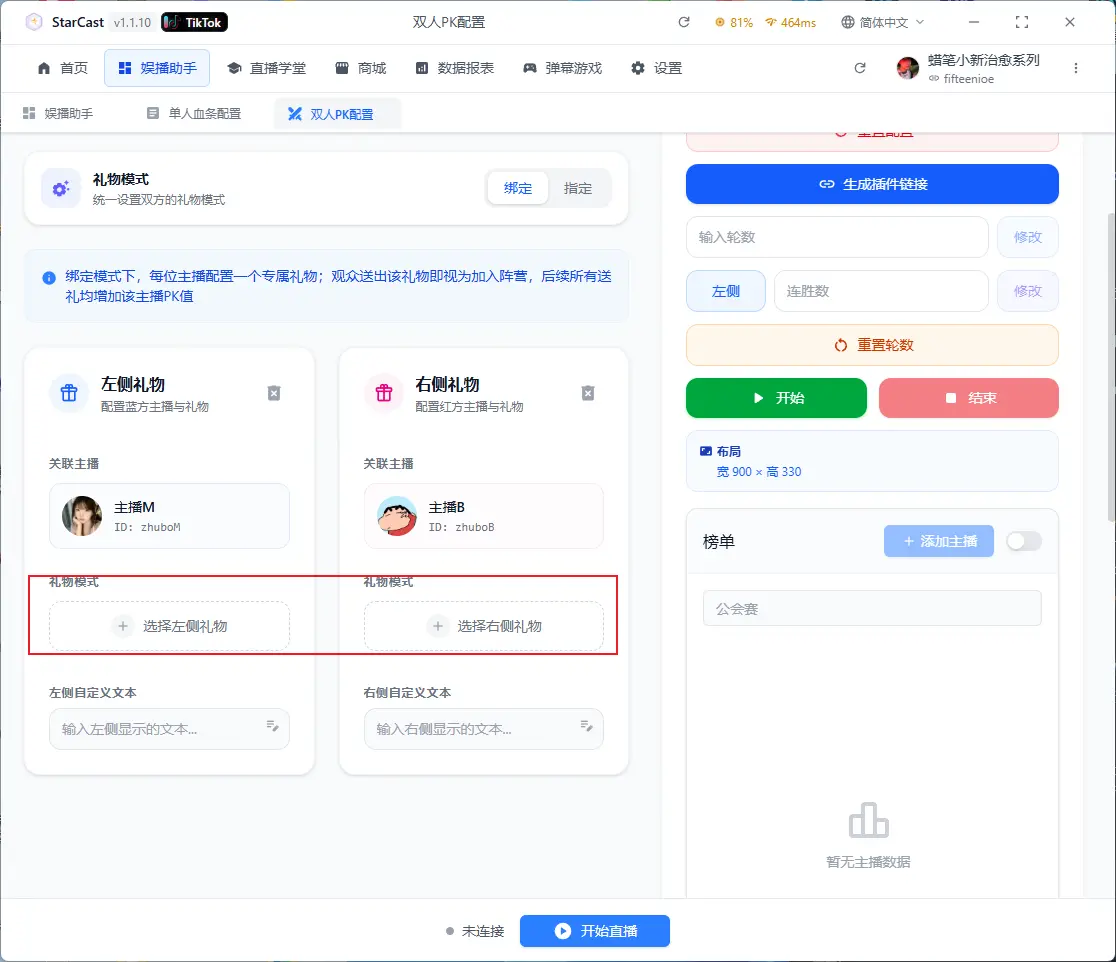
Click here to add gifts for both sides
Enter custom text for both sides
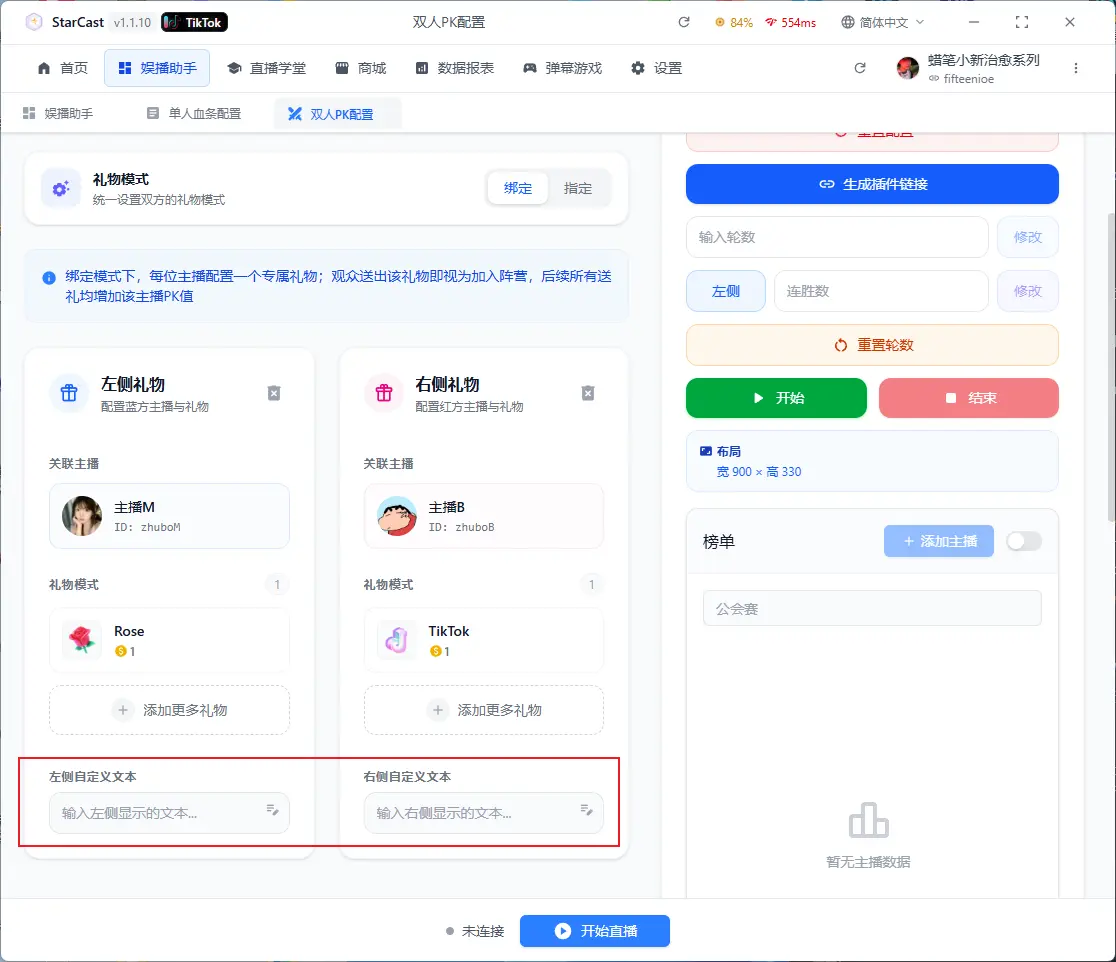
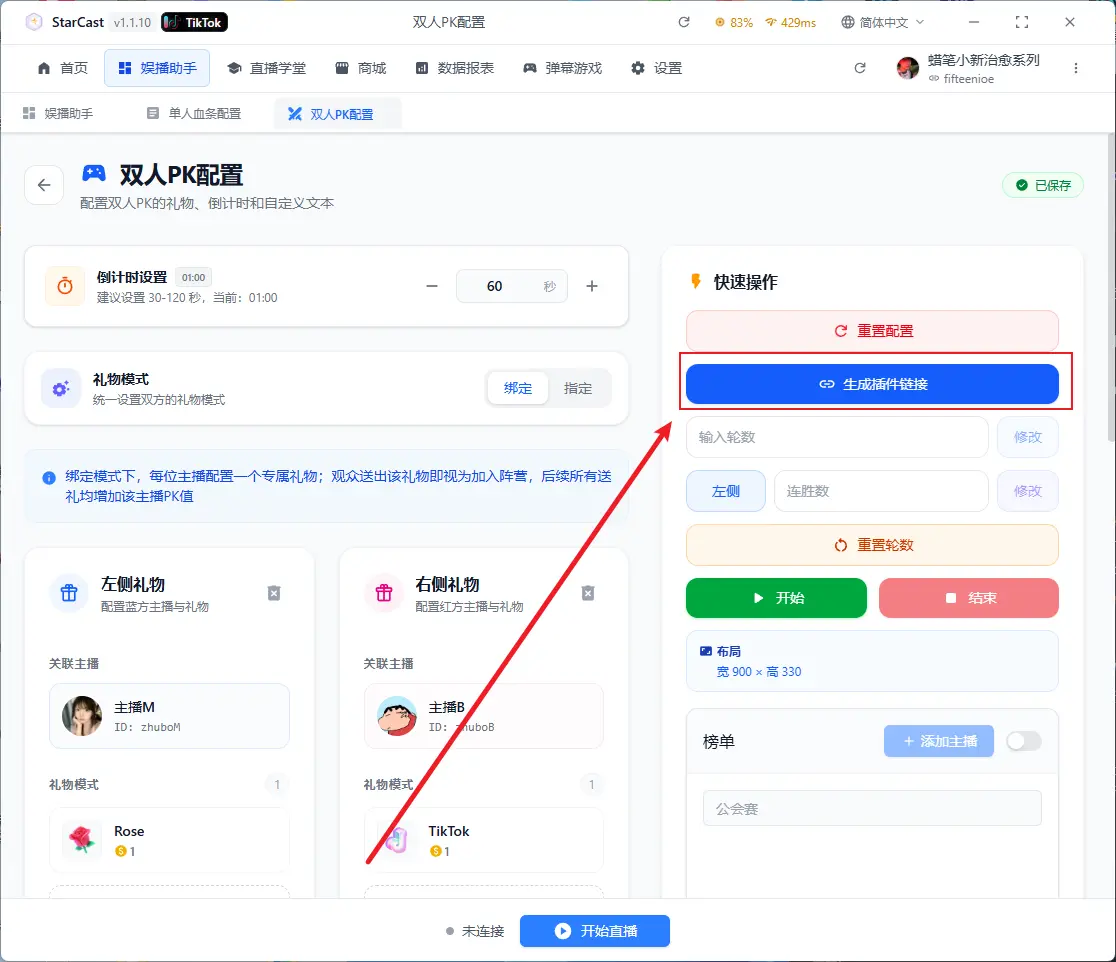
After configuration, click "Generate Link"
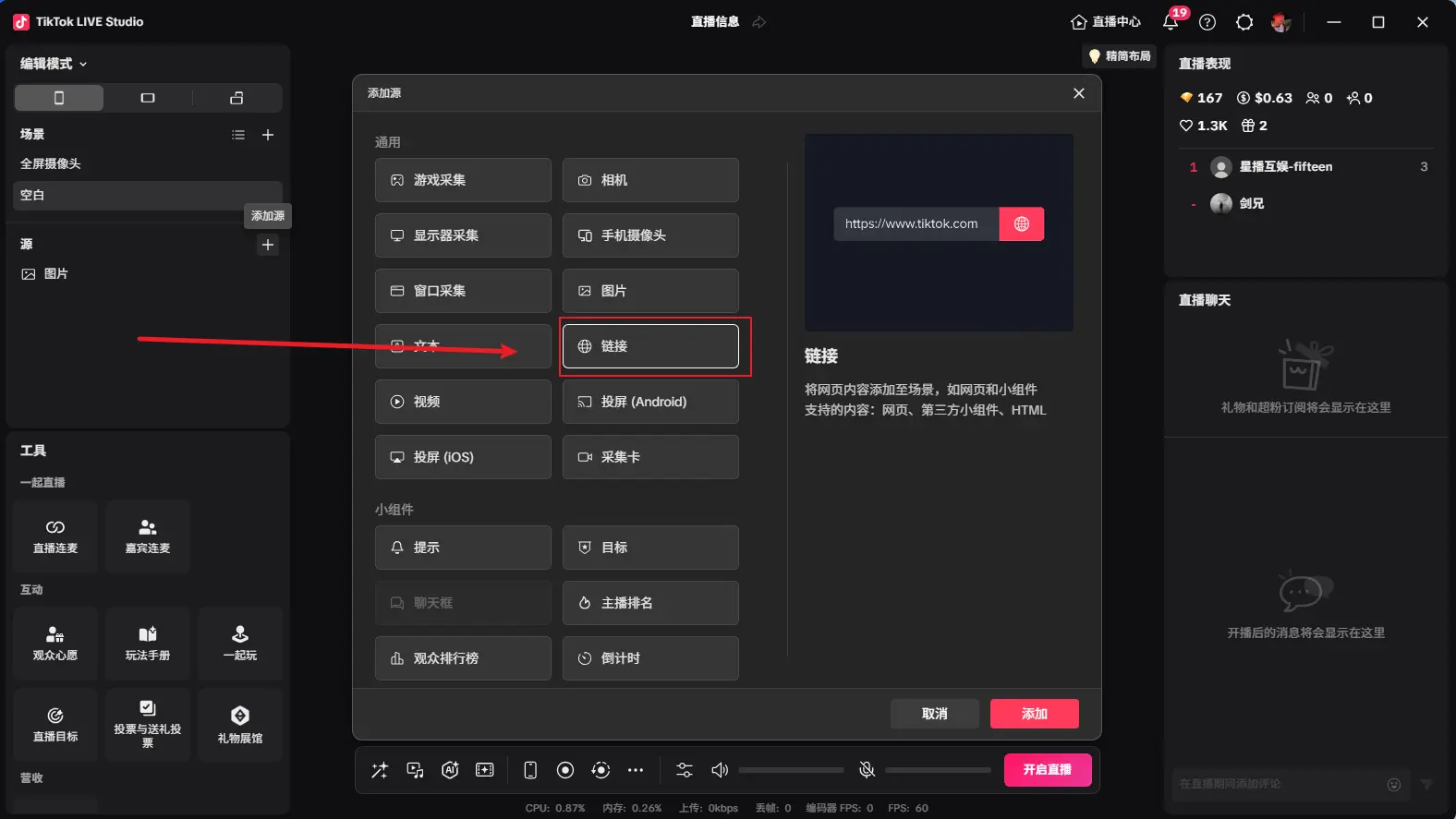
Open TikTok LIVE Studio, add source, and select Link
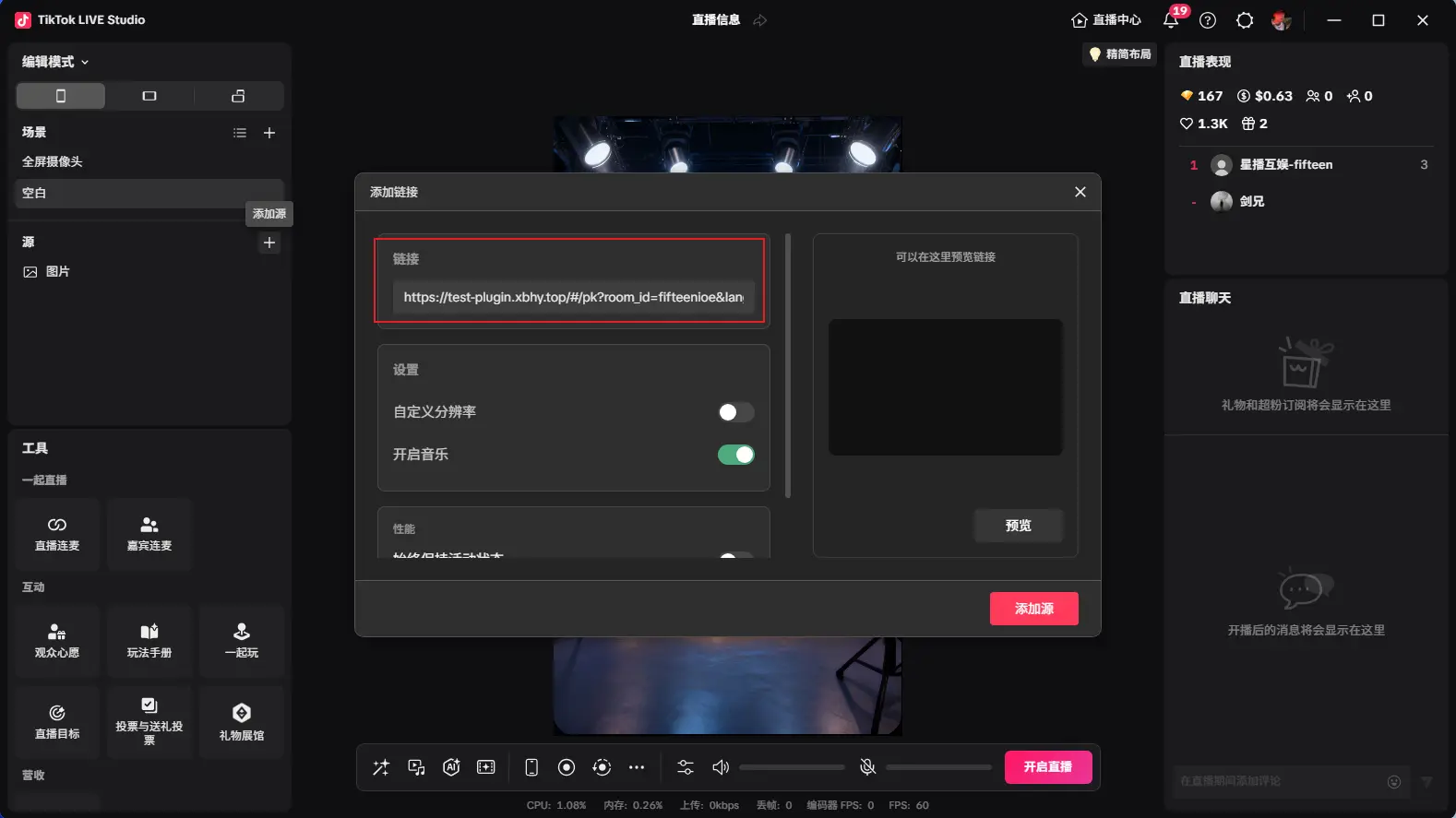
Paste the generated link and change the custom resolution to 900x330
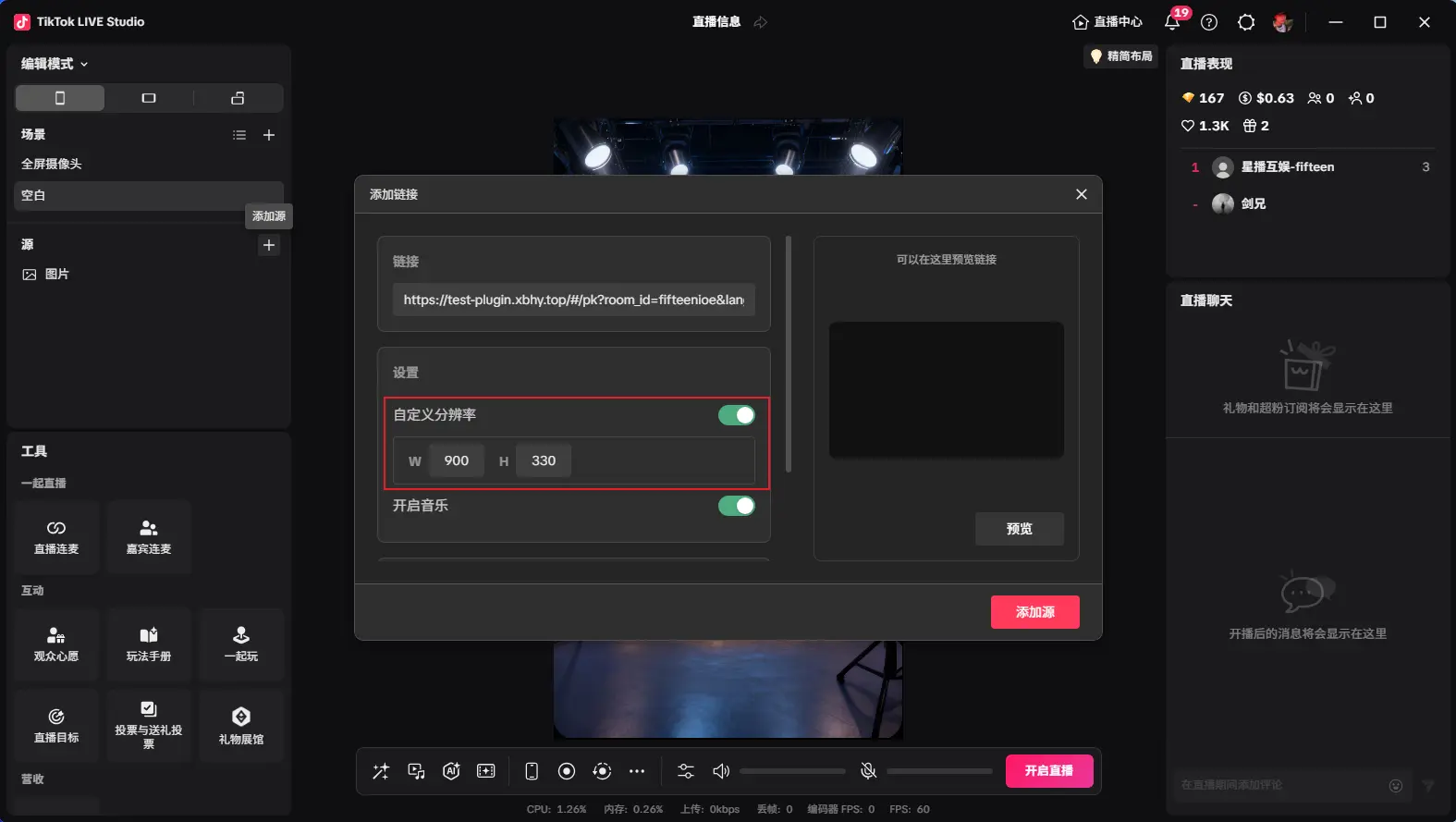
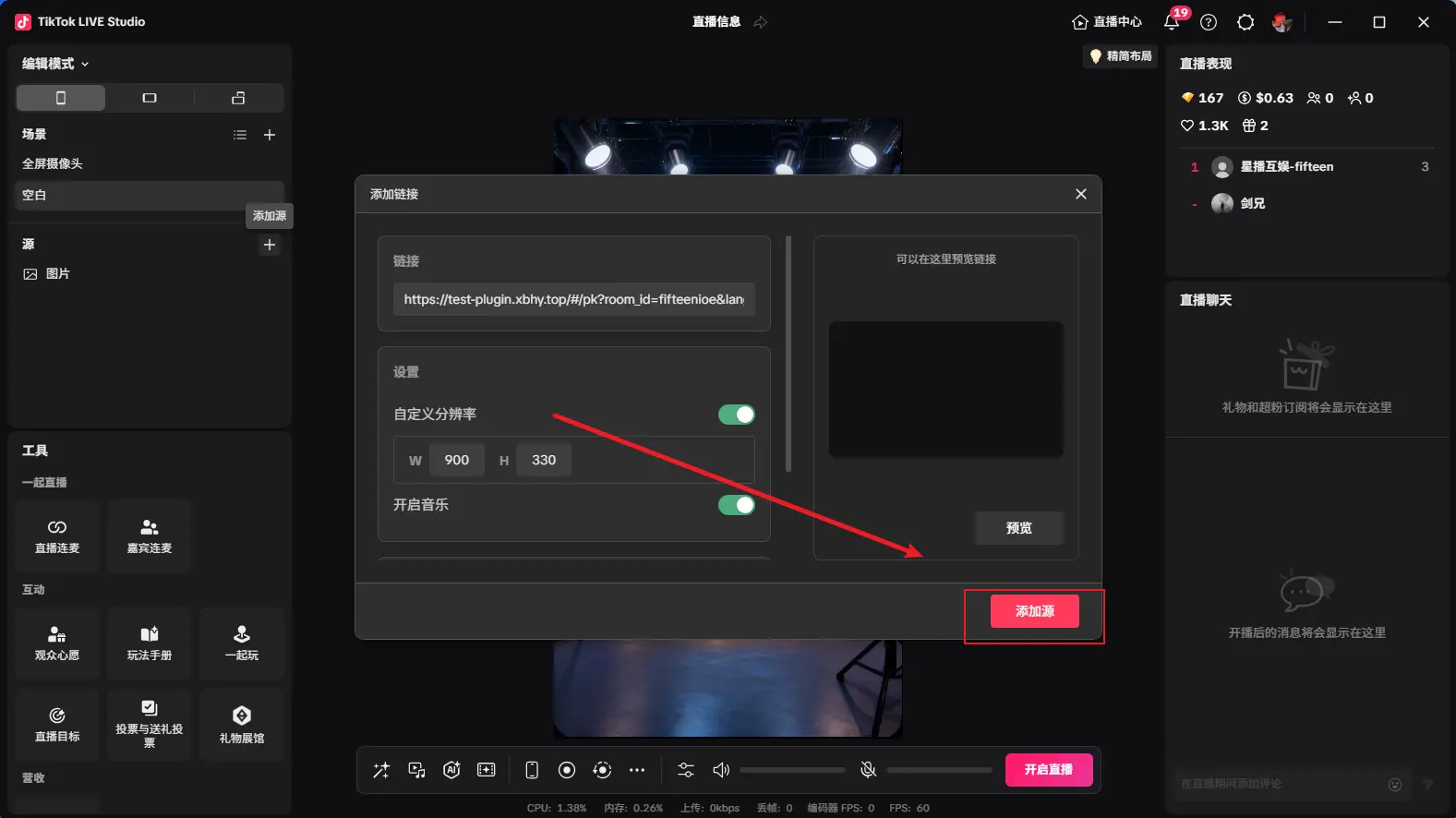
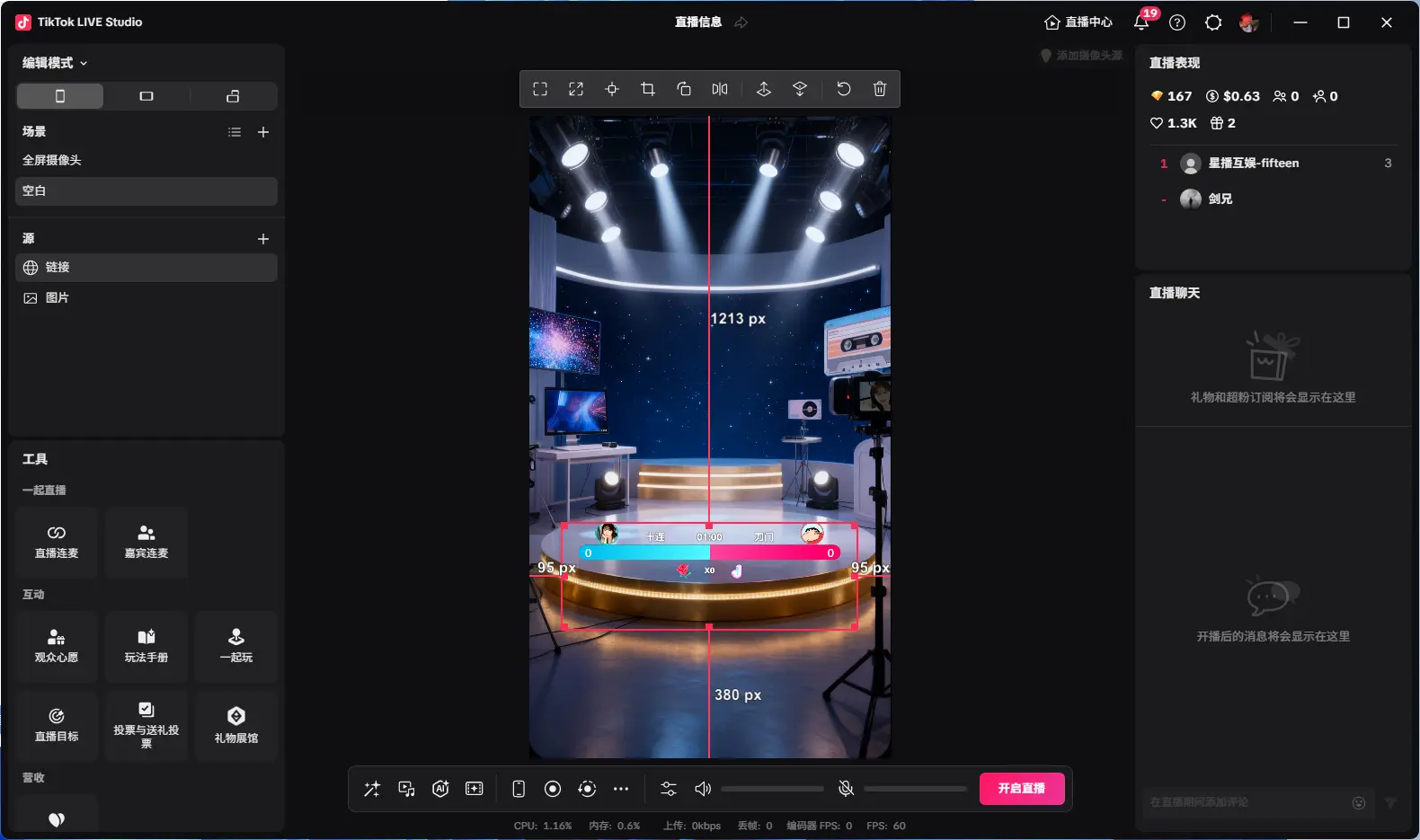
After adding as shown, adjust to desired size, then click "Start" to begin countdown
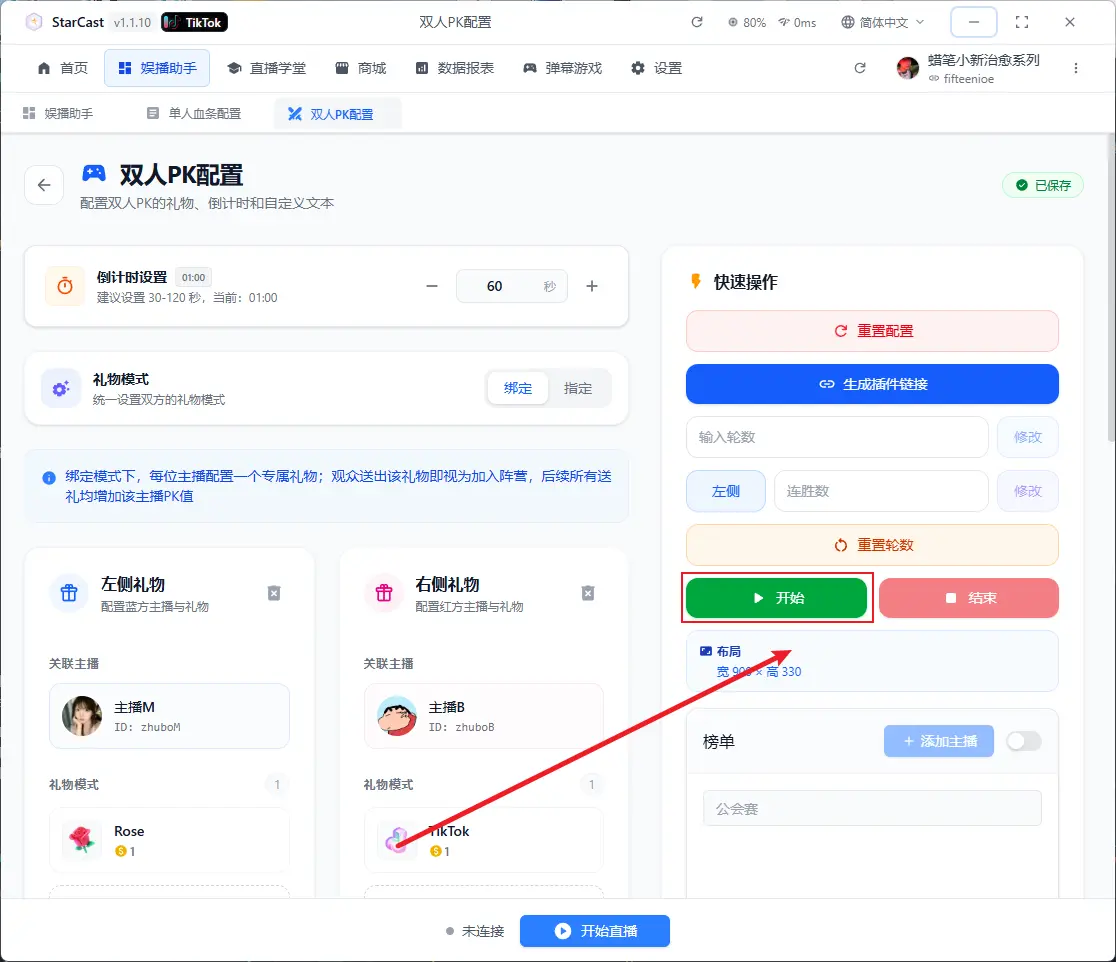
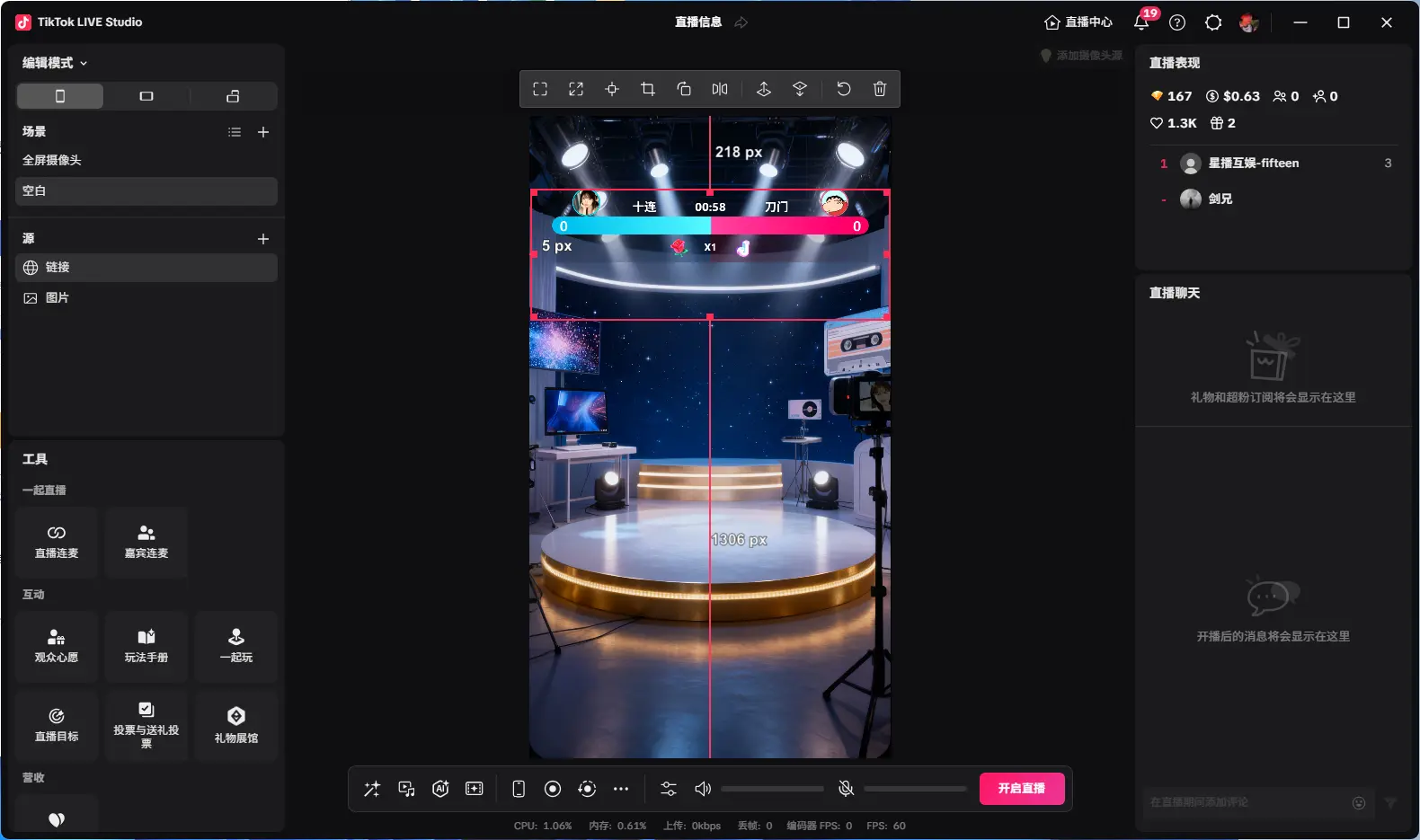
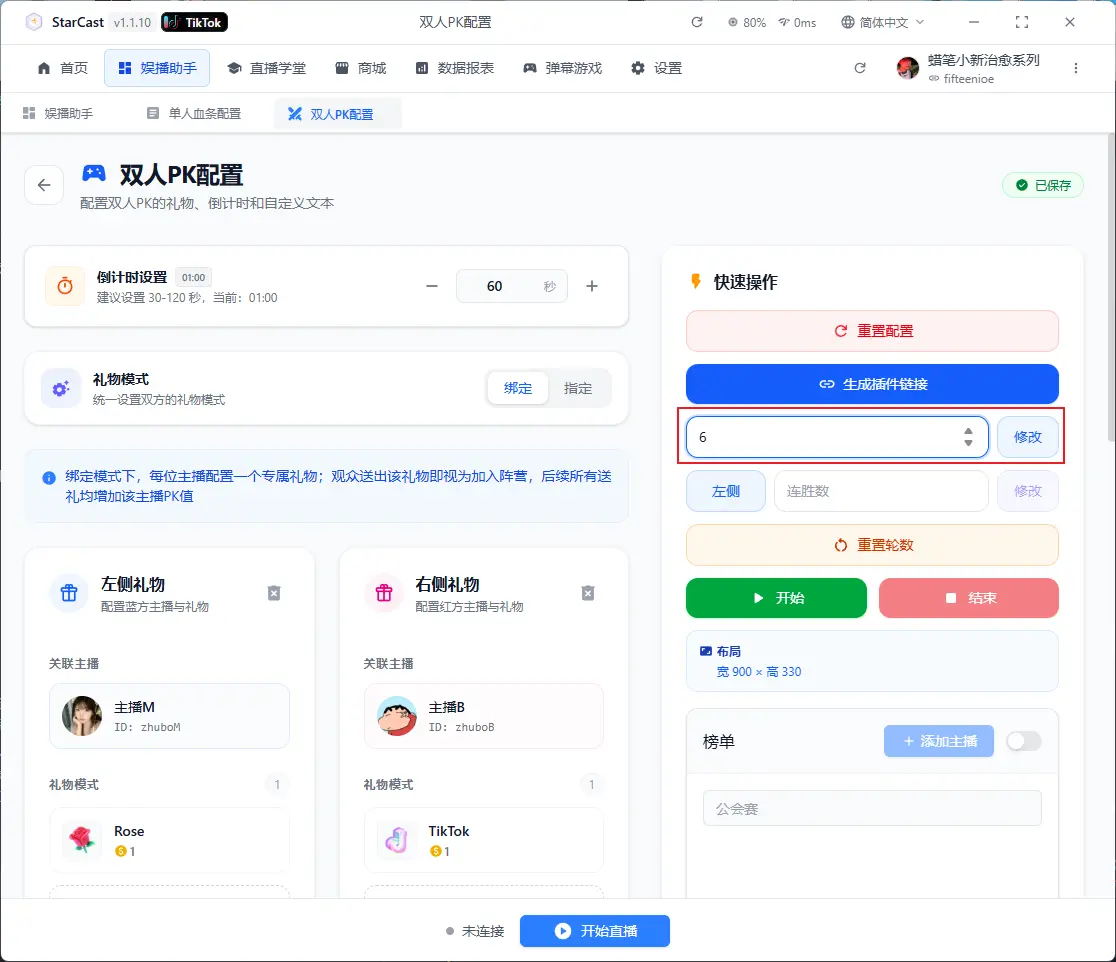
Modify rounds here
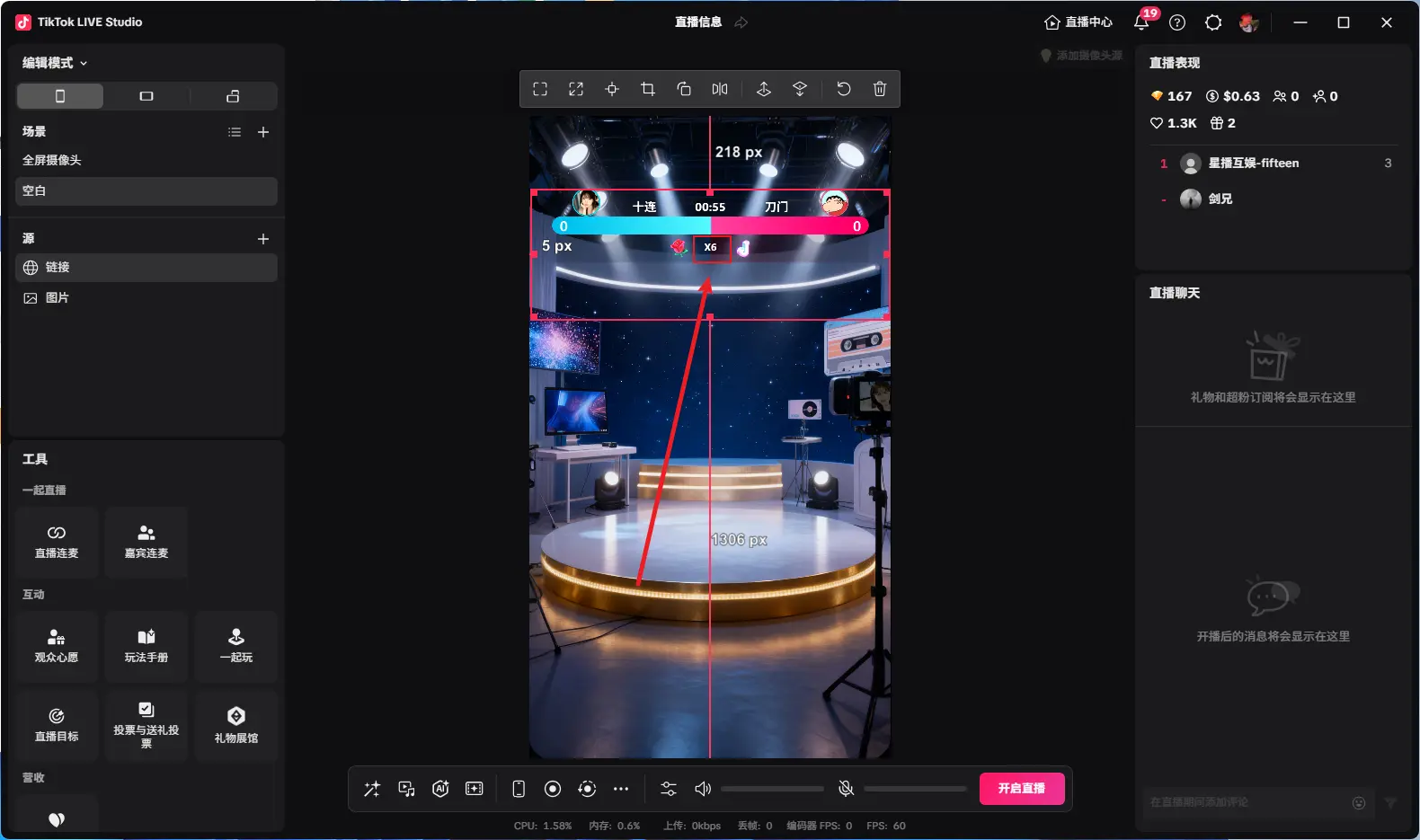
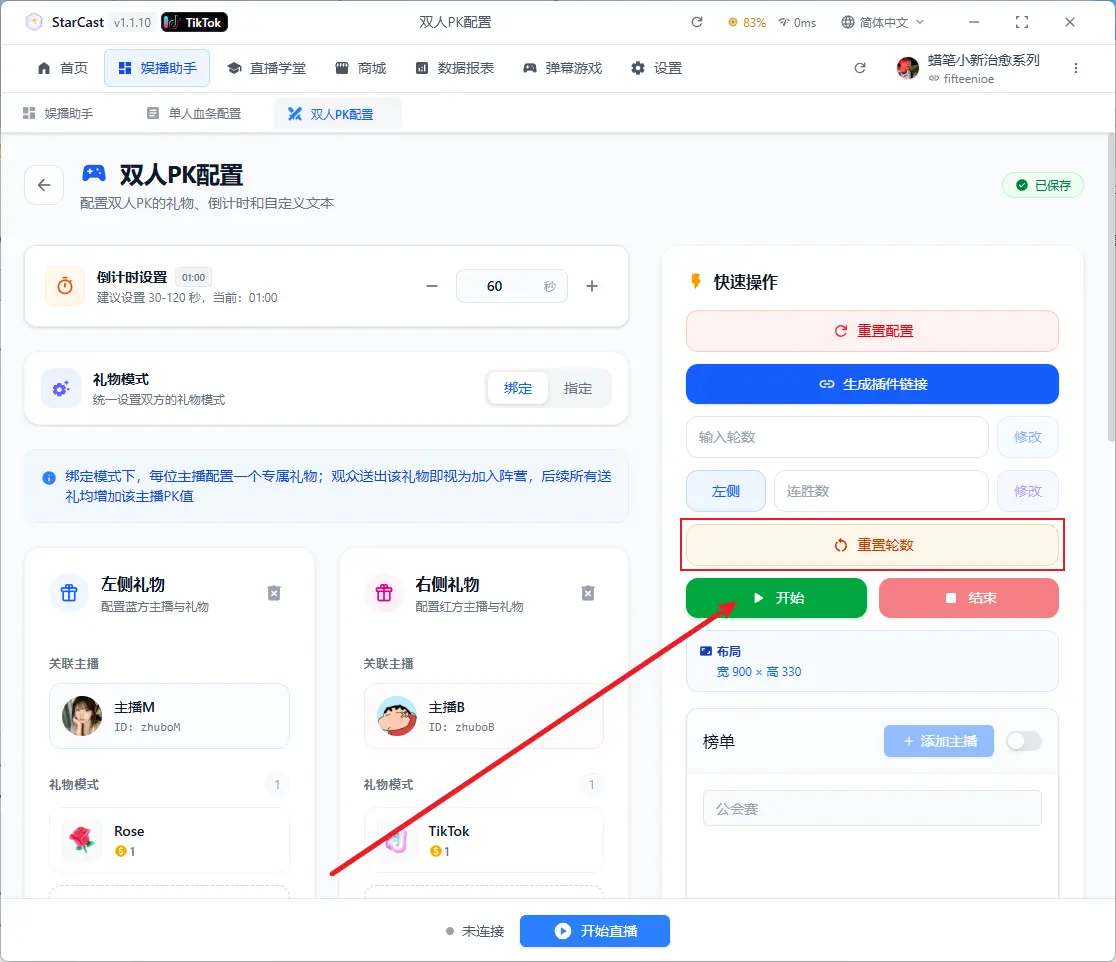
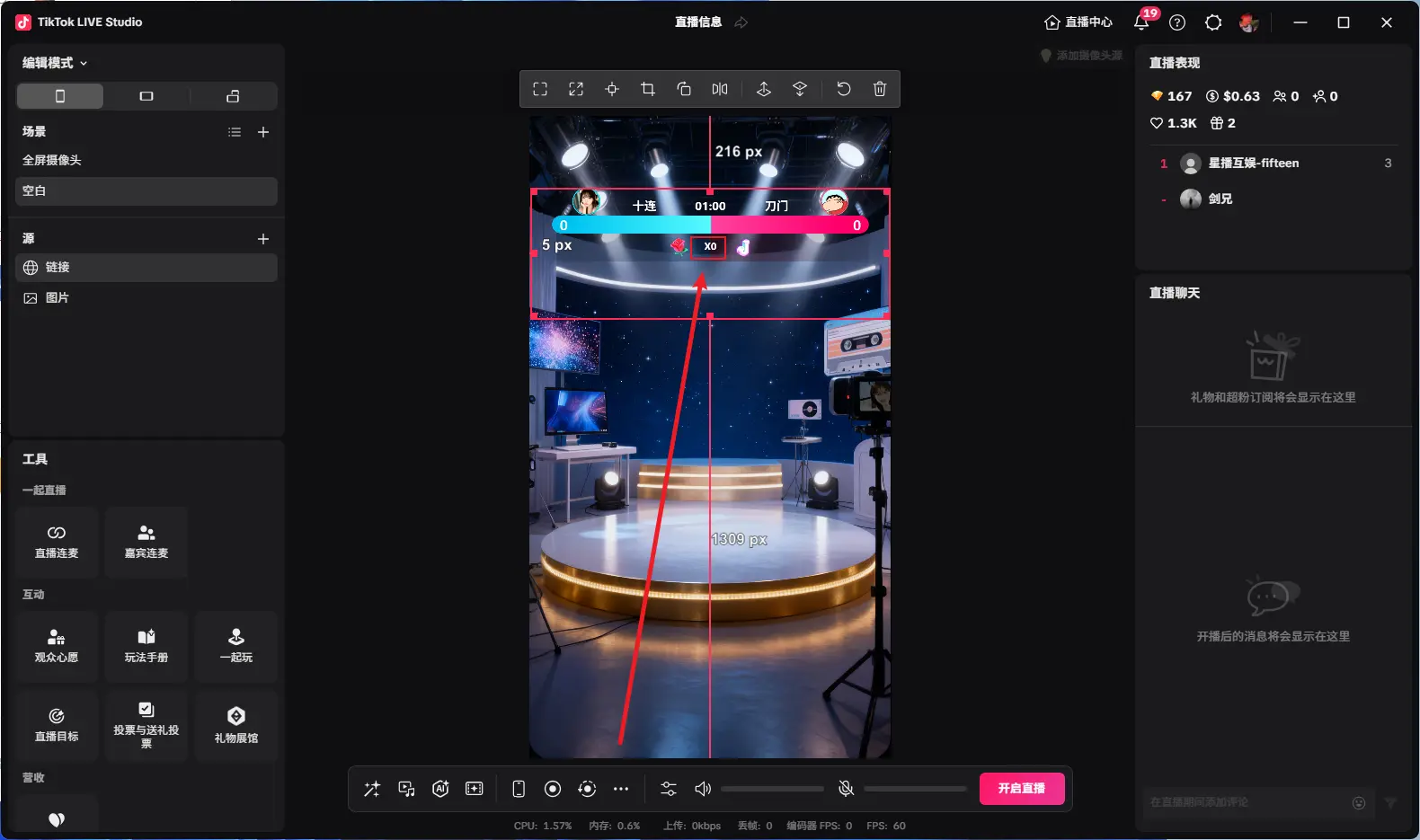
Modify winning streak here
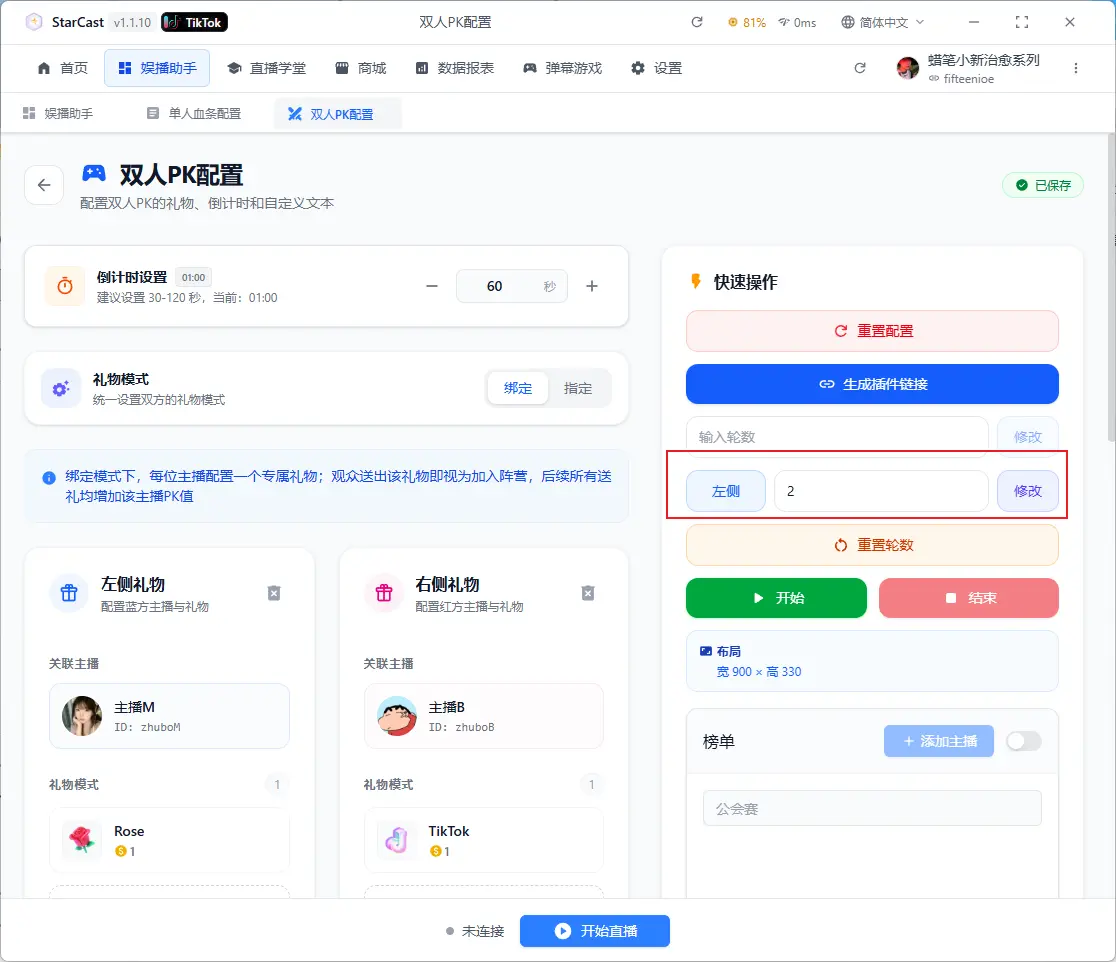
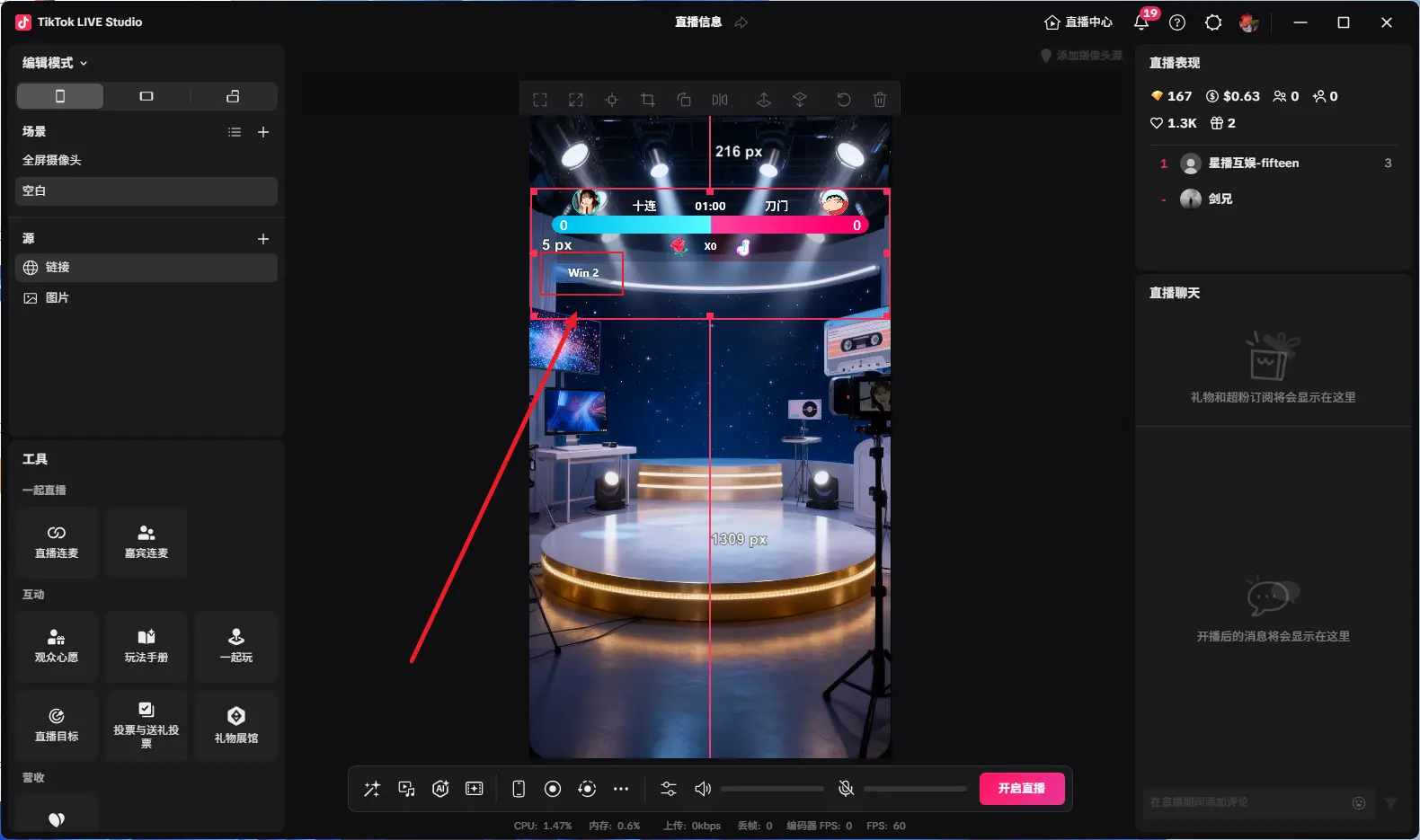
Displaying "Connected" means successfully connected to the live room
Multiplayer PK
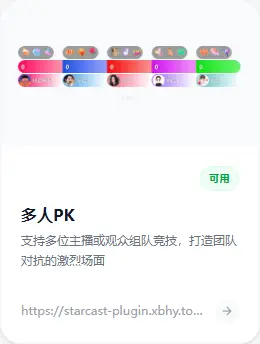
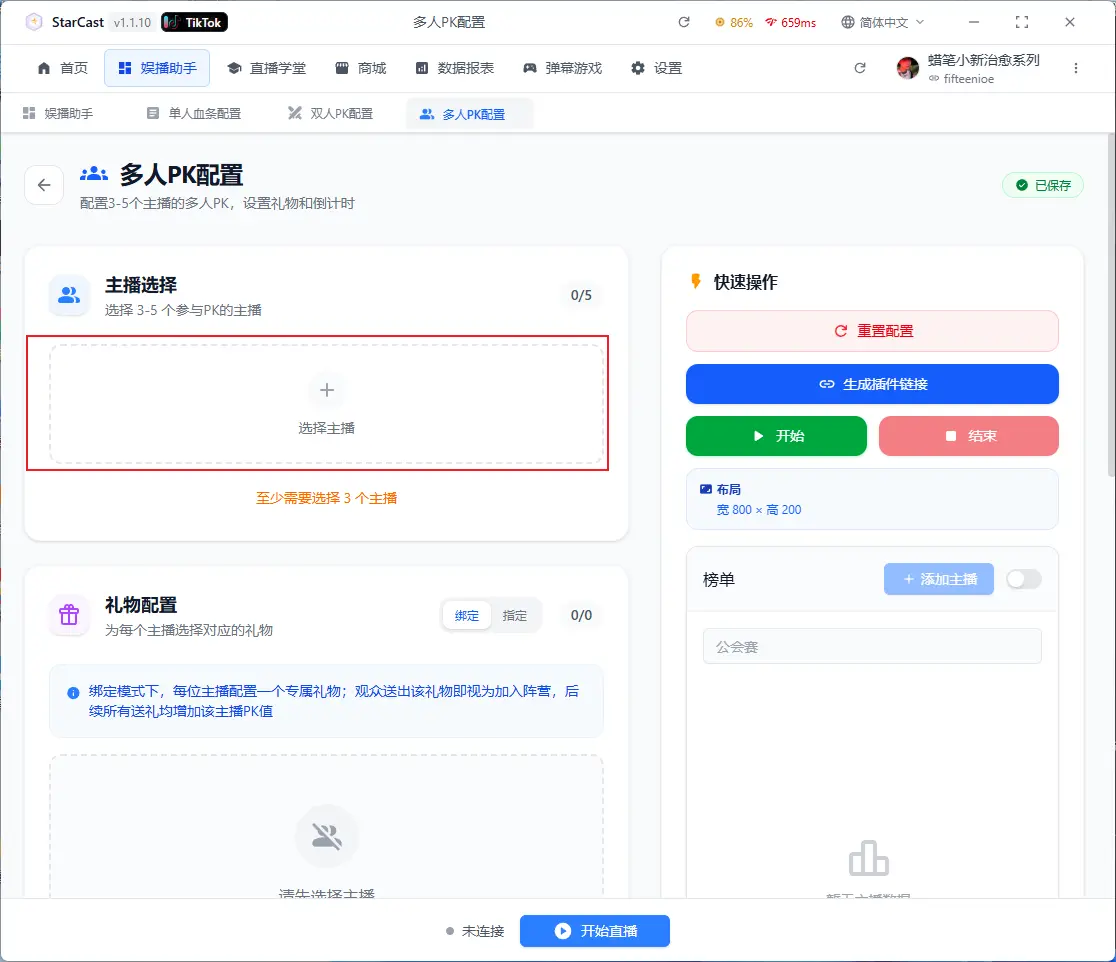
Click here to add streamers
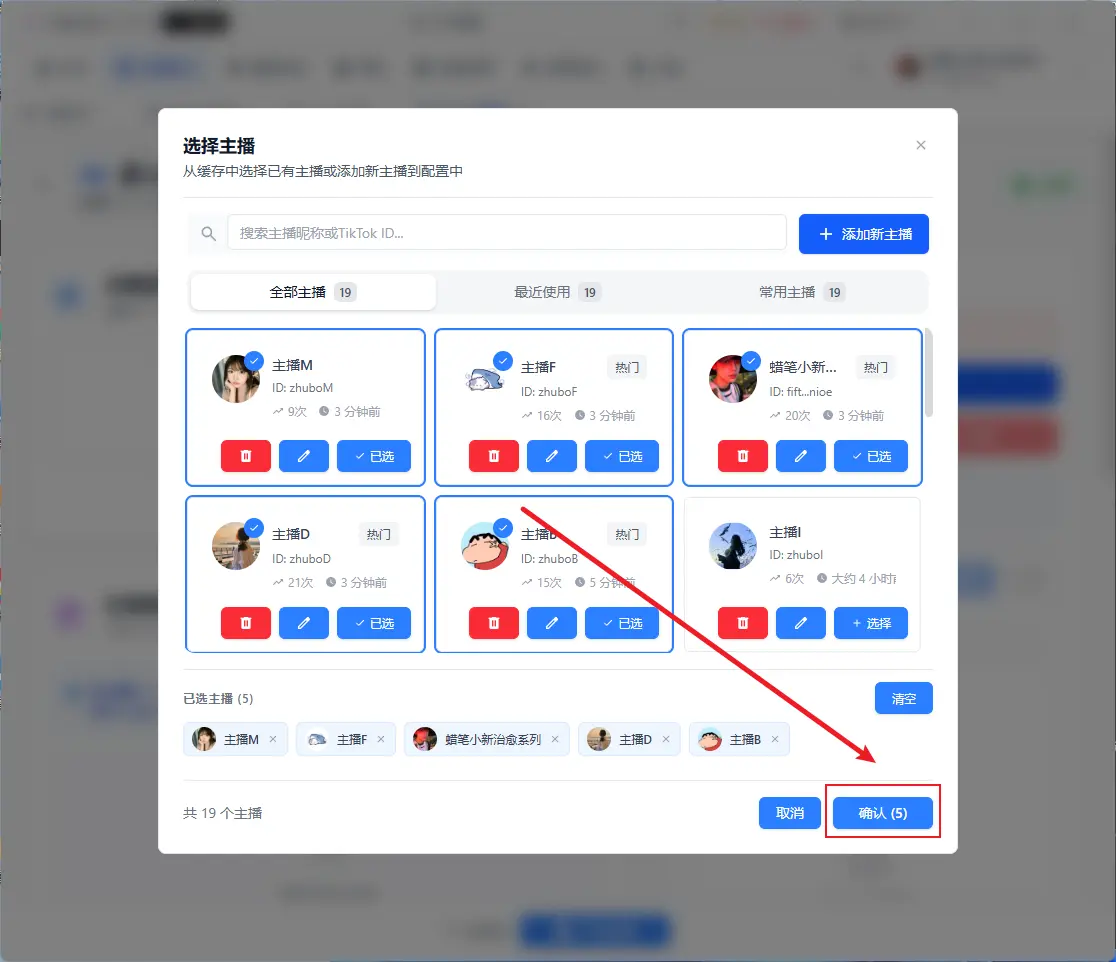
Select streamers and confirm, up to 5 can be selected
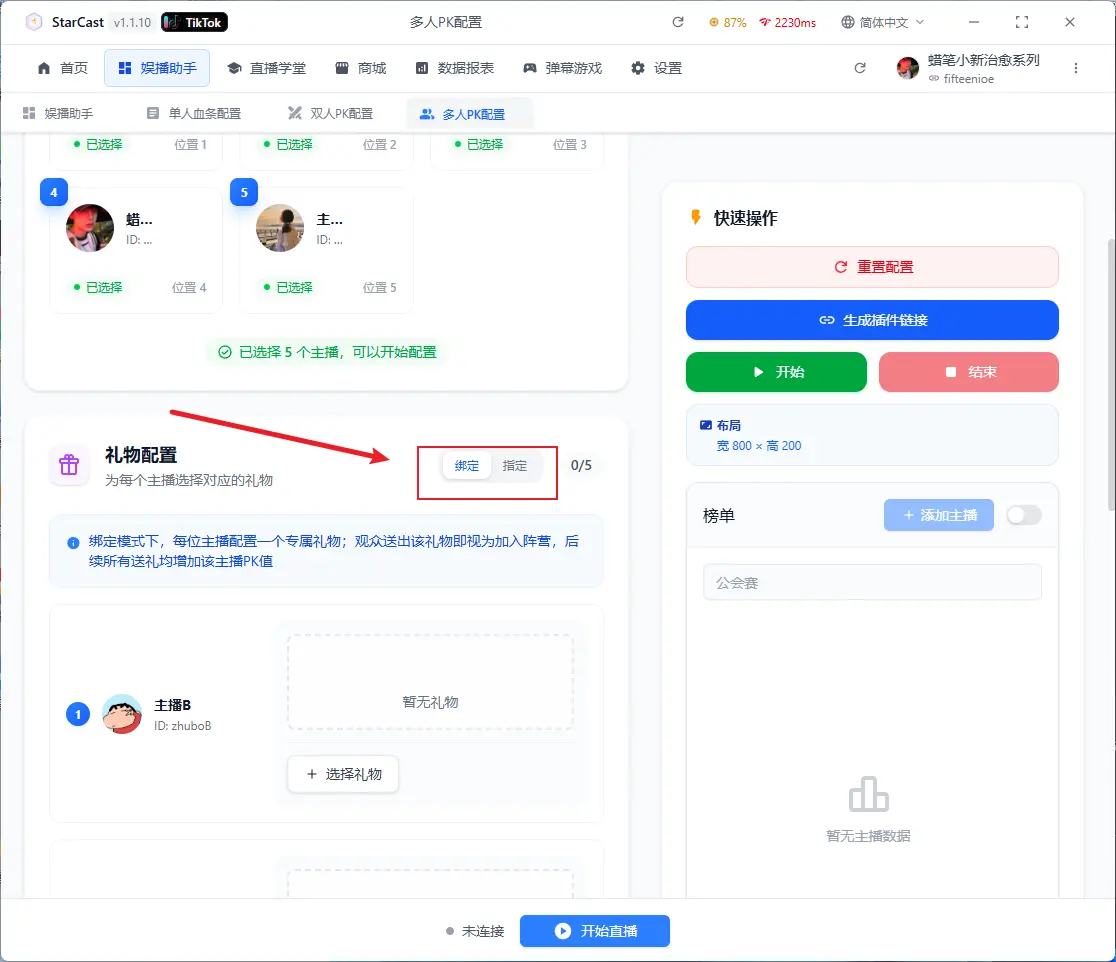
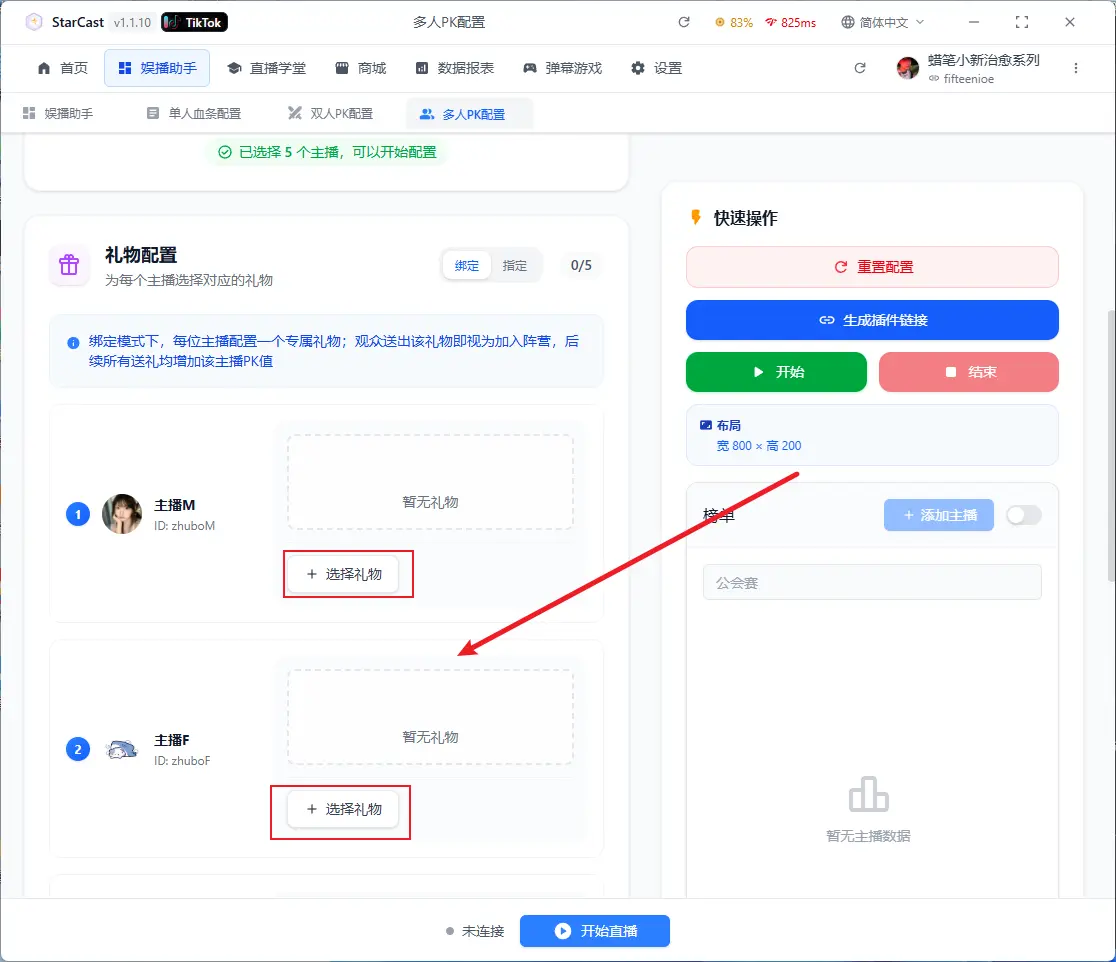
Click this to add corresponding gifts for streamers
After configuration, click "Generate Link"
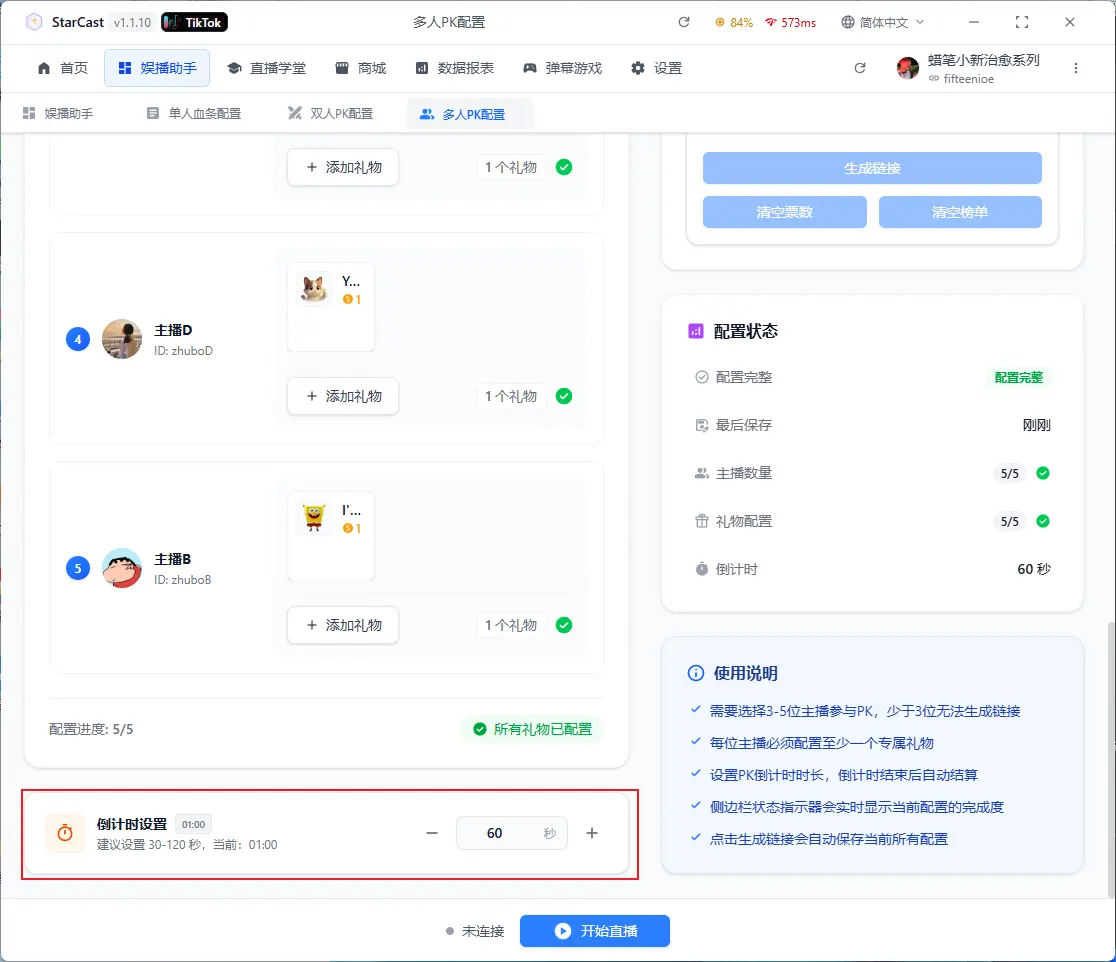
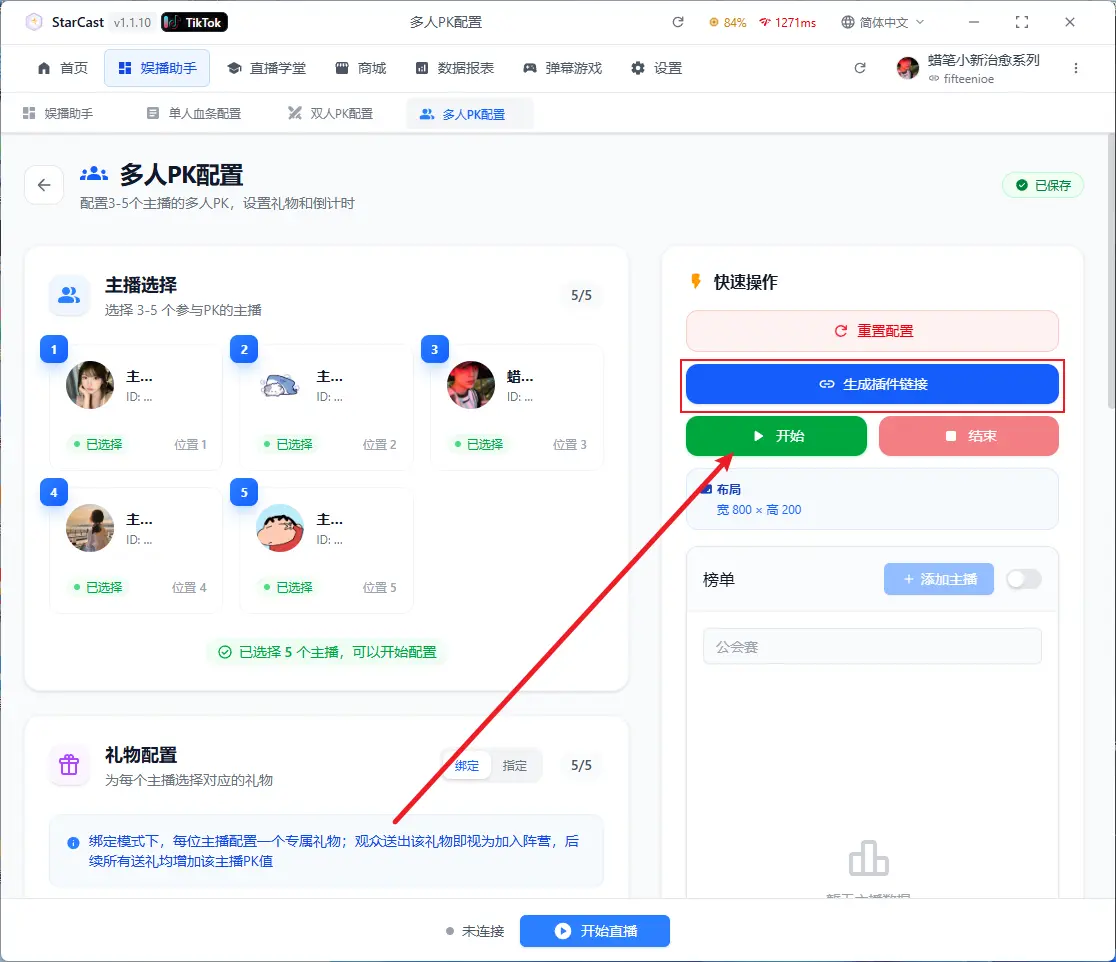
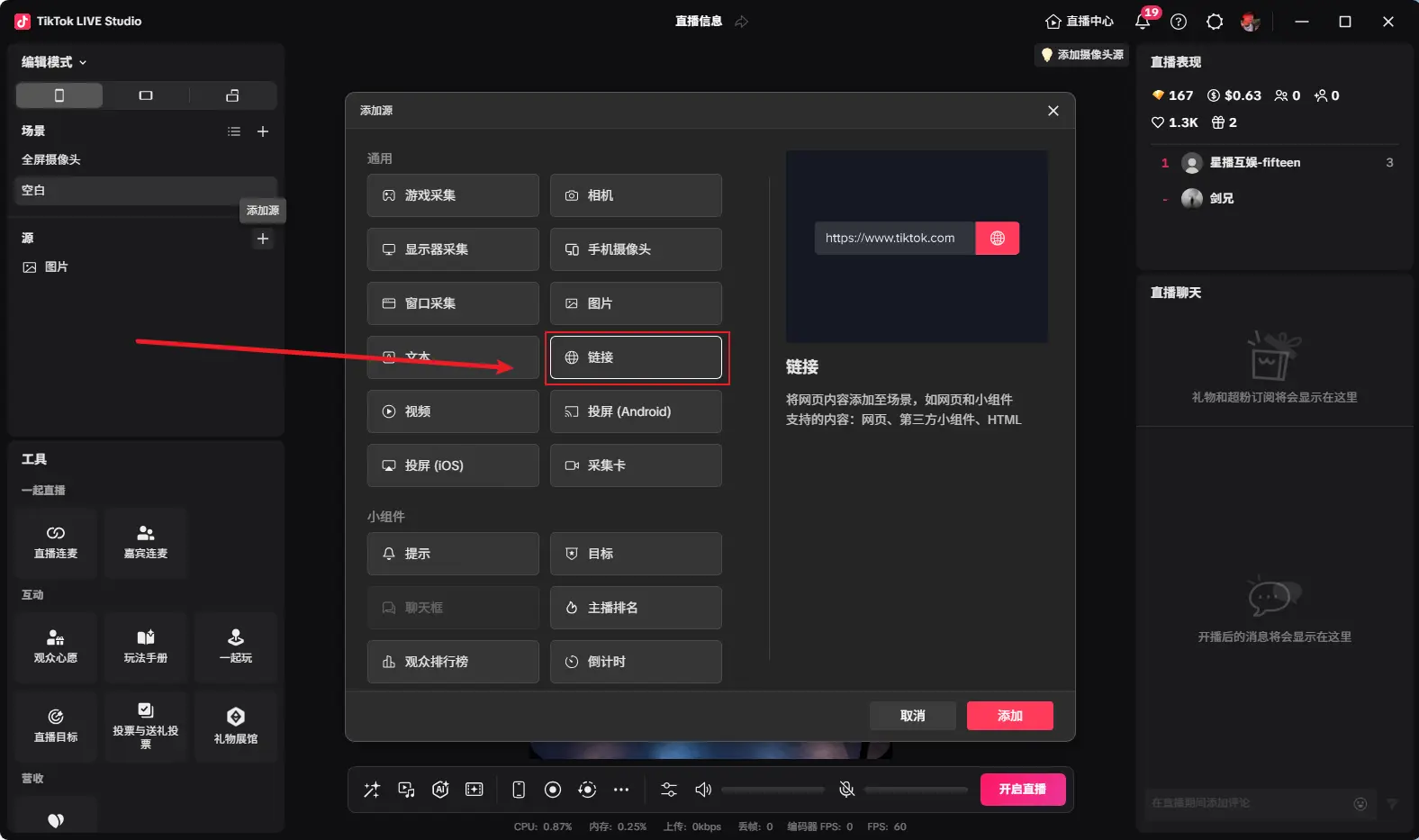
Open TikTok LIVE Studio, add source, and select Link
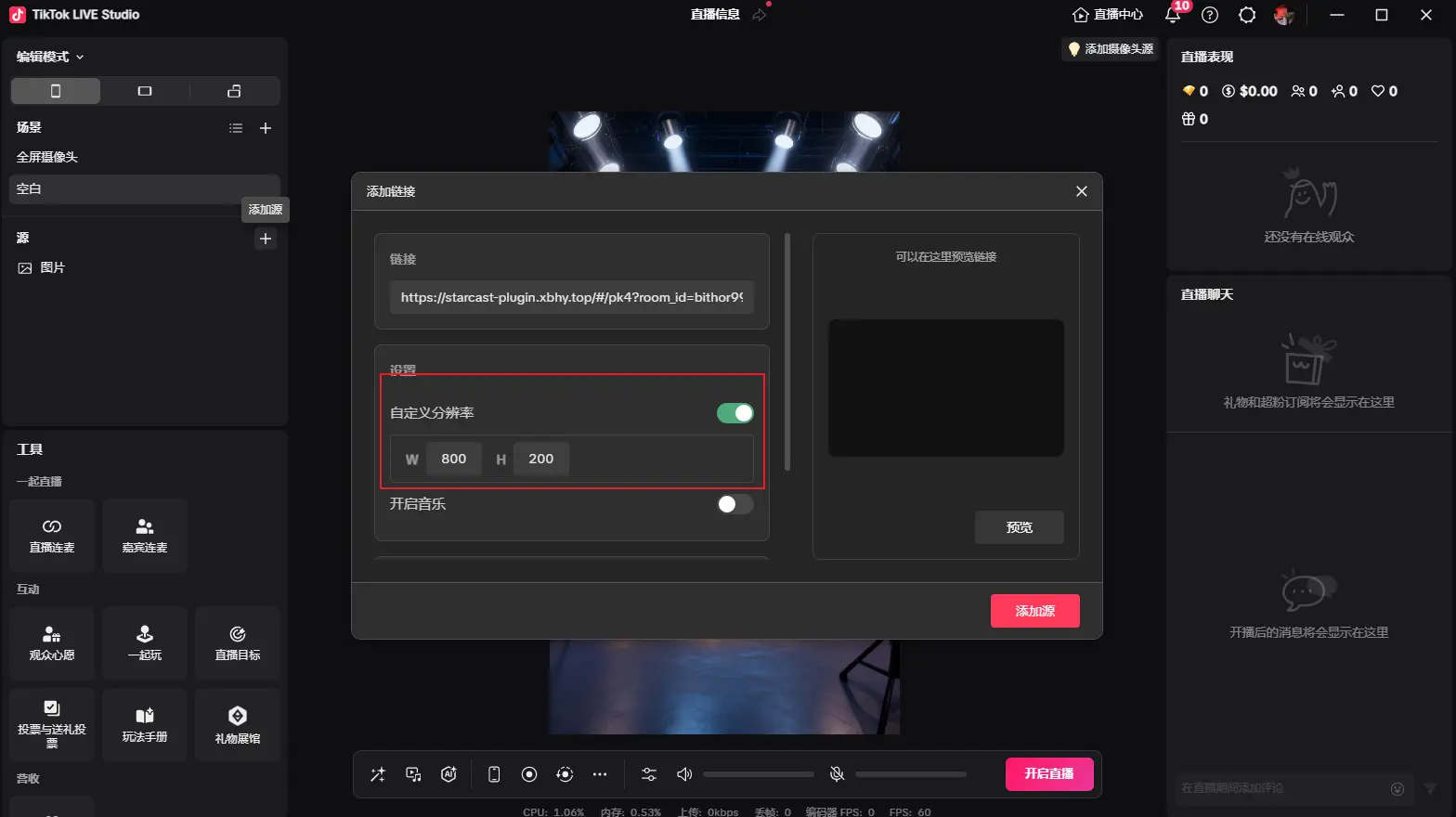
Paste the generated link and change the custom resolution to 800x200
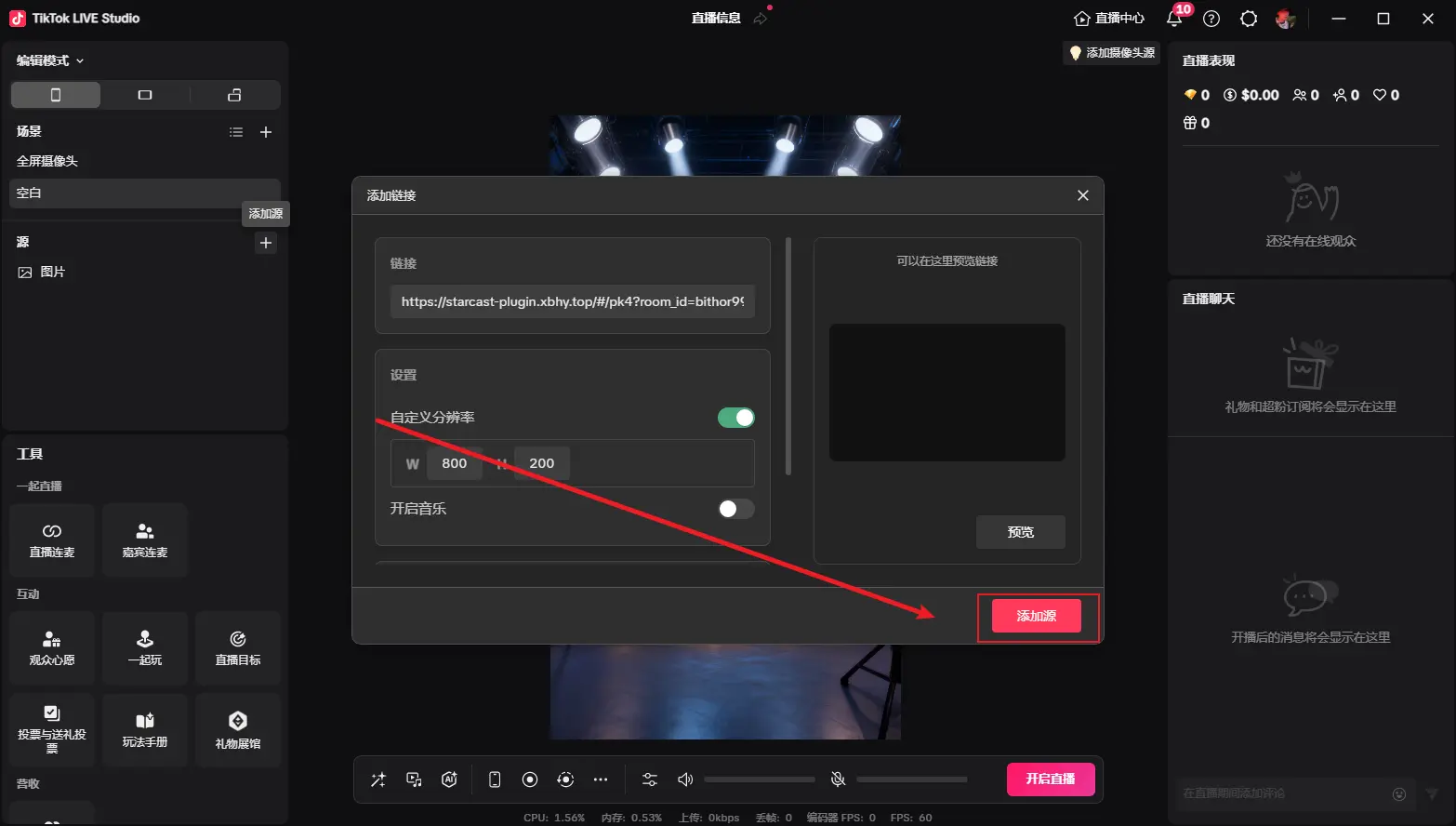
After adding as shown, adjust to desired size, then click "Start" to begin countdown
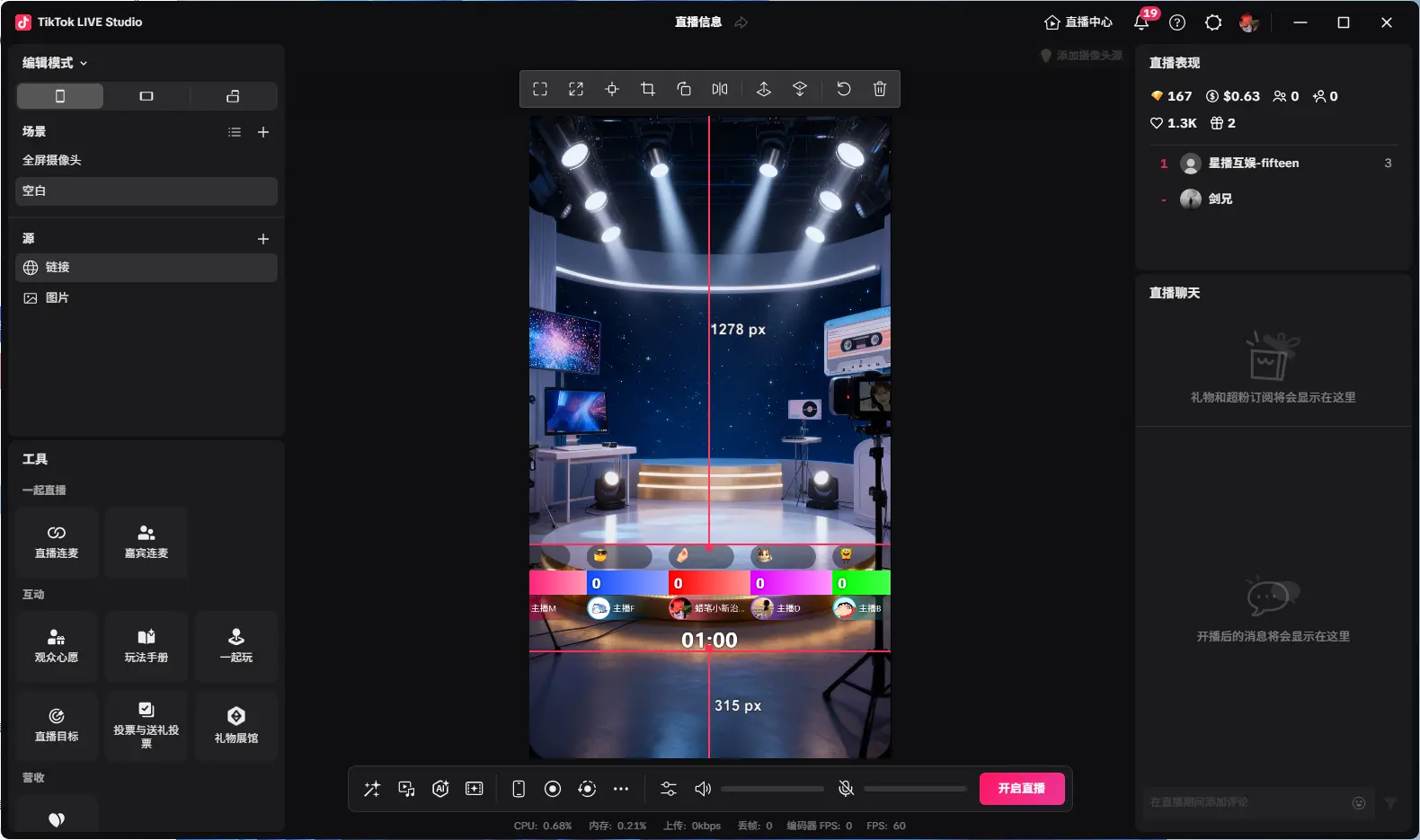
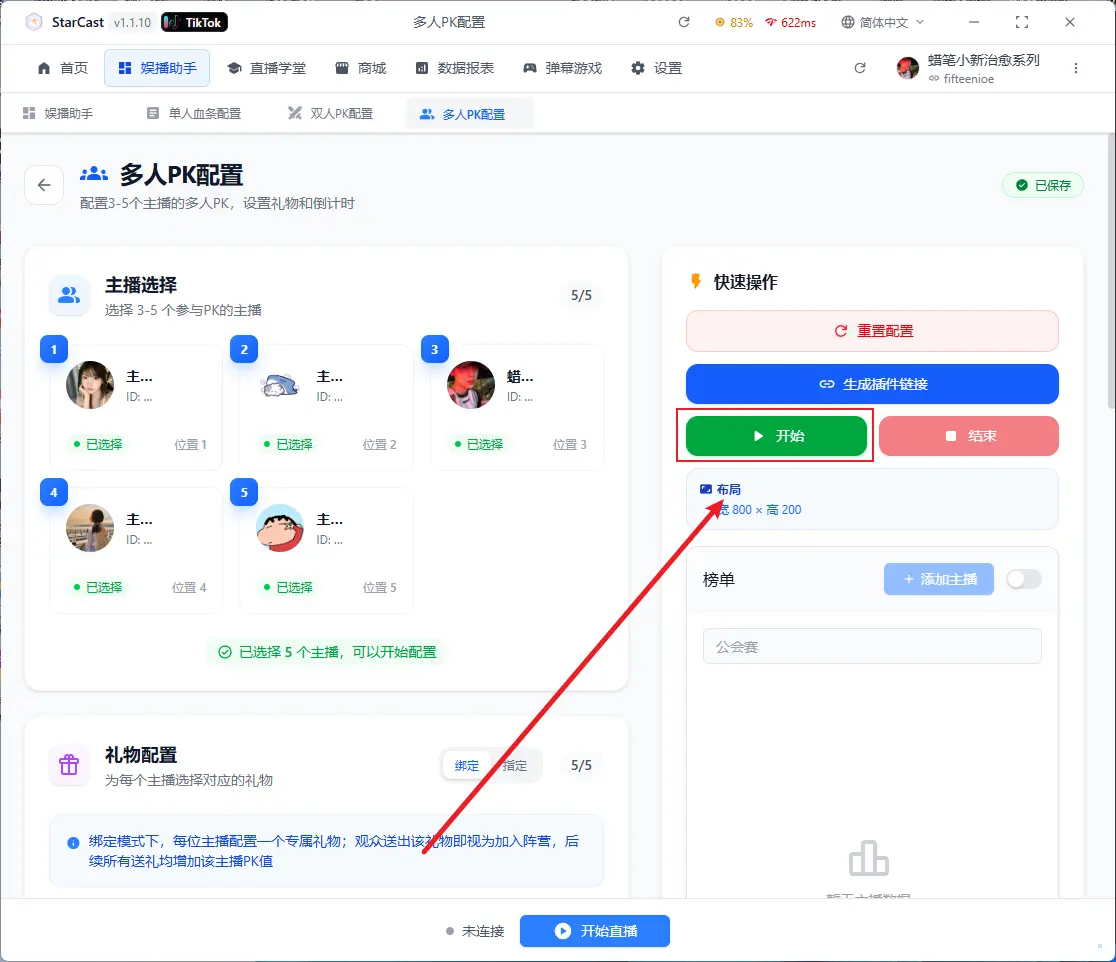
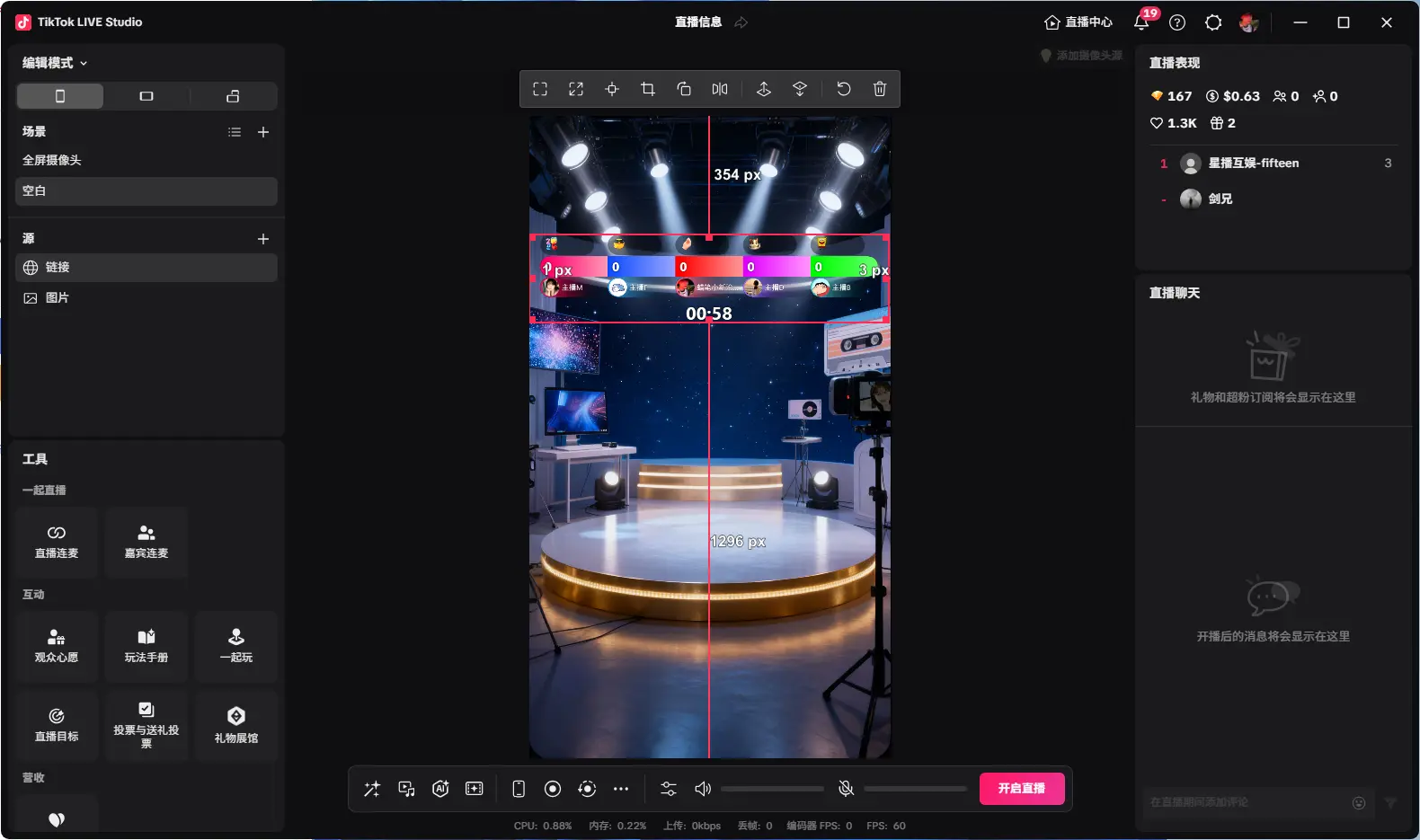
Displaying "Connected" means successfully connected to the live room
Infinite Sticker Dance (Vertical)
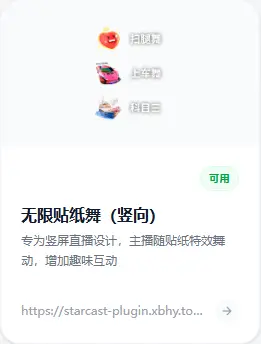
Set countdown and vote counting here
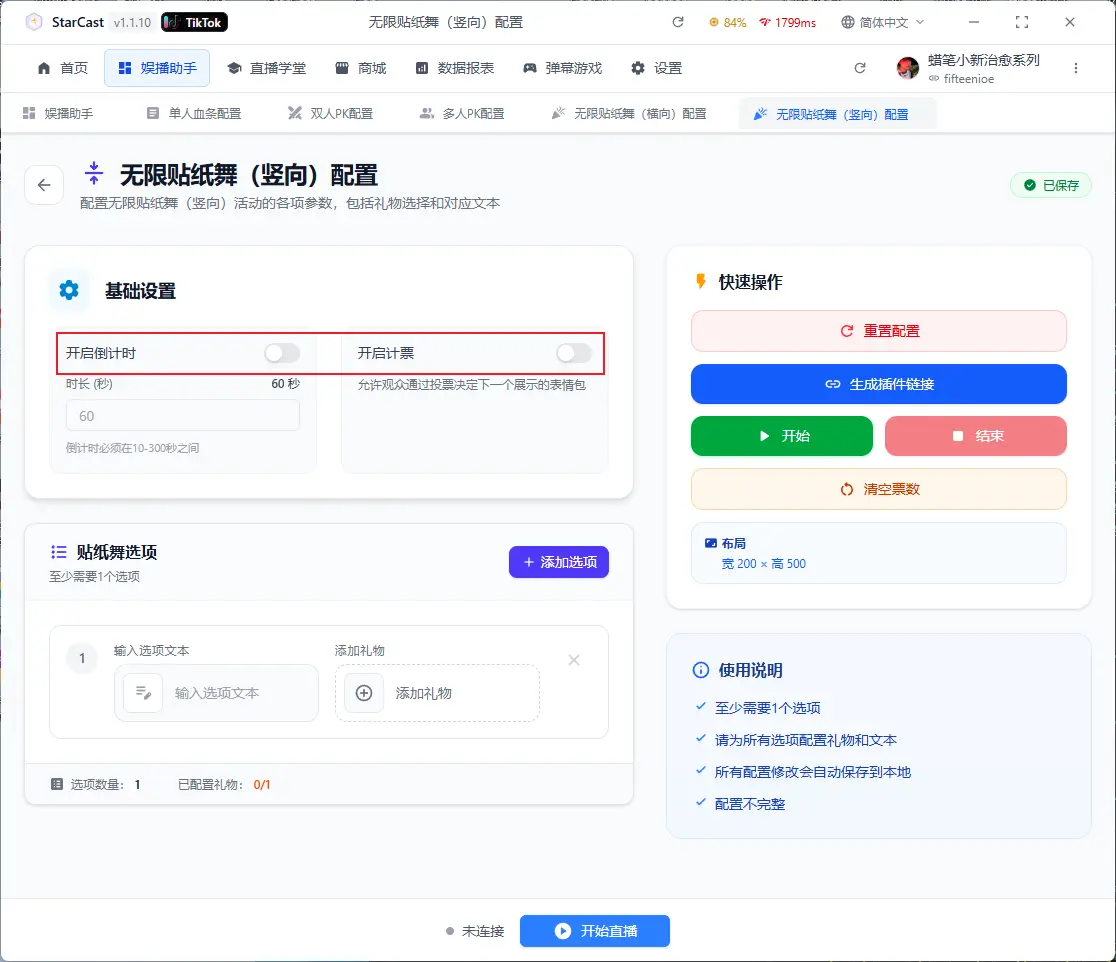
Add custom text and gifts here
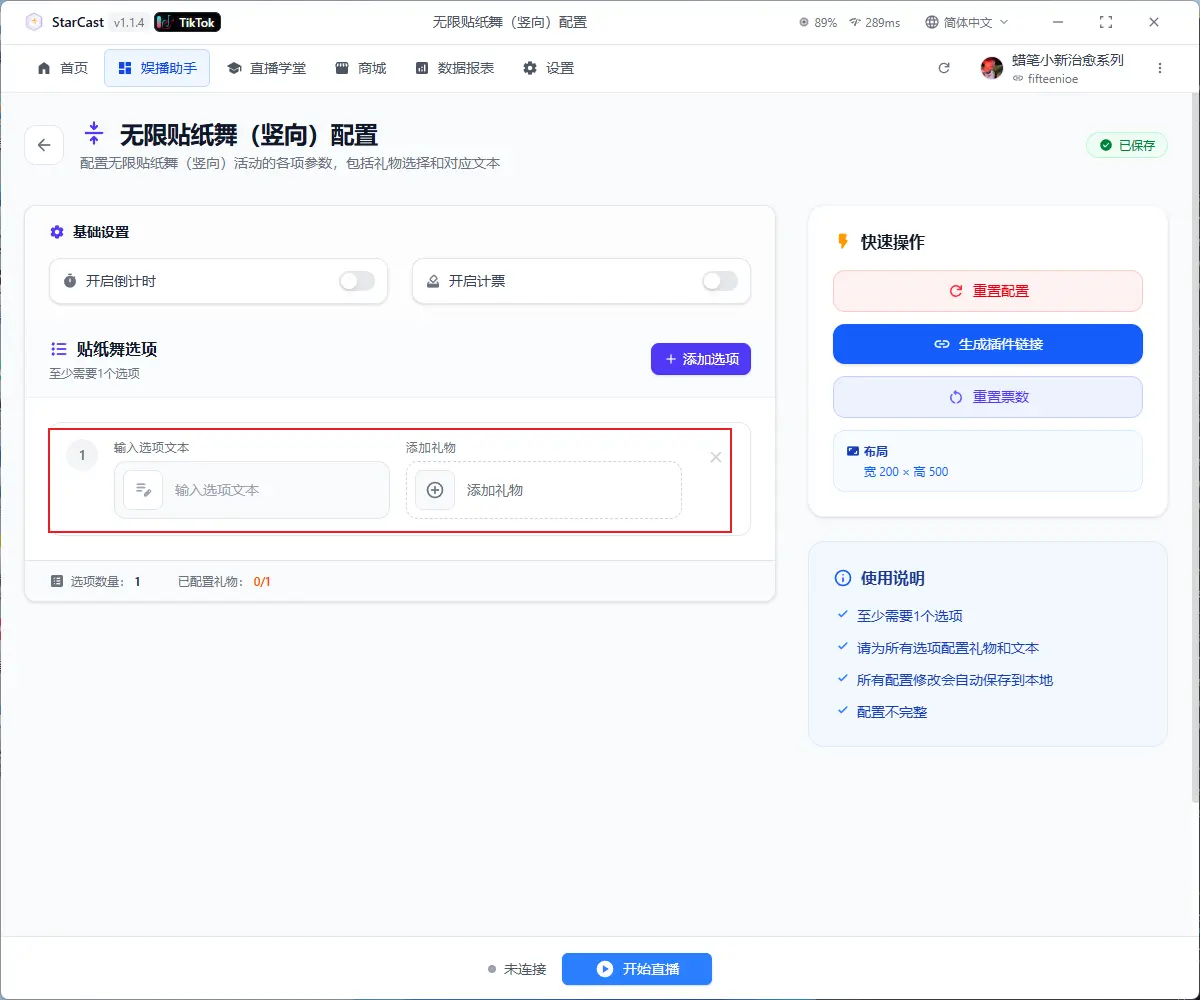
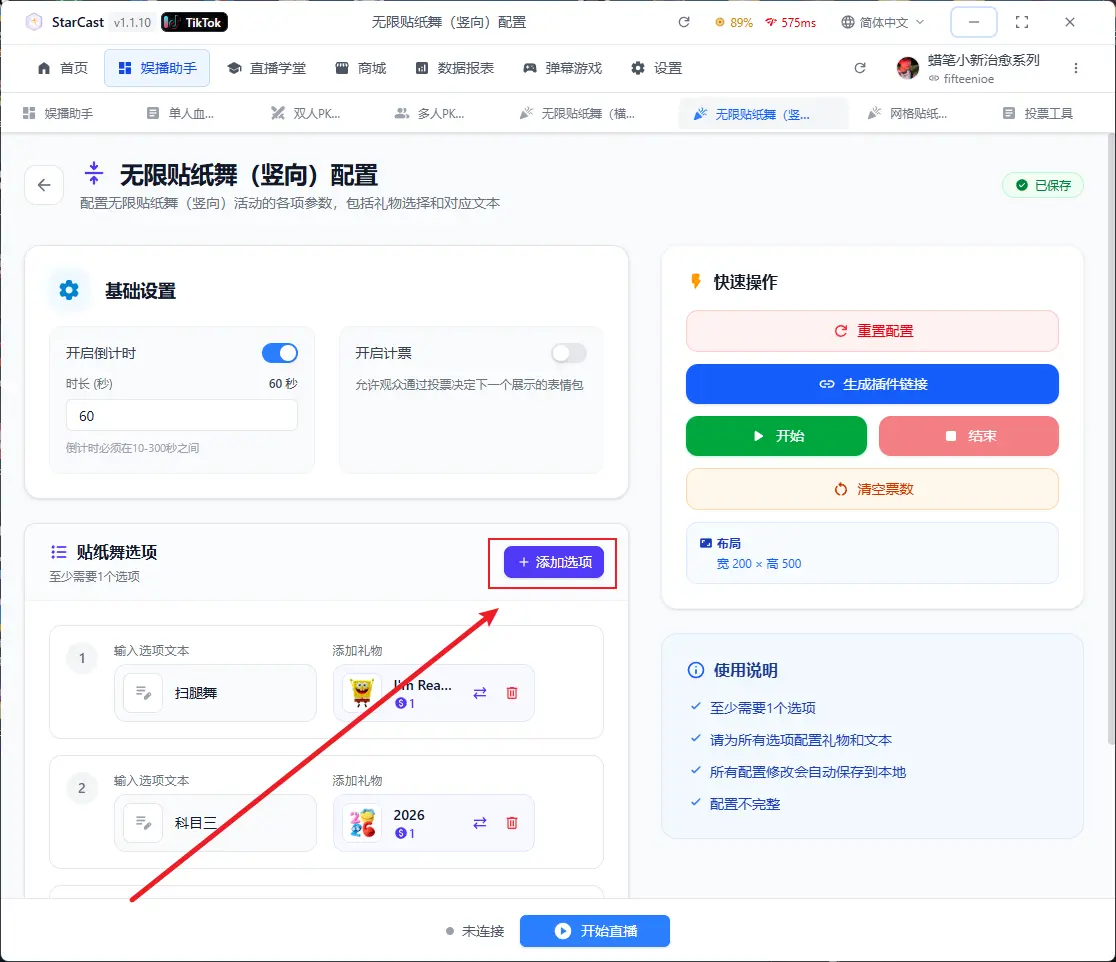
Click "Add Option" to add multiple options
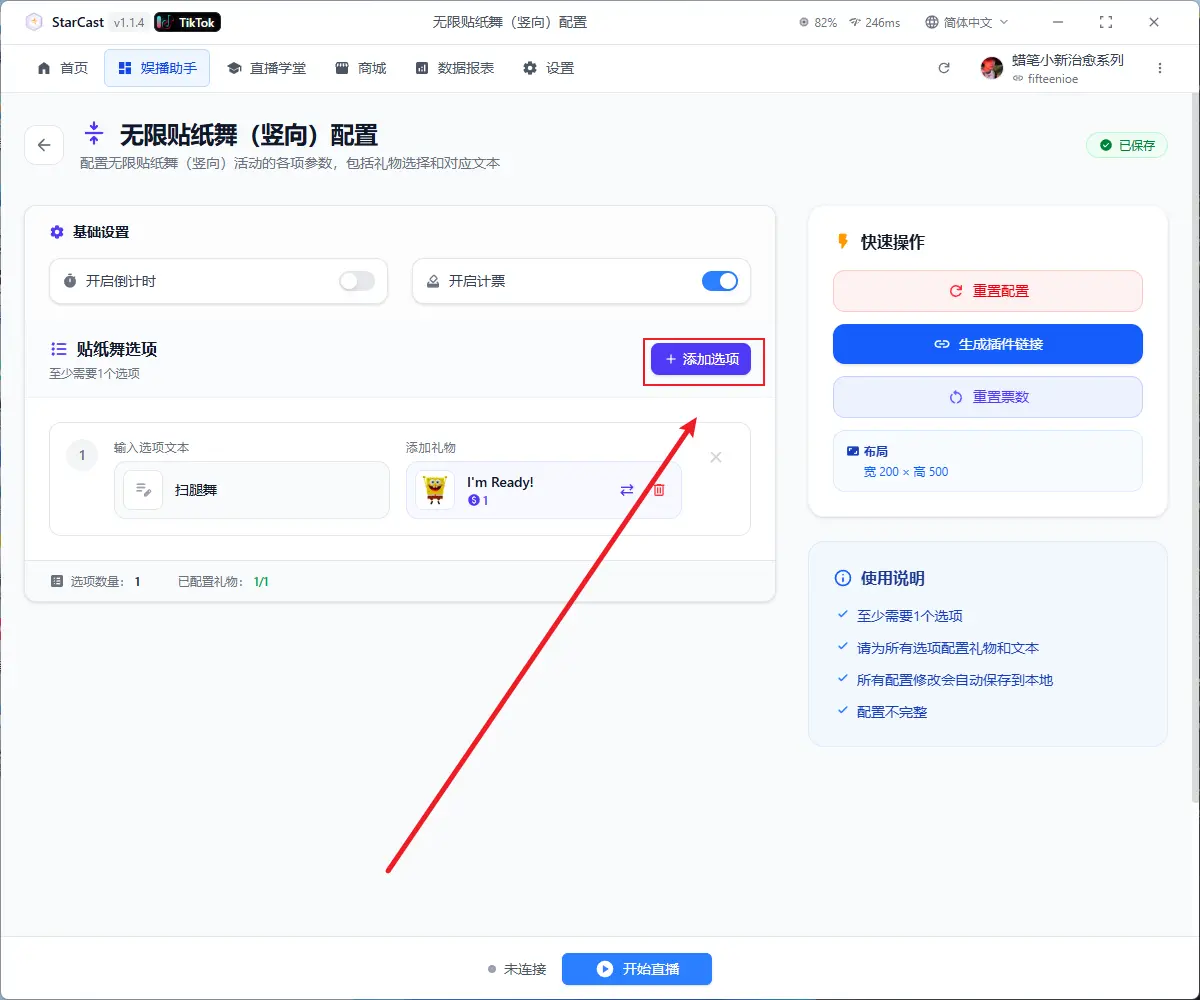
After adding, click "Generate Link"
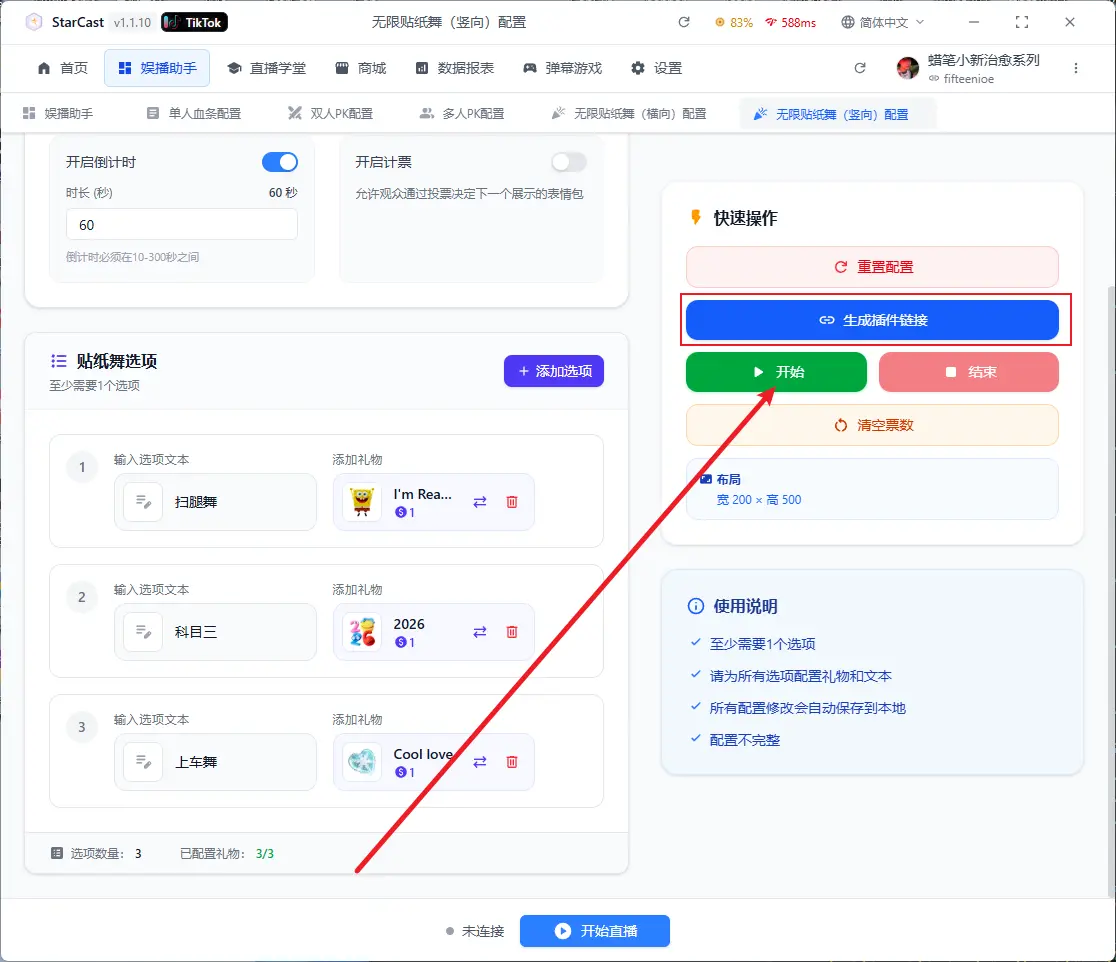
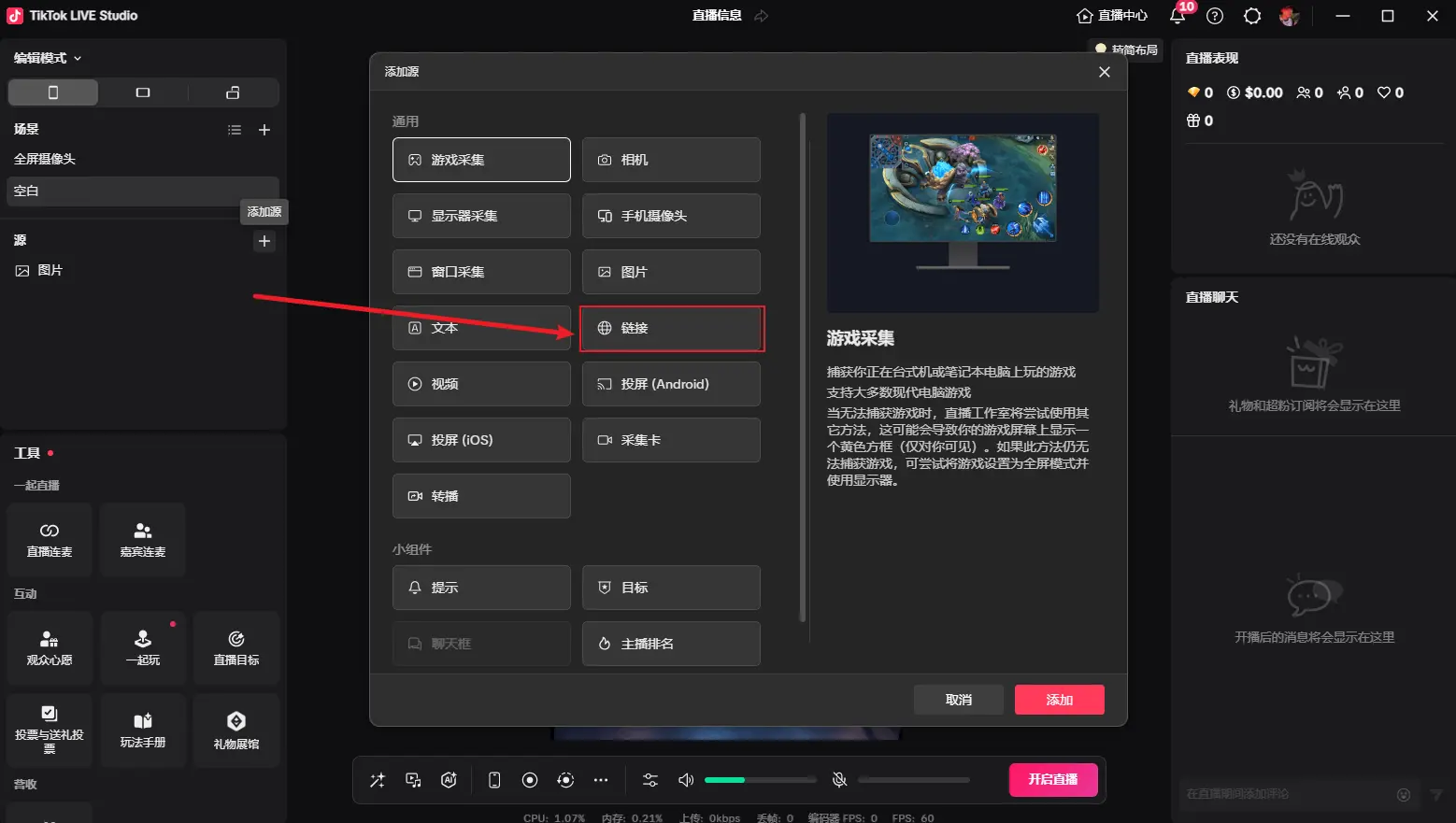
Open TikTok LIVE Studio, add source, and select Link
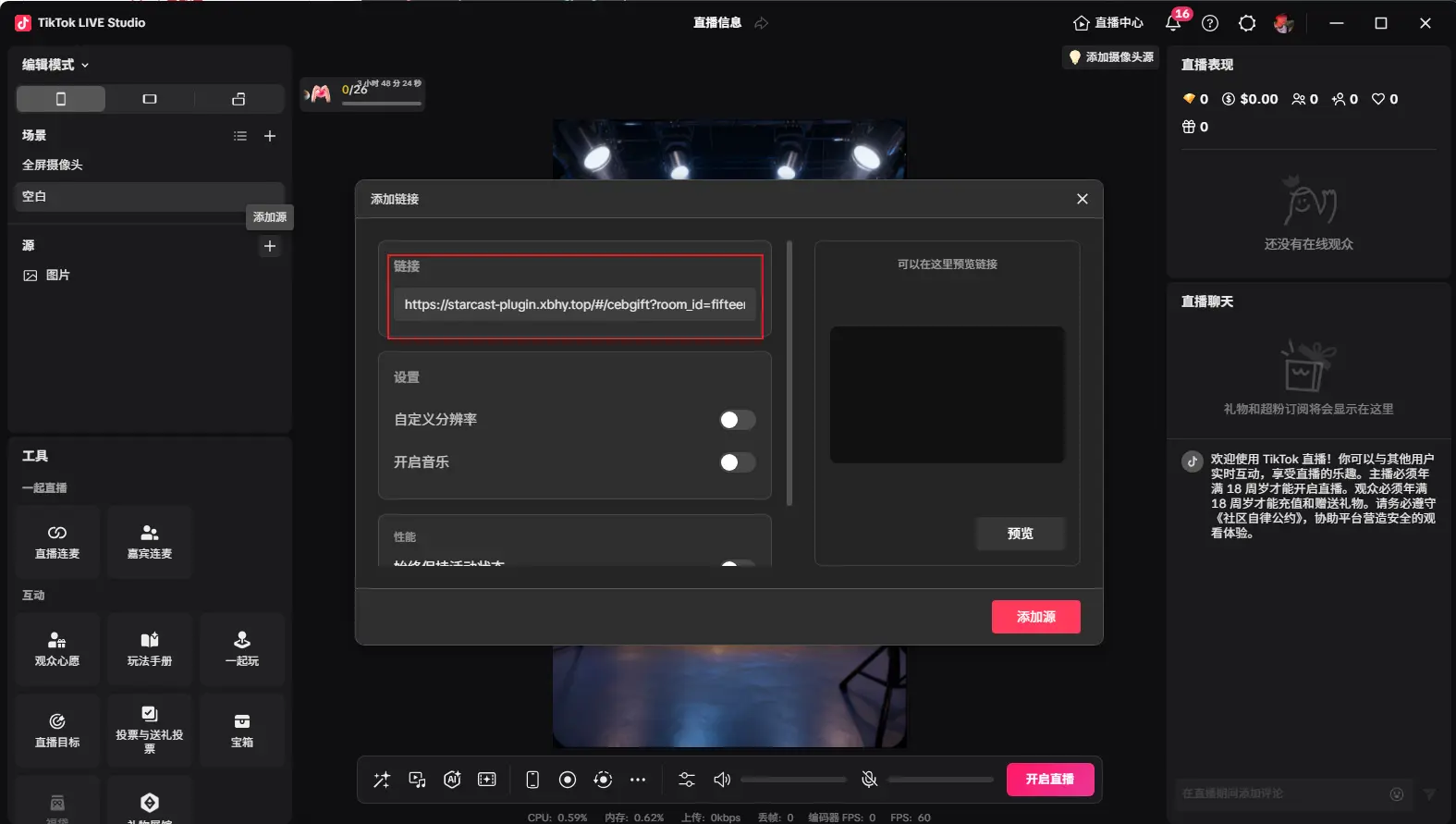
Paste the generated link and change the custom resolution to 200x500
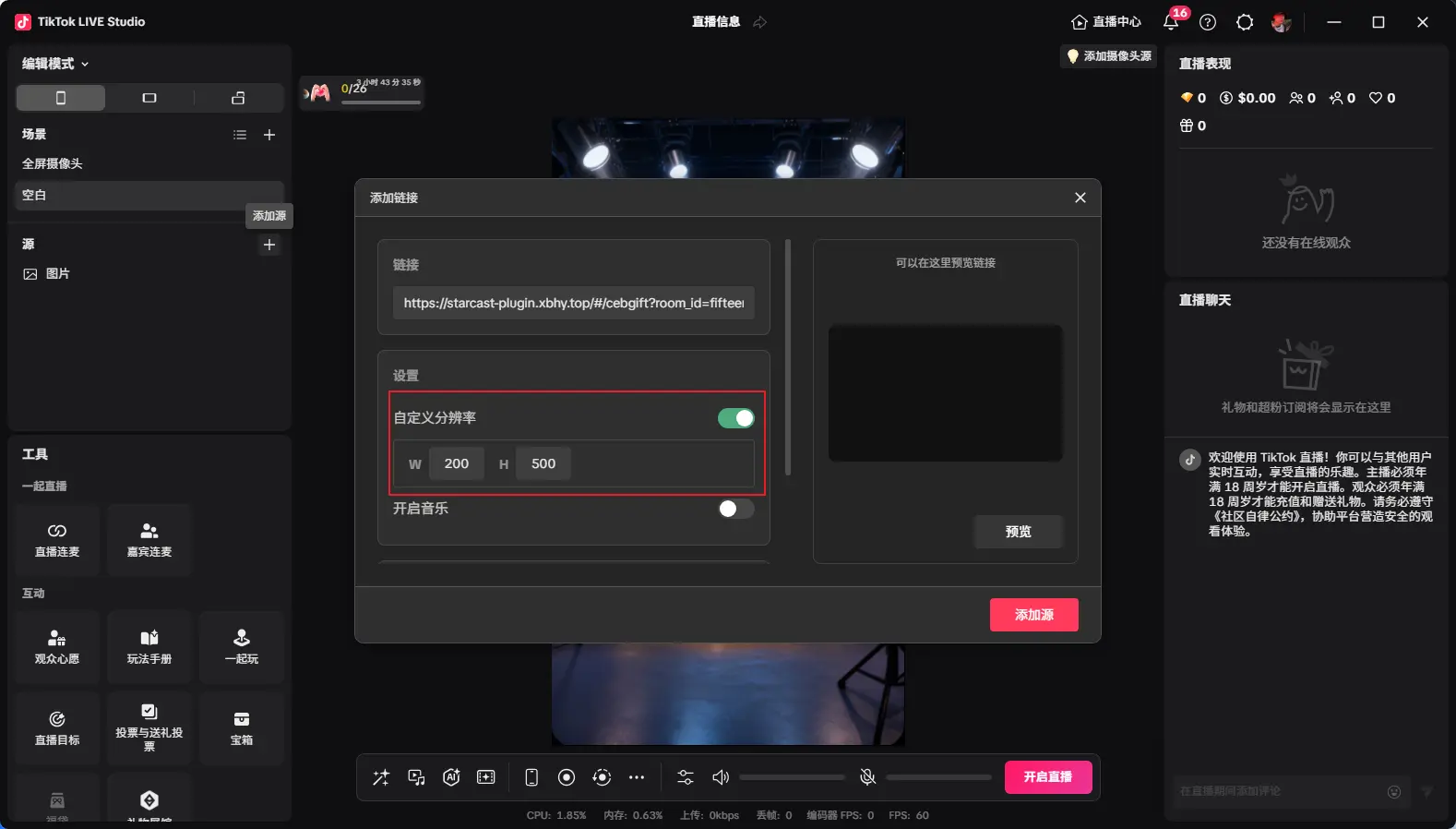
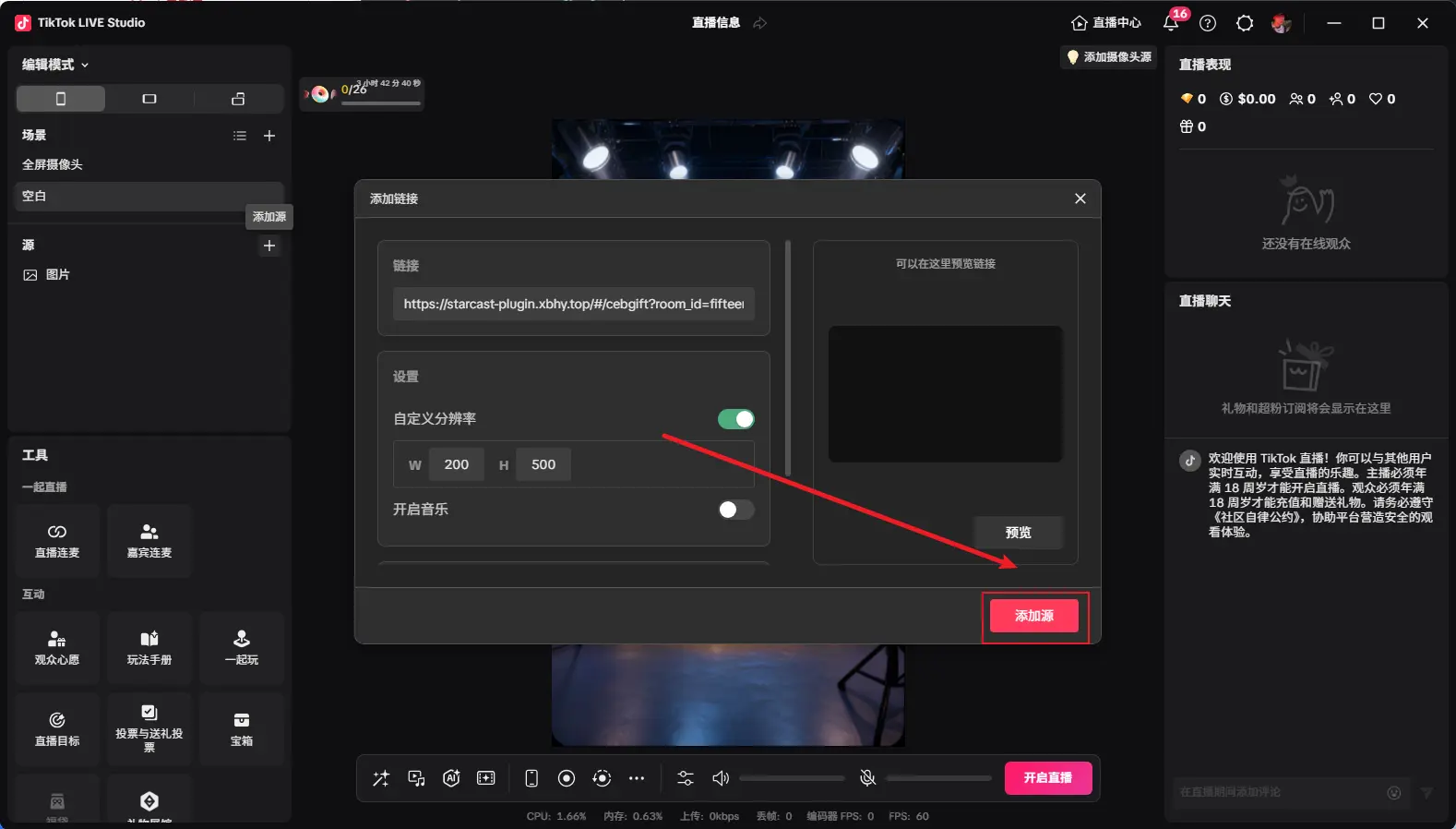
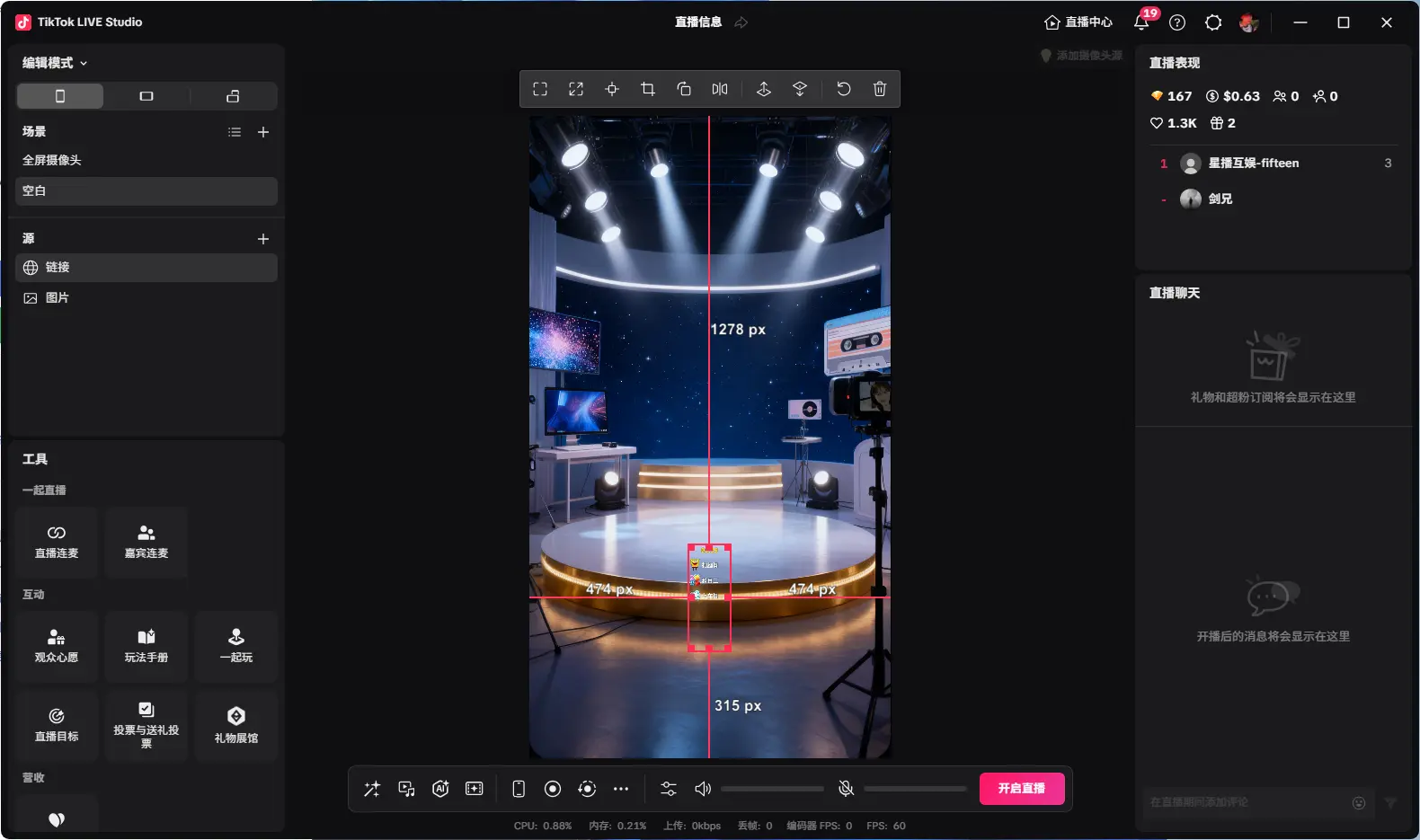
After adding as shown, adjust to desired size, then click "Start" to begin countdown
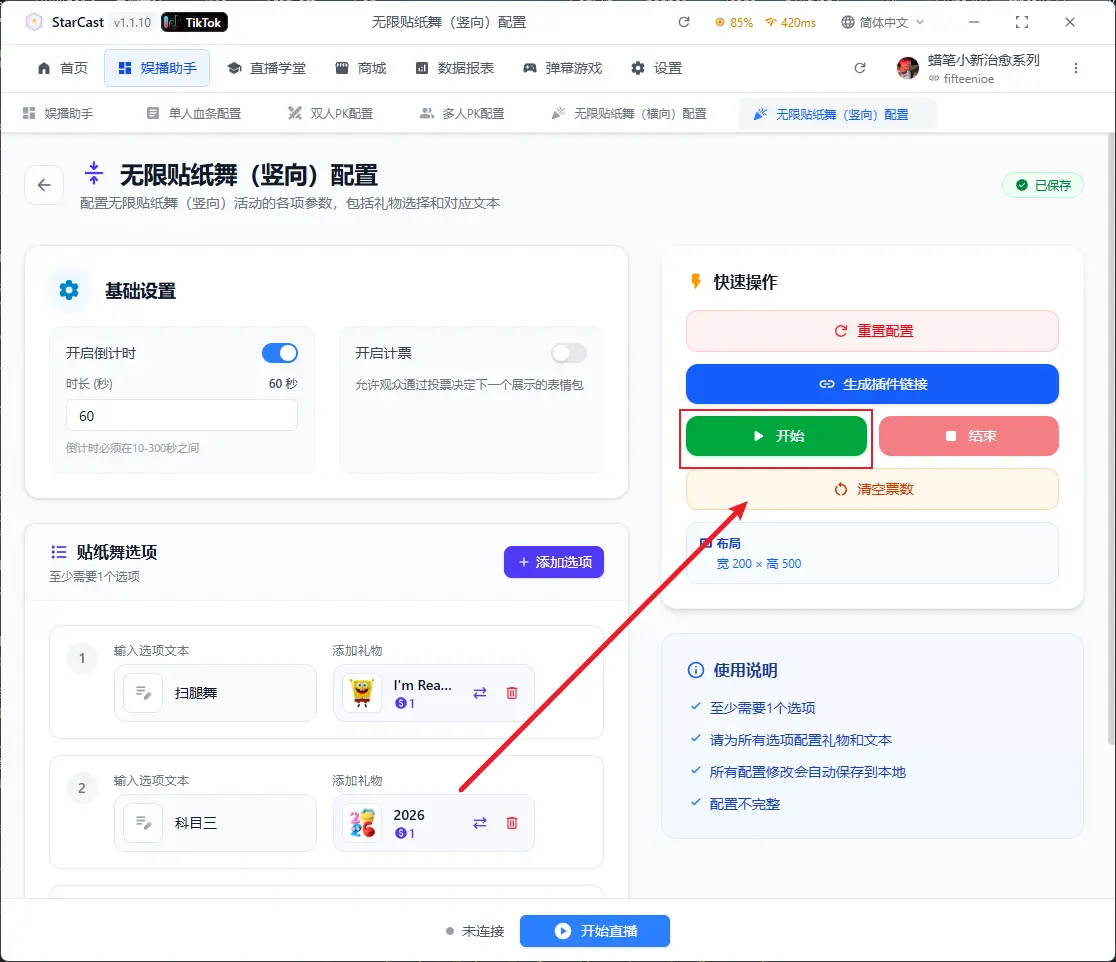
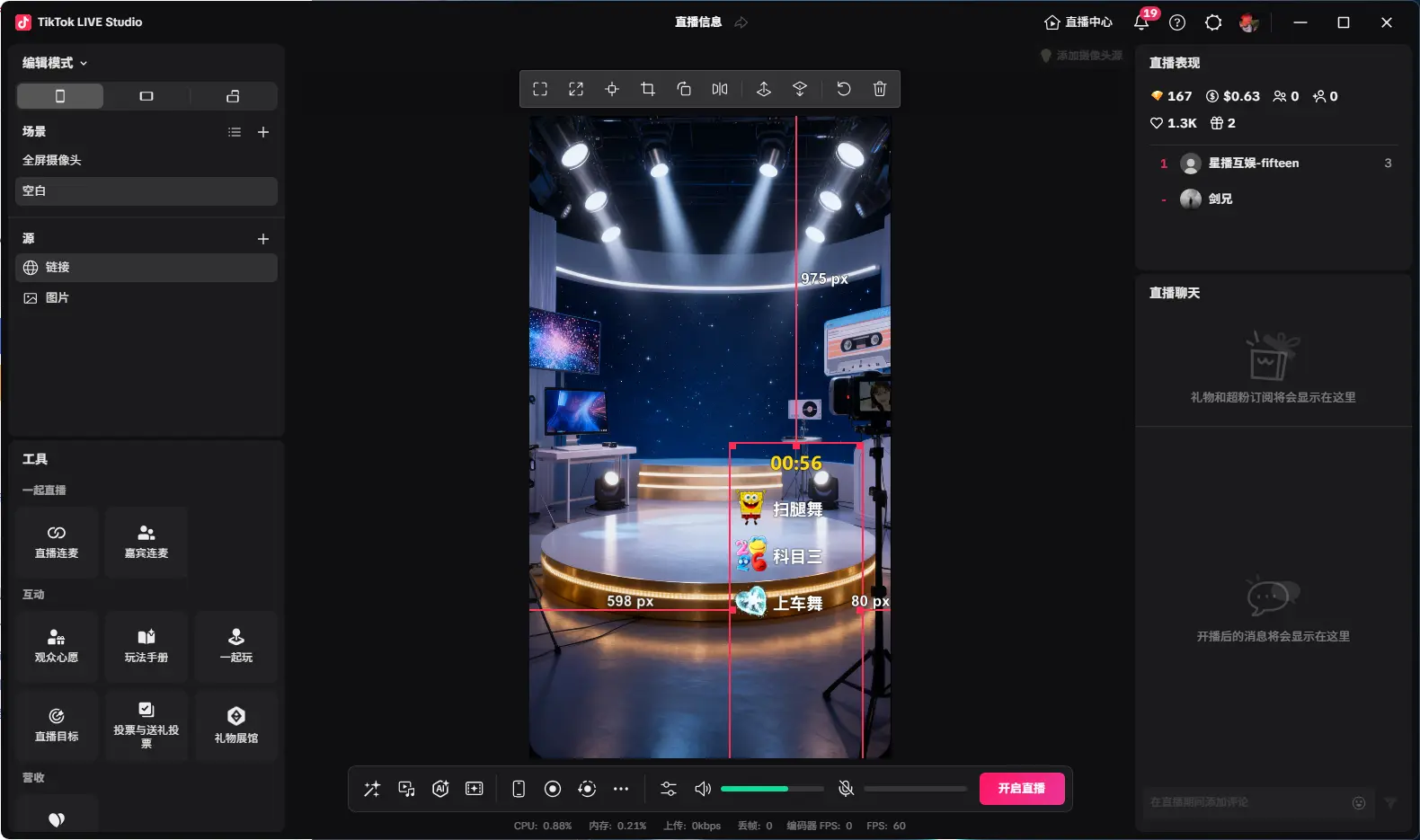
Click here to clear votes
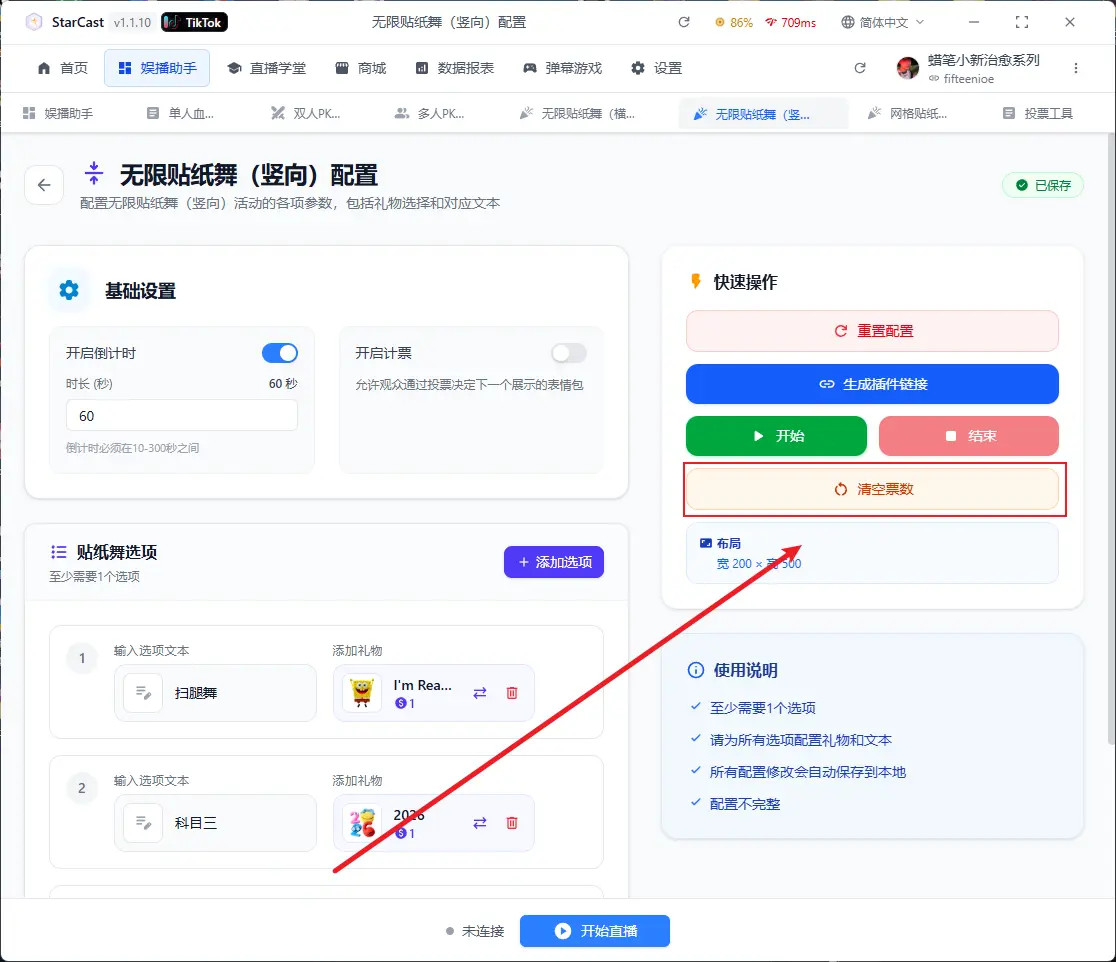
Displaying "Connected" means successfully connected to the live room
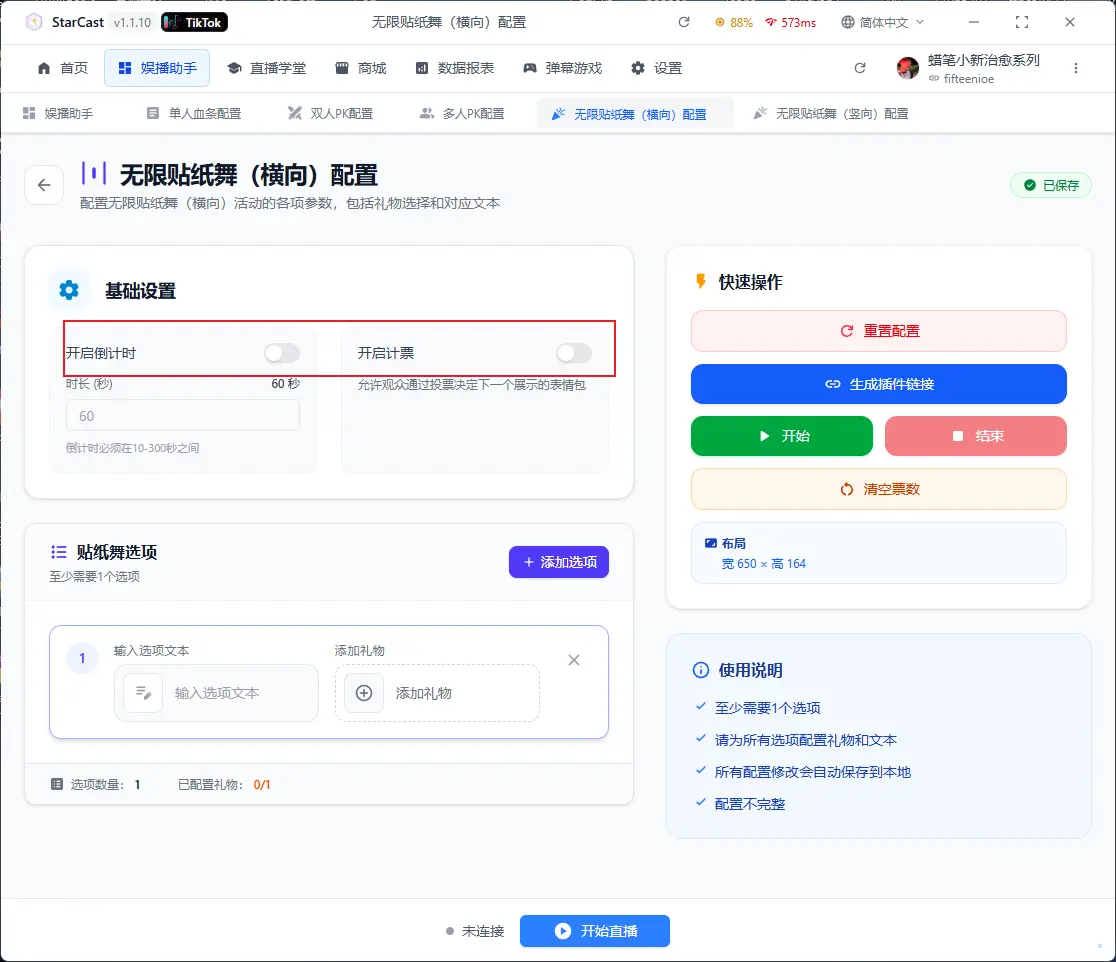
Infinite Sticker Dance (Horizontal)
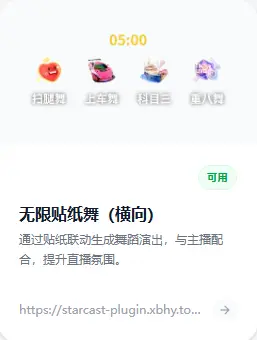
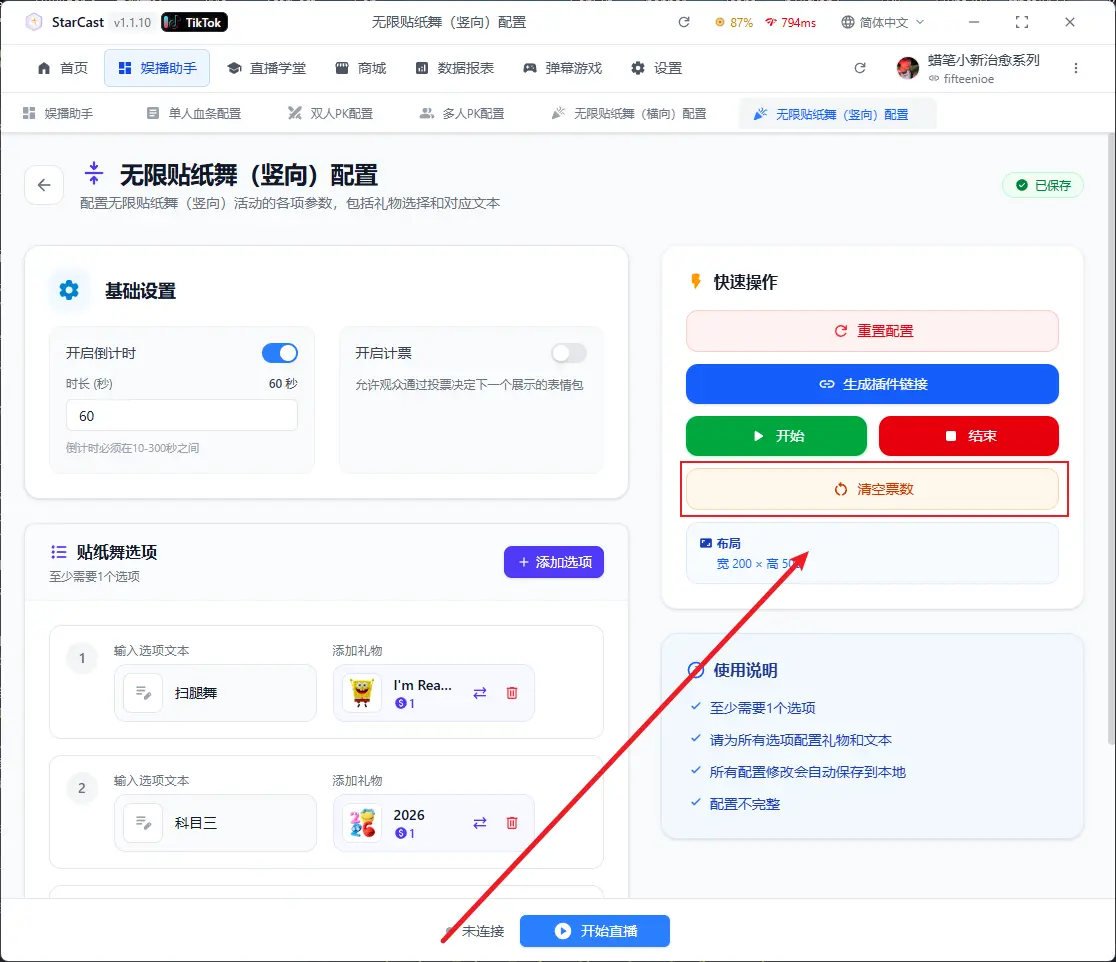
Set countdown and vote counting here
Add custom text and gifts here
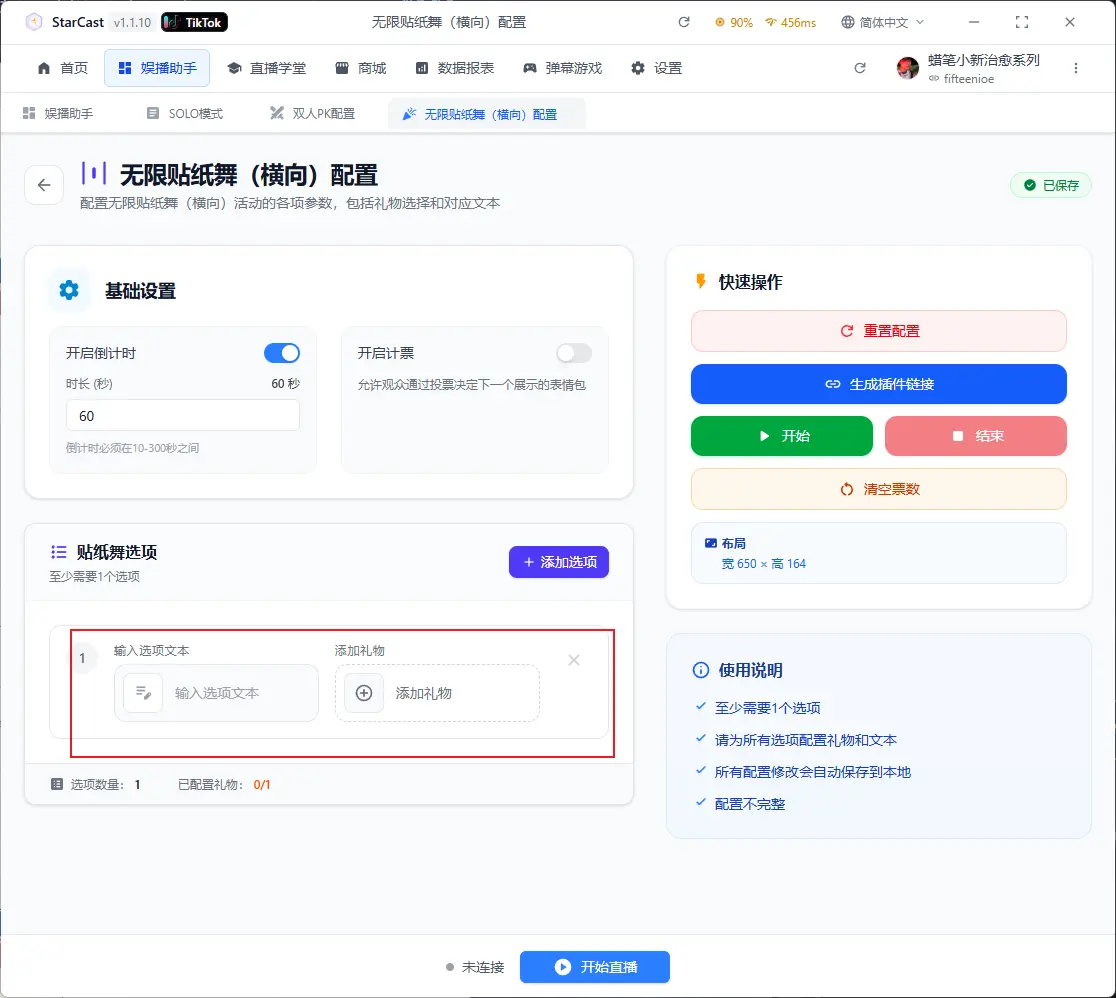
Click "Add Option" to add multiple options
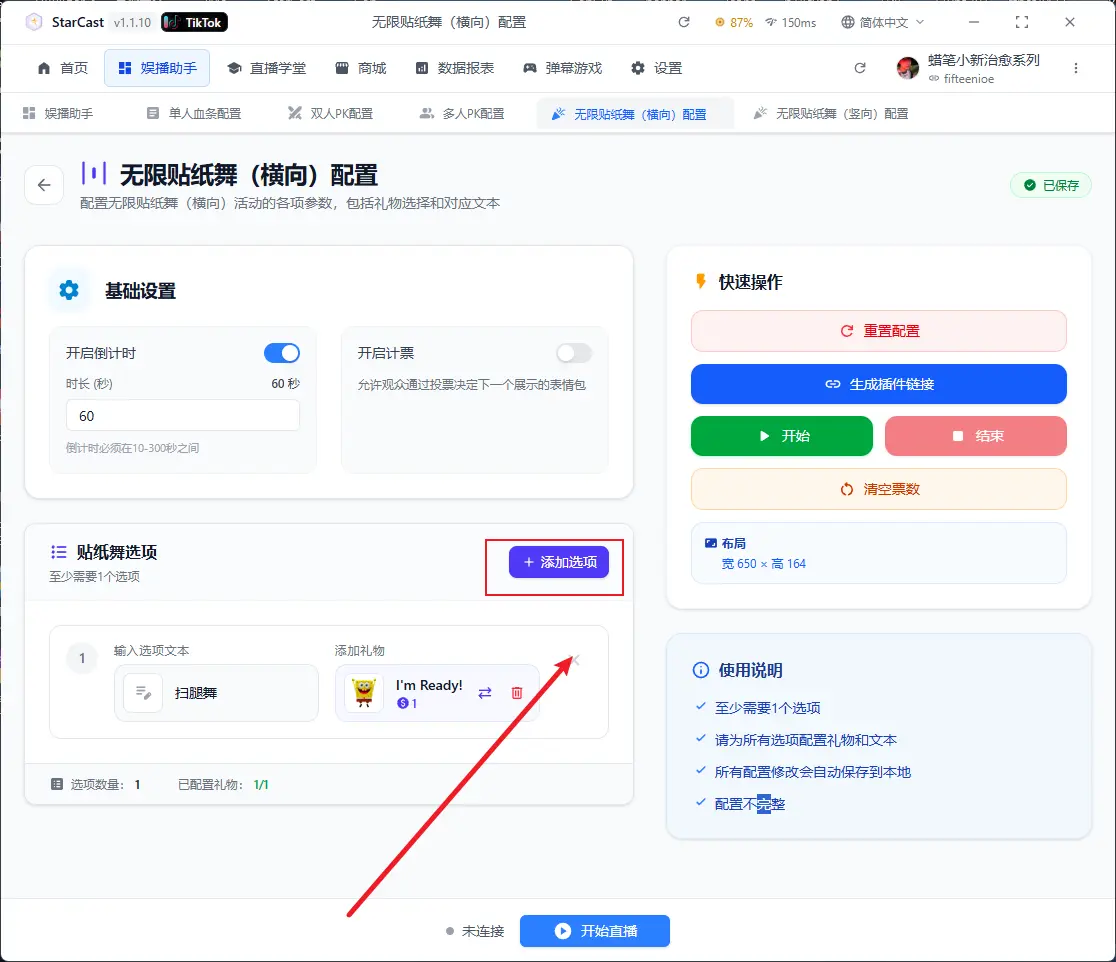
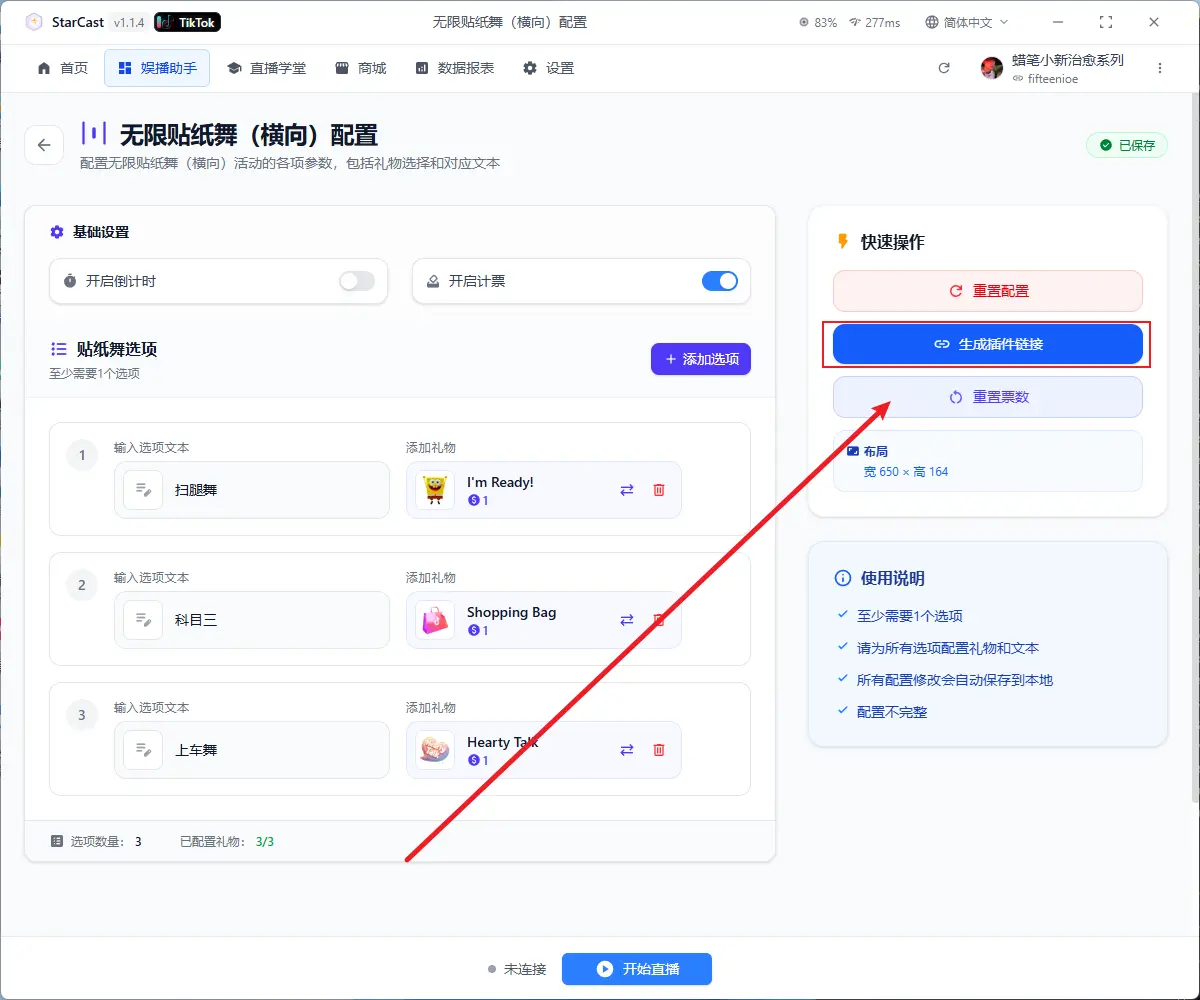
After configuration, click "Generate Link"
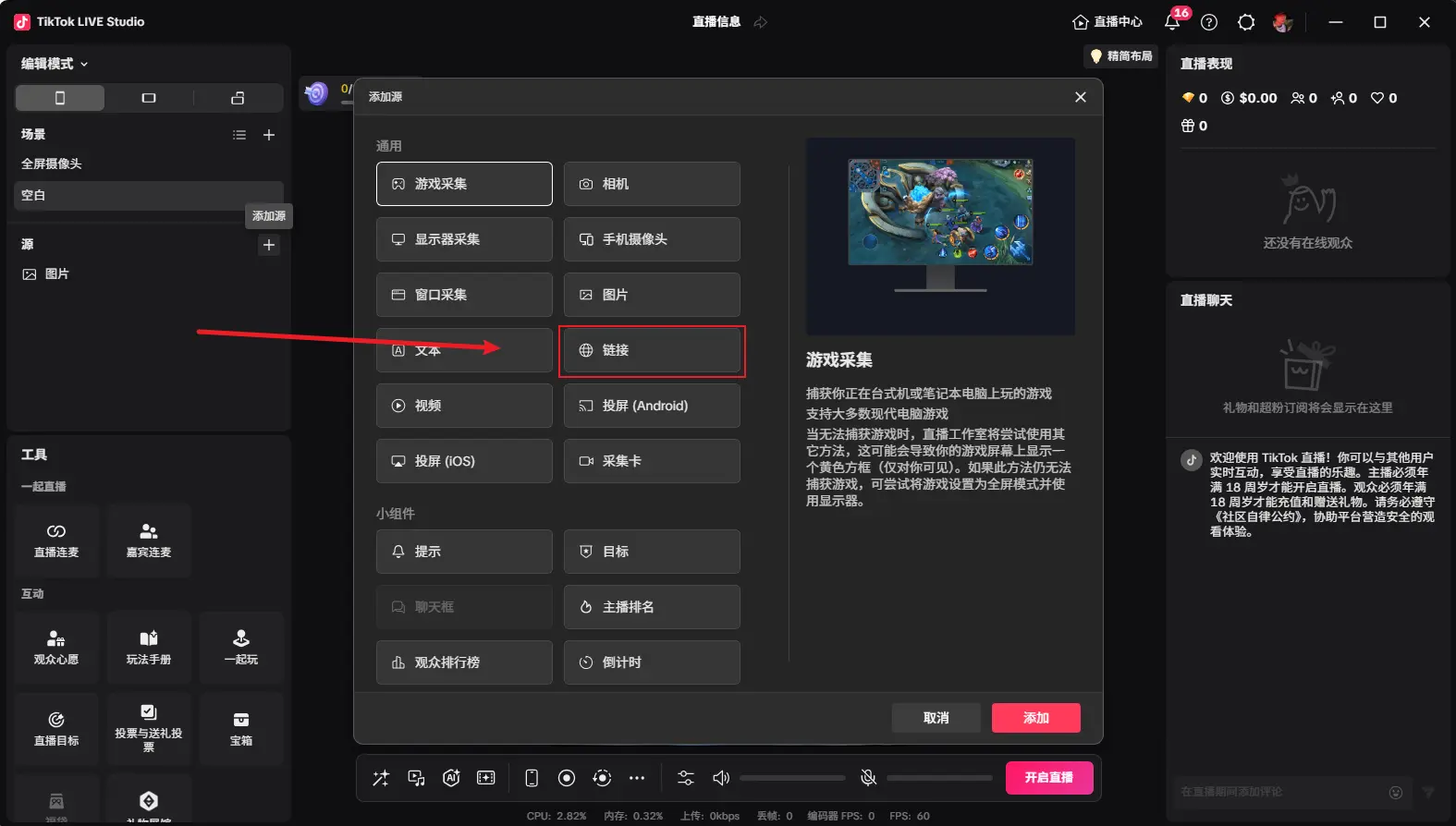
Open TikTok LIVE Studio, add source, and select Link
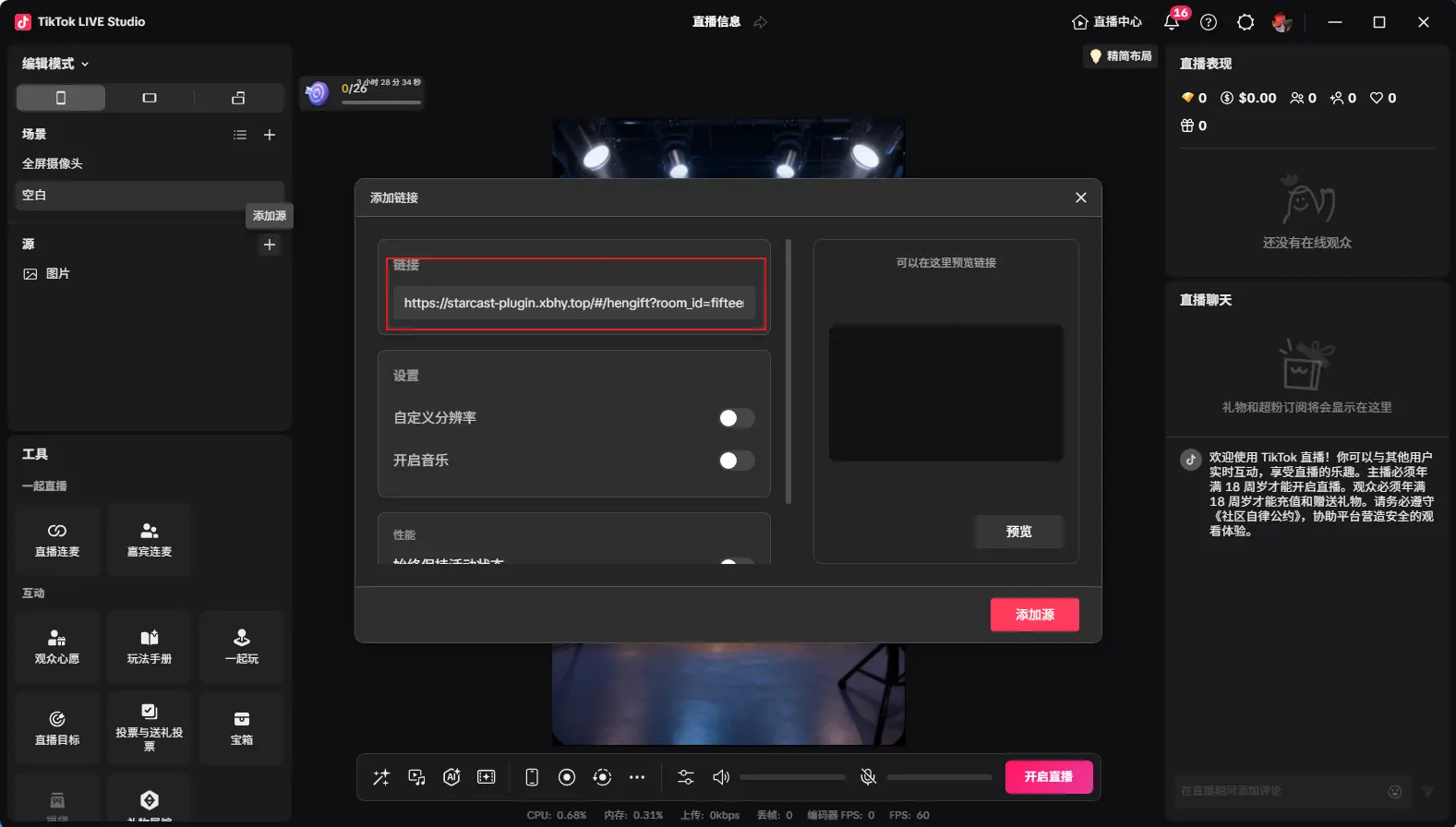
Paste the generated link and change the custom resolution to 650x164
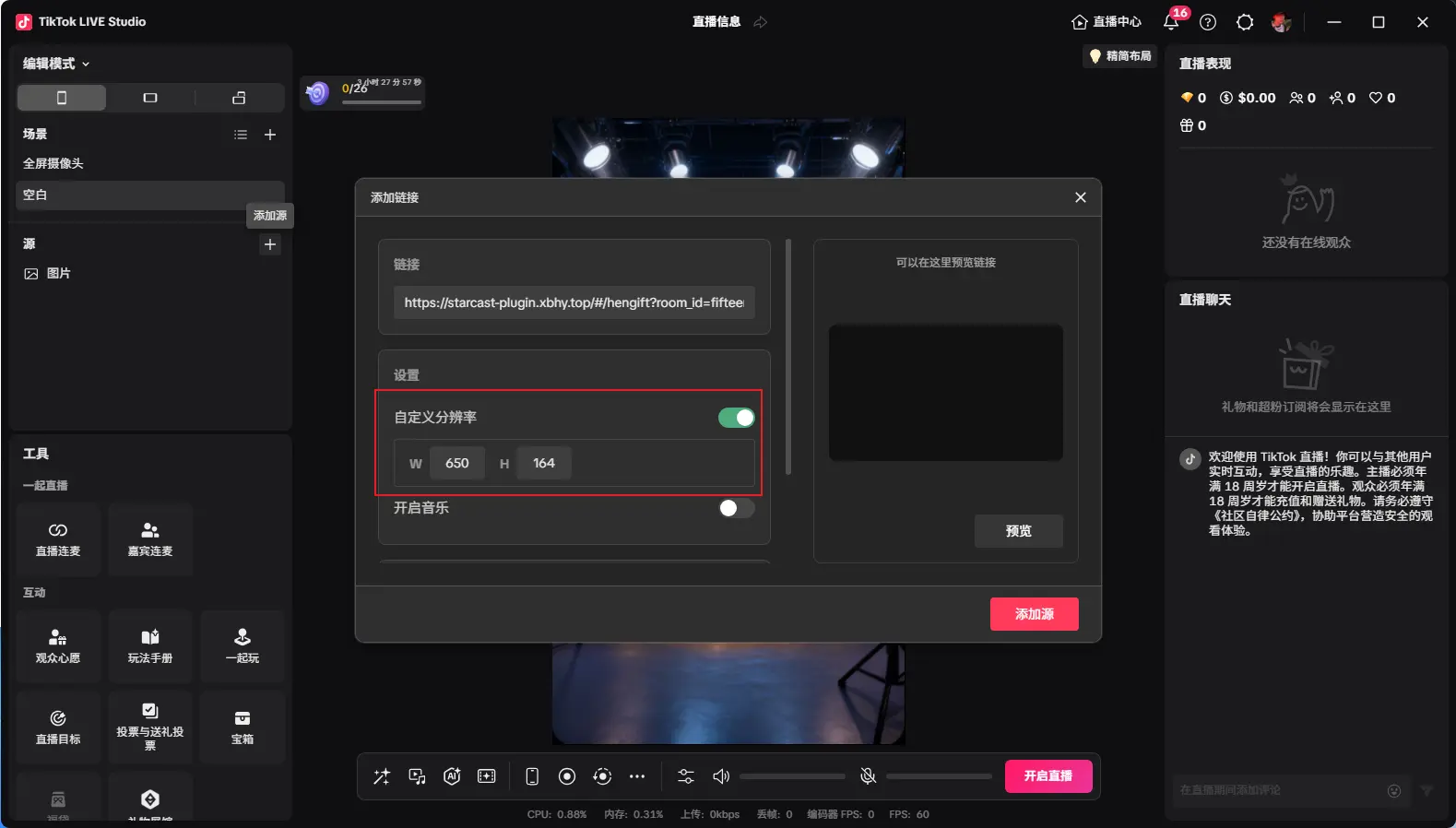
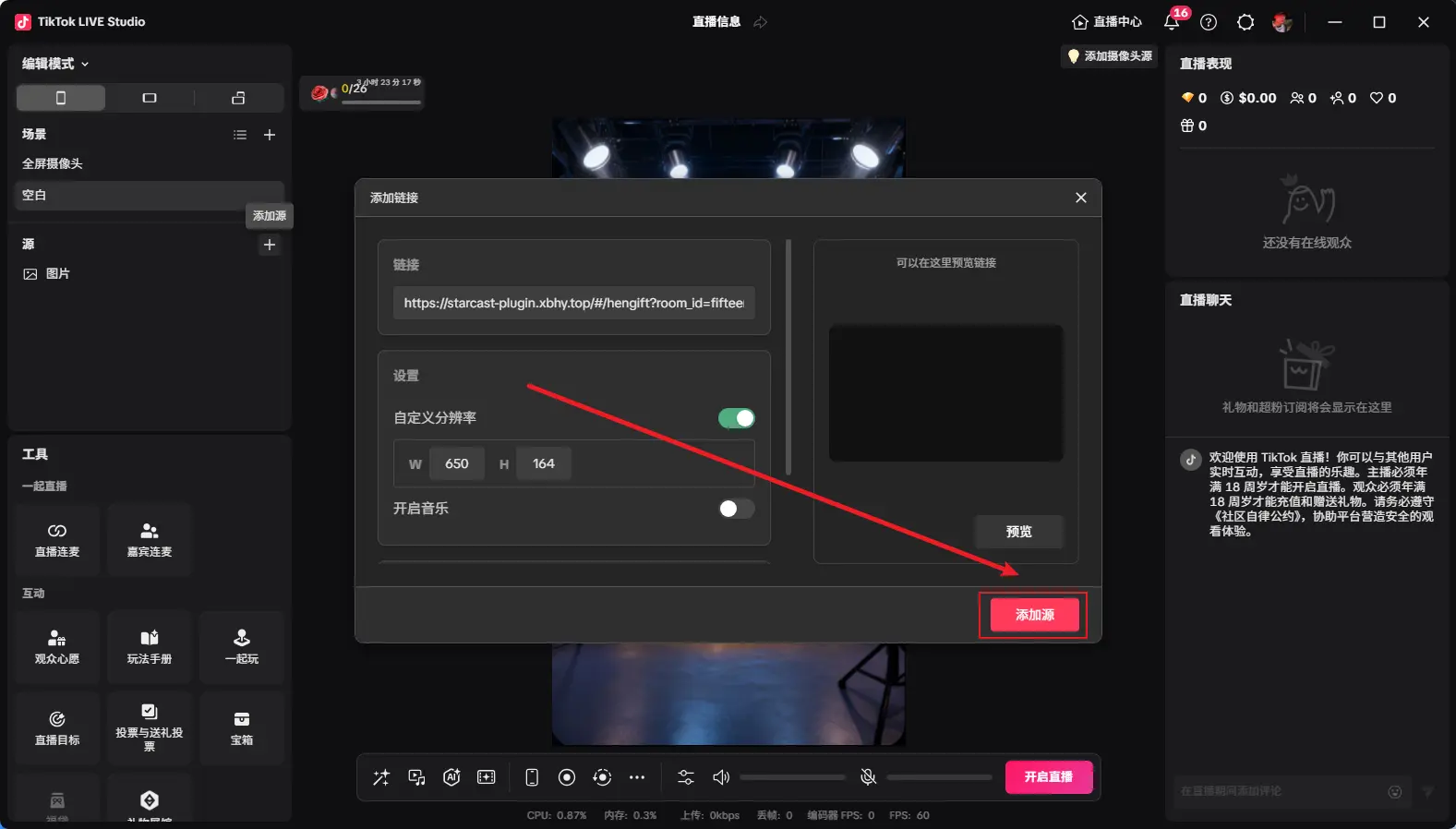
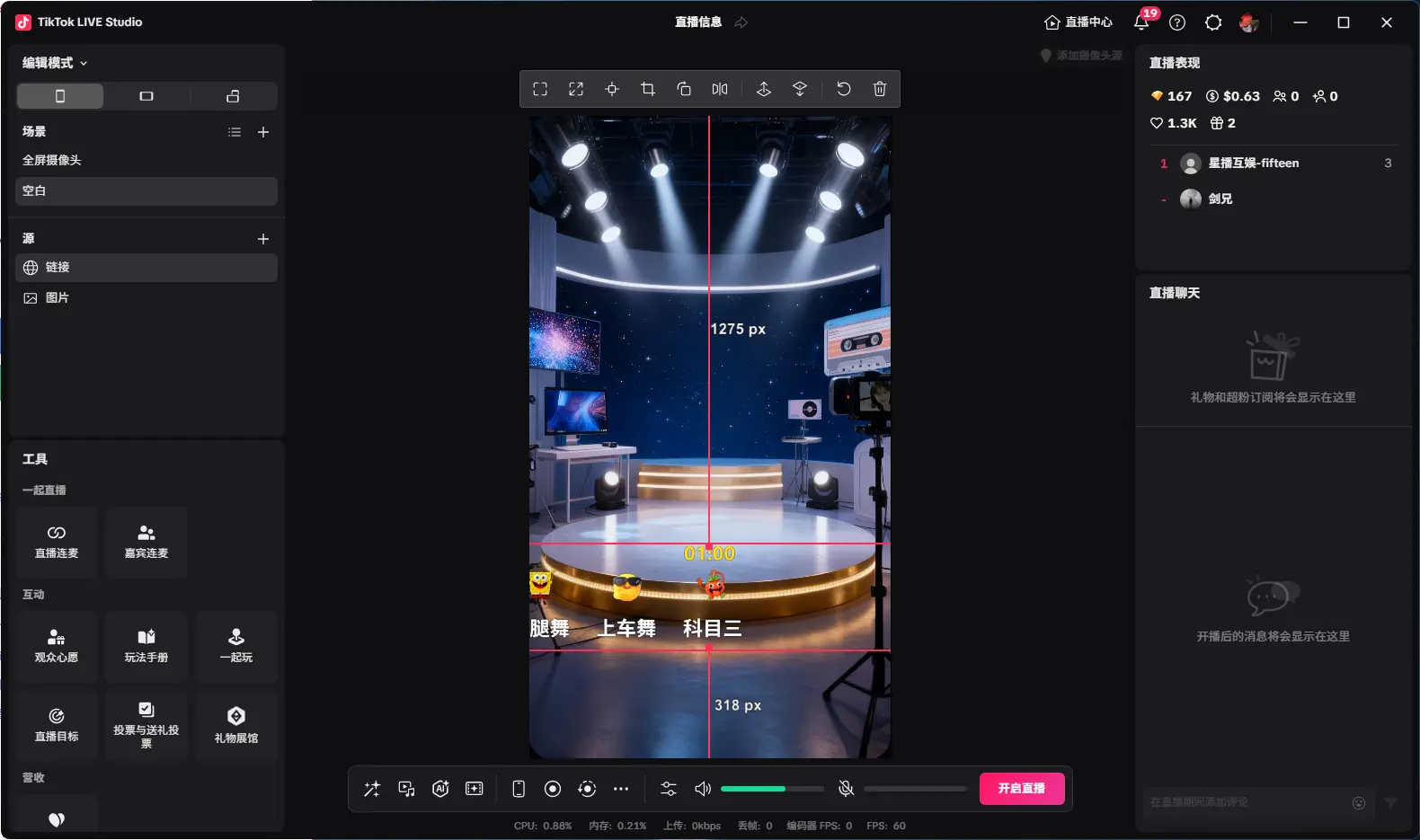
After adding as shown, adjust to desired size, then click "Start" to begin countdown
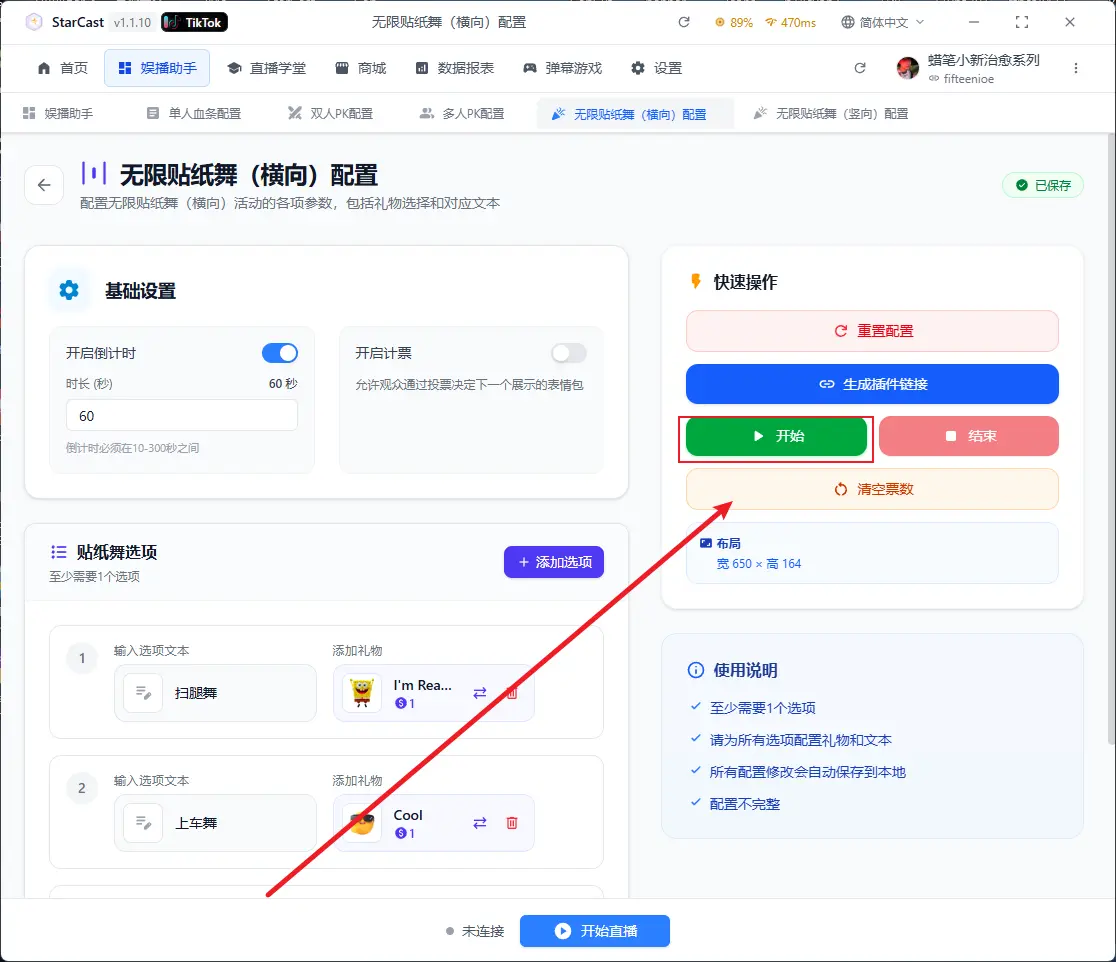
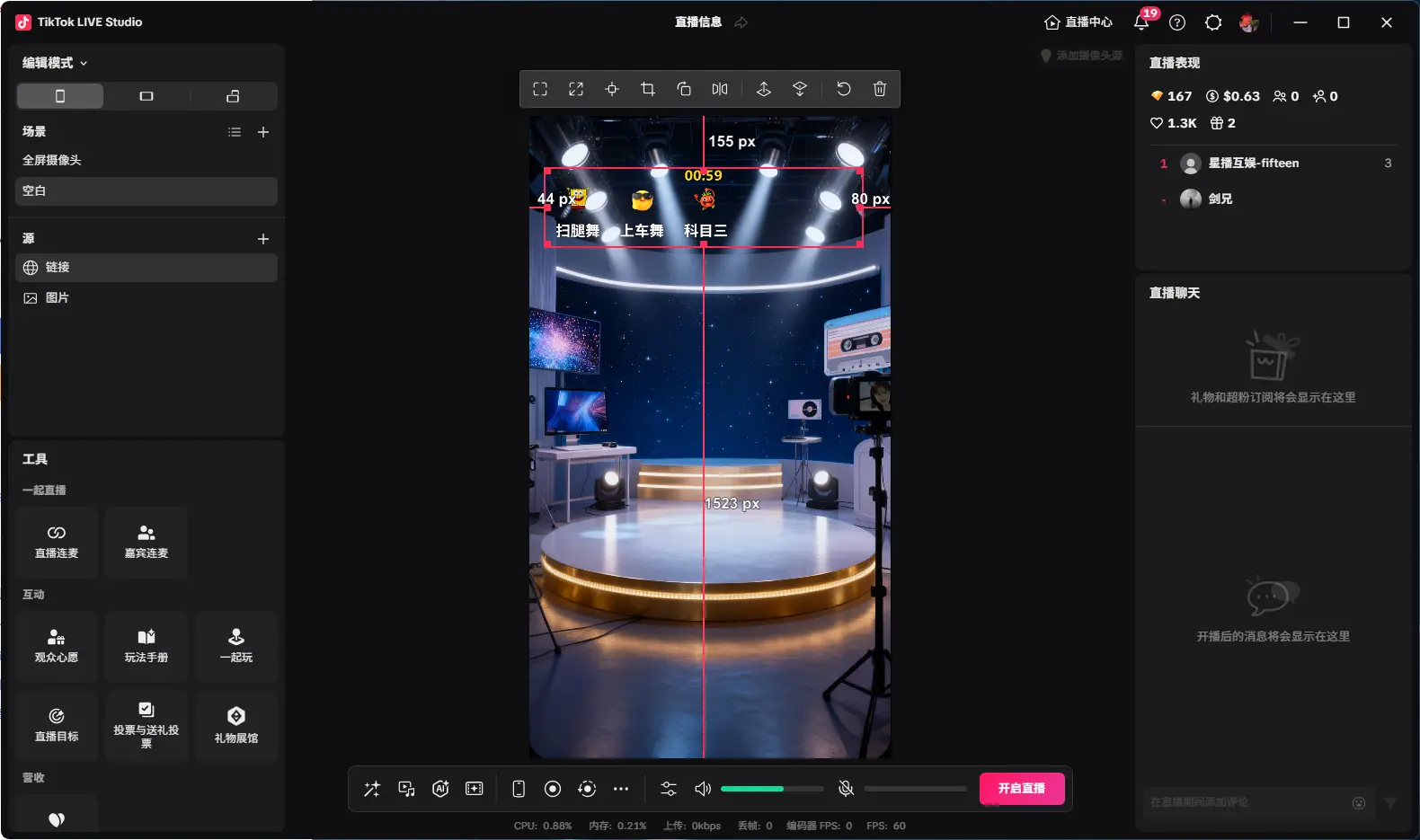
Click here to clear votes
Displaying "Connected" means successfully connected to the live room
Grid Sticker Dance
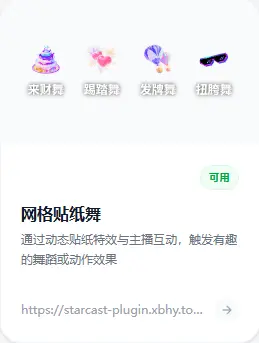
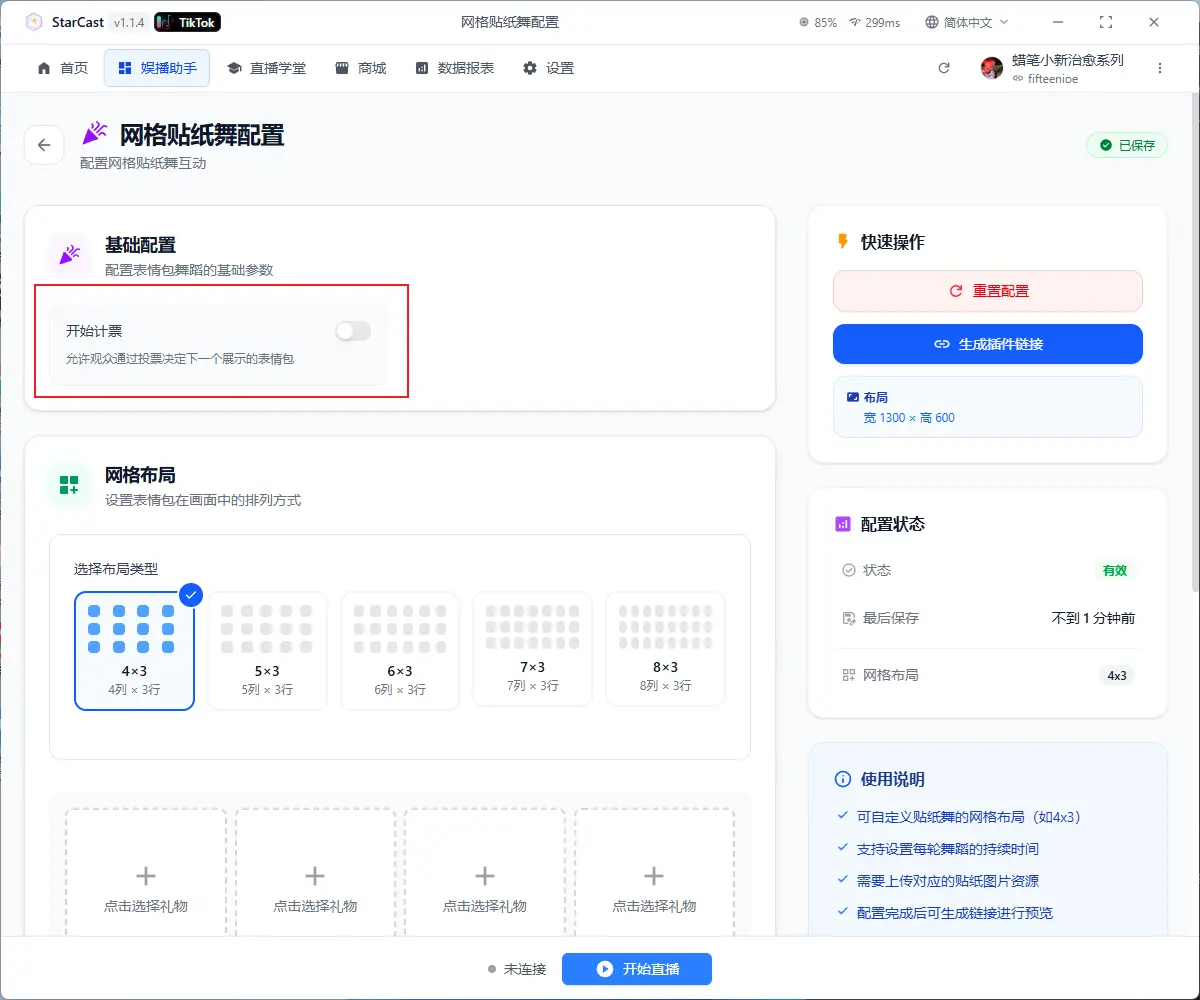
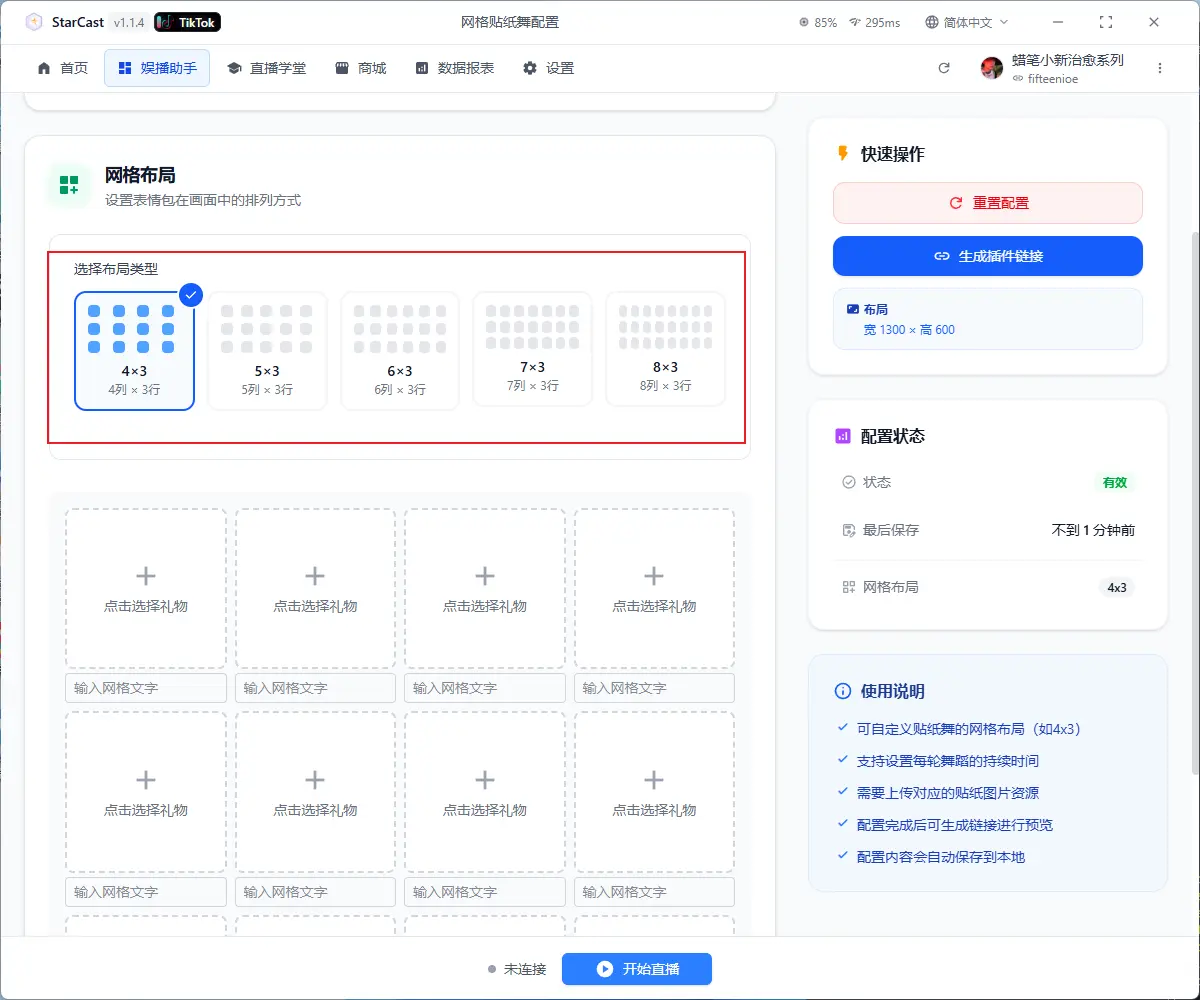
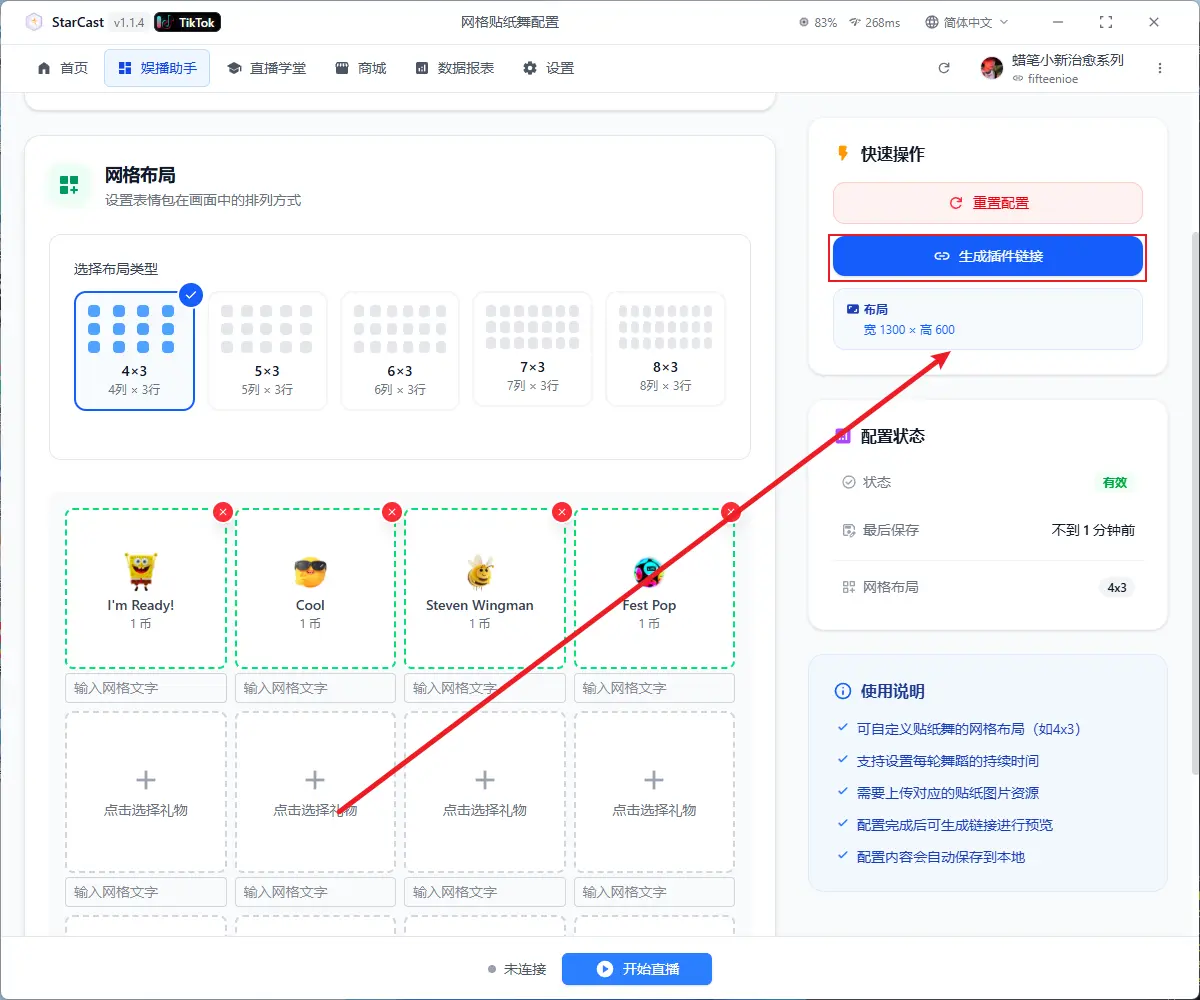
Select desired mode here
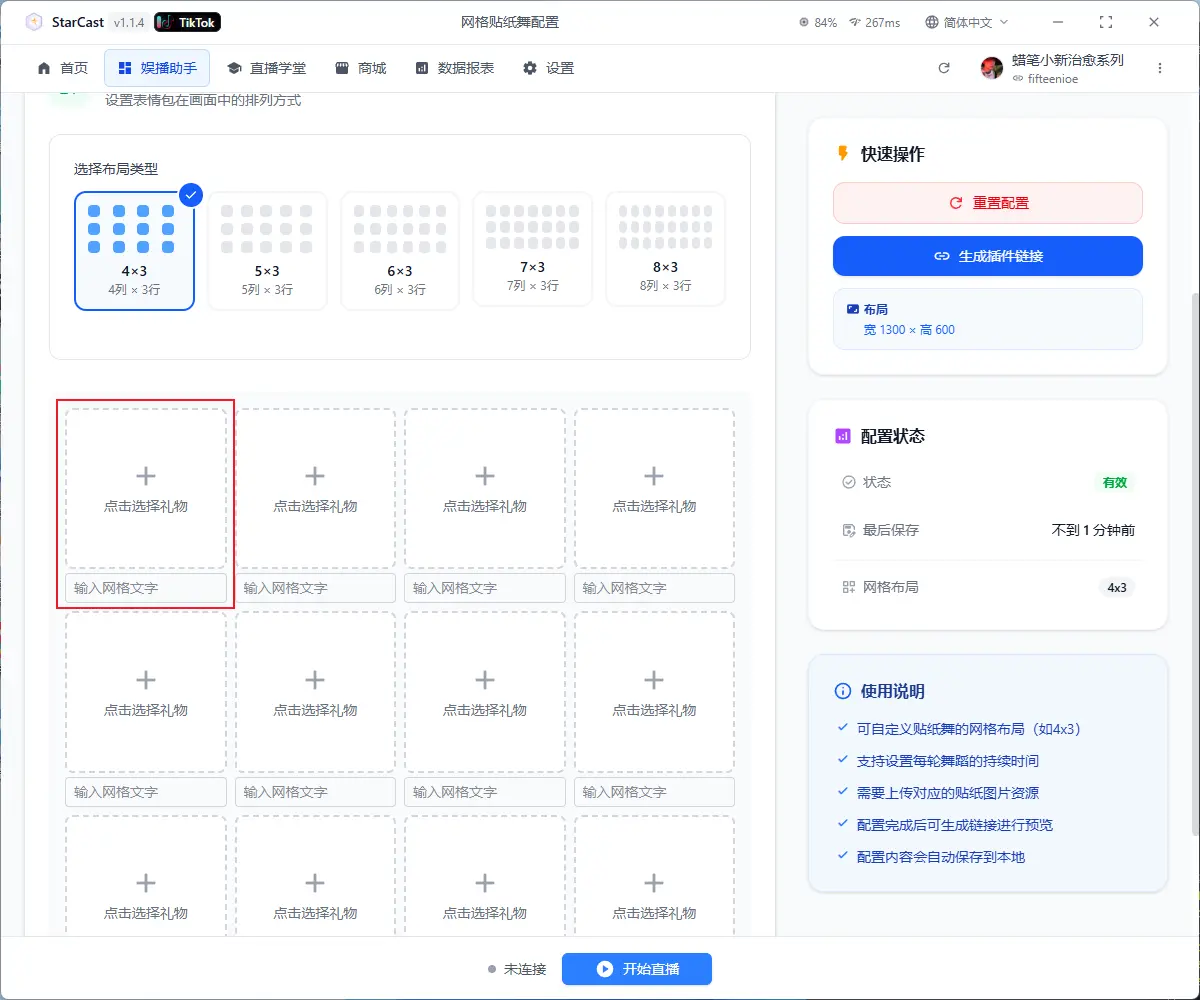
Add gifts and custom text here
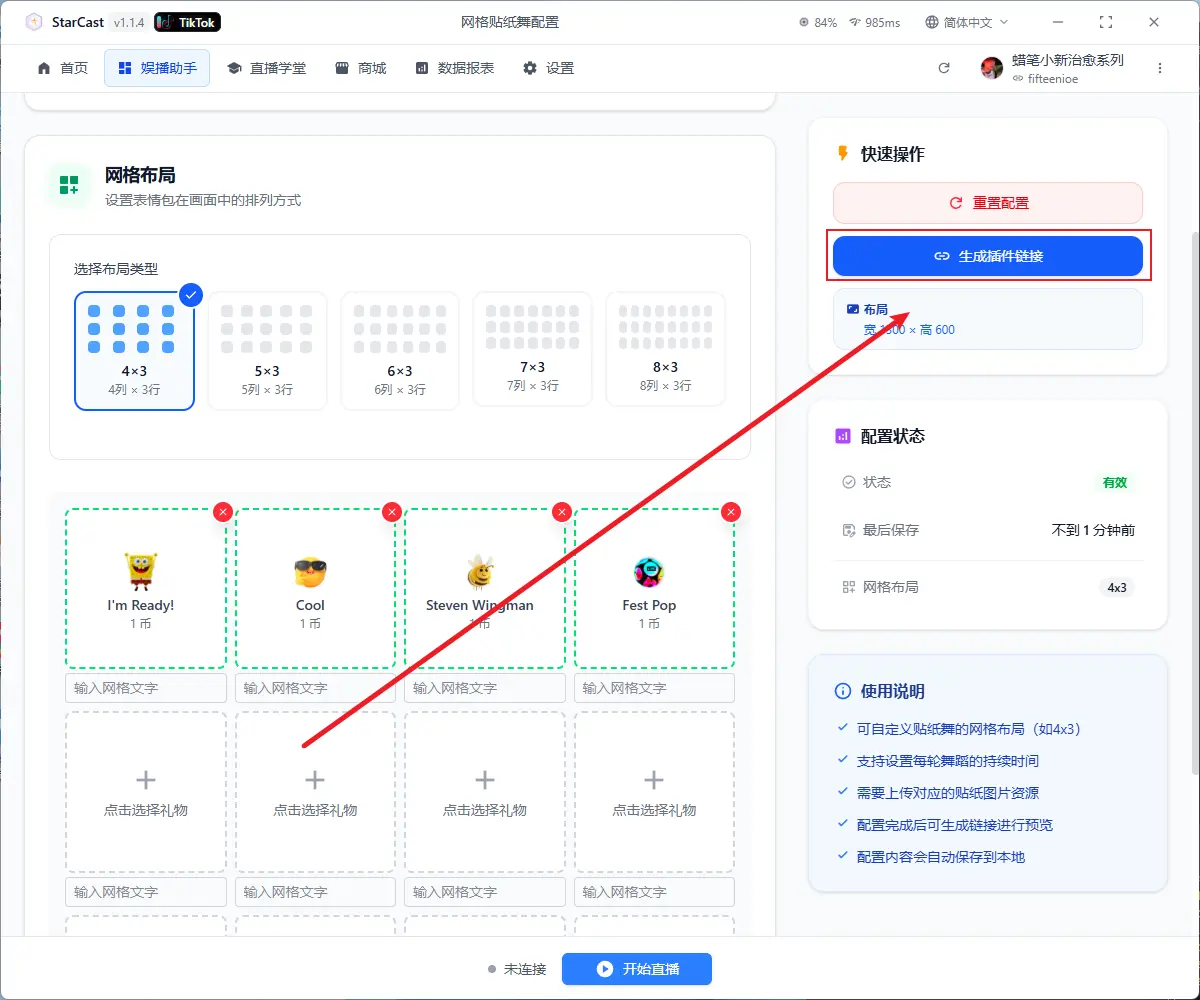
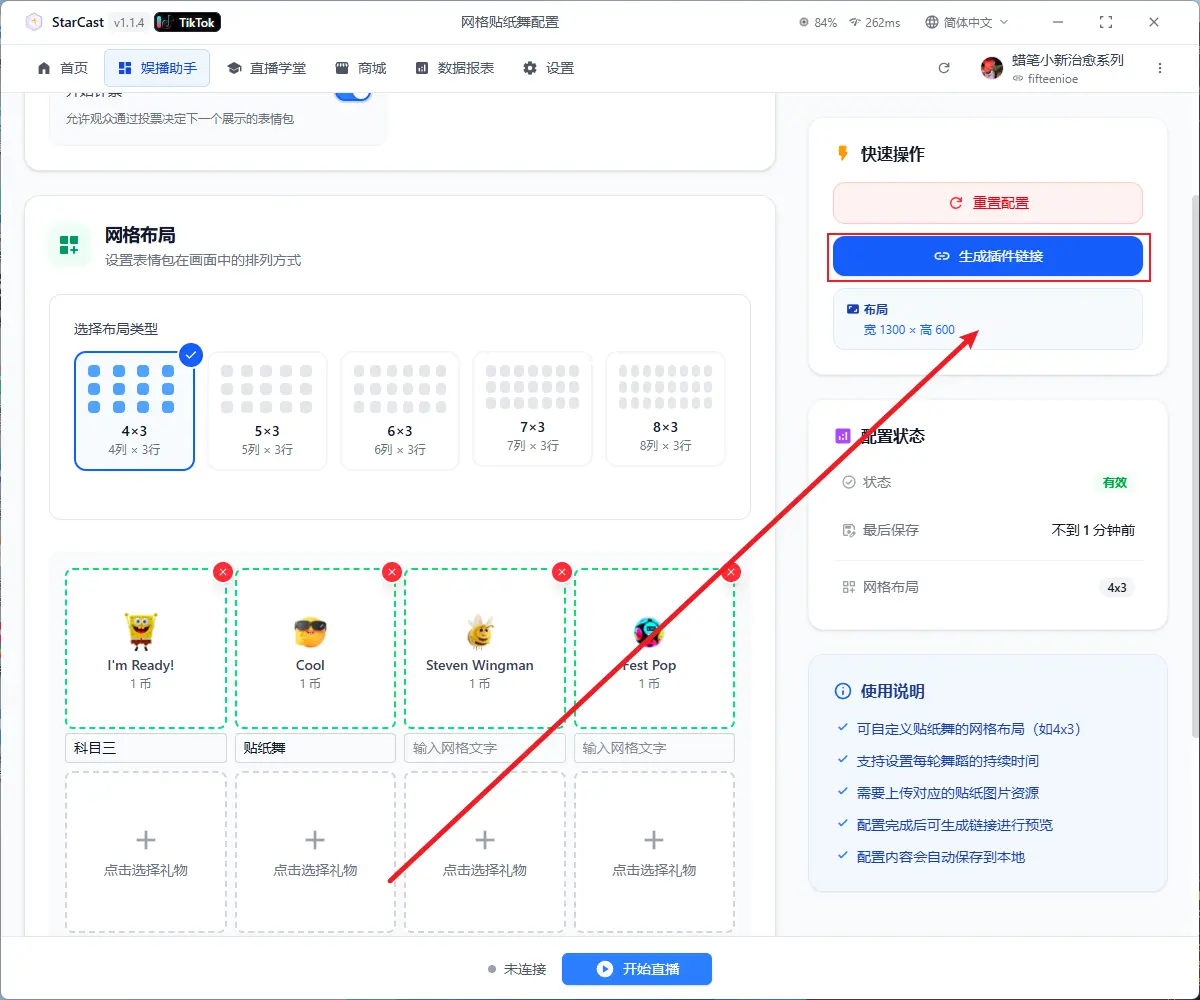
After configuration, click "Generate Link"
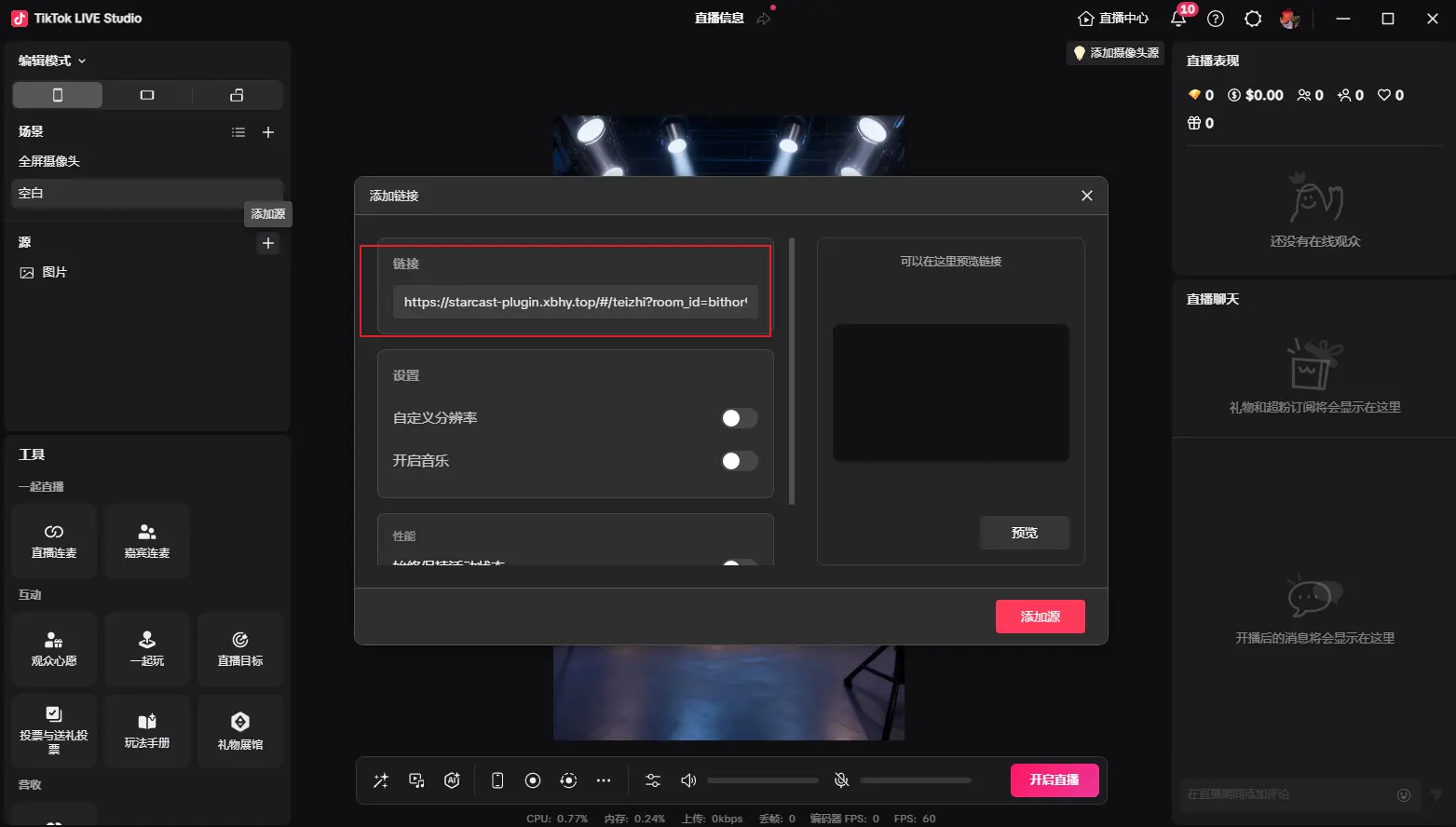
Open TikTok LIVE Studio, add source, and select Link
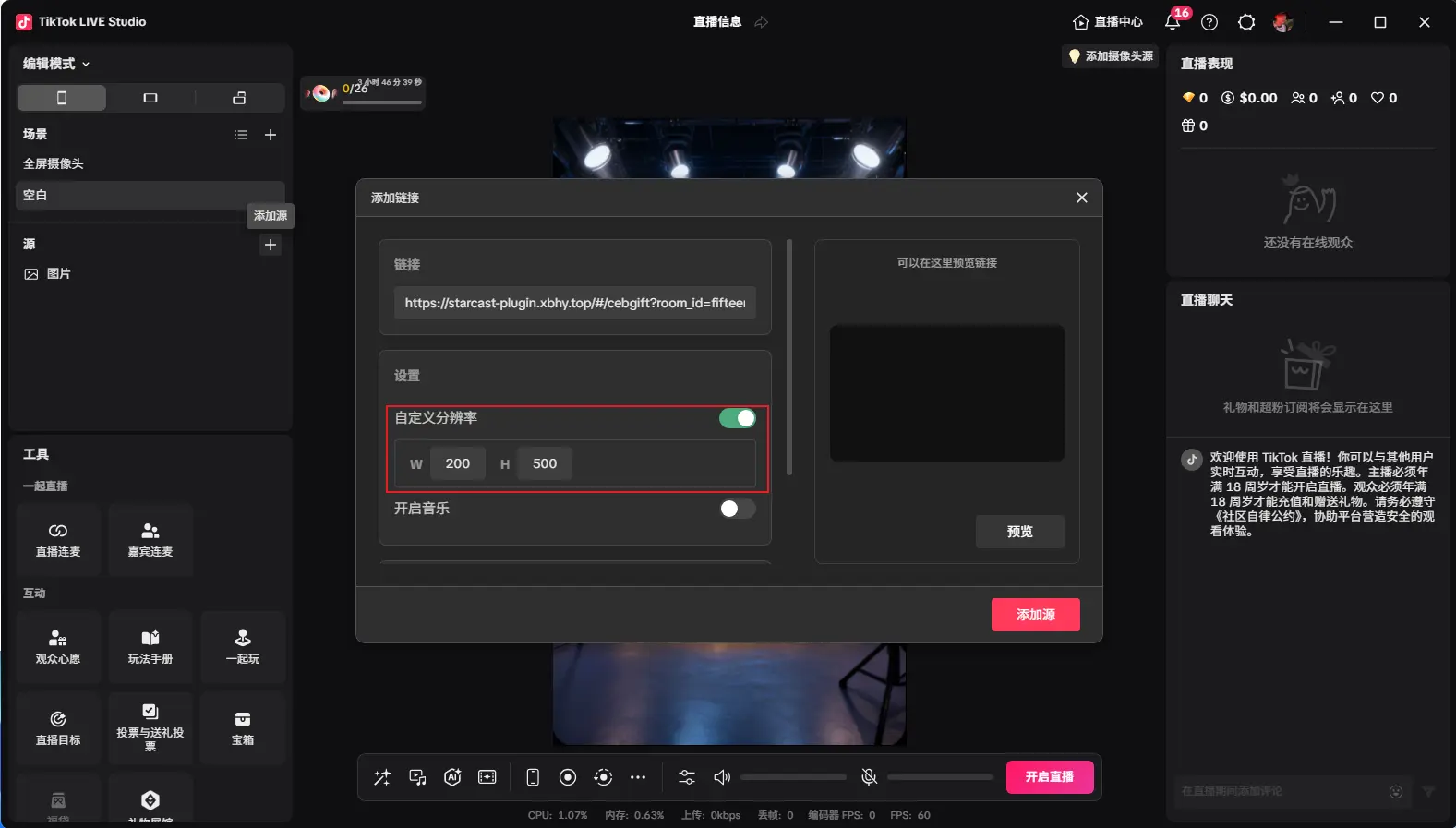
Paste the generated link and change the custom resolution to 1300x600
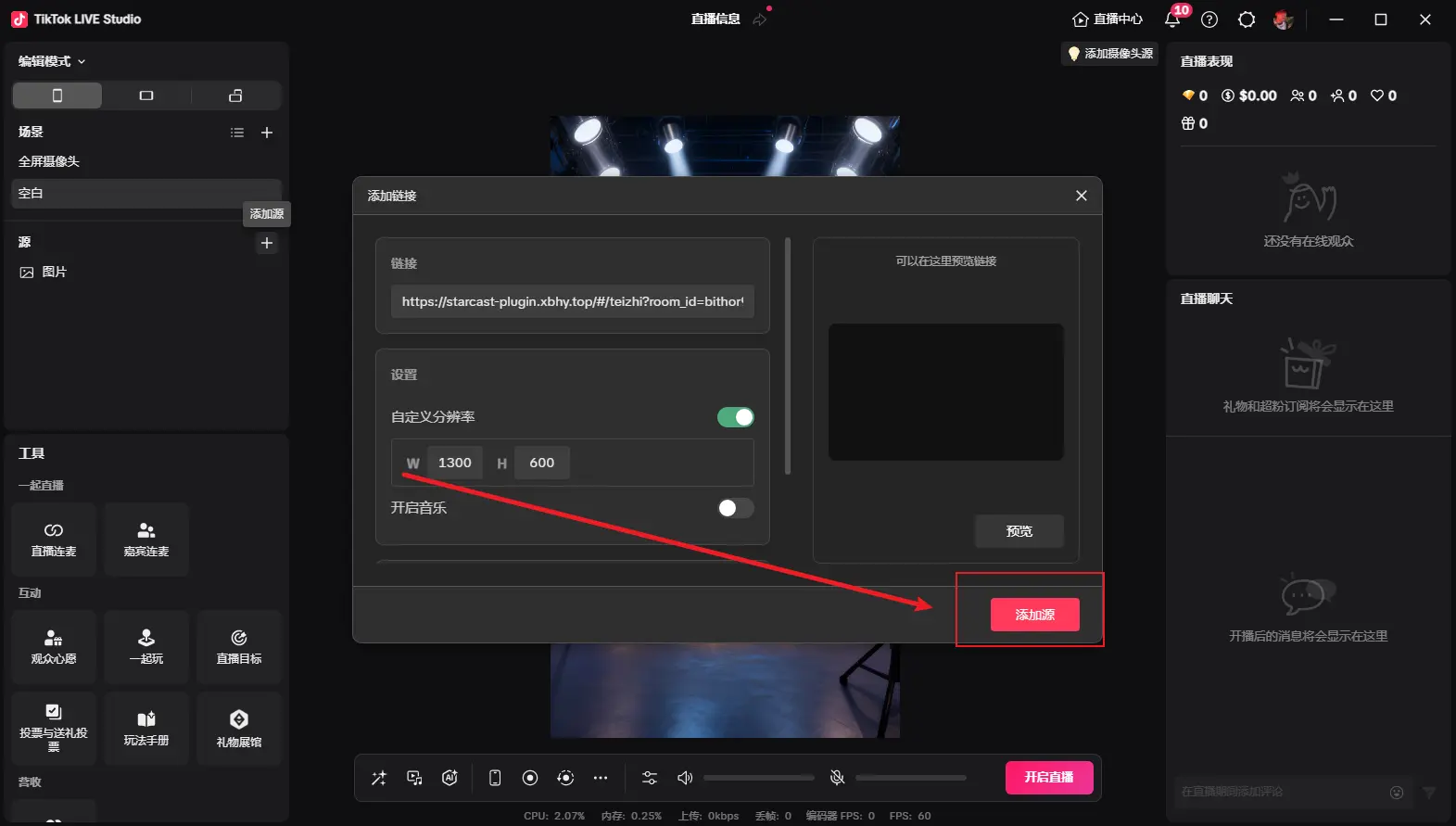
After adding as shown, adjust to desired size, then click "Generate Link" again to display
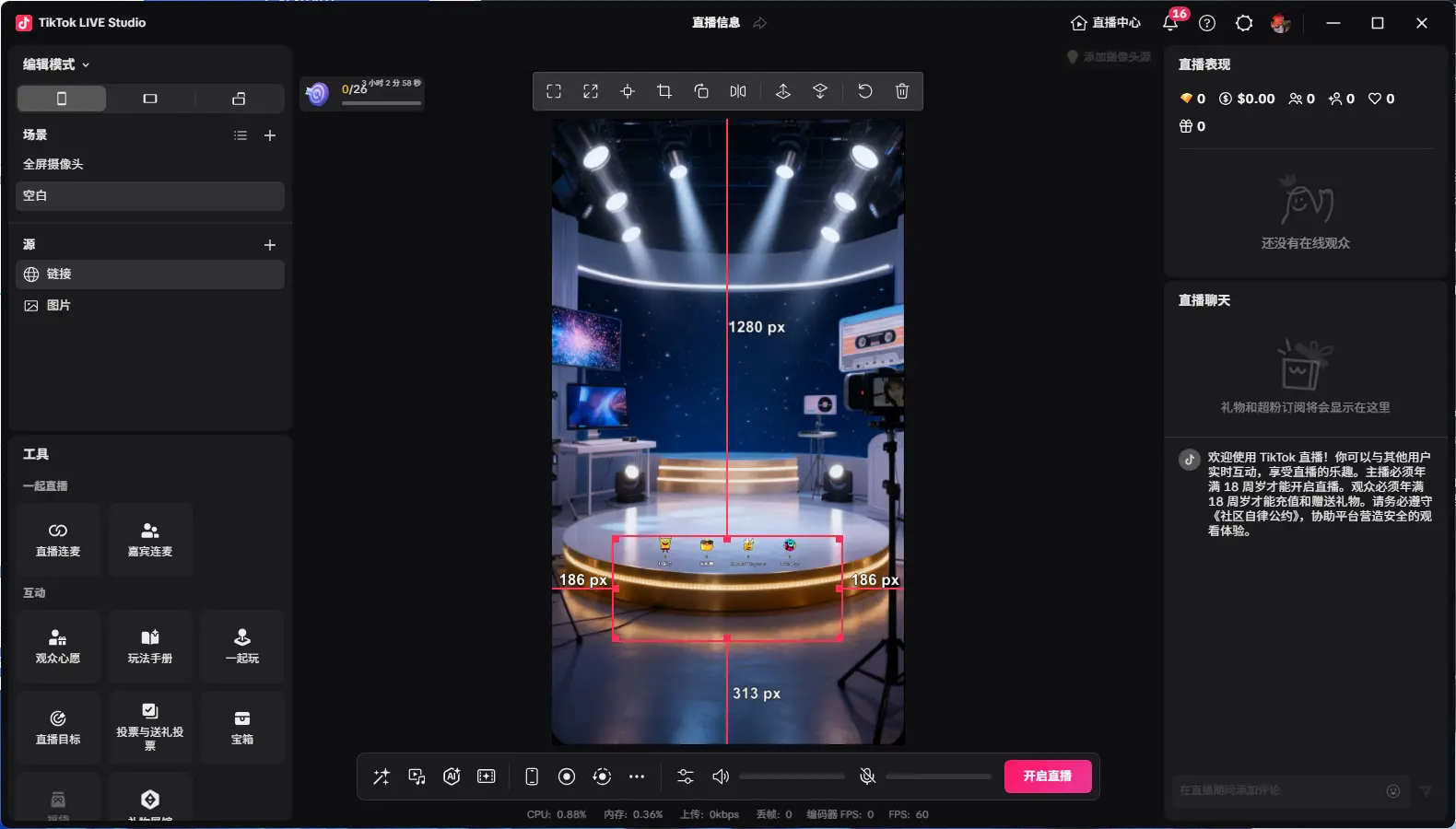
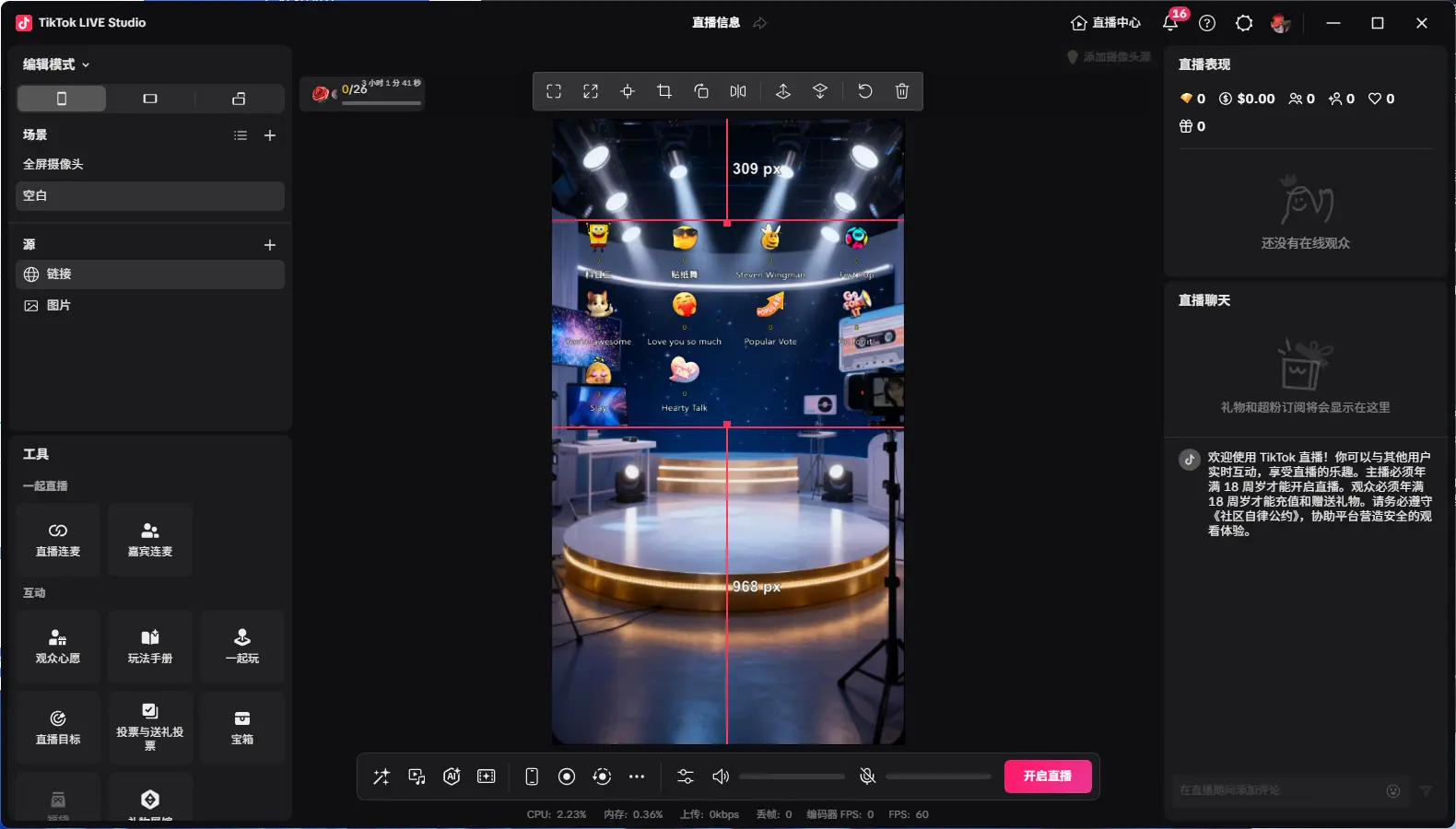
Displaying "Connected" means successfully connected to the live room
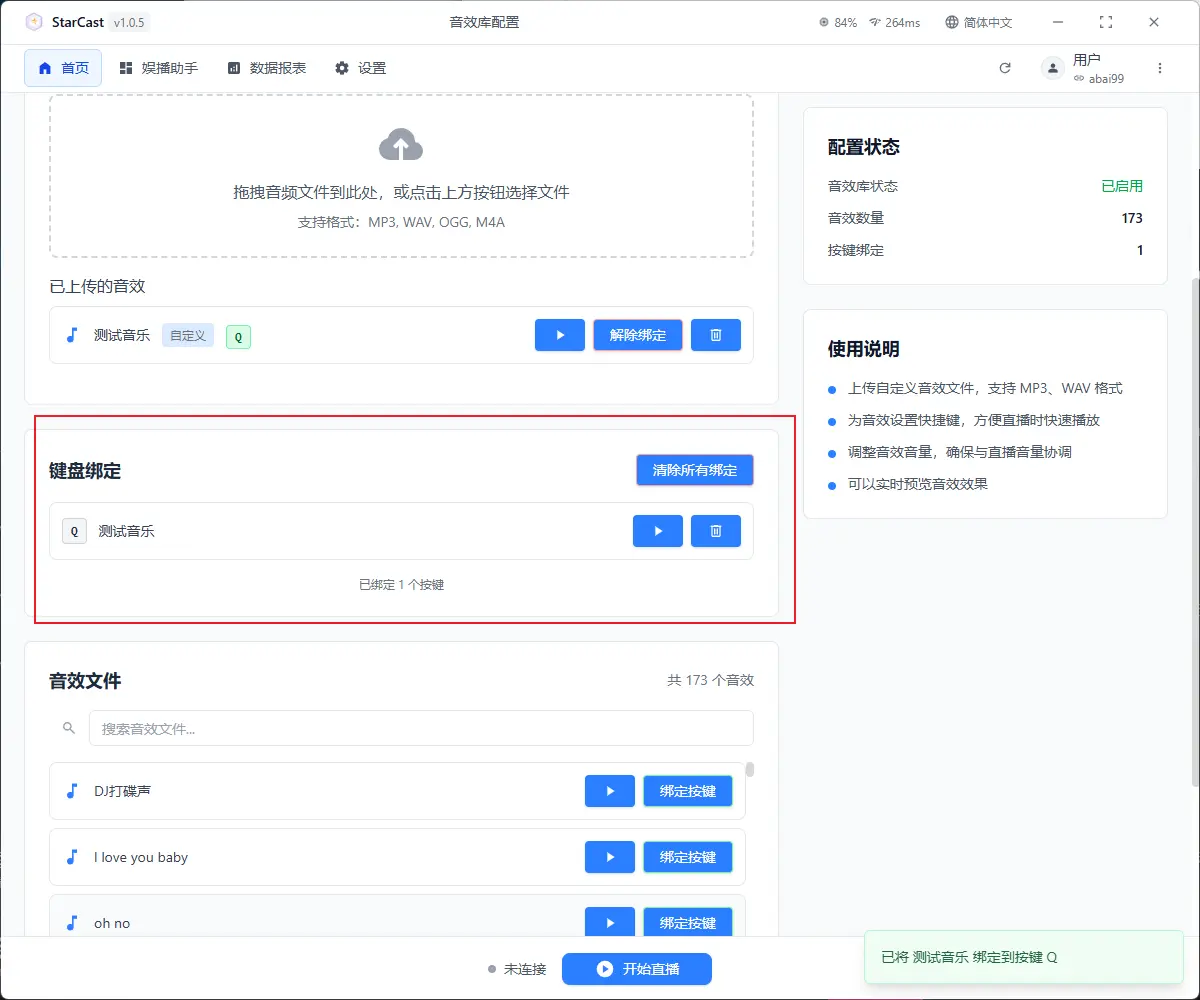
Sound Library
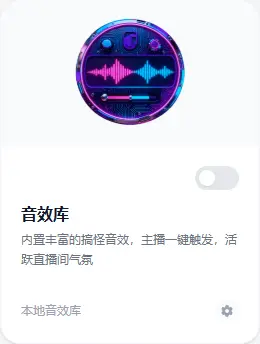
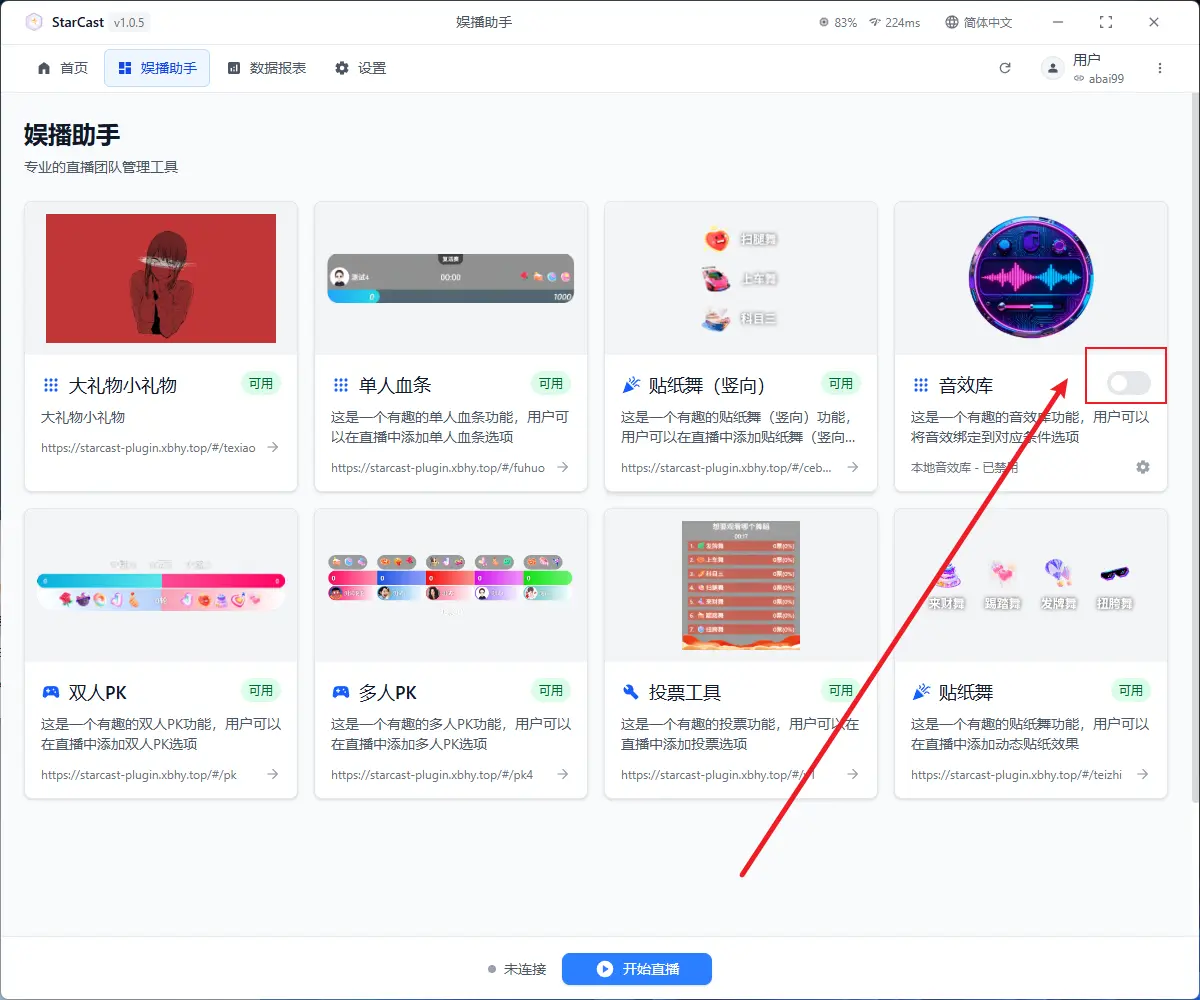
Click or drag to upload custom sound effects
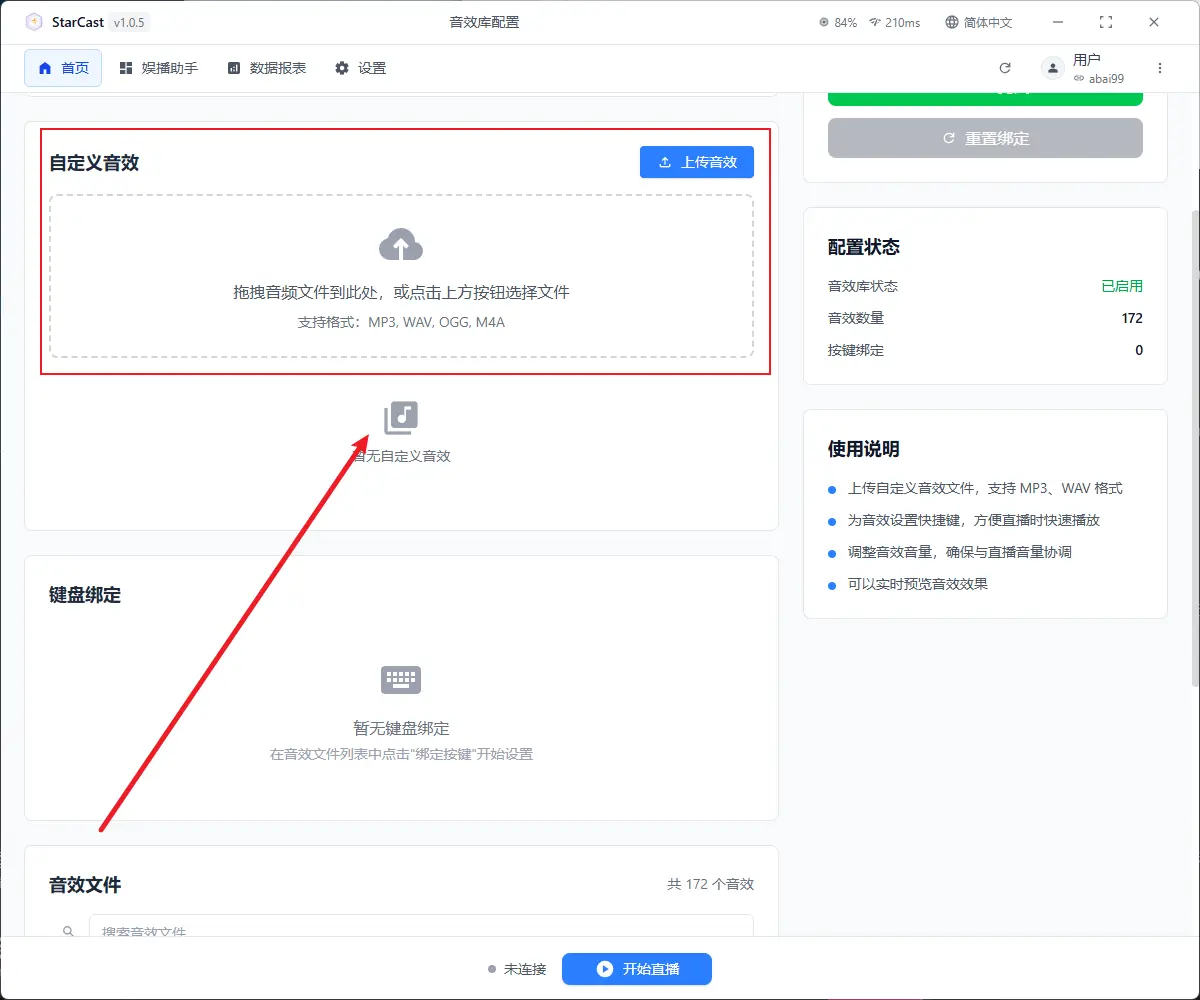
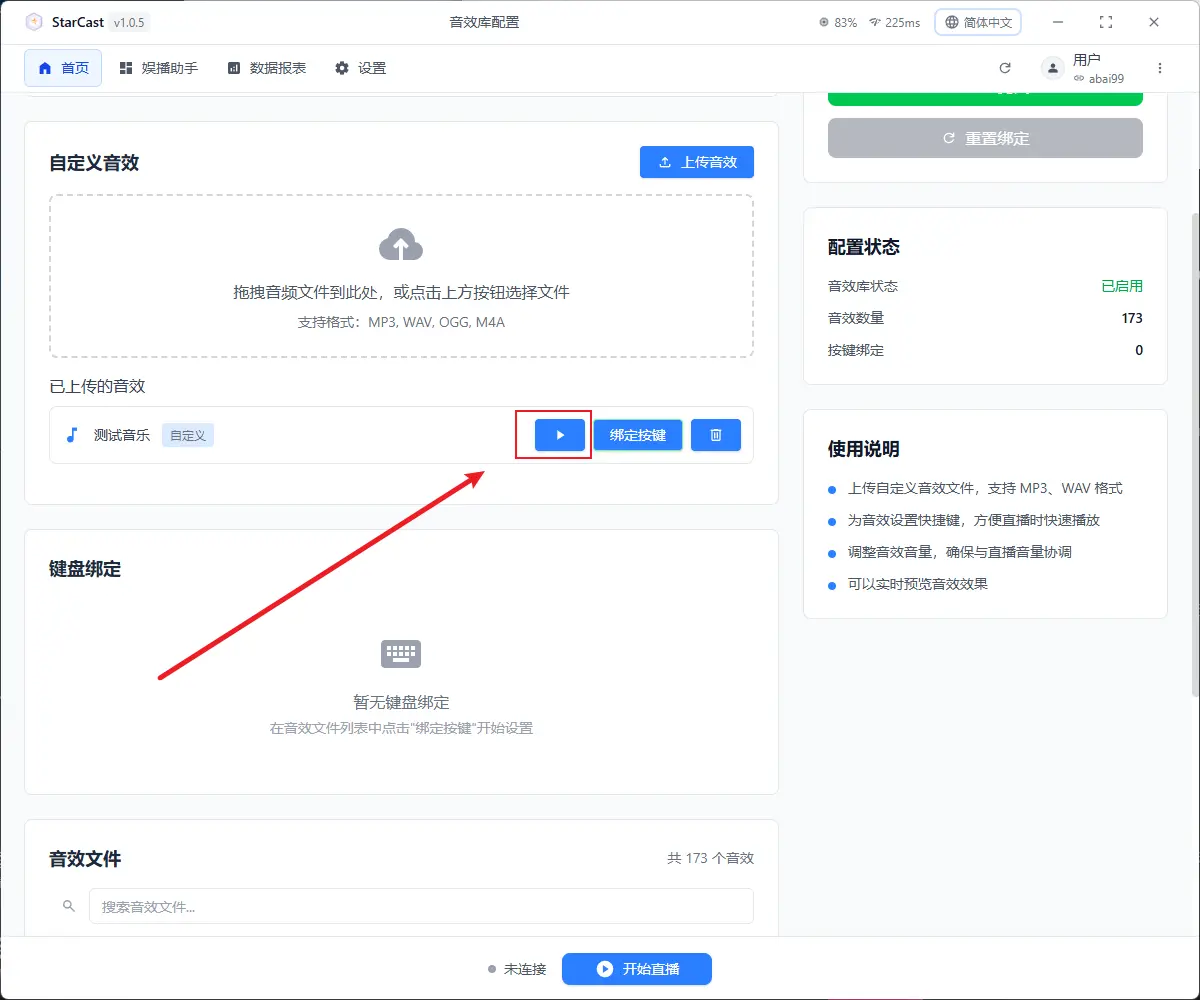
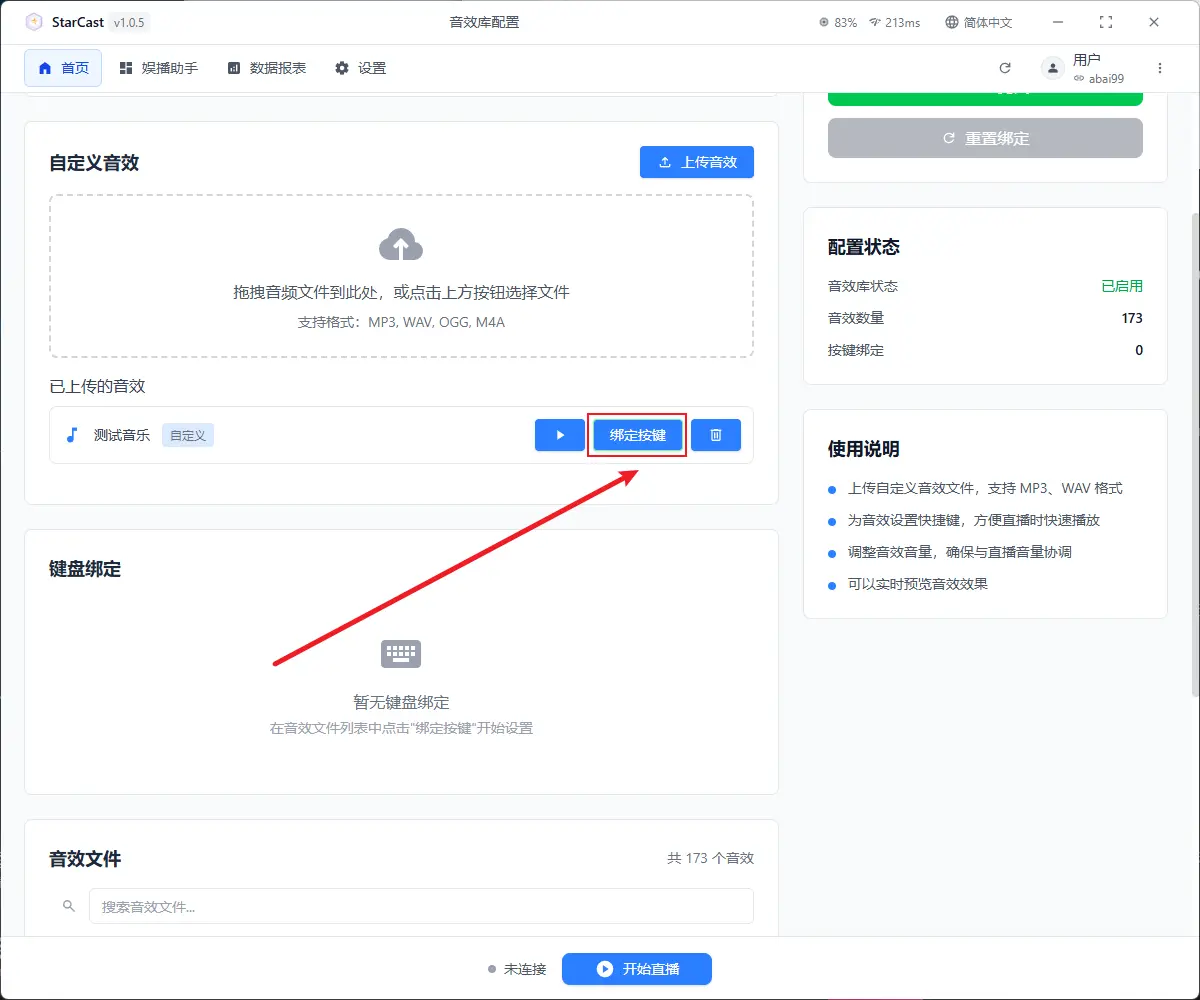
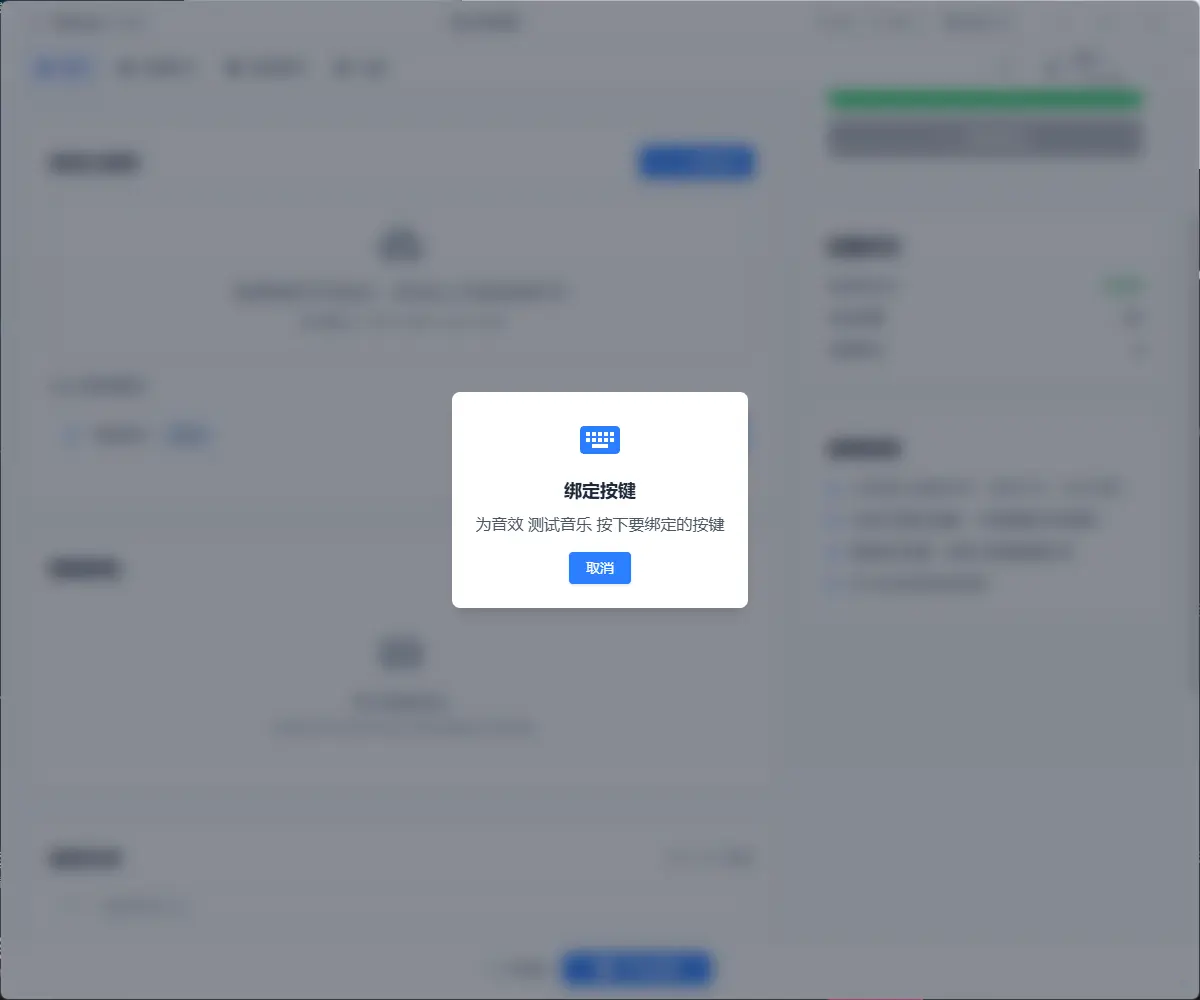
Here you can see the bound keys
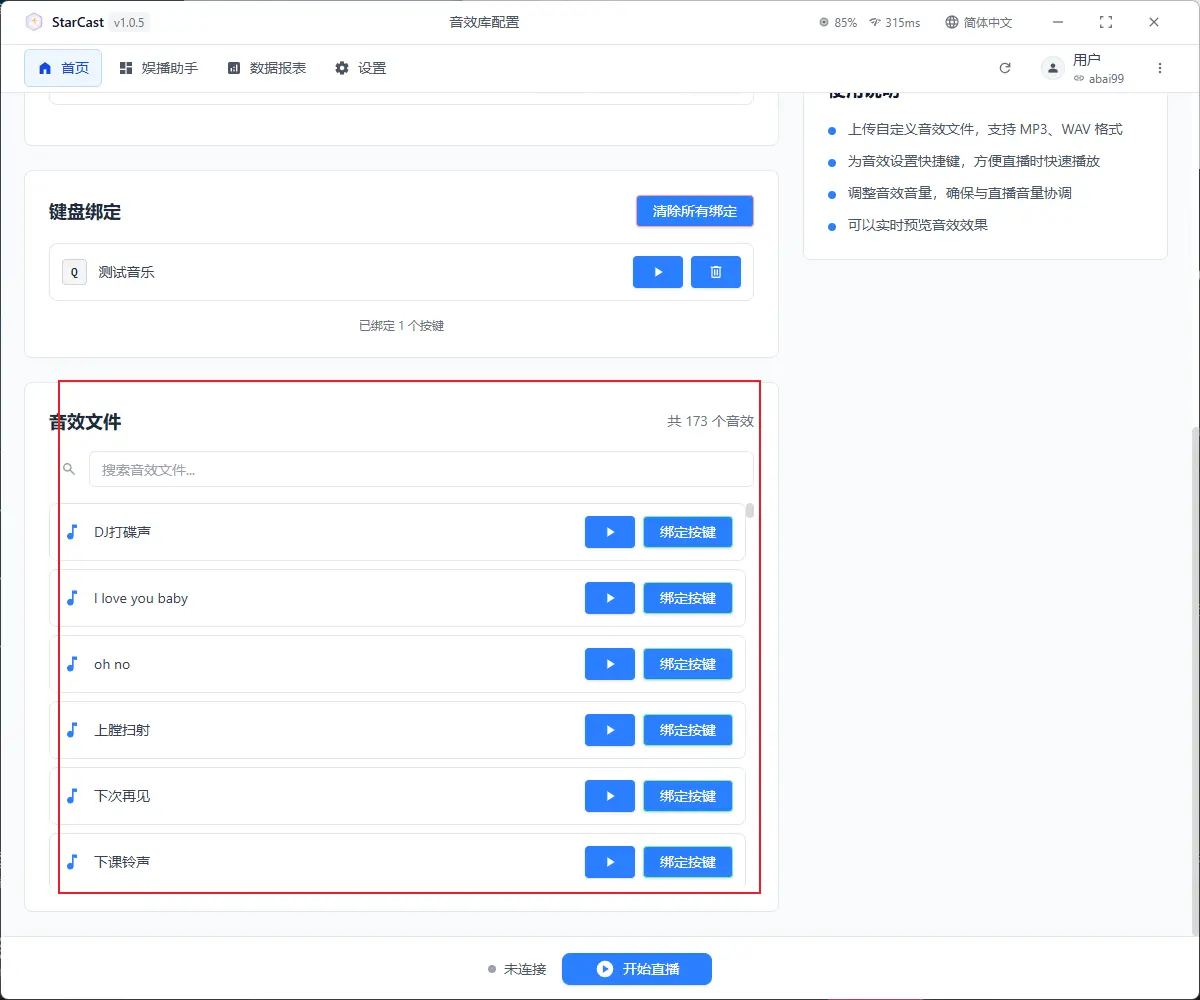
173 sound effects are provided here for use
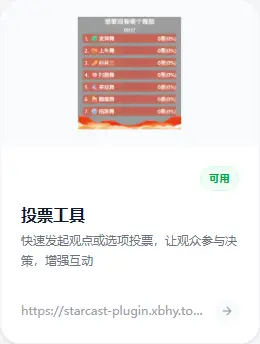
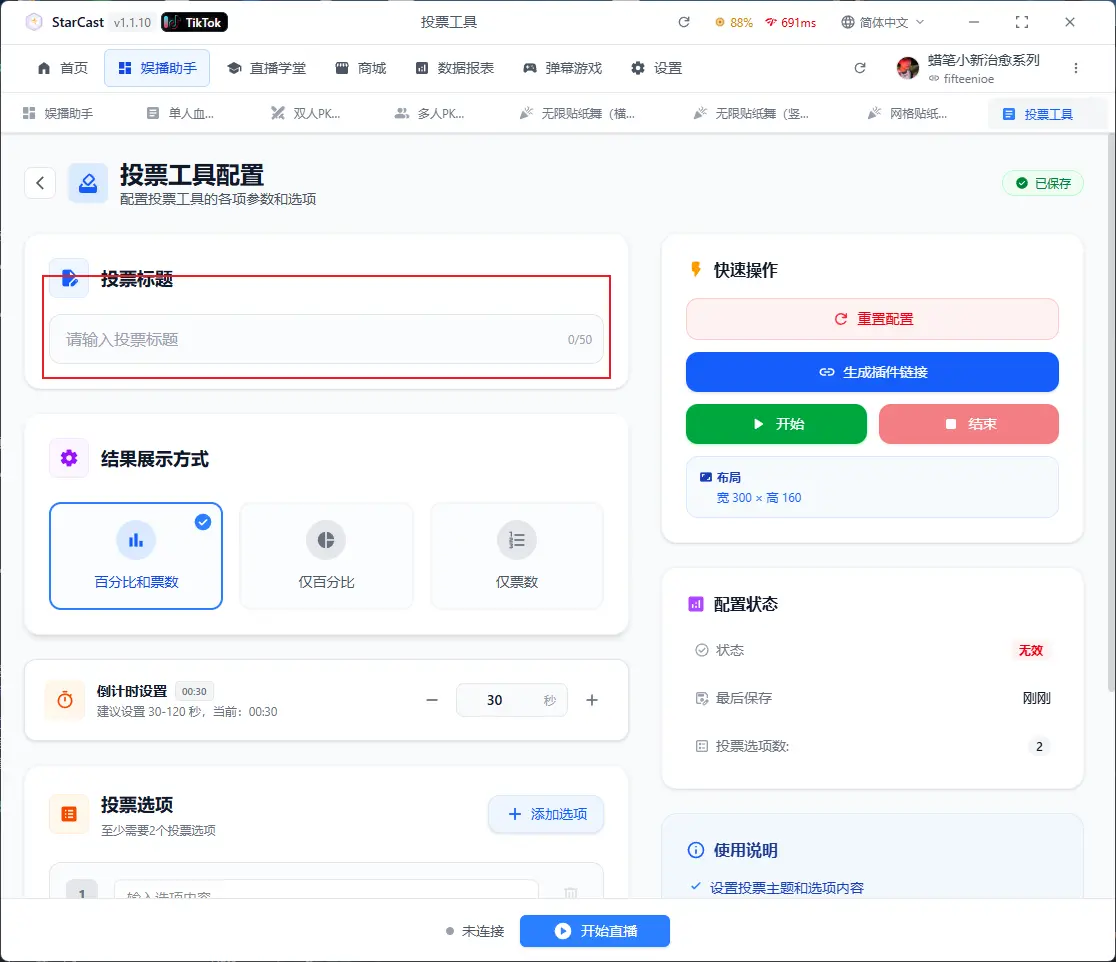
Enter title and options
Select display style
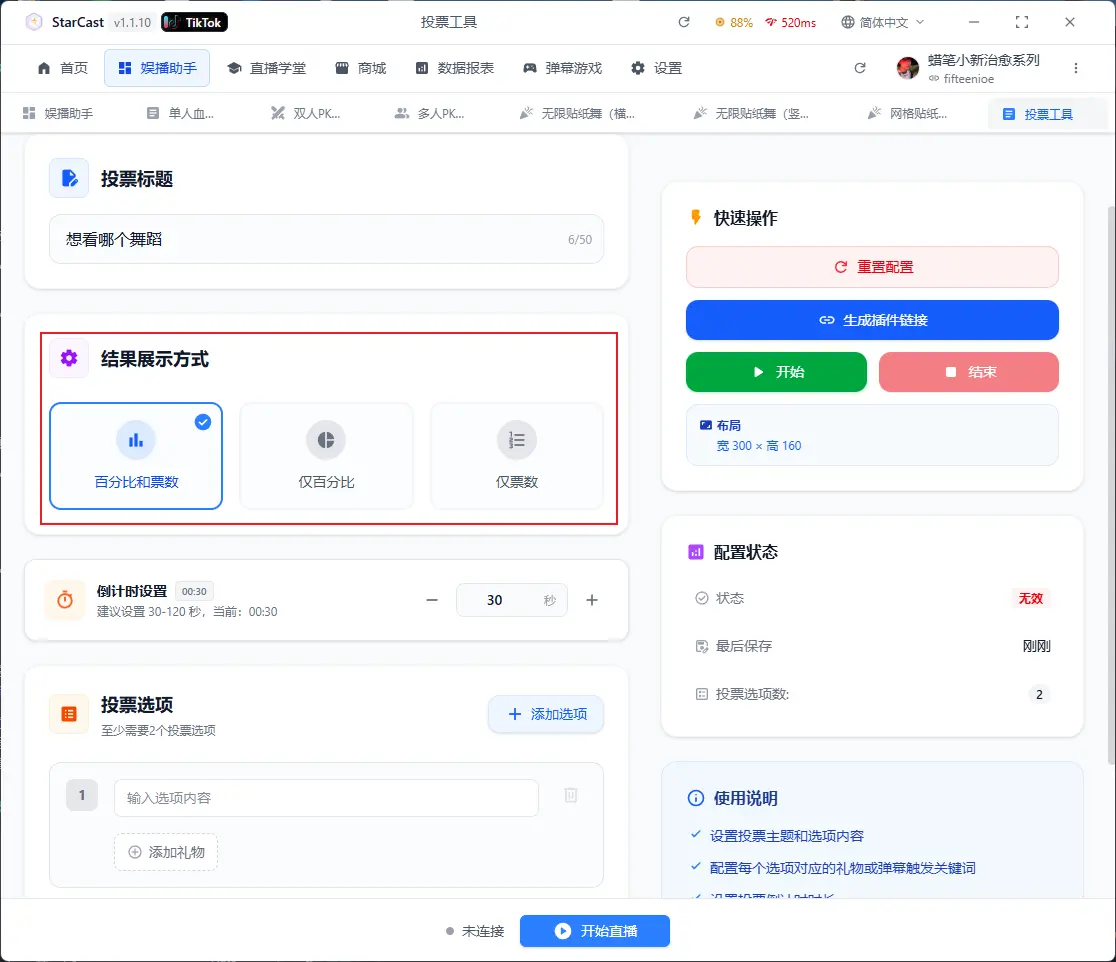
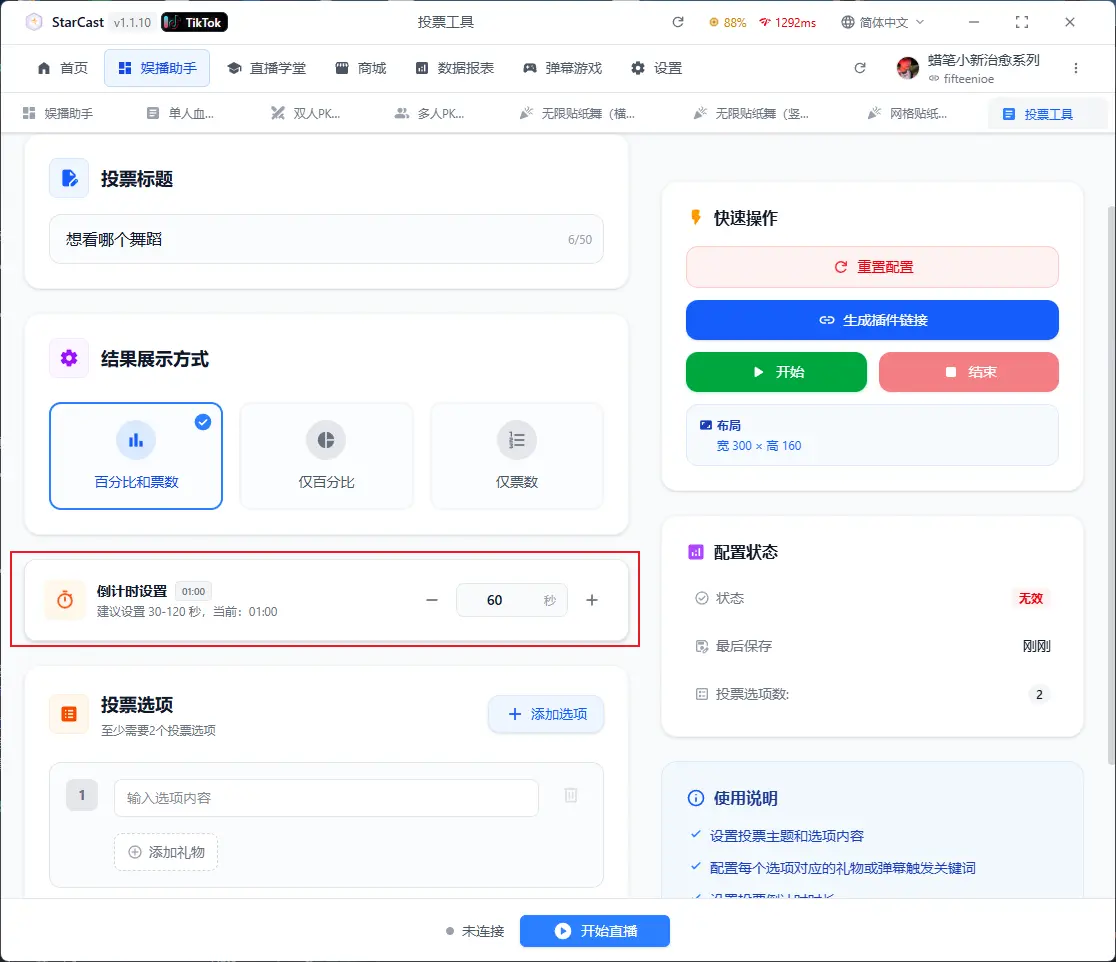
Set Countdown
Enter voting options and add gifts
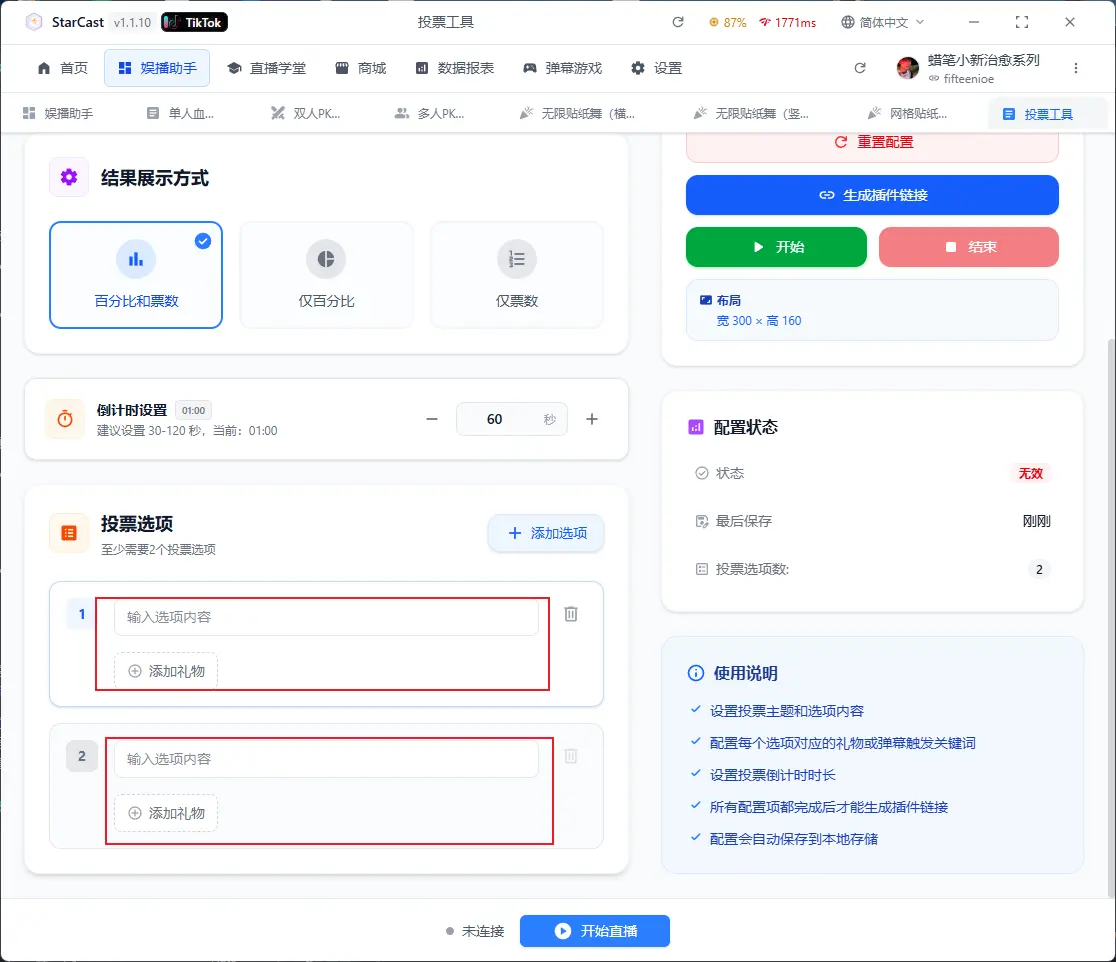
Click "Add Option" to add multiple options
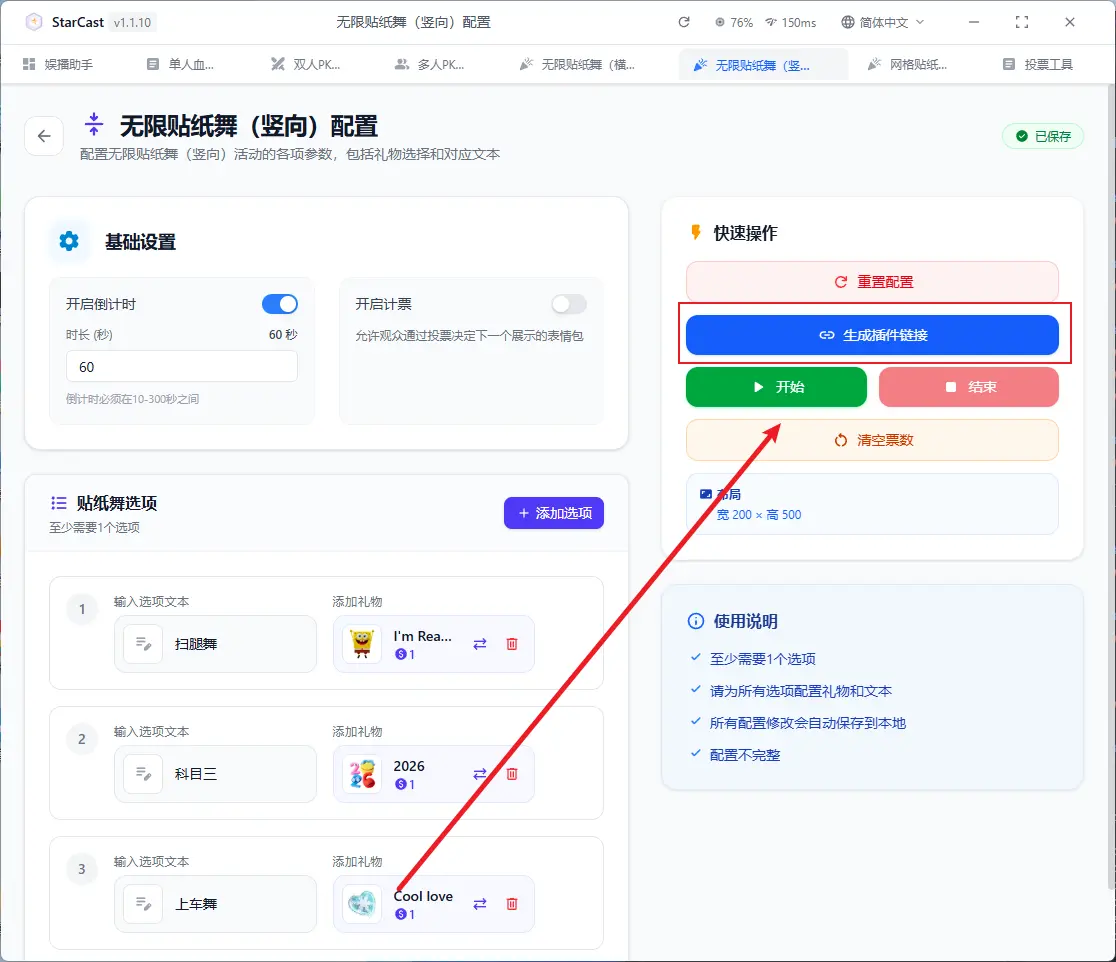
After configuration, click "Generate Link"
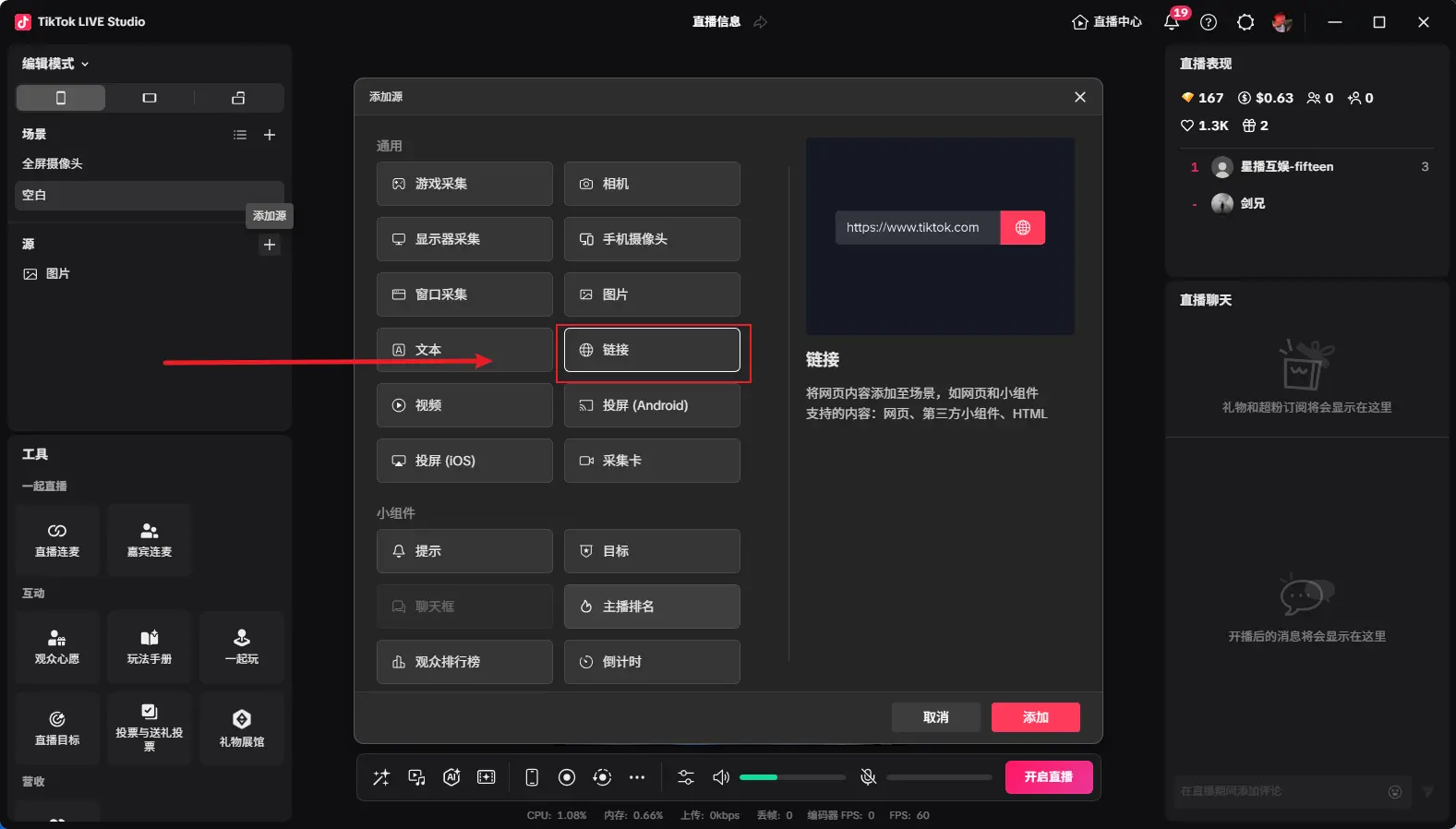
Open TikTok LIVE Studio, add source, and select Link
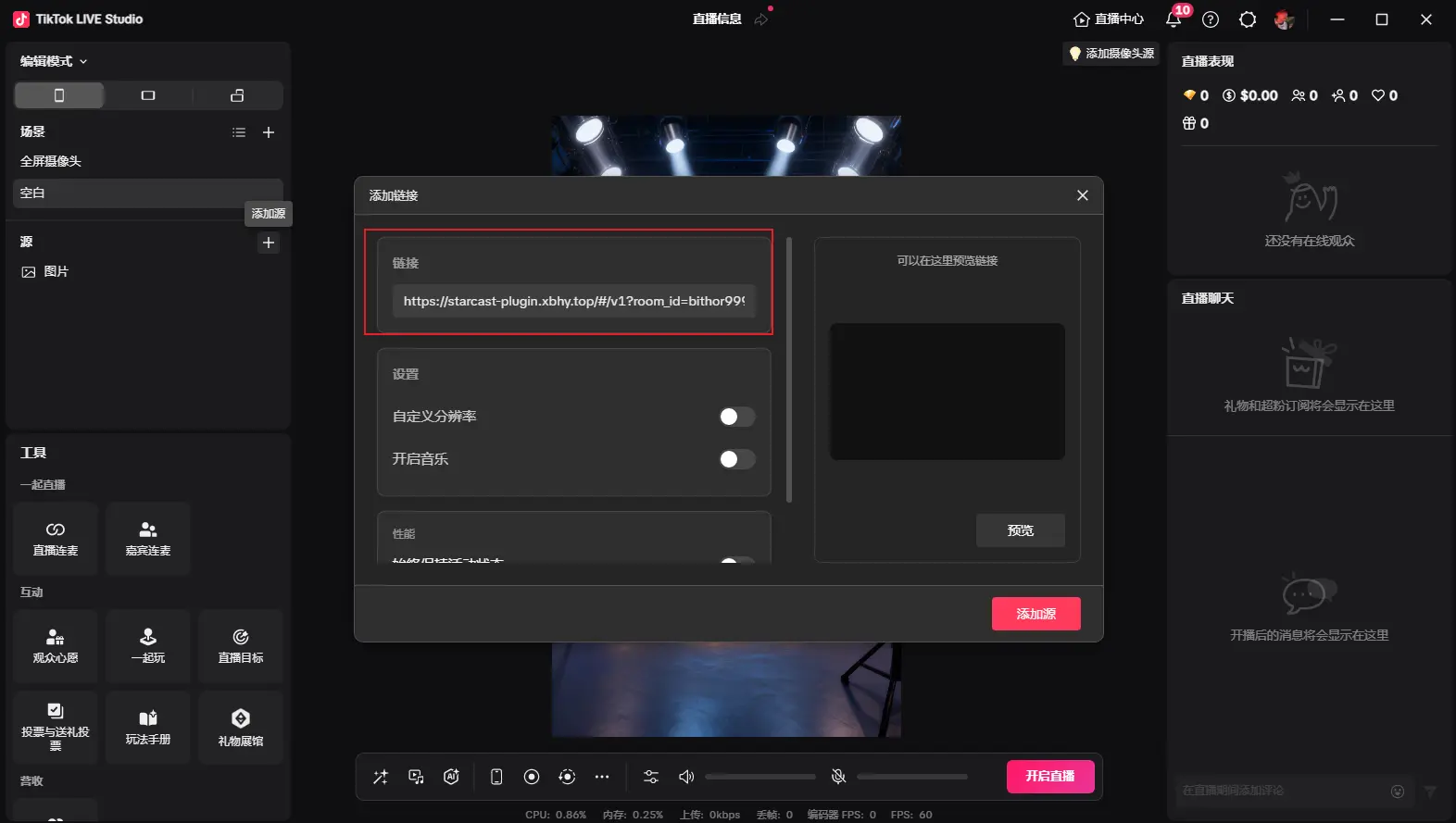
Paste the generated link and change the custom resolution to 300x800
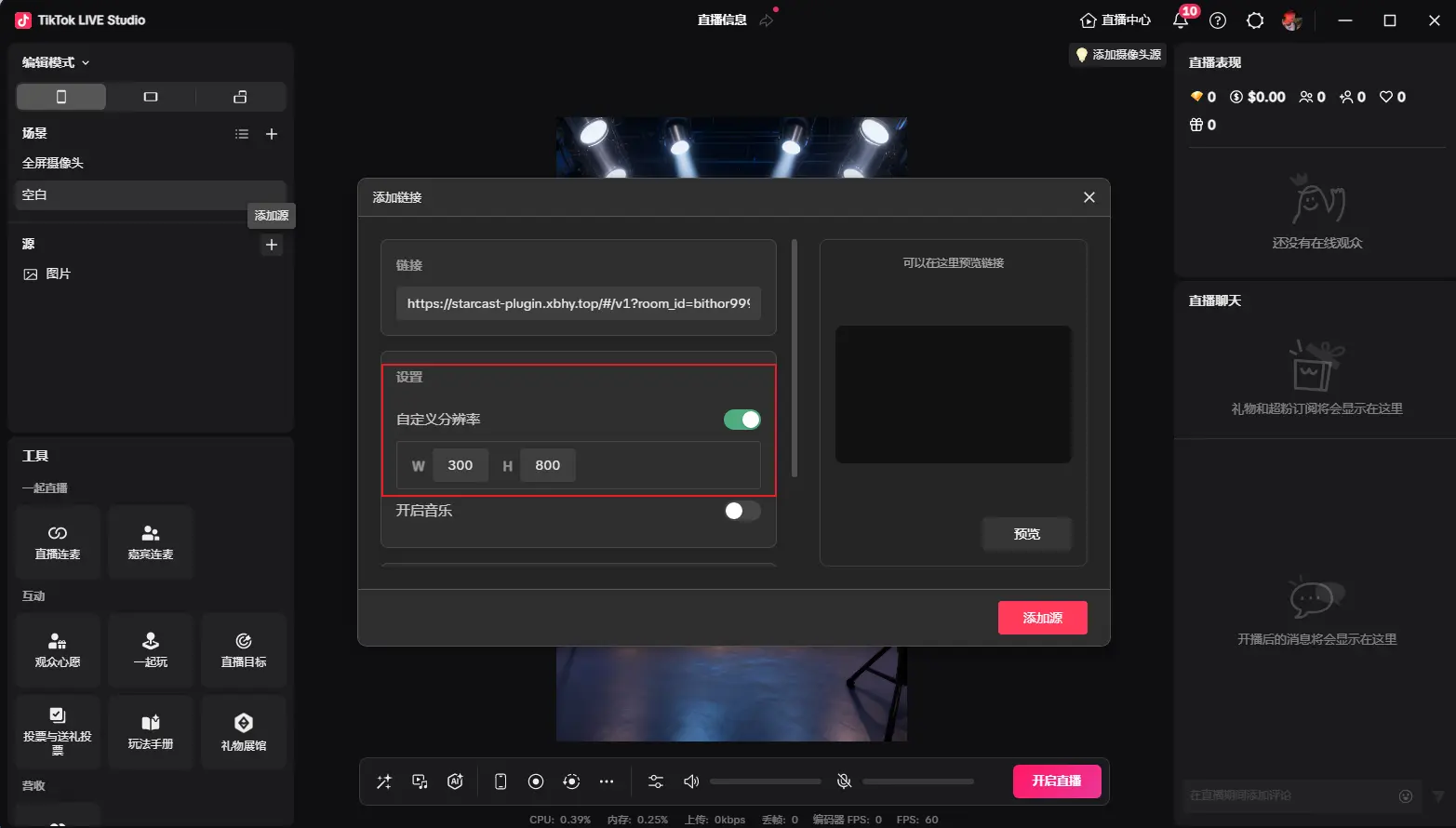
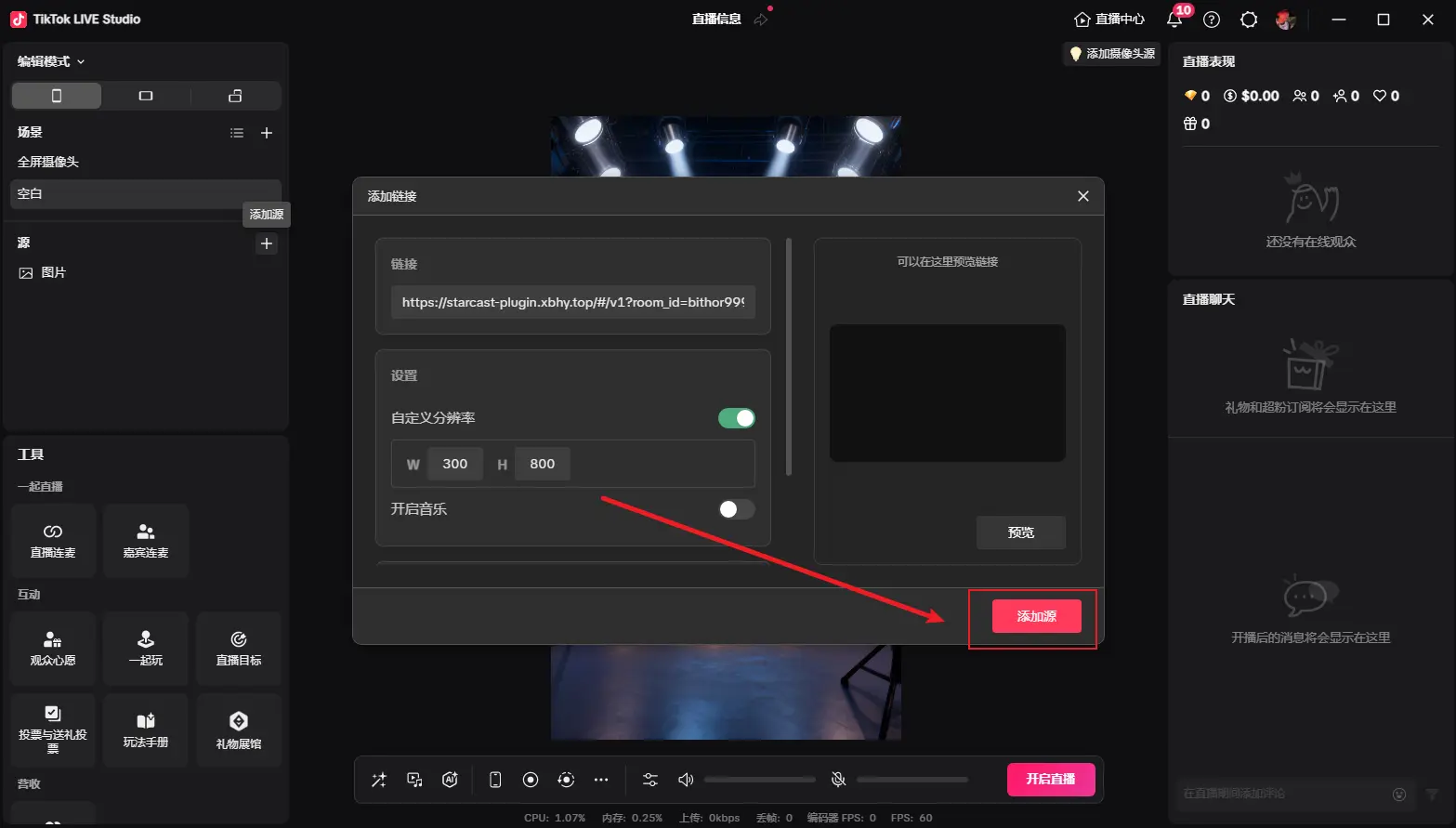
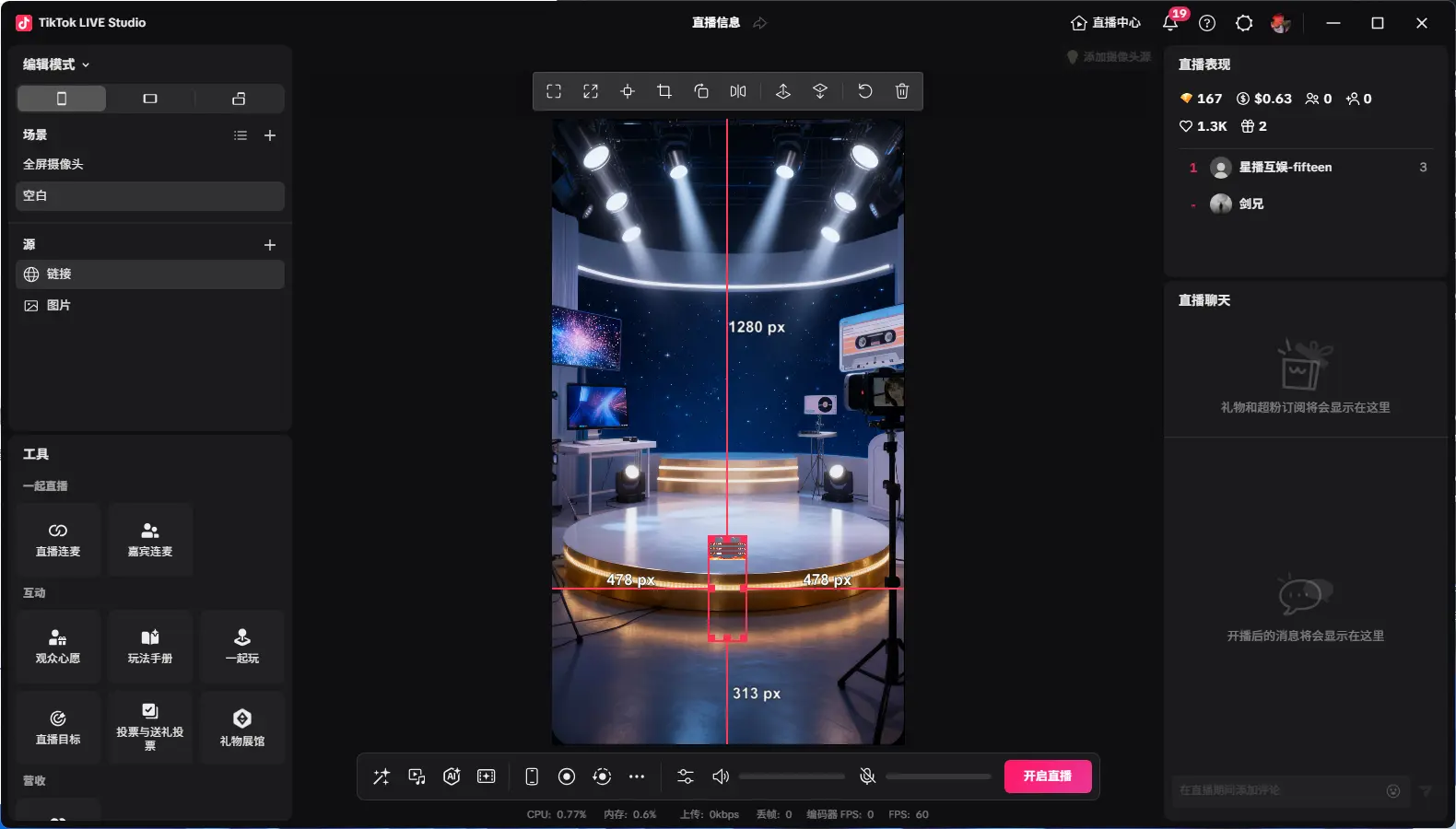
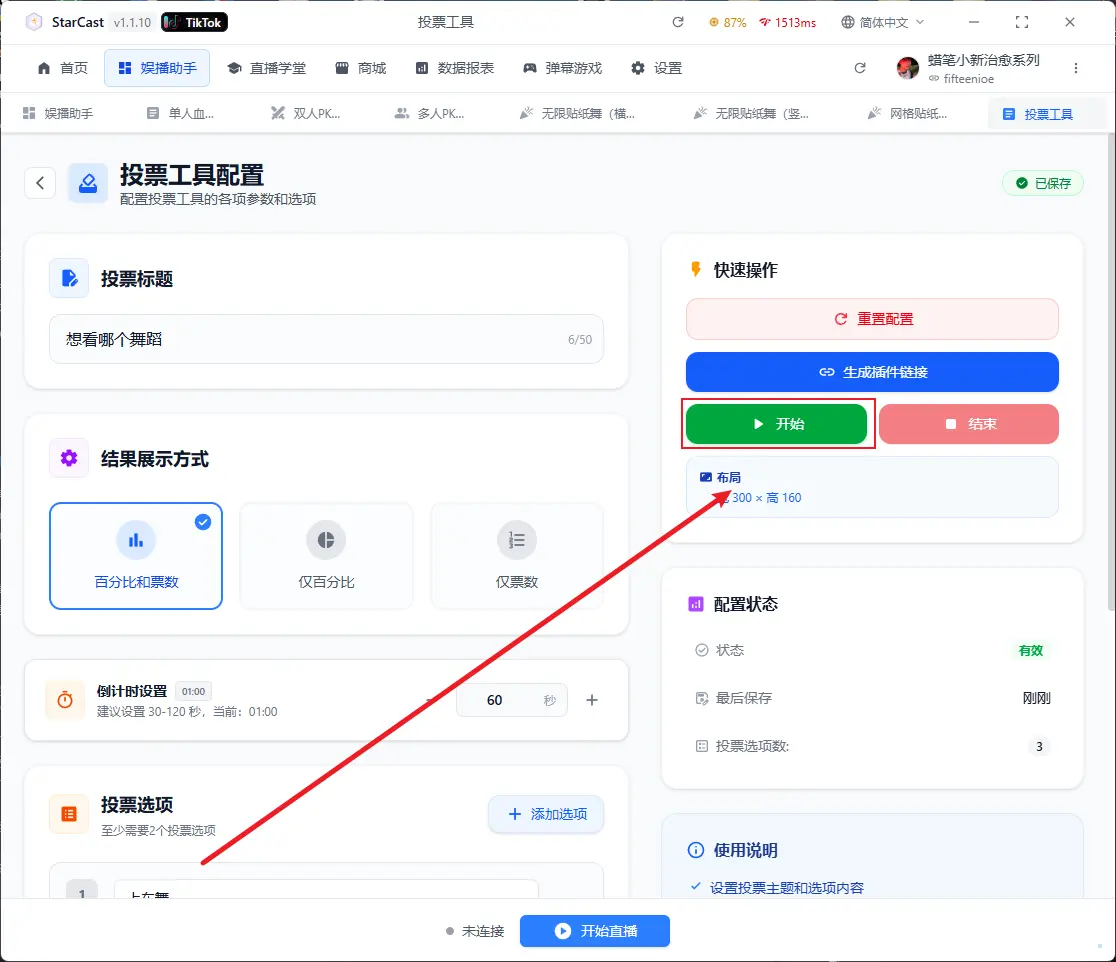
After adding as shown, adjust to desired size, then click "Start" to begin countdown
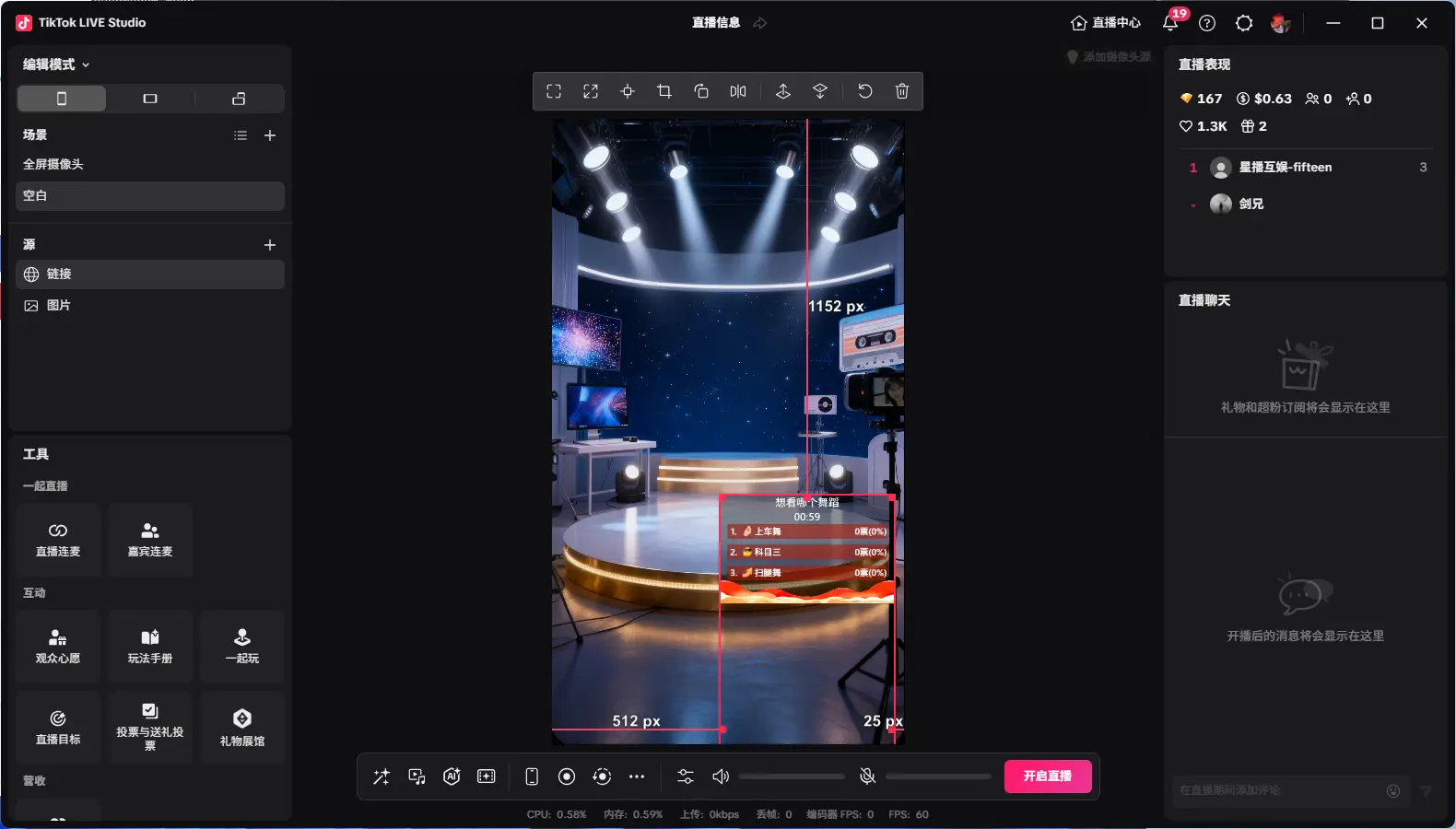
Displaying "Connected" means successfully connected to the live room
Entrance Effect
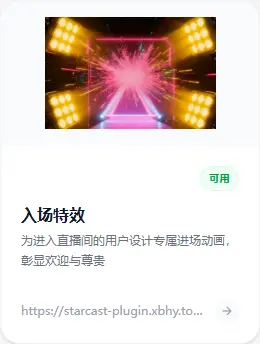
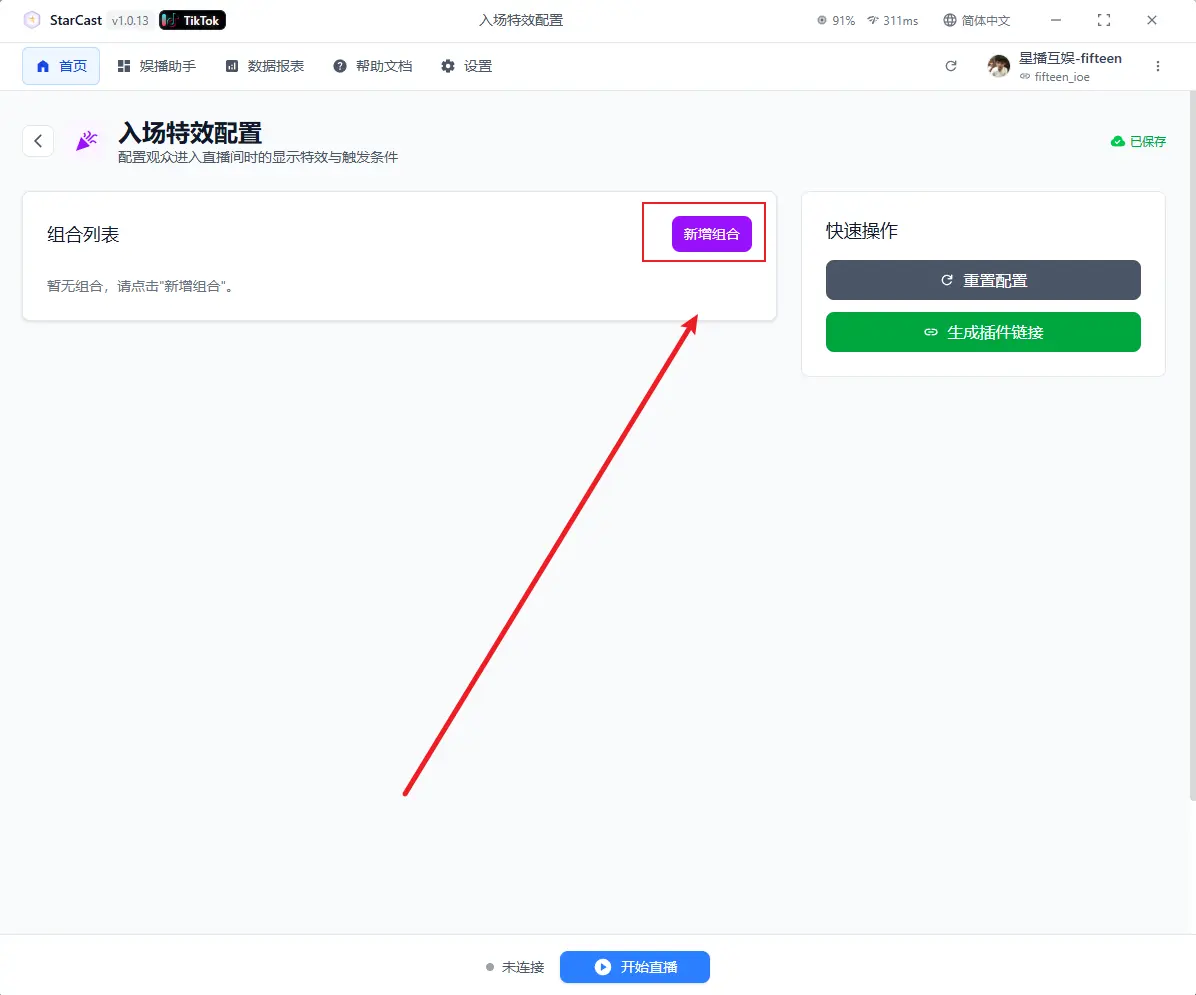
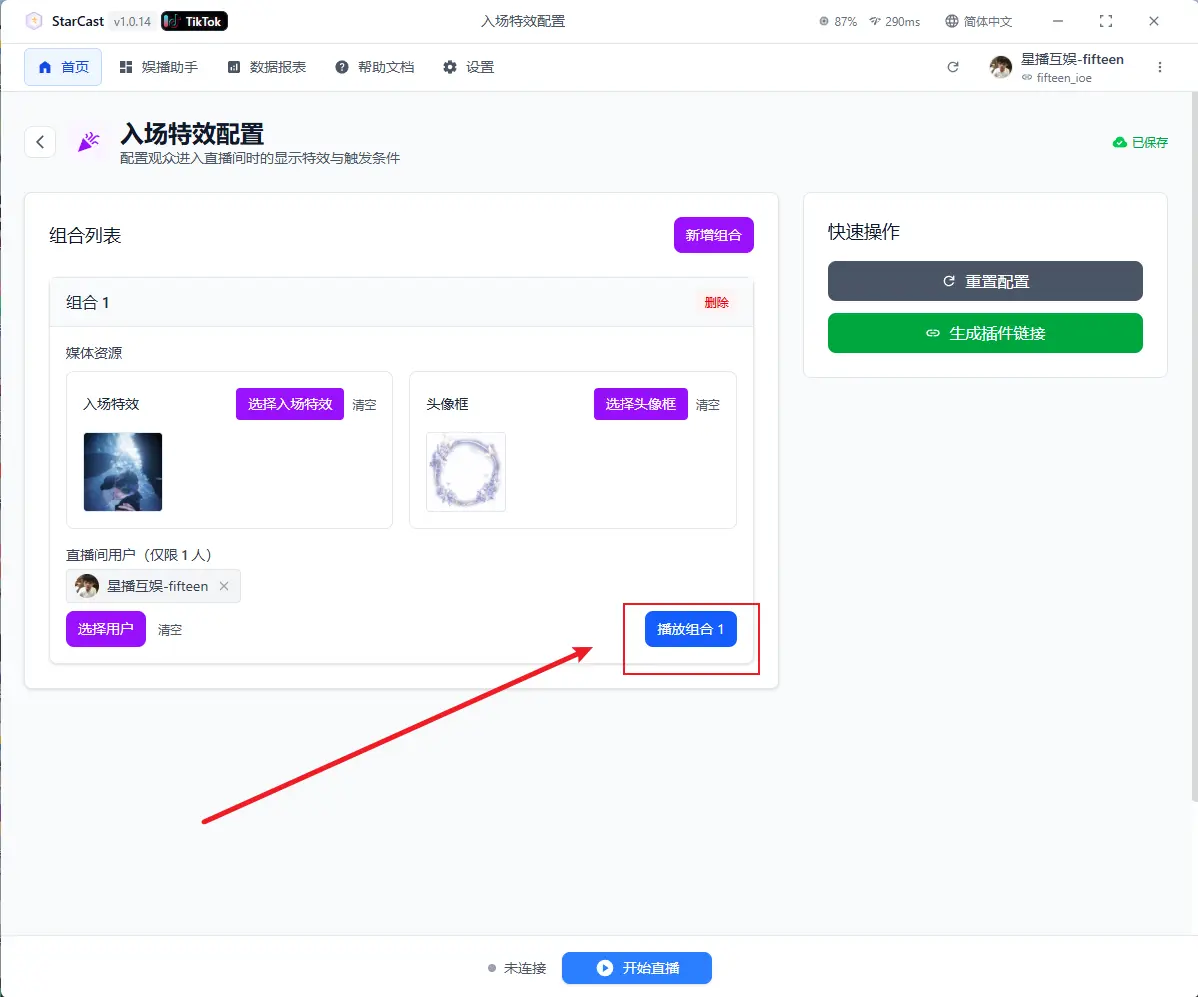
Click inside to select desired entrance effect and avatar frame
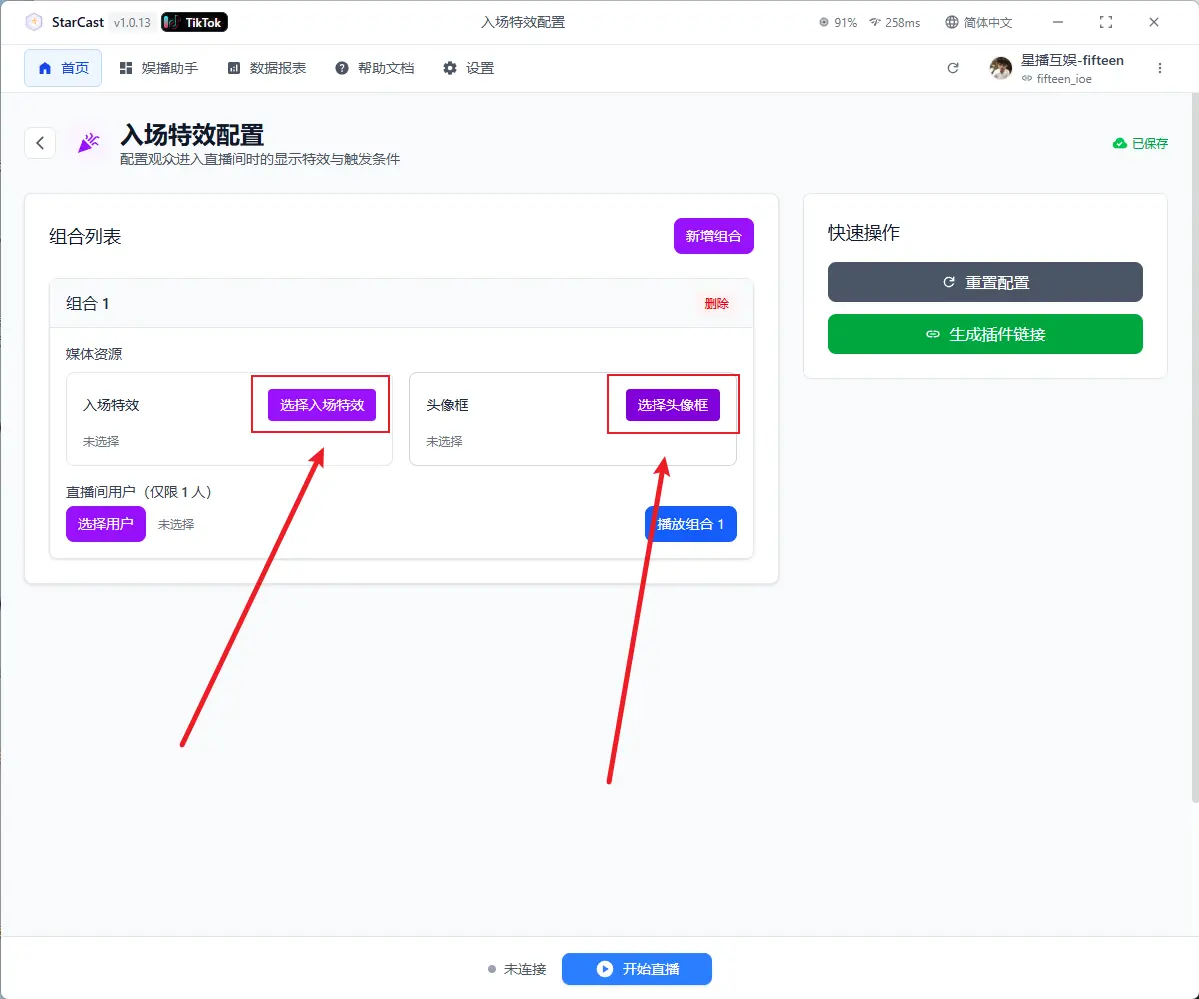
After configuration, add live room users
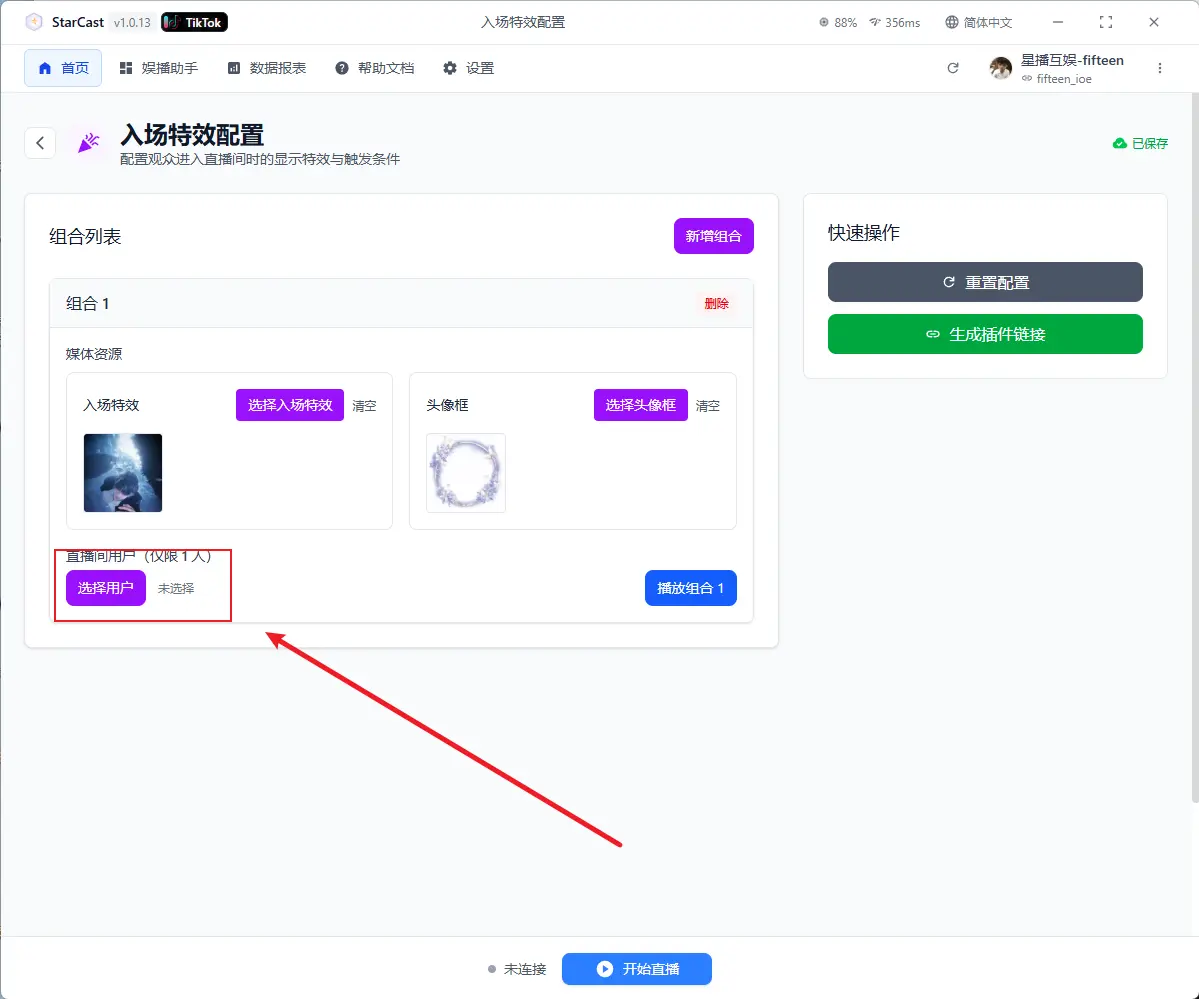
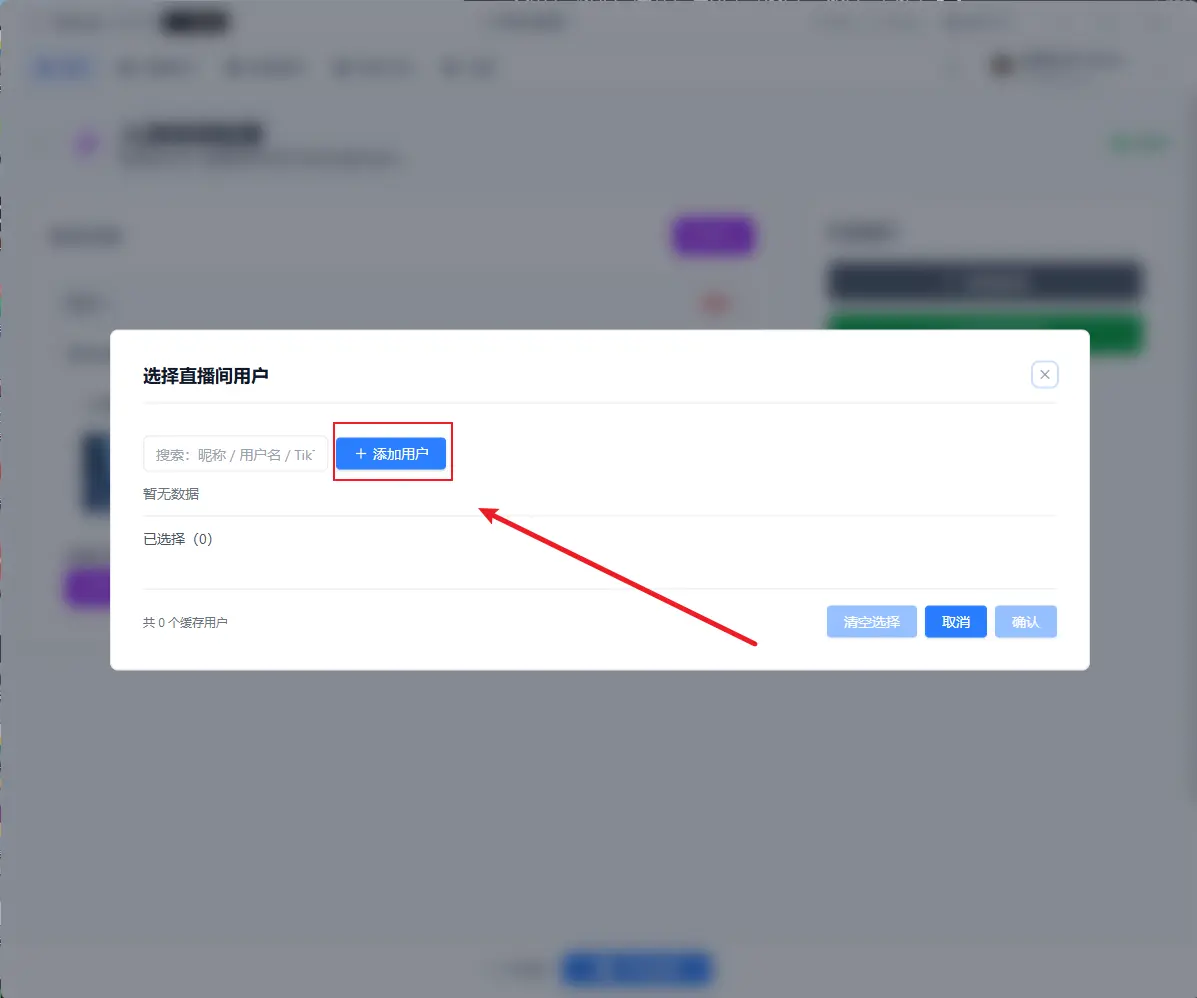
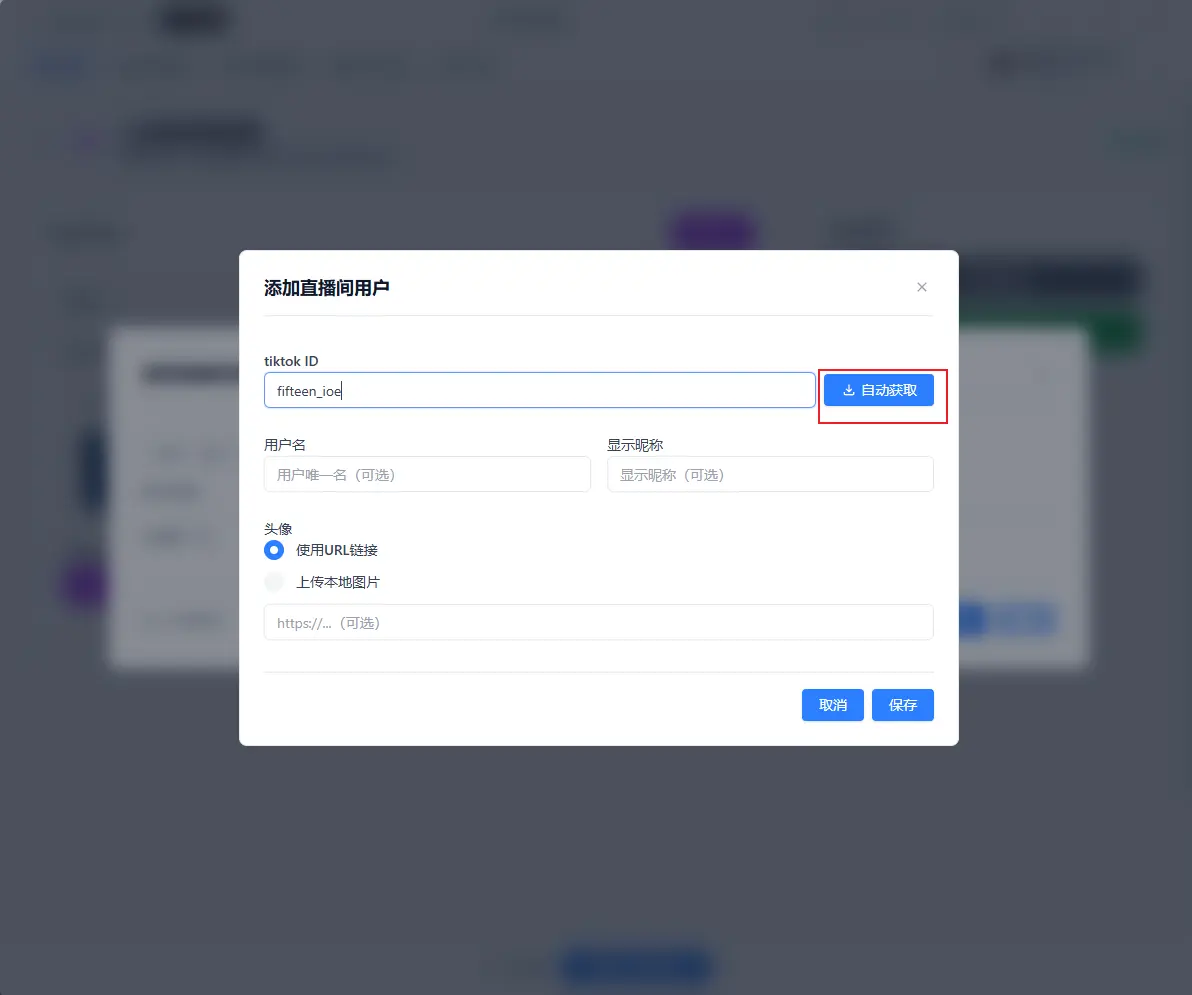
Enter TikTok ID and click "Auto Fetch", after saving it will automatically select the user just added
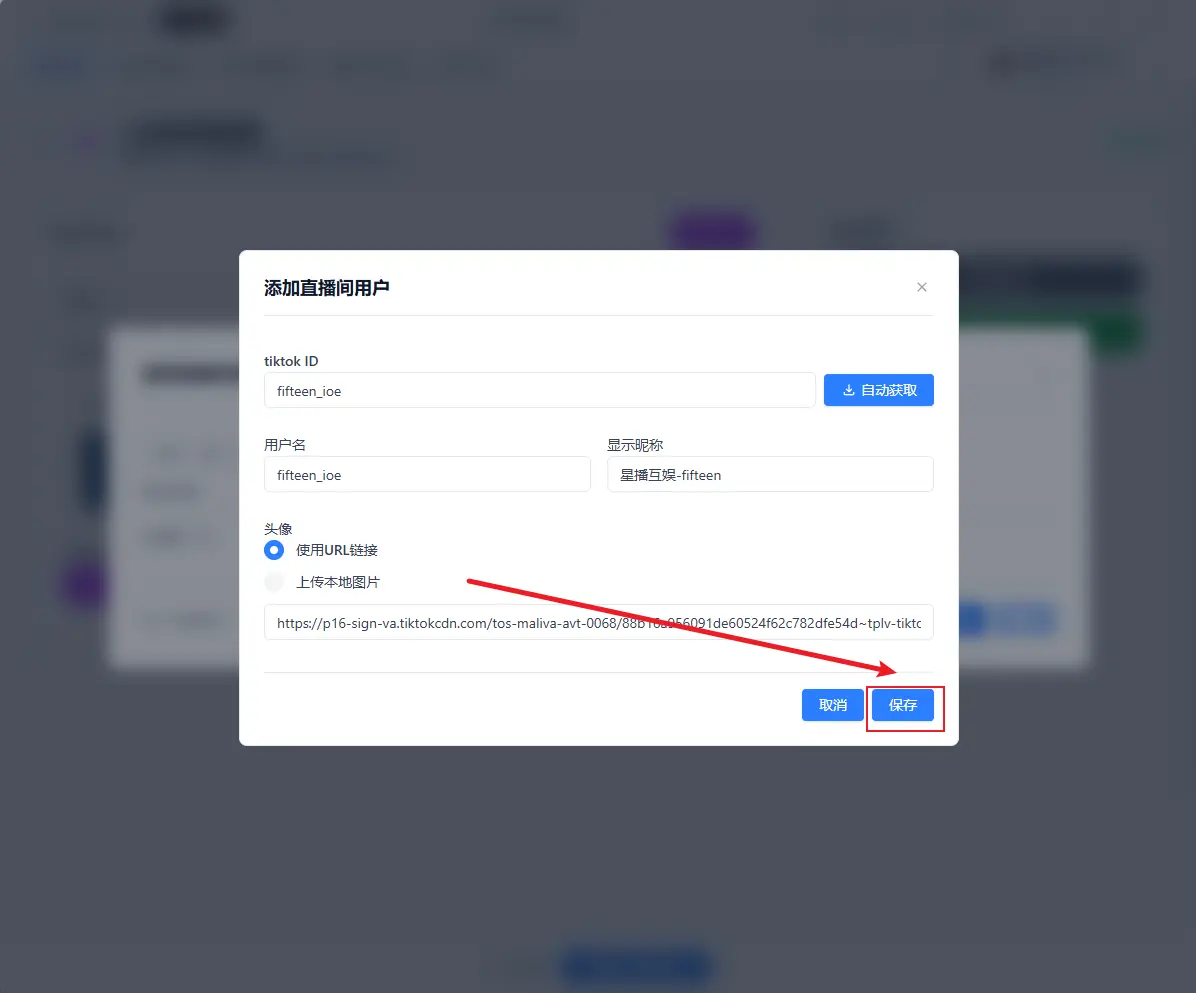
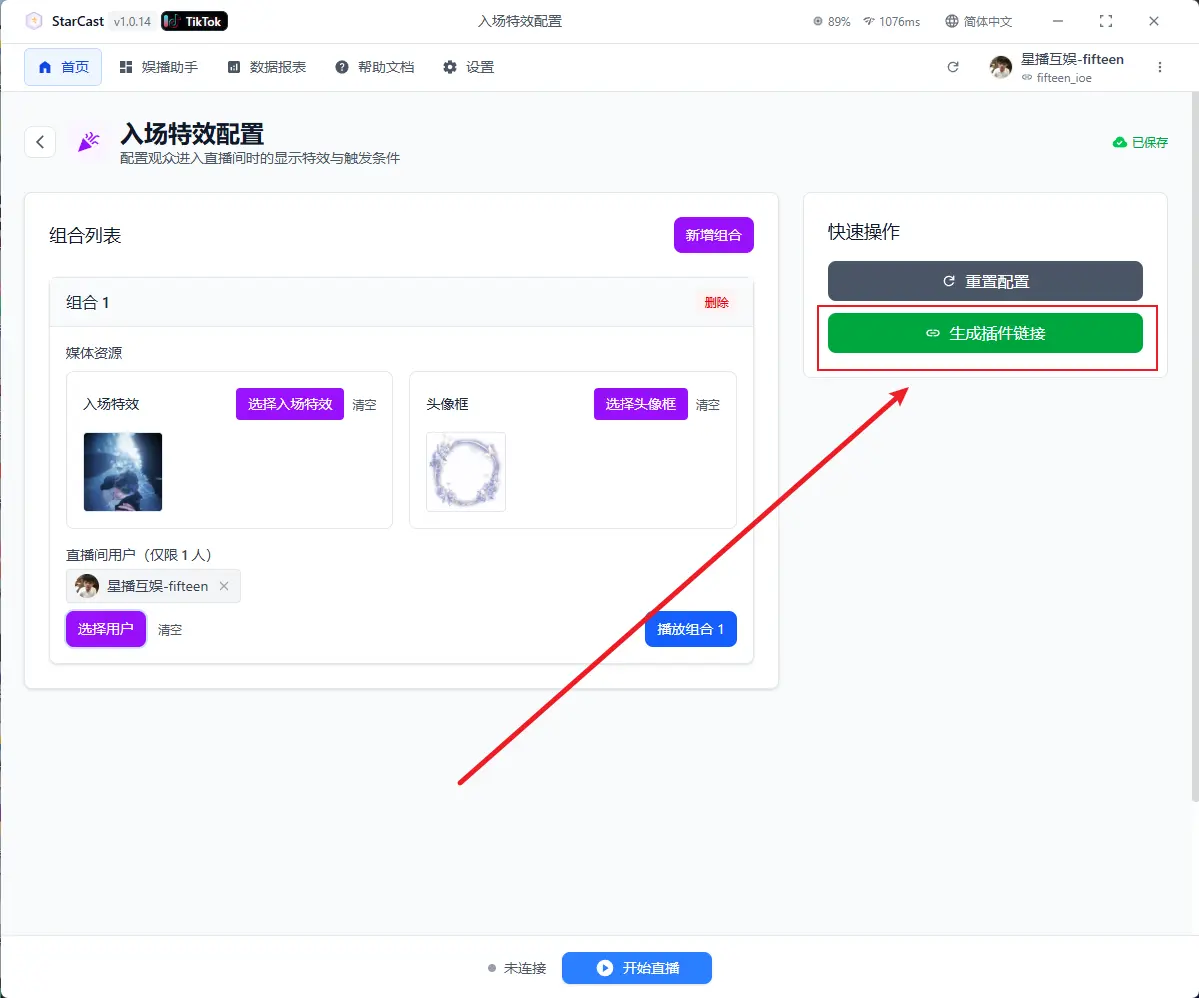
After configuration, click "Generate Link"
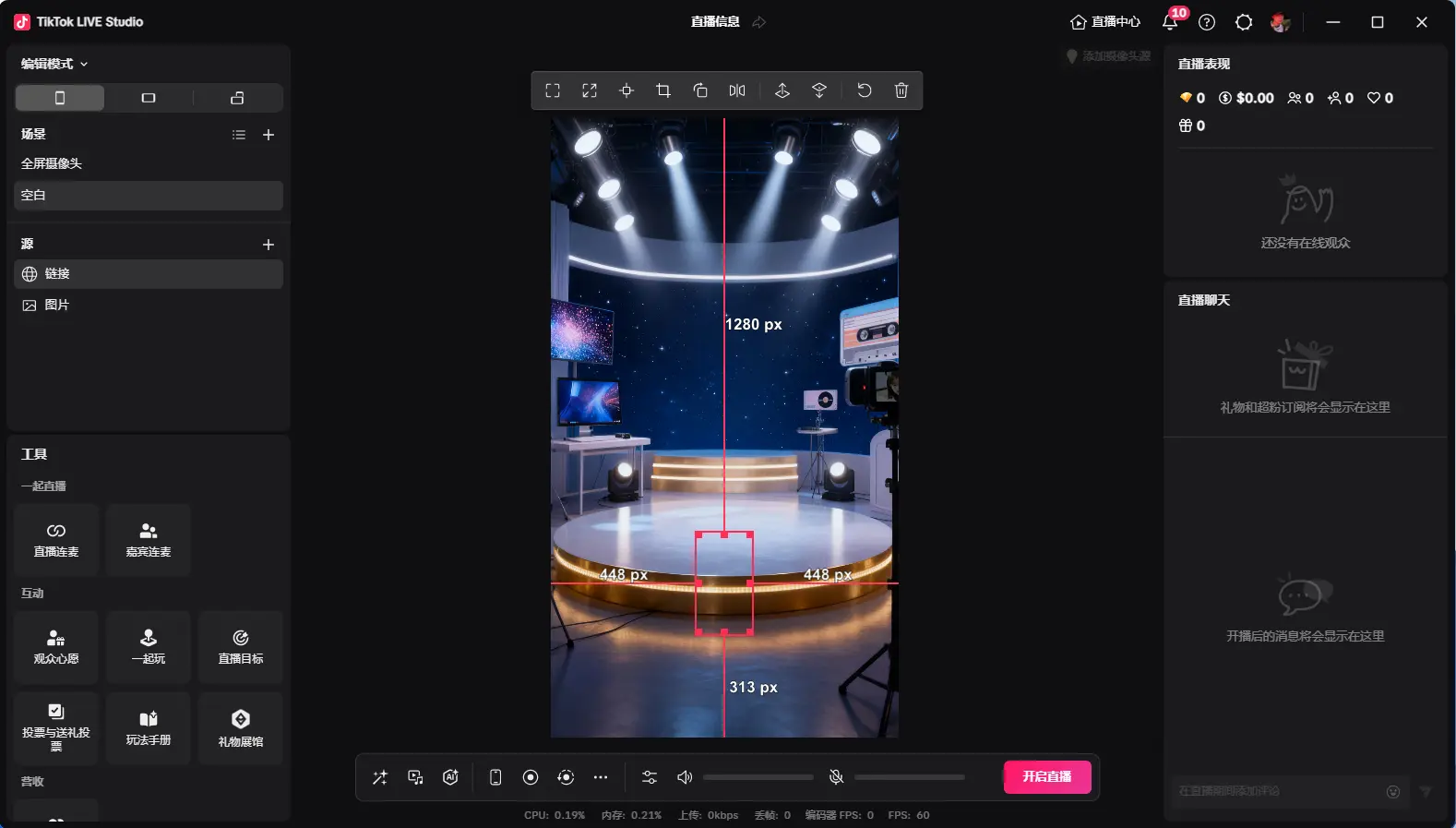
Open TikTok LIVE Studio, add source, and select Link
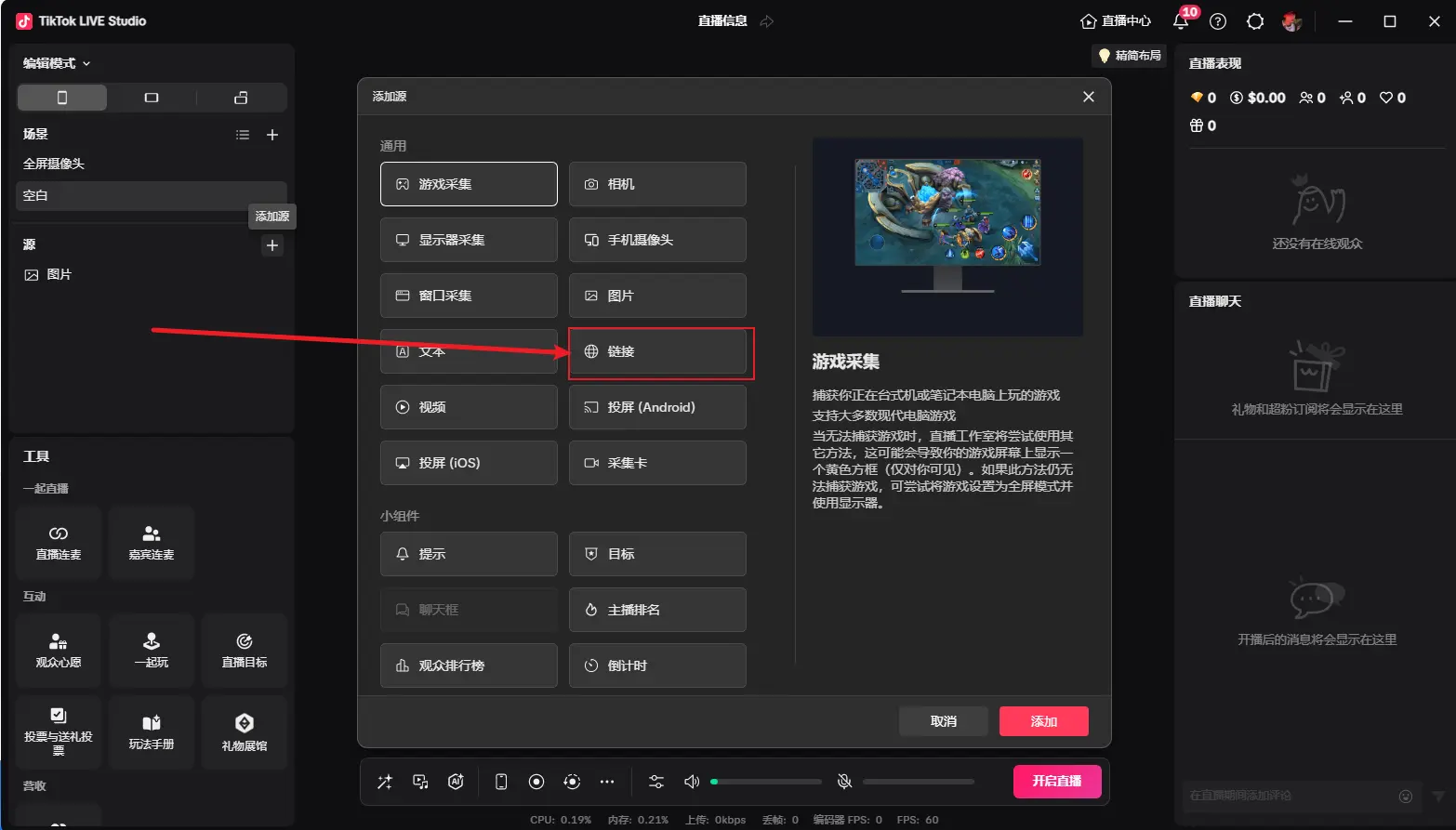
Paste the generated link and change the custom resolution to 270x480
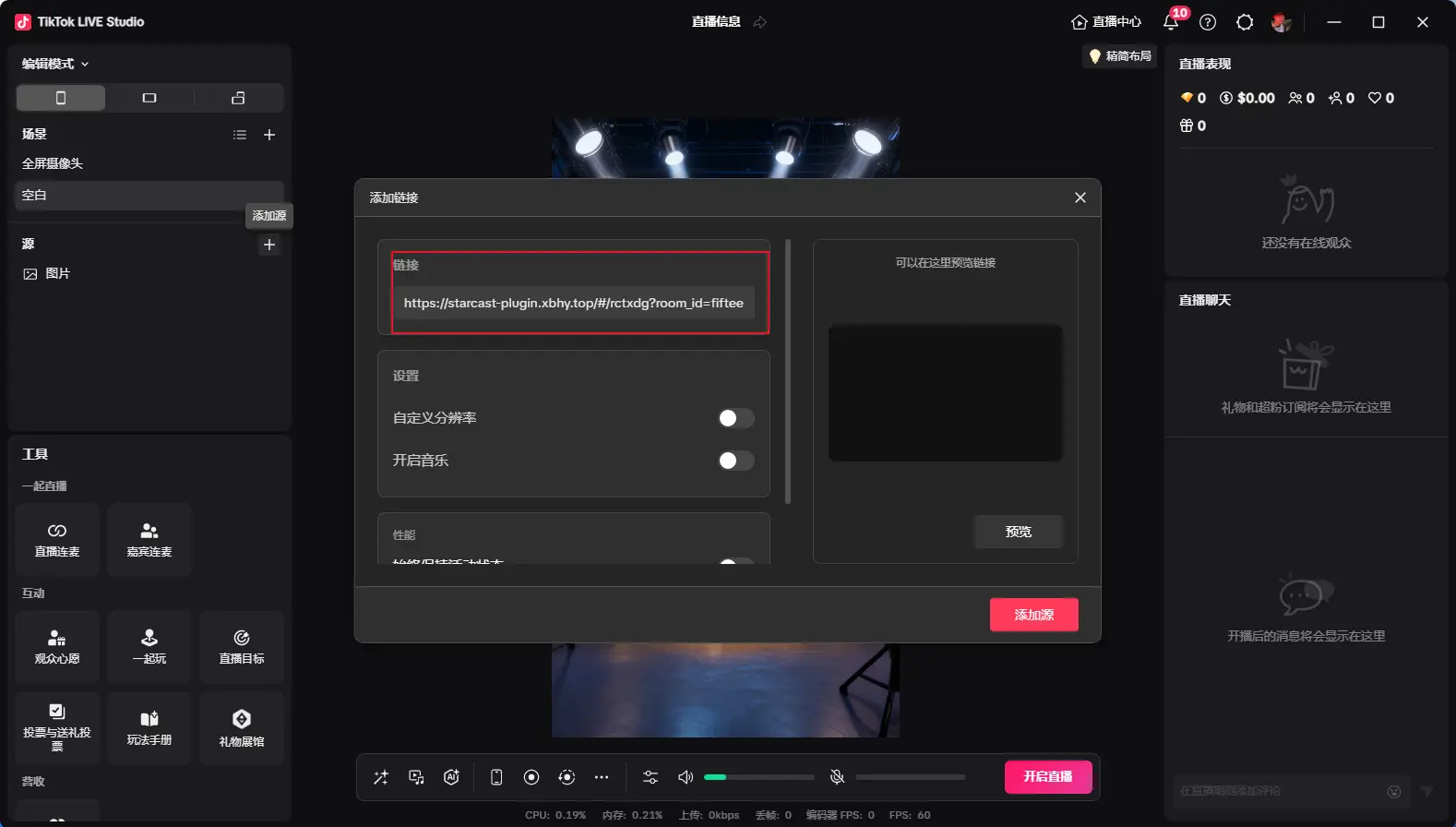
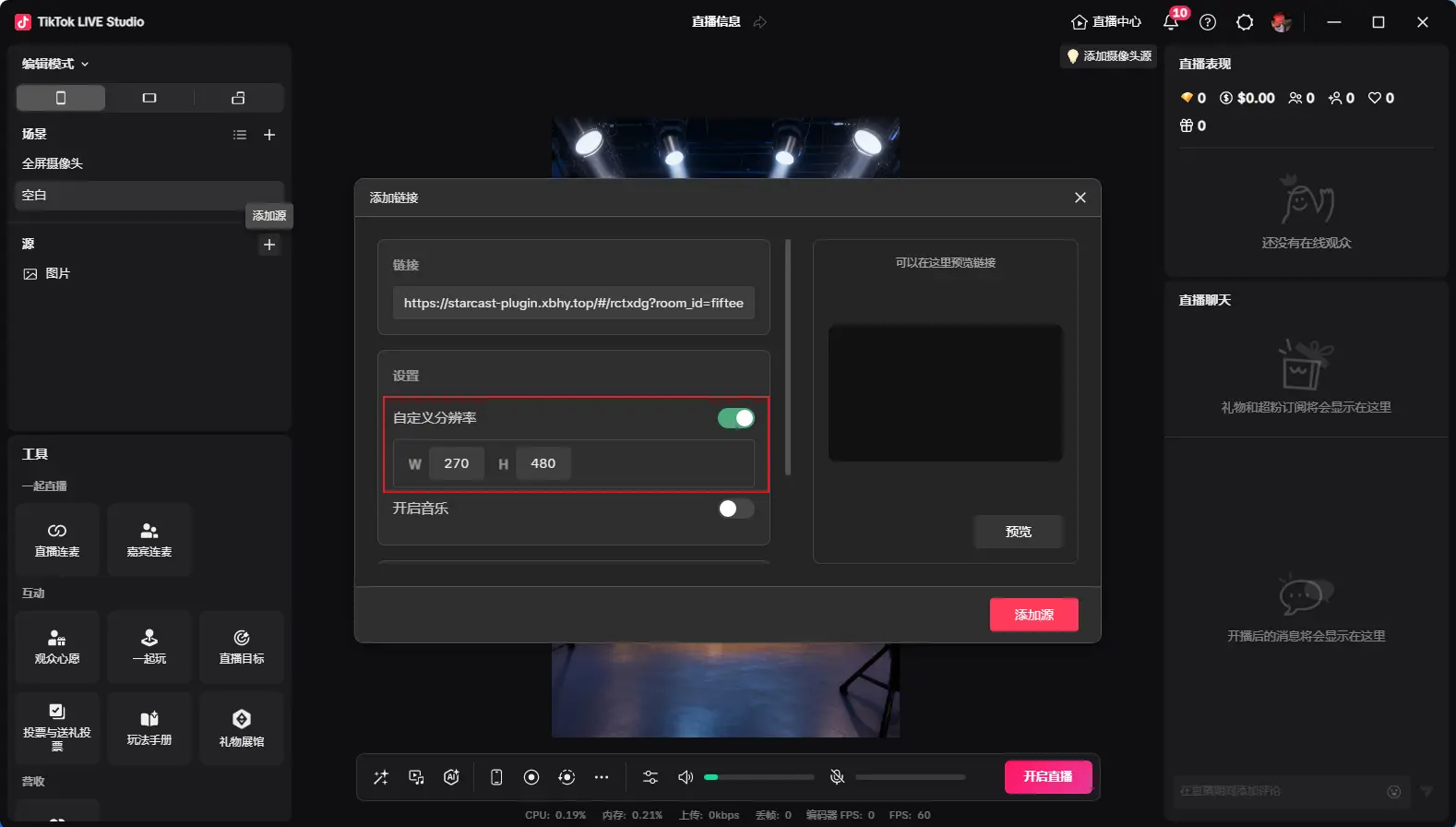
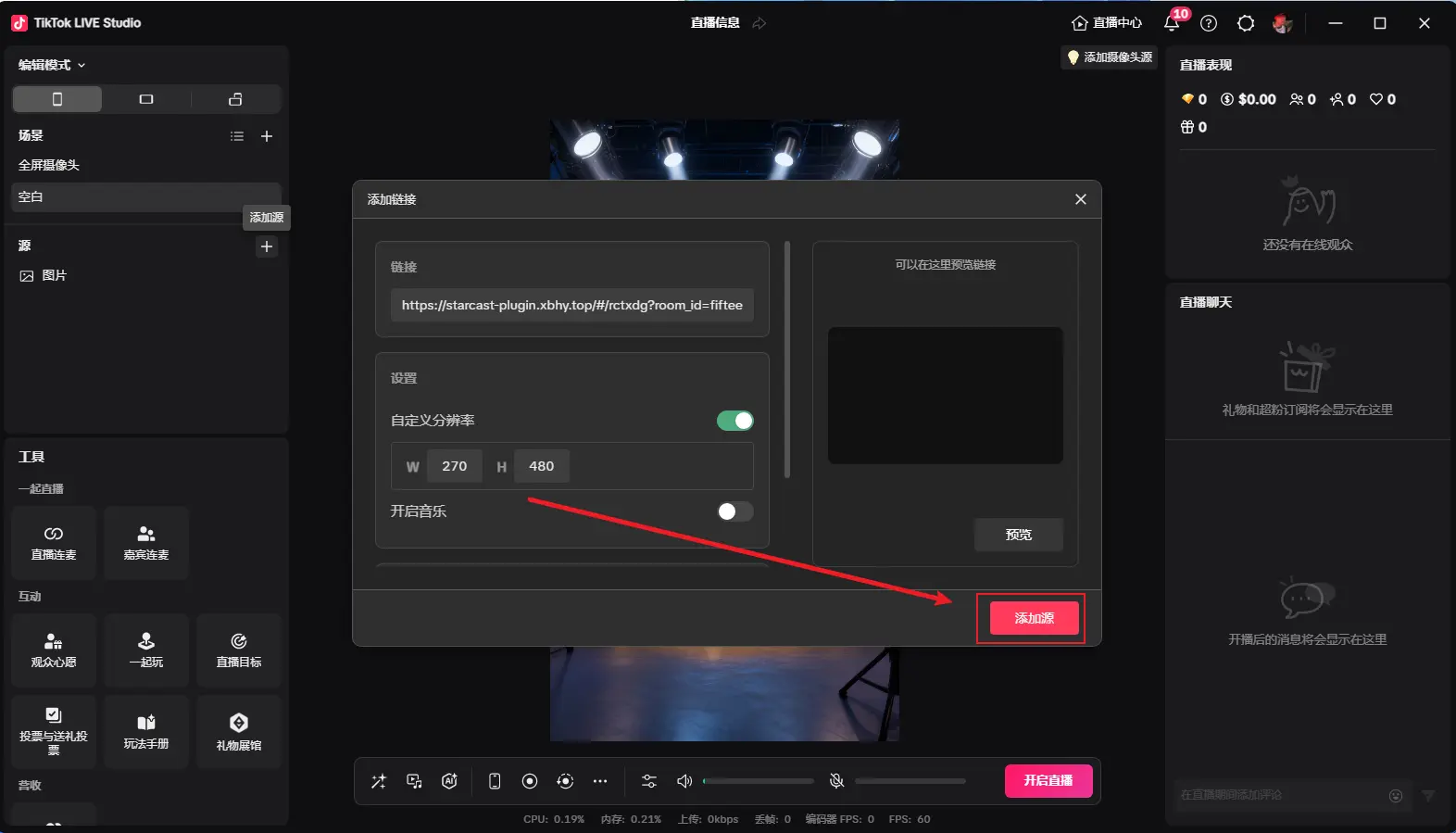
After adding as shown, adjust to desired size, then click "Play Combo" to display (first play might be slow)
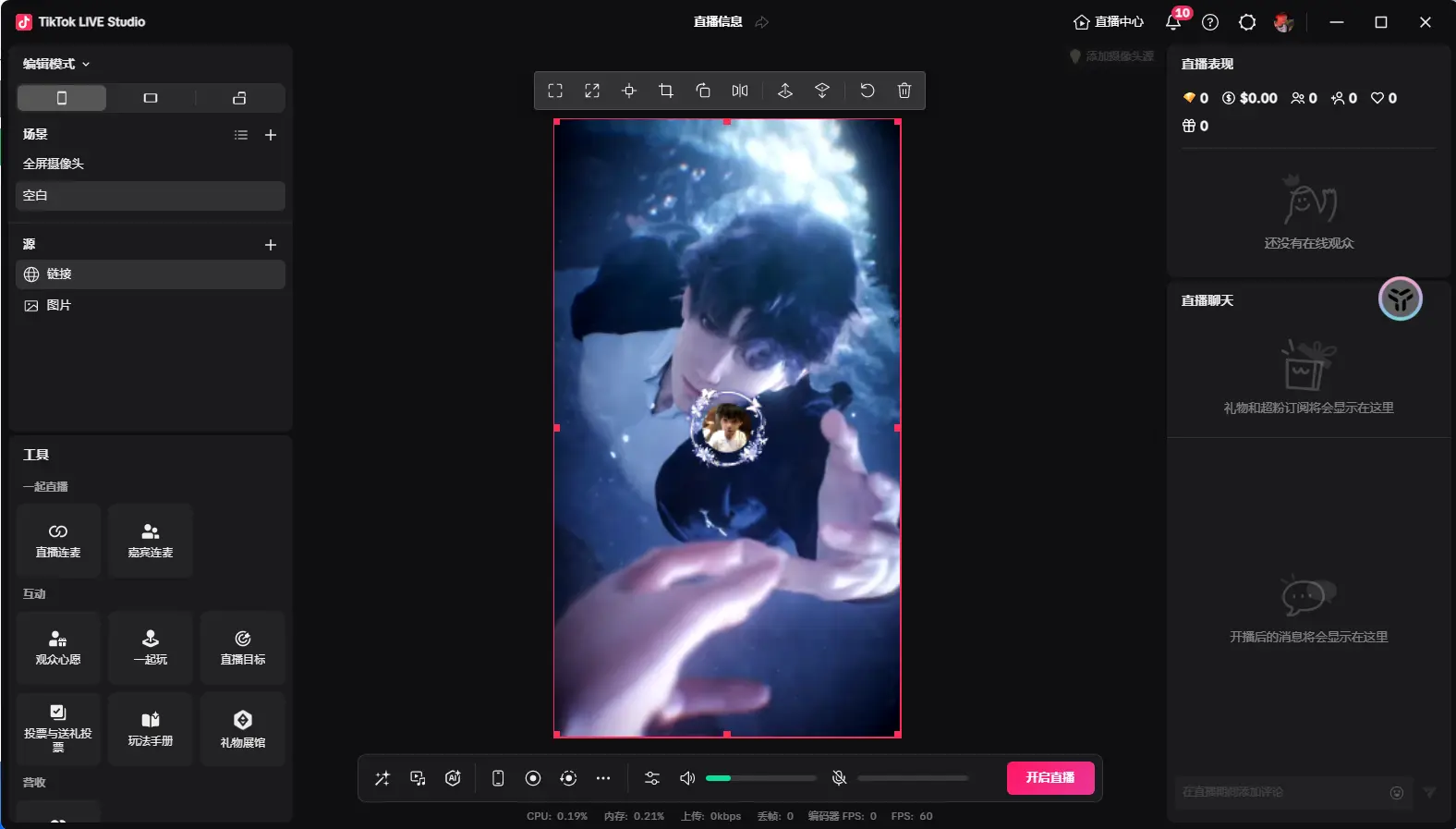
Displaying "Connected" means successfully connected to the live room
Small Gift Big Effect
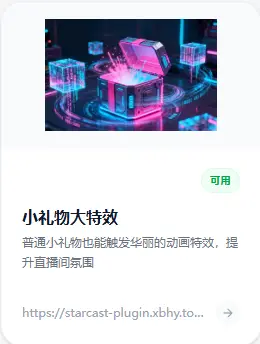
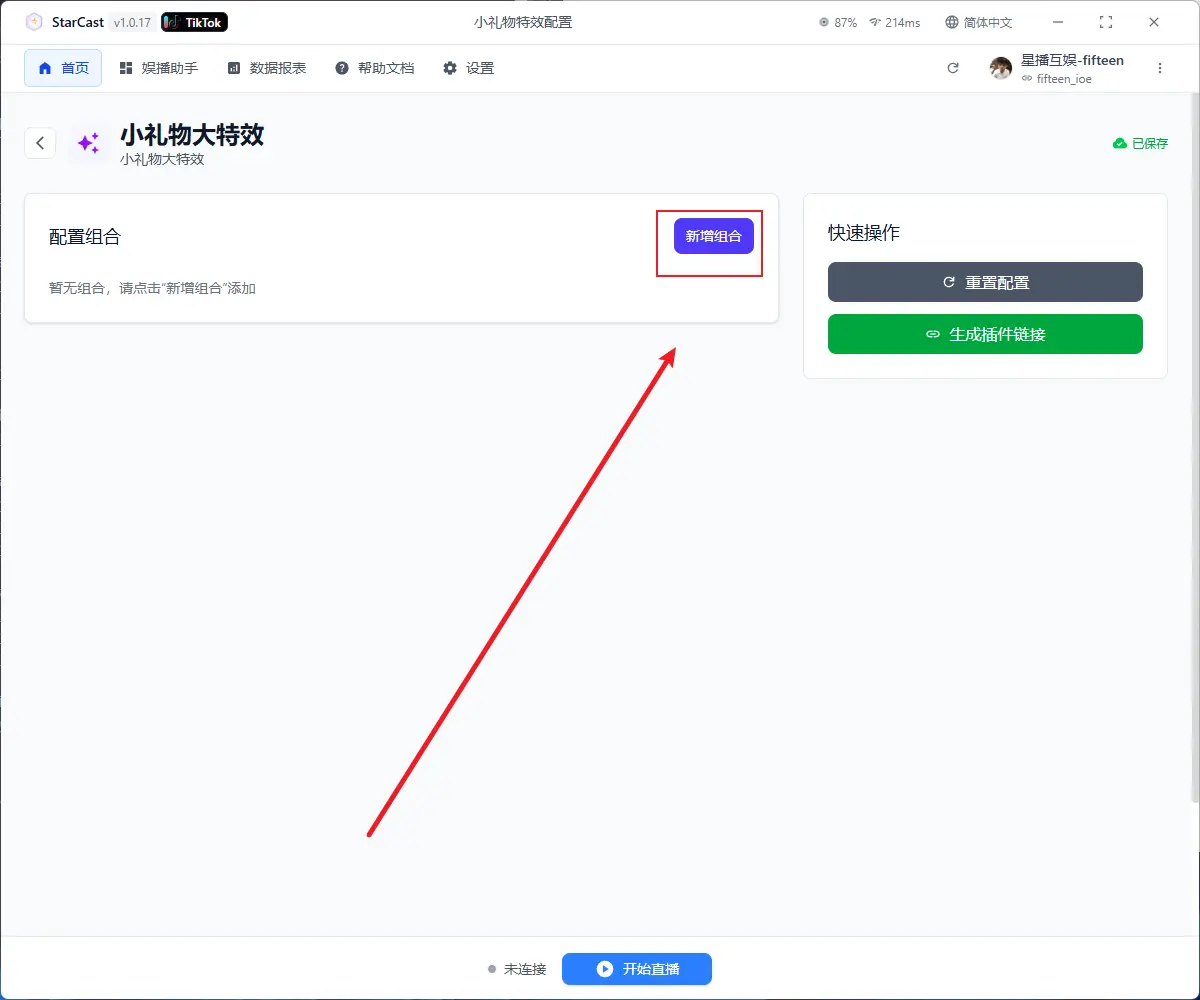
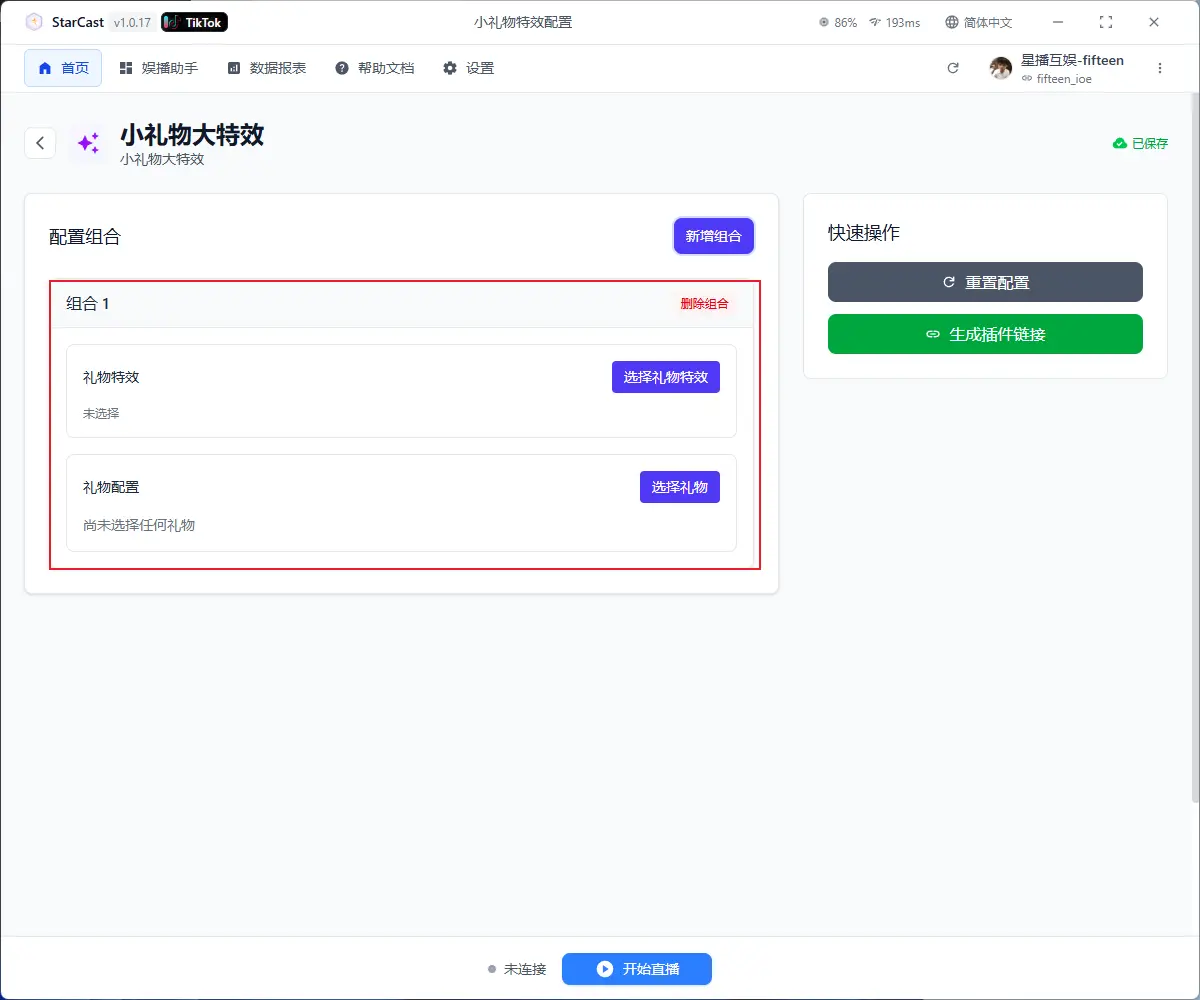
Click inside to select desired gift effect and the triggering small gift
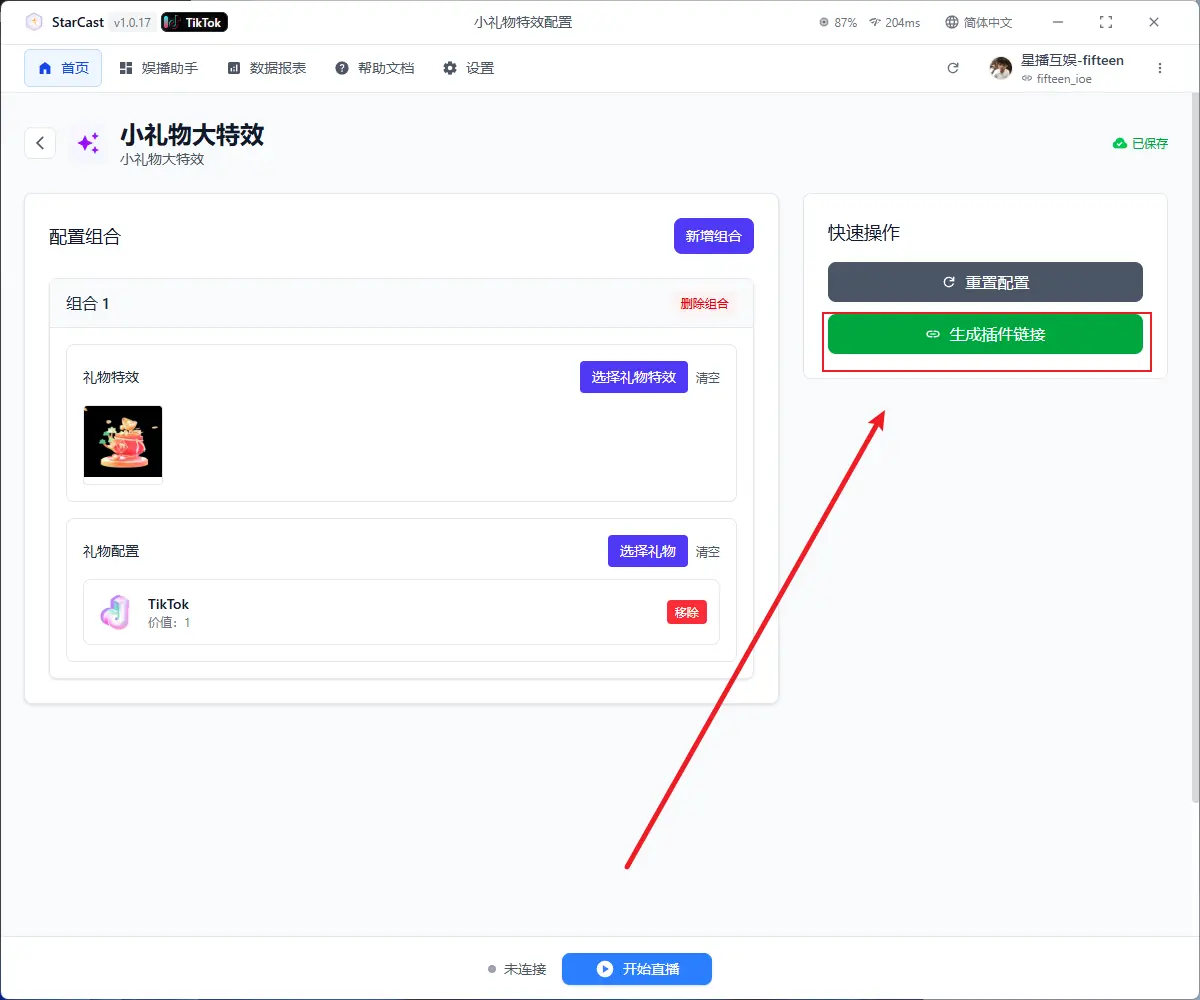
After configuration, click "Generate Link"
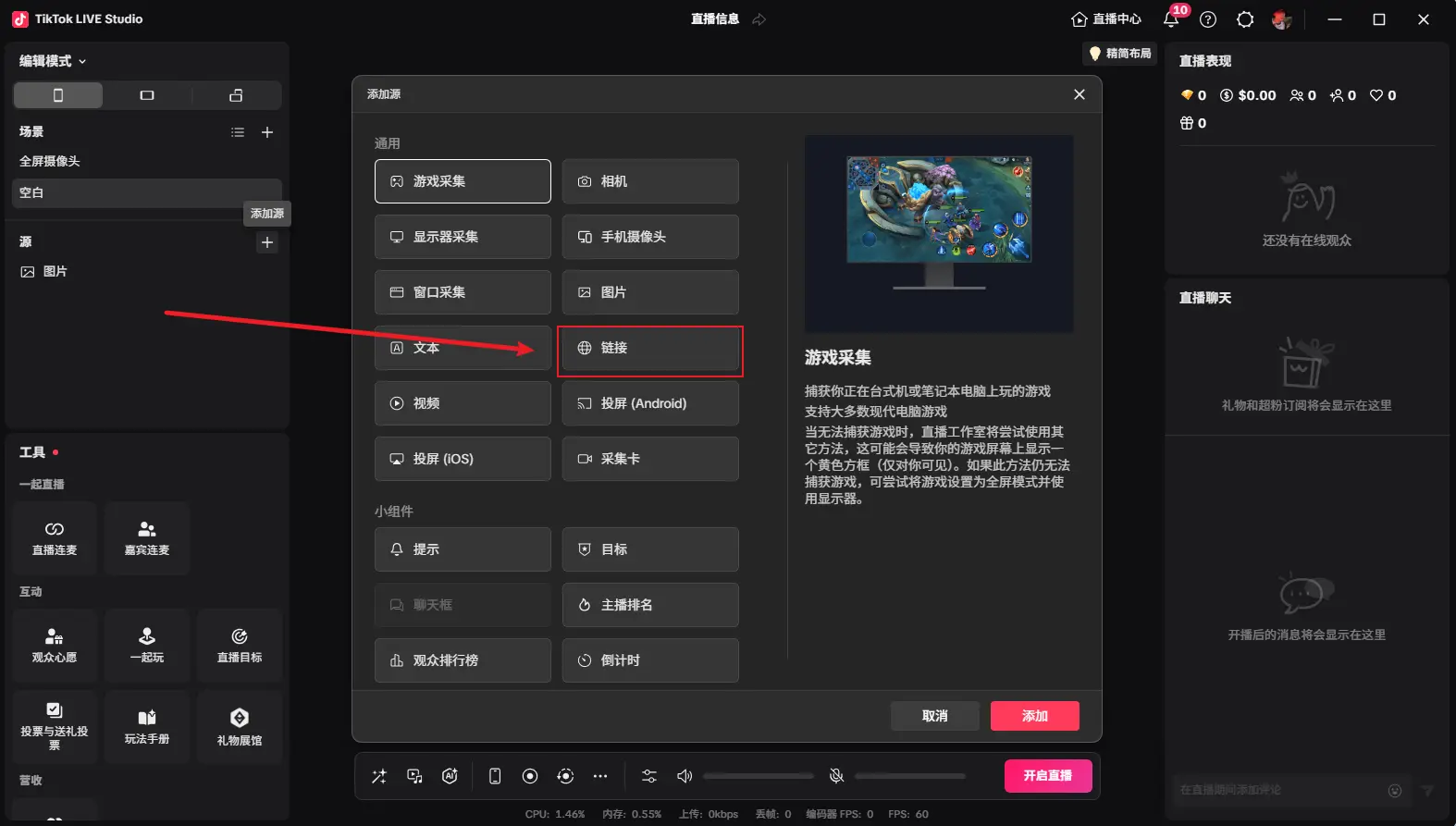
Open TikTok LIVE Studio, add source, and select Link
Paste the generated link and change the custom resolution to 270x480
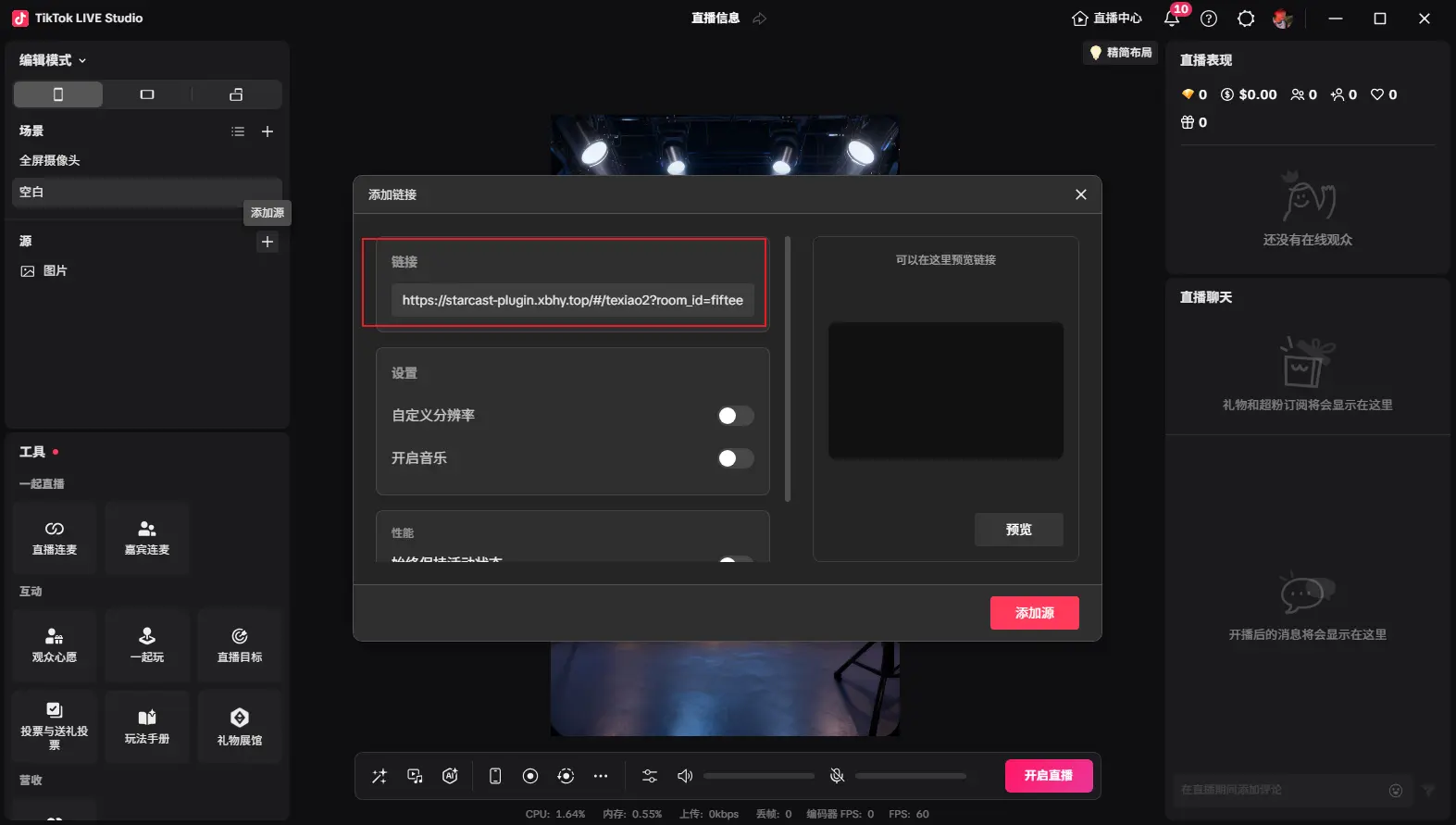
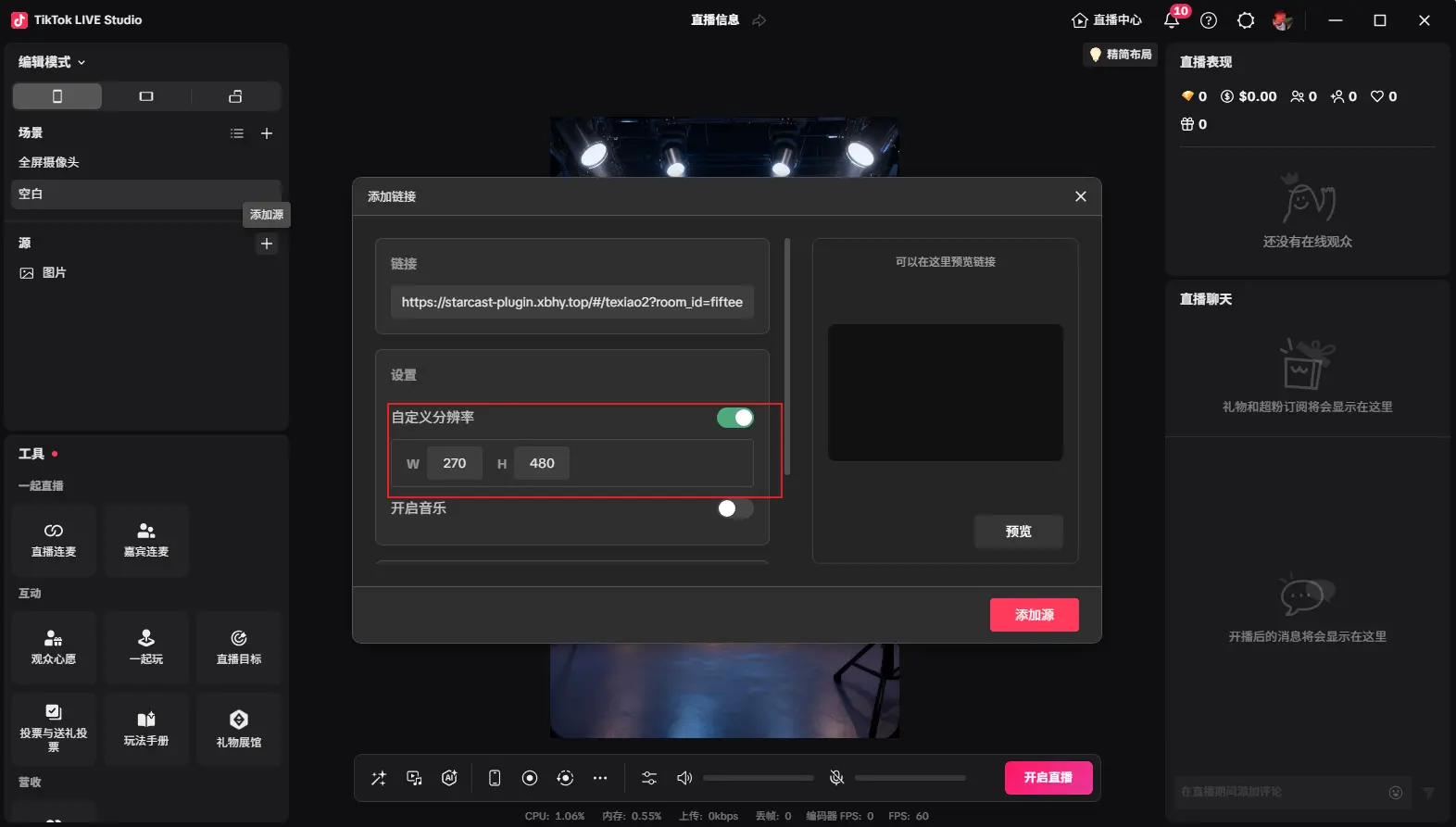
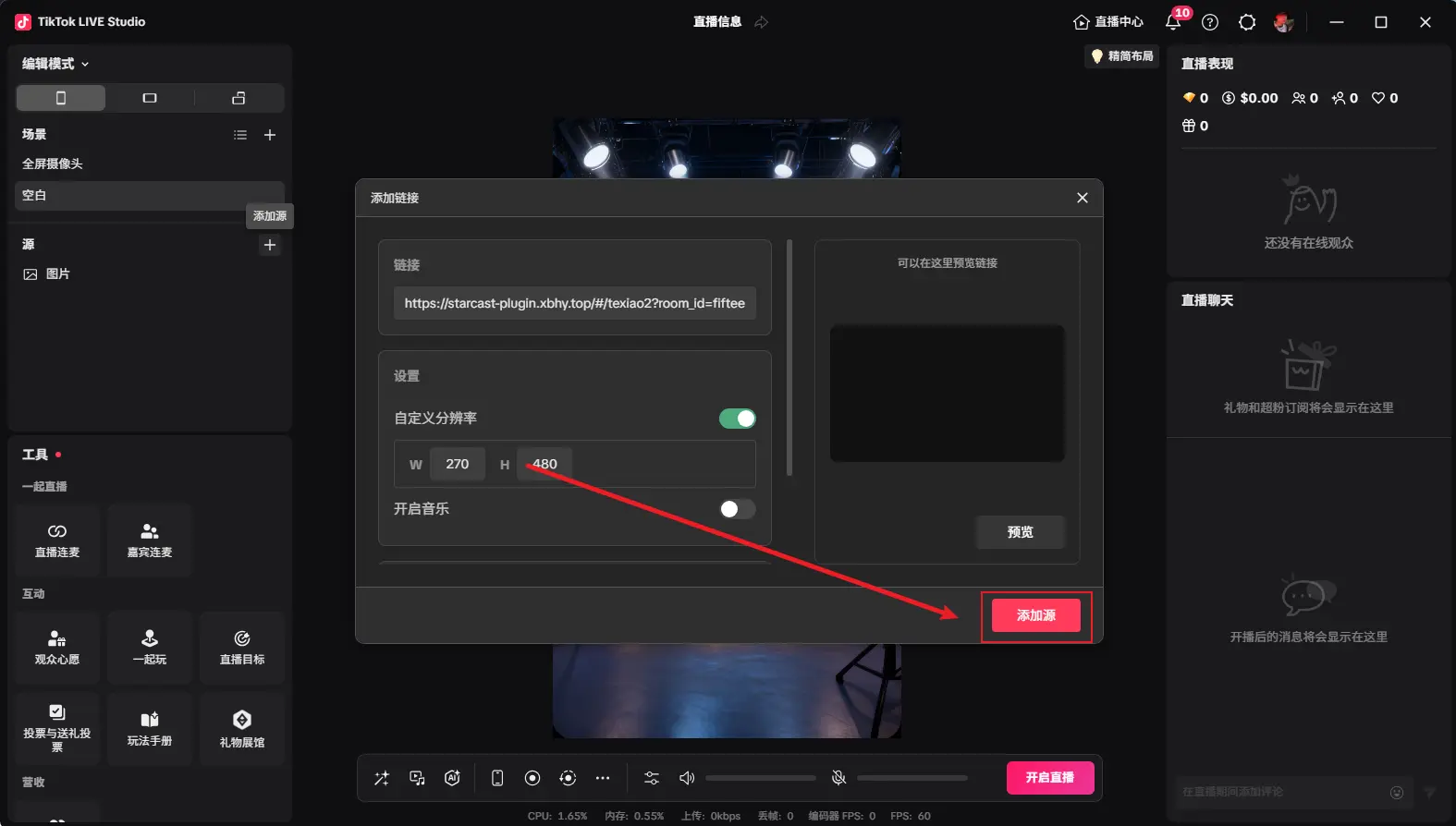
After adding as shown, adjust to desired size, then send the small gift to display (first play might be slow)
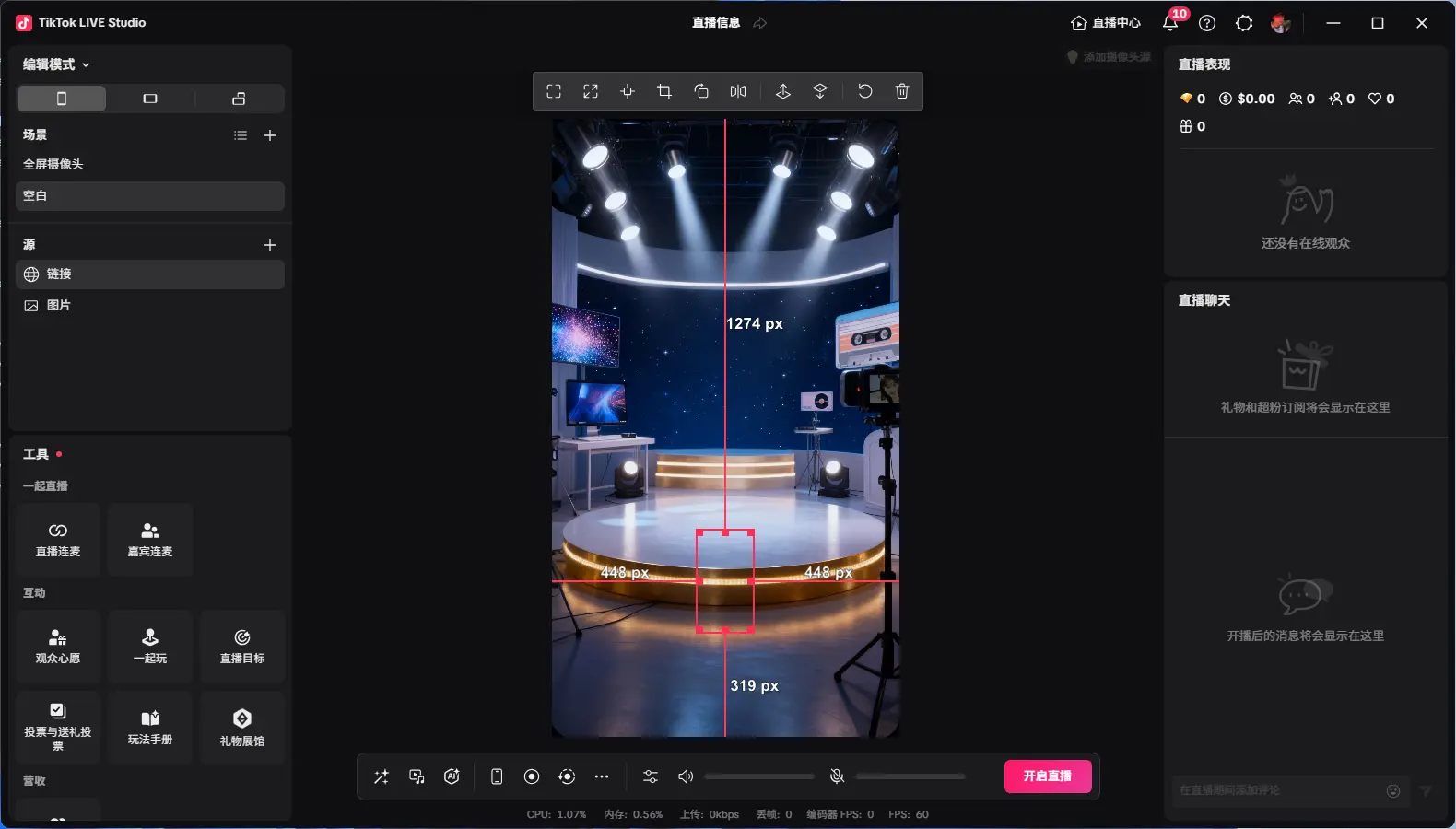
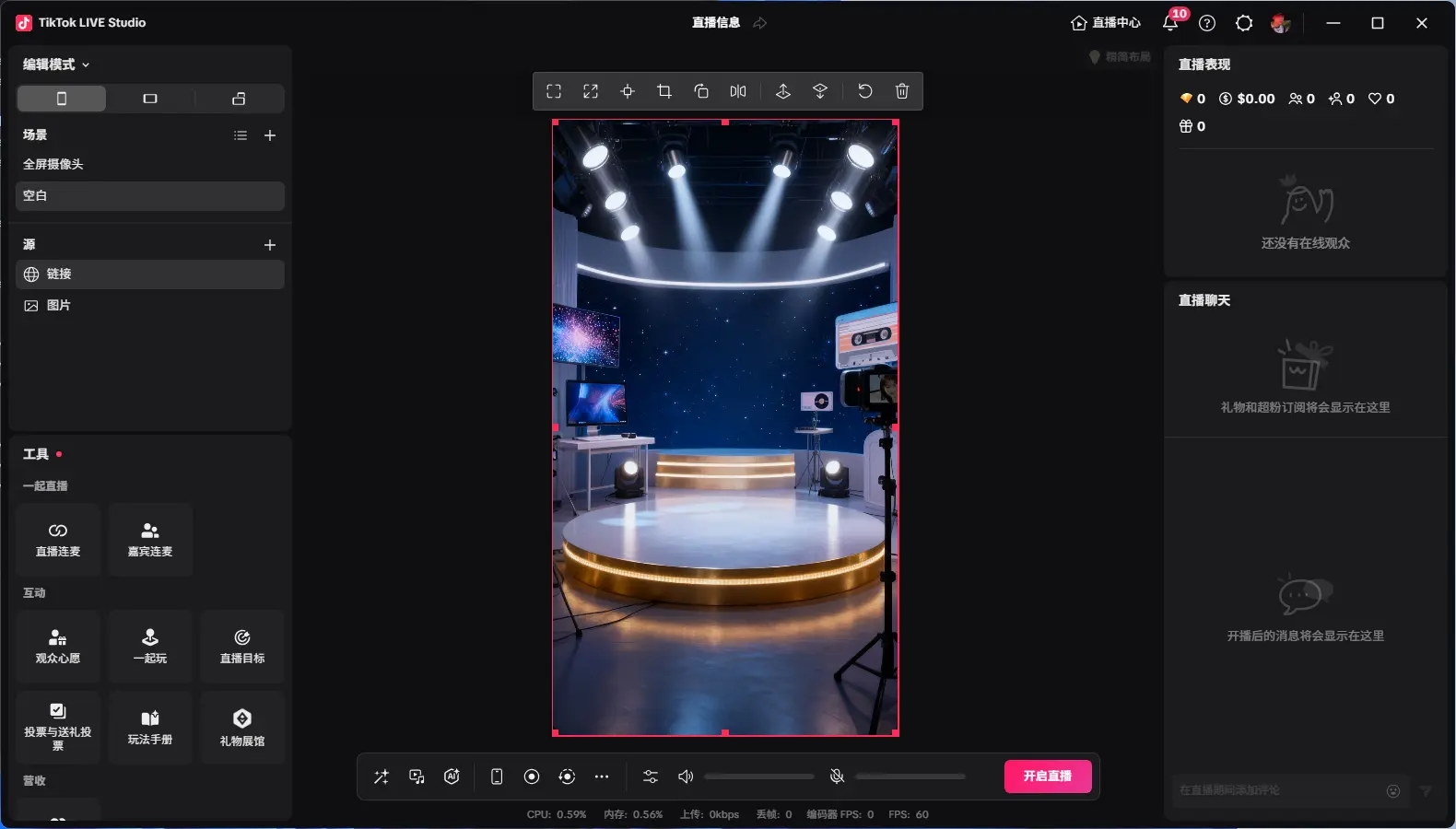
Displaying "Connected" means successfully connected to the live room
Data Report
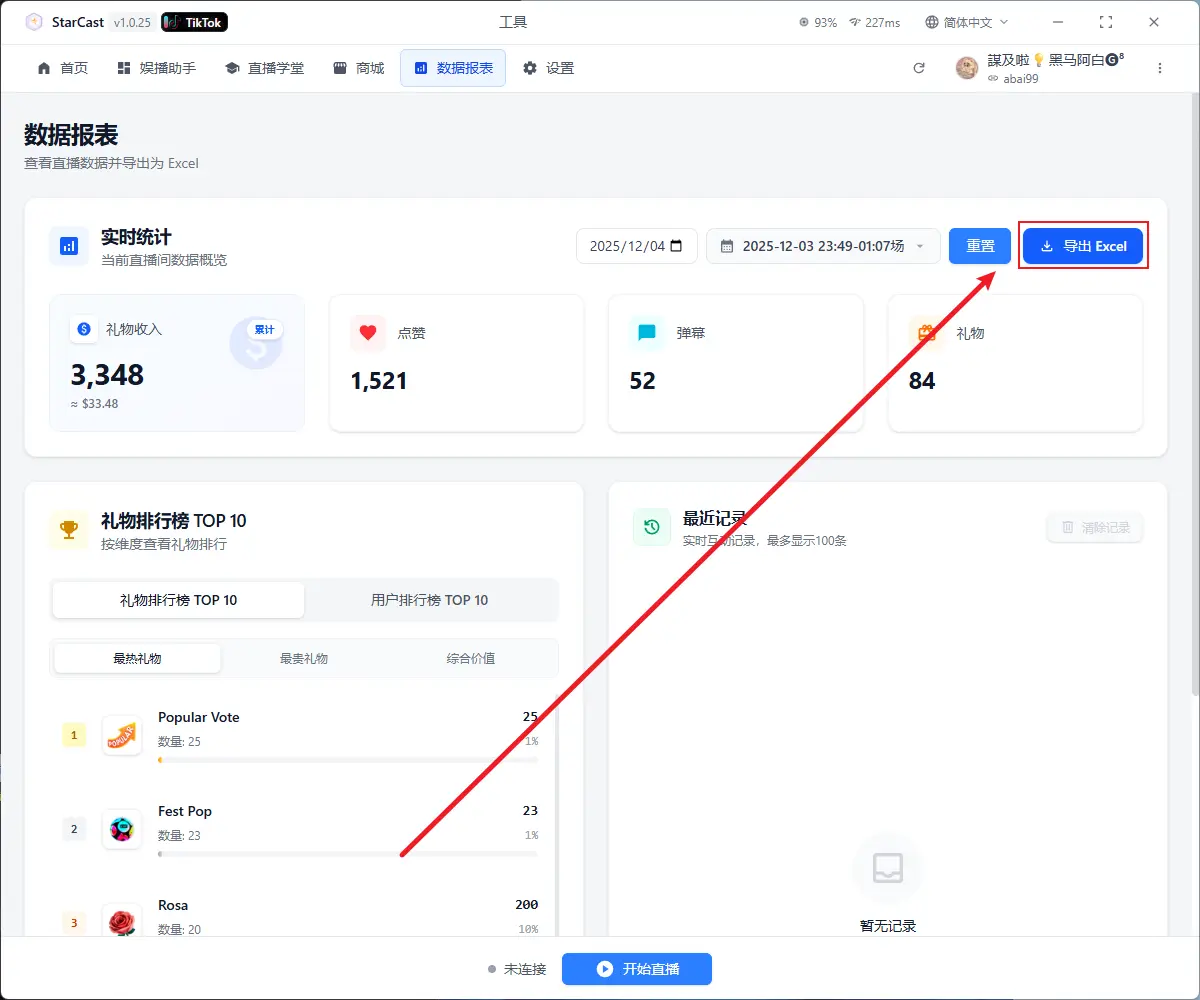
Click this to open a separate window displaying gift data
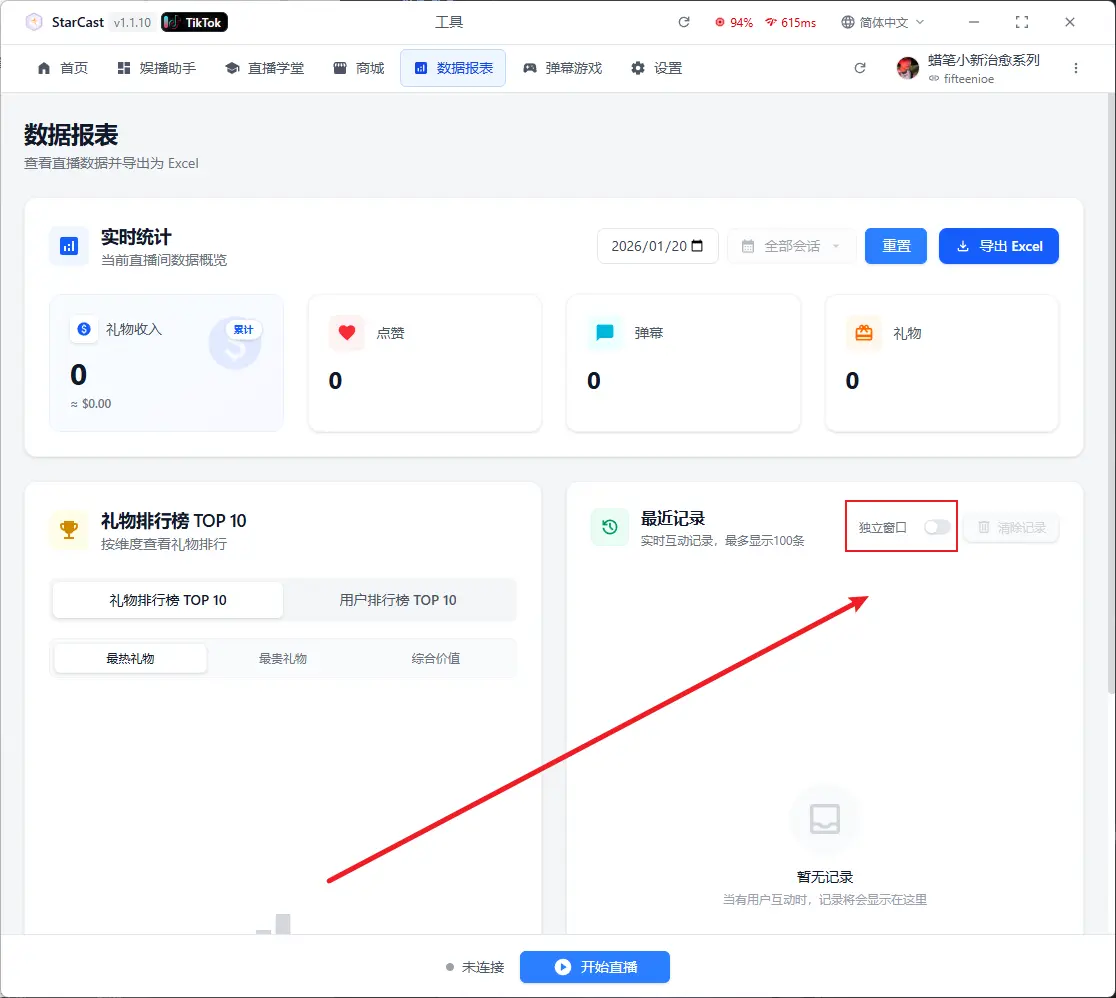
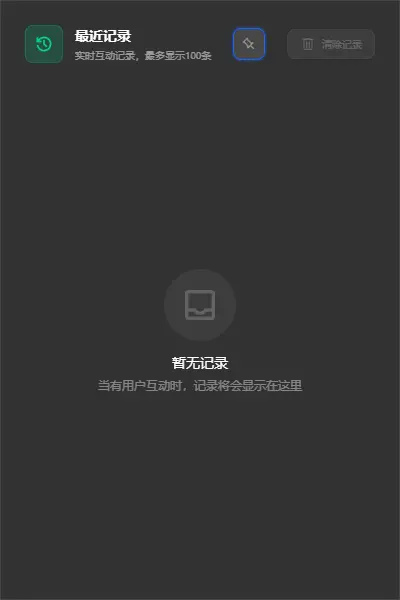
After ending the current live stream, you can export the gift data
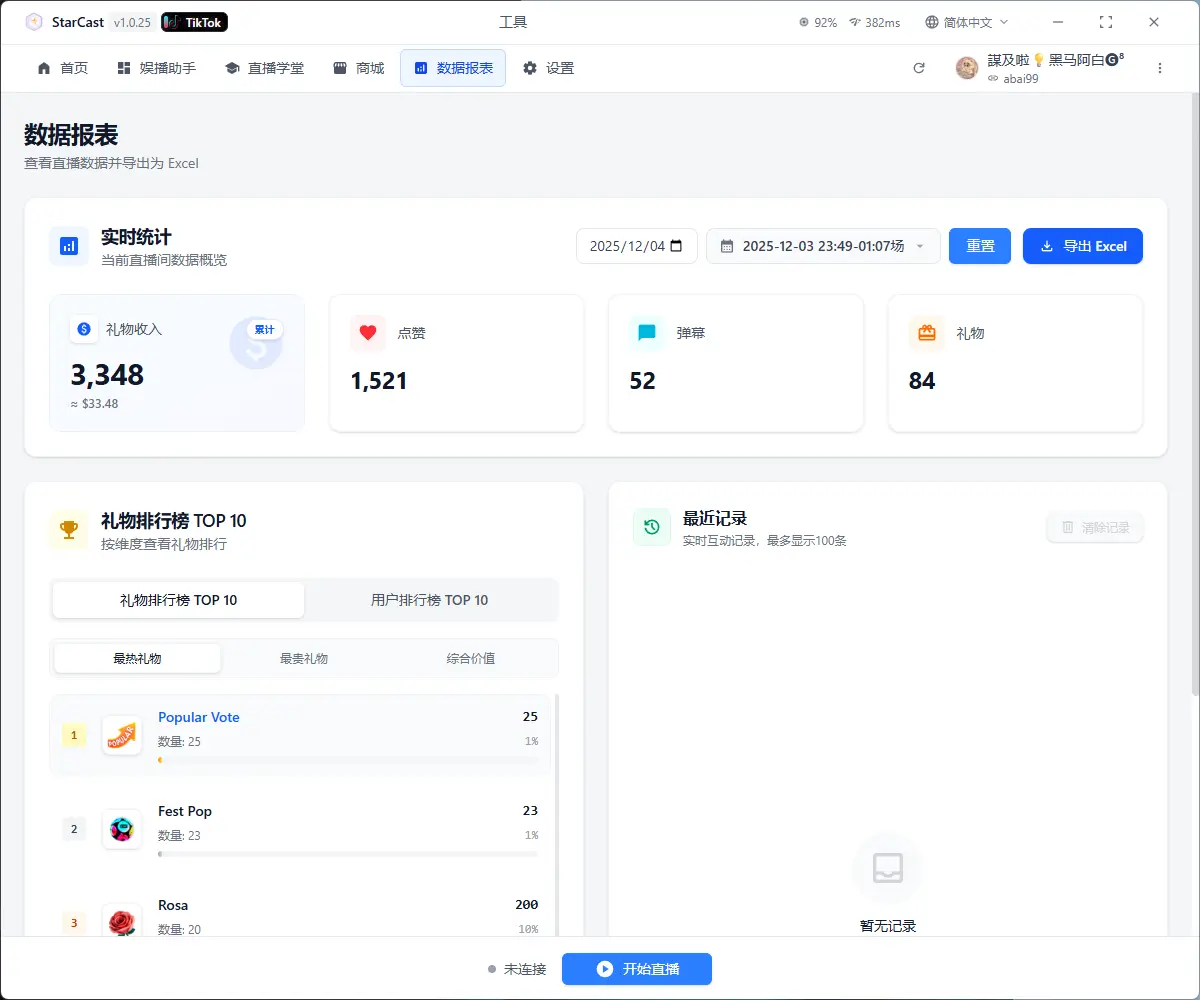
Click "Export Excel"
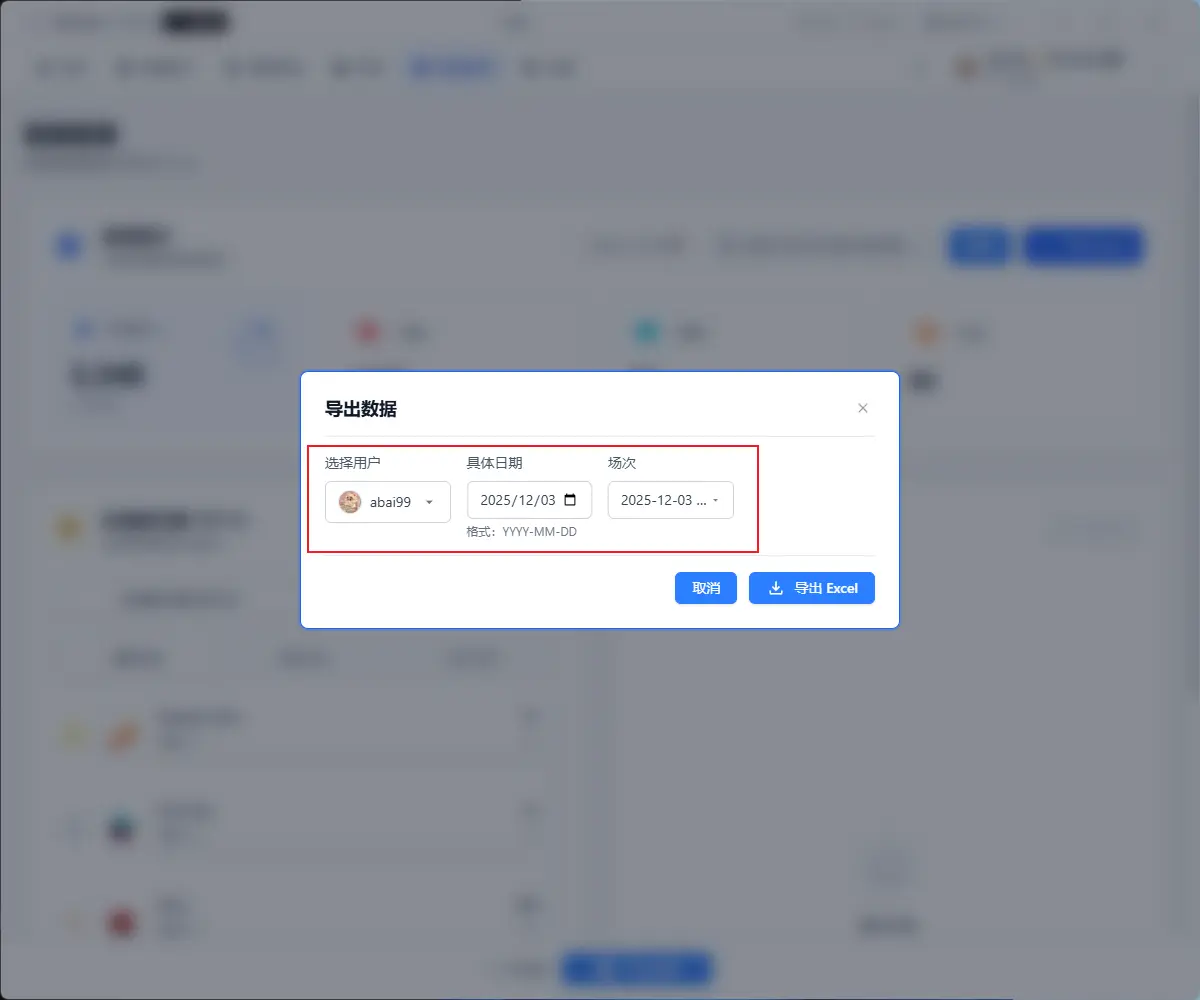
Select users, date, and specific session to export, then click "Export"
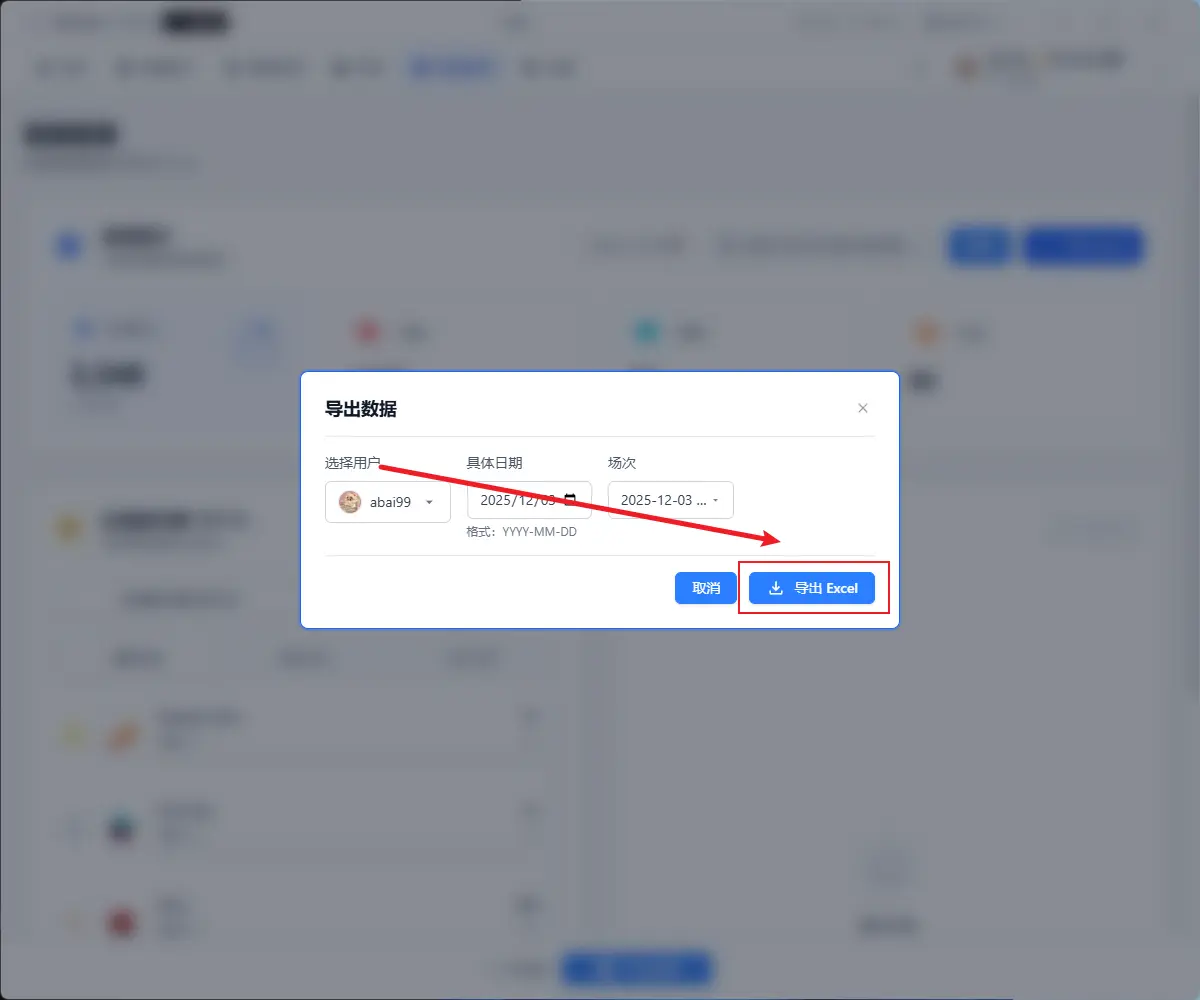
Select save path
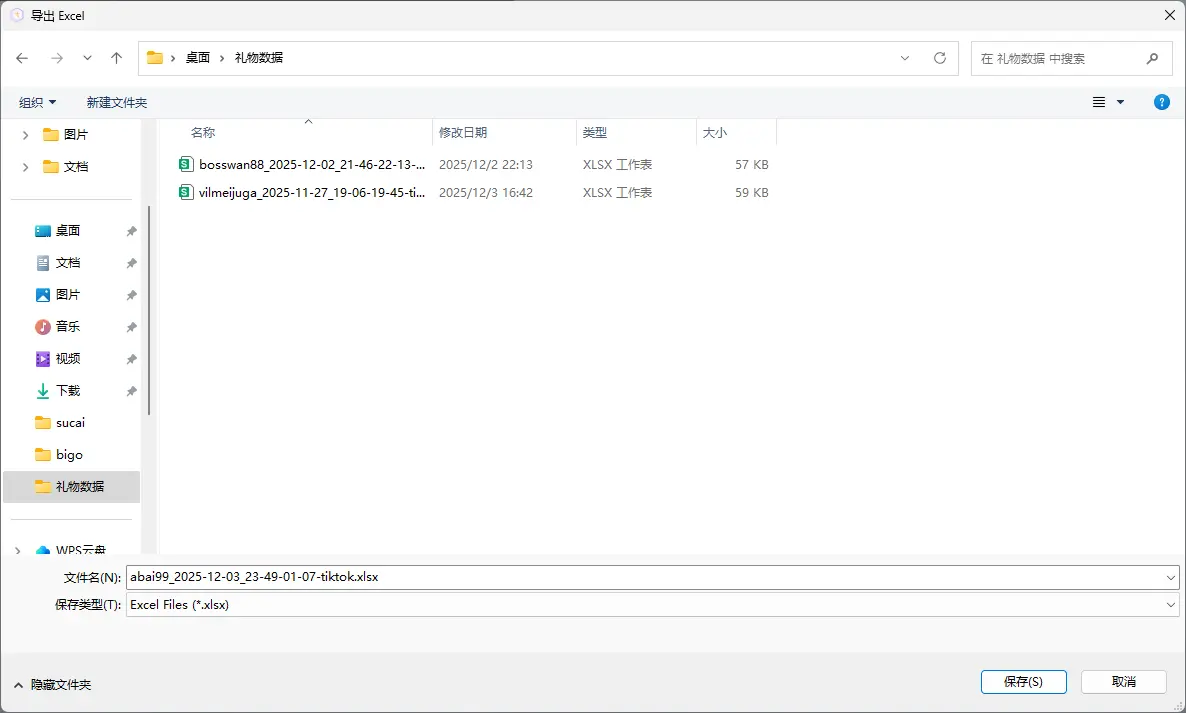
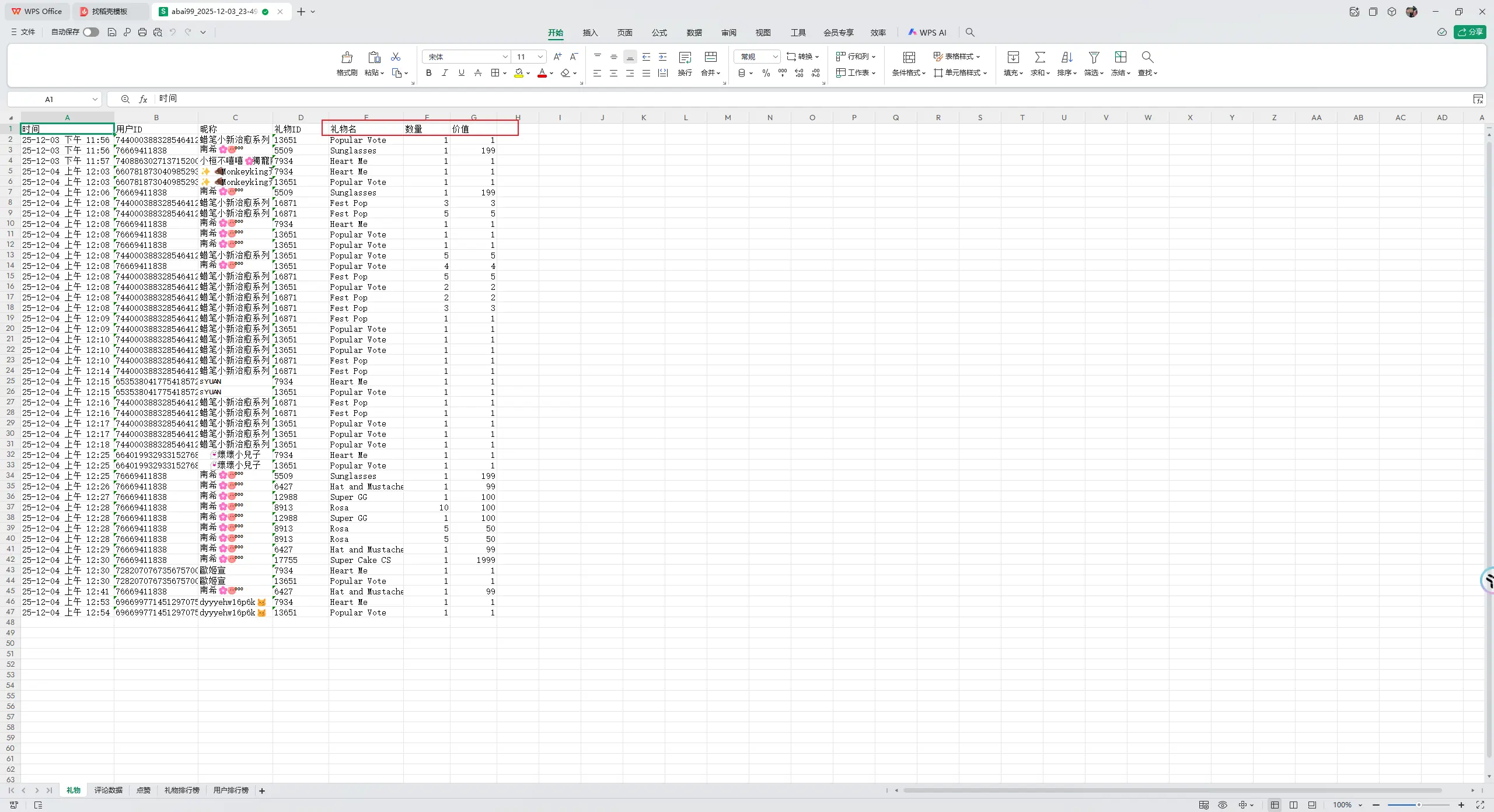
Find the exported Excel file in the saved path, double-click to open, and see gift names and values